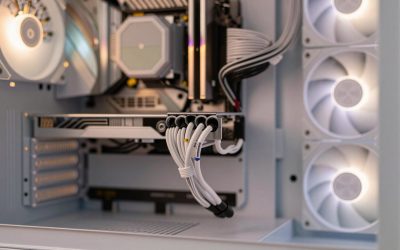
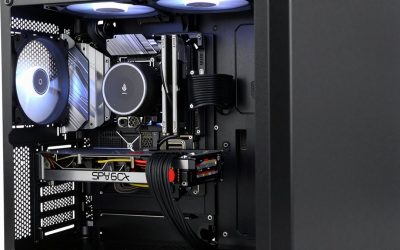
Mounting your graphics card vertically to show off the backplate looks fantastic, but it hinges on one small part: the PCIe riser cable that carries the signal from the motherboard to the reoriented slot. Pick the wrong generation or a poorly shielded cable and you can lose performance or hit instability. Choosing the right riser is mostly about matching the PCIe generation and respecting a few physical limits.
Match the PCIe Generation First
The single most important spec is the riser’s rated PCIe generation. A cable adds length and connectors to a high-speed signal path, and older or cheaper risers cannot reliably carry the faster signaling of newer standards. Using a Gen3 riser with a Gen4 or Gen5 card can force the link to drop speed or throw errors.
| Riser rating | Safe with | Risk if mismatched |
|---|---|---|
| Gen3 | Gen3 cards | Errors/instability on Gen4+ |
| Gen4 | Gen4 and below | May not hold Gen5 x16 |
| Gen5 | Gen5 and below | Best future-proofing |
What Else to Check
Length and routing
Riser cables come in lengths from roughly 150mm to 300mm. Shorter is better for signal integrity, so buy the shortest cable that reaches your mount without a tight bend. Sharp kinks degrade the signal, so plan a gentle curve rather than a hard fold, and make sure the cable does not press against a spinning fan.
Shielding and connector quality
Good risers use proper shielding to resist interference and solid connectors that seat firmly. Cheap unshielded ribbon cables are the usual cause of vertical-mount headaches. If your motherboard offers a BIOS option to force a specific PCIe generation, dropping from Gen5 to Gen4 can sometimes stabilize a marginal cable, but the right fix is buying a riser rated for your card.
Do Not Forget Airflow Clearance
A vertical mount places the GPU fans close to the side panel, especially on tempered-glass cases. If the glass sits within about 20-30mm of the fans, the card can starve for air and run 5-15C hotter than horizontal. Choose a case designed for vertical mounting with adequate side clearance, or one with a ventilated side panel, so the fancy orientation does not cost you thermal headroom.
Testing and Troubleshooting a Riser
After installing a vertical mount, verify the link before you trust it. A monitoring utility will report the negotiated PCIe generation and lane width; you want to see the full x16 at your card’s rated generation under load. If it shows a lower generation, a reduced lane count, or you encounter crashes and artifacts in games, the riser is the prime suspect. First reseat both ends and relax any tight bend, since a sharp fold is the most common cause of signal errors. If problems persist on a Gen5 card with a lesser riser, locking the slot to Gen4 in BIOS often trades a sliver of bandwidth for rock-solid stability while you source a properly rated cable.
Do not let the visual payoff blind you to airflow. A vertically mounted card sits with its fans facing the side panel, and on a tempered-glass case with only 20-30mm of clearance the GPU can starve for air and run 5-15C hotter than it would horizontally. Choose a chassis specifically designed for vertical mounting with generous side clearance, or one offering a ventilated or mesh side panel. Getting generation, routing and clearance all correct is what separates a vertical build that looks great and performs normally from one that looks great but quietly throttles.
FAQ
Will a Gen4 riser work with a Gen5 graphics card?
It may work but is not guaranteed at full Gen5 x16 speed. The card might down-negotiate to Gen4 or show errors under load. For a Gen5 card, a Gen5-rated riser is the safe choice; otherwise be prepared to lock the slot to Gen4 in BIOS.
Does a riser cable reduce GPU performance?
A correctly rated, well-shielded riser of the right generation causes no meaningful performance loss. Problems only appear when the riser is under-rated for the card or forced into a tight bend, which can trigger link errors that hurt performance far more than the cable itself.
Bottom line
Buy a riser rated for your card’s PCIe generation, keep it as short and gently routed as possible, and make sure the vertical mount leaves the GPU fans room to breathe. Get those three things right and a vertical setup looks great without costing you speed or stability. After installing, confirm the negotiated link shows full x16 at your card’s generation before you trust the mount.