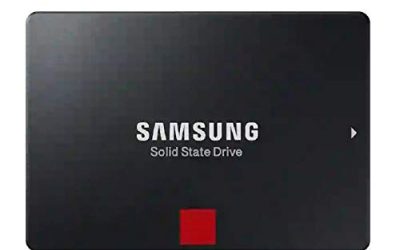
For most gaming PCs in 2026, 1 TB of solid-state storage is the practical minimum and 2 TB is the comfortable target. The exact number depends on how many large games you keep installed at once, whether you also store video captures and creative projects, and how often you are willing to uninstall and redownload titles.
This guide walks through how to size storage for your own habits instead of guessing. It is written for anyone building a new rig, upgrading an aging one, or watching a drive fill up with a handful of huge installs and wondering what to buy next.
Start With Your Library, Not a Number
Storage advice goes wrong when it starts with a capacity and works backward. Start with what you actually play. Open your game launcher, sort installed titles by size, and write down the five you return to most often. Those five are your permanent residents, and everything else is a rotating guest.
Big modern releases can take tens of gigabytes each, and the largest shooters and open-world games can pass one hundred gigabytes once patches and optional texture packs are added. Smaller indie games, strategy titles and older releases are often a few gigabytes. A library built around competitive shooters and a few sprawling single-player epics has a very different footprint from one built around indie and retro games.
Also remember that the operating system, drivers, launchers and everyday apps take a meaningful slice of the drive before a single game is installed. Treat the first chunk of any drive as already spoken for.
Capacity Tiers and What They Realistically Hold
Use the table below as a qualitative starting point. It describes who each tier suits rather than promising exact game counts, because install sizes keep growing with every patch.
| Tier | Fits this player | Main limitation |
|---|---|---|
| 500 GB class | One or two large games plus a few small ones | Fills quickly after major updates; constant uninstalling |
| 1 TB class | A focused rotation of favorites | Little room for captures, mods or a second big release |
| 2 TB class | Most enthusiasts with a varied library | Still needs occasional cleanup if you record footage |
| 4 TB class or more | Large libraries, streamers, creators | Higher cost; often better split across two drives |
Practical Ways to Size Your Drive
Add Up Your Rotation
List the games you expect to have installed at the same time over the next year. Add their current sizes, then add a generous cushion for patches, because updates frequently grow a game well beyond its first install size. Add the operating system and apps on top. That total is your real minimum, and rounding up to the next common capacity gives you breathing room.
Plan for Headroom
Solid-state drives generally behave best when they are not packed to the brim. Leaving a healthy share of the drive empty helps with sustained write behavior and gives updates space to unpack. A good habit is to treat roughly one fifth of the capacity as untouchable so you never hit a full-drive error in the middle of an update.
Separate Fast Storage From Bulk Storage
Not every file needs the fastest drive. A common approach is a fast NVMe drive for the operating system and the games you play weekly, plus a larger, slower drive for older installs, recordings, downloads and archives. This keeps the quick drive uncluttered and often costs less than buying one giant premium drive.
Account for Creator Workloads
Recorded gameplay, high-bitrate streaming captures and editing projects consume space far faster than games do. If you record regularly, give footage its own drive or an external one, and decide upfront how long you keep raw clips.
SSD, NVMe or Hard Drive: Which Role Fits
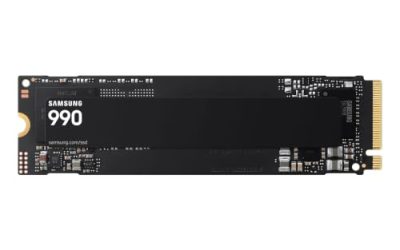
For the drive that holds your operating system and current favorites, solid-state storage is the standard choice. It cuts boot and load times compared with a mechanical drive and makes the whole system feel responsive. NVMe models that plug directly into the motherboard offer higher peak speeds than SATA solid-state drives, but for loading games the practical gap is smaller than the spec sheets suggest.
Mechanical hard drives still make sense for bulk jobs. They hold large amounts of data for less money per gigabyte, so they suit backups, media archives and rarely played titles. They are poorly suited to being the only drive in a modern gaming PC, because many current games expect fast storage and can stutter when streaming assets from a slow disk.
Check your motherboard manual for the number and type of M.2 slots and SATA ports before buying. Some boards share bandwidth between a particular M.2 slot and certain SATA ports, which can disable a port when the slot is filled. Knowing this ahead of time avoids a frustrating surprise during assembly.
Common Sizing Mistakes
- Buying by launch size: a game that installs at one size today may grow considerably after a year of patches and add-ons.
- Ignoring the operating system: the OS, page file and updates quietly claim a large portion of a small drive.
- Filling the drive to the edge: a nearly full drive can slow down and leaves no room for updates to unpack.
- Using a single slow drive for everything: a mechanical drive as the only storage makes load screens and background streaming feel sluggish.
- Forgetting backups: one big drive is also one big point of failure, so plan a separate copy of anything irreplaceable.
Before You Buy Checklist
- List your five most-played games and note their current install sizes.
- Decide how many large games you want installed at once.
- Count the free M.2 slots and SATA ports on your motherboard.
- Confirm which M.2 interface and length your board supports.
- Decide whether recordings and creative files get a separate drive.
- Budget for headroom rather than buying the exact capacity you calculated.
- Look for a manufacturer warranty and a stated endurance rating on solid-state models.
Reading Drive Specs Without Getting Fooled
Once you know the capacity, the spec sheet becomes the next place to slip up. Advertised capacity is measured in decimal units, so a drive sold as 1 TB shows up as a slightly smaller figure in the operating system. That is normal and not a defect, but it is another reason to round up rather than buy the exact number you calculated.
Speed figures deserve skepticism. Peak sequential read numbers describe best-case file copies, not the random small reads a game performs while loading textures. Two drives with very different headline speeds often load the same game in nearly the same time. Spend your budget on capacity and reliable controllers before chasing the last bit of peak speed.
Look at endurance and warranty details instead. Solid-state drives list a total bytes written rating and a warranty period, and both hint at how the manufacturer expects the drive to hold up. Gamers rarely wear out a modern drive through installs alone, but creators who record and edit footage write far more data and should pay closer attention to those figures.
Finally, watch for drives that use a small fast cache and then slow down once it fills. This shows up when you copy a very large folder in one go, such as moving a whole library, and it is the reason some budget drives feel quick in short bursts and sluggish in long transfers. For a gaming system it is usually an annoyance rather than a dealbreaker, but it is worth knowing before you pick the cheapest option in a given capacity.
When two models look similar, favor the one from a maker that publishes clear specifications, lists its controller type and offers a longer warranty. That small bit of transparency tends to correlate with fewer surprises over the life of the drive.
Frequently Asked Questions
Is 500 GB enough for a gaming PC?
It works if you only keep one or two large games installed and are happy to uninstall others regularly. For most players the constant juggling becomes annoying quickly, which is why 1 TB is the more realistic starting point.
Should the operating system and games share a drive?
They can, and many builds do exactly that with a single large solid-state drive. A second drive becomes worthwhile once you want bulk storage for recordings or older installs without paying for premium speed on files that do not need it.
Do games load faster from NVMe than from a SATA SSD?
Both are far quicker than a mechanical drive, and the difference between the two is usually modest in everyday loading. NVMe matters more for large file transfers and for games that stream a lot of data, so treat it as a nice upgrade rather than a requirement.
Can I move games to another drive later?
Most launchers let you relocate an installed game to a different drive or library folder without downloading it again. That makes it easy to start with one drive and add more storage when your library outgrows it.
Related guides
More from Amazon
Programs that pair well with the guide above. Offers and eligibility are set by Amazon and may change.
Free shipping on eligible items, Prime Video and more. Eligible new members can start with a free trial.
Start a Prime free trialAd-free music streaming. Eligible new subscribers can start with a free trial.
Try Music Unlimited freeA Prime membership for ages 18-24 with a trial period. Eligibility is set by Amazon.
See Prime for Young AdultsAudiobooks and podcasts to listen to on the go. Eligible new members can start with a free trial.
Try Audible freeAs an Amazon Associate we earn from qualifying purchases.