The Core i9-14900K is one of the hottest-running mainstream desktop chips of its generation, capable of pulling well past 250W when unleashed. That reputation makes many builders assume a big liquid cooler is mandatory. The truth is more nuanced: a high-end air cooler can handle it, but how you configure the chip decides whether the cooler feels adequate or overwhelmed.
As an Amazon Associate we earn from qualifying purchases at no extra cost to you.
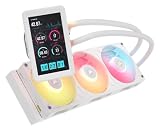

How much heat are we cooling?
Left fully unlocked with a generous power limit, a 14900K can draw 250-320W under an all-core load, and it will happily dump every watt of that into your cooler as it chases maximum boost. Under gaming, which rarely loads all cores, draw is far lower, often 100-160W. The cooling you need depends heavily on which of those workloads you actually run.
Cooler options versus workload
| Cooler class | Gaming (100-160W) | All-core stock (250W+) | Notes |
|---|---|---|---|
| Premium dual-tower air | Excellent | Adequate, throttles near limit | Match a 360mm AIO in games |
| 240mm AIO | Excellent | Warm, may throttle | Fine for gamers |
| 360mm AIO | Excellent | Good, most headroom | Best for heavy multi-core |
| Budget single-tower air | Okay | Overwhelmed | Not recommended |
The key insight: you can tune the heat
The 14900K throttles at around 100C, and near stock power limits it will approach that under a full synthetic load with almost any cooler because the chip is designed to consume whatever thermal budget it is given. A modest power limit or undervolt of even 20-40W barely dents real-world performance yet dramatically lowers temperatures and noise. That means the honest answer to “do I need an AIO” is often “no, if you tune it a little.”
For gamers specifically
If your machine mostly games, a top-tier dual-tower air cooler like the big Noctua and Thermalright flagships keeps a 14900K comfortable, because games do not sustain the punishing all-core loads. Many gamers run one and never see a throttle. The AIO becomes worthwhile mainly if you also do heavy rendering, compiling, or all-core production work.
When an AIO is the better call
Choose a 360mm AIO if you run sustained multi-core workloads, want the lowest possible noise under heavy load, or have a case where a huge air tower does not fit or blocks RAM. The larger radiator gives the most consistent temperatures when the chip is pulling 250W for minutes at a time. For pure gaming, that headroom mostly sits unused.
FAQ
Will a 14900K throttle on a good air cooler?
Under a full all-core stress test near stock power limits, it can brush its 100C throttle point on almost any cooler, air or liquid, because the chip consumes all available thermal headroom. In gaming and mixed use, a premium air cooler keeps it well clear of throttling. A small undervolt removes most stress-test throttling too.
Is a 240mm AIO enough for a 14900K?
For gaming and light productivity, yes, easily. For sustained heavy all-core work it will run warm and may throttle at full power limits, so a 360mm or a power-limit tweak is smarter if you push all cores for long stretches.
Case airflow matters as much as the cooler
Whatever cooler you pick for a 14900K, it can only reject heat into the air your case gives it, and a big air tower or a radiator drowning in warm, stagnant air will disappoint. In a hot case, intake air preheated by the GPU reaches the CPU cooler already warm, shrinking the temperature gap it can work with. Good front-to-back or bottom-to-top airflow with adequate intake keeps the cooler fed with cooler air and can be worth several degrees on its own. This is why two builds with the identical cooler and chip can post very different temperatures. Before spending more on cooling hardware, make sure the case has clean intake, an unobstructed path to the cooler, and enough exhaust to clear the considerable heat a 14900K produces.
Bottom line
You do not strictly need an AIO for a 14900K; a flagship air cooler handles gaming and even much productivity, especially with a light undervolt or power limit that costs almost no real performance. Reach for a 360mm AIO when you run sustained all-core workloads or want the quietest possible full-load acoustics. Match the cooler to your actual workload, not the chip’s scary peak number.