The intpw 9-port powered USB hub is the best overall pick for a gaming PC: it pairs a 10 Gbps upstream link with a 65 W power adapter, mixes USB-A and USB-C ports, and offers two higher-power charging ports for phones and controllers. A USB hub splits one port on your motherboard into several, but every device on it shares that single connection’s bandwidth and power budget, which is why a gaming desk needs a hub that is powered, sensibly sized and kept away from your mouse and headset.
Our Top Picks


Top 3 picks at a glance
Quick List
- ABFCRTTW 4 ft 7-Port USB 3.0 Hub – best for reaching ports from the back of a tower with a long cable
- intpw 9-Port Powered USB Hub, 10 Gbps – best for a mixed USB-A and USB-C desk with charging
- 7-Port RGB USB 3.0 Hub with LED switches – best for lighting-minded builds with a modest device count
- ZIUMIER 10-Port Powered USB Hub with RGB – best for many peripherals and a matching RGB look
- Wenter 11-Port Powered USB Hub – best for a busy desk with one smart-charging port
- AGEEN 16-Port Powered USB 3.2 Hub – best for the biggest device count and 10 Gbps upstream
Which One Is Right for You?
| If you… | Choose |
|---|---|
| want one balanced hub with USB-C and charging ports | intpw 9-Port Powered USB Hub |
| need to reach rear ports or sit the hub on a desk far from the tower | ABFCRTTW 4 ft 7-Port USB 3.0 Hub |
| plug in a dozen or more devices, from drives to wheels and pedals | AGEEN 16-Port Powered USB 3.2 Hub |
| like per-port LED switches to tame the glow at night | Wenter 11-Port Powered USB Hub |
| want a hub that matches an RGB build and has ten ports | ZIUMIER 10-Port Powered USB Hub |
| only need a few extra ports and an RGB accent | 7-Port RGB USB 3.0 Hub |
As a rule, keep your mouse, keyboard and headset on motherboard ports and put everything else on the hub. That way, when a hub shares bandwidth or a cheap controller hiccups, your gameplay devices are not the ones affected.
All 6 Picks in Detail
1. ABFCRTTW 4 ft 7-Port USB 3.0 Hub – Best for Reaching Rear Ports
As an Amazon Associate we earn from qualifying purchases at no extra cost to you.

This aluminum hub gives you seven USB 3.0 ports at 5 Gbps and, more importantly for a tower under a desk, a four-foot cable that lets you place the hub within easy reach. The listing describes it as a hub with a long cable for desktops and laptops. It does not name a power adapter, so treat it as a bus-powered design unless the product page says otherwise; confirm that detail before connecting several power-hungry devices.
- Ports: seven USB 3.0 ports
- Upstream speed: 5 Gbps per the listing
- Cable: about four feet, per the name
- Body: aluminum
- Power adapter: not stated; confirm on listing
Pros
- Long cable puts ports within reach of the desktop surface
- Metal body helps dissipate heat
Cons
- Likely bus-powered, which limits what you can attach
- Seven ports share one 5 Gbps link
On a gaming desk, the cable is the real feature. Rear I/O ports on a tower tucked under the desk are awkward to reach, and a four-foot lead lets you leave a headset dongle, a flash drive or a controller receiver in easy view. Keep the cable routed away from power leads and speaker wires, and plug it into a rear motherboard port rather than a front-panel header, which often has weaker shielding.
Choose it over the powered hubs when cable length matters more than power headroom; pick the intpw if you plan to charge devices.
2. intpw 9-Port Powered USB Hub, 10 Gbps – Best Overall

The intpw unit is a powered hub with a 65 W power adapter, a 10 Gbps upstream link and a port mix that includes USB-A 3.2, USB-C 3.2, two USB-C Power Delivery ports at 45 W and four USB 3.0 ports. That mix is closer to a small dock than a basic hub, and the dedicated adapter means connected devices do not draw all their power from your motherboard. Listing text is truncated, so confirm the full port list and which ports are rated for which speeds on the product page.
- Ports: nine in total, including USB-A 3.2, USB-C 3.2, two PD ports and four USB 3.0
- Upstream speed: 10 Gbps per the listing name
- Power: 65 W adapter included
- Charging: two USB-C Power Delivery ports at 45 W
- Per-port speeds: confirm on listing
Pros
- Powered design and a faster upstream link than 5 Gbps hubs
- USB-C and PD ports cover phones, tablets and handheld consoles
Cons
- Needs a wall outlet and adds a power brick
- PD output is shared with the adapter’s total 65 W budget
The two Power Delivery ports are what set this hub apart from the plain USB-A models: a handheld console, a tablet or a phone can charge from the desk without a separate wall charger. Remember the 65 W adapter feeds everything at once, so two 45 W charging sessions plus several data devices will not all run at full output together. Keep the heaviest charging for off-peak moments, such as while you are away from the desk.
It offers fewer ports than the AGEEN 16-port hub but a better balance of speed and charging for most desks.
3. 7-Port RGB USB 3.0 Hub with LED Switches – Best for RGB Accents

This hub offers seven USB 3.0 ports, an RGB LED strip and individual LED on/off switches for each port, a feature that doubles as a quick way to see what is connected. The listing names no power adapter, speed figure beyond USB 3.0, or maker, so confirm whether it is bus-powered or comes with an adapter. It makes sense for a build that already features lighting, with a handful of low-power peripherals.
- Ports: seven USB 3.0 ports
- Lighting: RGB LED strip with per-port on/off switches
- Compatibility: laptops, desktops and Mac per the listing
- Upstream speed: USB 3.0 class (5 Gbps); confirm on listing
- Power adapter: not stated; confirm on listing
Pros
- Switches let you turn off the lighting of idle ports
- Seven ports cover a typical peripheral set
Cons
- Few specifications named in the listing
- Likely limited charging power
RGB hubs are partly about appearance and partly about visibility. A lit port tells you at a glance whether a device is drawing power, and the individual switches let you darken a port if the glow bothers you in a dim room. Treat the lighting as a bonus rather than a reason to buy, because the electrical design matters more over time than the color effects.
Next to the ZIUMIER hub it has fewer ports and, apparently, no stated power adapter, so it fits lighter use.
4. ZIUMIER 10-Port Powered USB Hub with RGB – Best for Matching RGB Builds
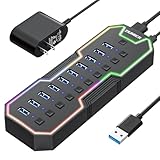
ZIUMIER’s hub carries ten USB 3.0 ports, an RGB LED strip, individual LED on/off switches and a 12 V/2 A power adapter for USB extension. A 24 W adapter is enough for a mixed set of low-power devices, but not for multiple hungry drives and fast chargers at once. This is the right sort of hub for a desk full of keyboards, receivers, flash drives and gamepads that benefits from a visual indicator on each port.
- Ports: ten USB 3.0 ports
- Power: 12 V/2 A adapter (about 24 W)
- Lighting: RGB LED strip with per-port switches
- Upstream speed: USB 3.0 class; confirm on listing
- Platform: PC and Mac per the listing
Pros
- Powered, so devices are not starved by the motherboard
- Many ports with a consistent look
Cons
- Adapter capacity limits fast charging
- Ten ports share one USB 3.0 link
With ten ports on one USB 3.0 link, think of the hub as a shelf for low-bandwidth devices. Keyboards, receivers, controllers, a stream deck and a few flash drives are fine; a pair of external SSDs and a capture card at the same time is where you will feel the shared lane. If you push that kind of load, the 10 Gbps models are the better fit.
It sits between the seven-port RGB hub and the Wenter, with a power brick the former lacks and fewer ports than the latter.
5. Wenter 11-Port Powered USB Hub – Best for Busy Desks

The Wenter hub is described as an 11-port splitter with ten faster data transfer ports and one smart-charging port, plus individual LED on/off switches. Listing text is cut off, so confirm the adapter output, the data speed and whether it ships with a power supply. The smart-charging port is useful for a phone or controller, since it negotiates a charge rate rather than starving data ports.
- Ports: eleven total, ten data and one smart-charging port
- Switches: individual LED on/off per port
- Powered: yes per the listing name; adapter wattage – confirm on listing
- Data speed: described as faster transfer; confirm on listing
- Platform: PC and Mac
Pros
- Plenty of ports with a dedicated charging port
- Per-port switches reduce clutter and glare
Cons
- Details in the listing name are incomplete
- One charging port is limited for several phones
The listing phrase about faster data transfer suggests USB 3.0 class speeds on the data ports, but it does not give a number, so ask whether all ten data ports run at the same speed. Some multi-port hubs mix faster and slower ports. If you plan to run a drive from this hub, plug it into the port the product page labels as the fastest.
Choose it over the ZIUMIER when you want an extra port and a charging socket, and over the AGEEN when you do not need 16 ports.
6. AGEEN 16-Port Powered USB 3.2 Hub – Best for the Largest Setups

The AGEEN hub is the largest here: sixteen ports made of fourteen USB-A and two USB-C, with eleven USB-A 3.0 ports, three quick-charging ports at 24 W and two USB-C 3.0 ports. The listing names an aluminum housing and a 10 Gbps upstream link. It is built for desks with a wheel, pedals, a button box, a capture card, drives and chargers, but all of them share the upstream link, so heavy transfers on one port can slow another.
- Ports: 16 in total, 14 USB-A and 2 USB-C
- Breakdown: 11 USB-A 3.0, 3 QC 24 W charging ports, 2 USB-C 3.0
- Upstream speed: 10 Gbps per the listing name
- Body: aluminum
- Power adapter wattage: confirm on listing
Pros
- Enough ports for the most crowded sim-racing or streaming desk
- Fast-charging ports for phones and tablets
Cons
- All sixteen ports share one connection
- Bulkier and needs outlet space
A 16-port hub changes how you cable a desk. Everything gets one tidy home, which is especially handy for sim-racing rigs where wheel base, pedals, shifter, handbrake and button box each need a port. The caution is power: three quick-charging ports plus a dozen data devices can ask a lot of the adapter, so confirm the adapter output and avoid fast-charging three phones while racing.
It trades the intpw’s balance for sheer count, so it suits owners with devices to match.
Specs Compared
| Product | Ports | Upstream speed | Power | Charging ports | Lighting |
|---|---|---|---|---|---|
| ABFCRTTW 4 ft 7-Port | 7 USB 3.0 | 5 Gbps | Confirm on listing | Confirm on listing | None listed |
| intpw 9-Port Powered | 9 (USB-A 3.2, USB-C 3.2, 2 PD, 4 USB 3.0) | 10 Gbps | 65 W adapter | 2 USB-C PD at 45 W | None listed |
| 7-Port RGB USB 3.0 | 7 USB 3.0 | USB 3.0 class; confirm on listing | Confirm on listing | Confirm on listing | RGB strip, per-port switches |
| ZIUMIER 10-Port | 10 USB 3.0 | USB 3.0 class; confirm on listing | 12 V/2 A adapter | Confirm on listing | RGB strip, per-port switches |
| Wenter 11-Port | 11 (10 data, 1 smart charging) | Confirm on listing | Powered; confirm on listing | 1 smart-charging port | Per-port LED switches |
| AGEEN 16-Port | 16 (14 USB-A, 2 USB-C) | 10 Gbps | Powered; confirm on listing | 3 QC ports at 24 W | None listed |
How We Chose These
The six hubs come from current catalog listings for USB hubs that target gaming and desktop use. We read each listing name, compared it with the specification fields shown by retailers and, where a brand publishes one, the manufacturer’s product page, and ranked them on upstream speed, whether a power adapter is included, the mix of USB-A and USB-C ports and how much of the listing is actually specified. Several listings are truncated or omit wattage, so we say “confirm on listing” instead of guessing. We did not run the hubs ourselves, and nothing here should be read as measured throughput.
What to Look For
Bandwidth is shared, not multiplied
A hub gives you more connectors, not more speed. A 5 Gbps upstream link carries a theoretical 625 MB/s and, in everyday use, roughly 400 to 450 MB/s; a 10 Gbps link roughly doubles that. Every port divides that total. Two external SSDs copying at once will each slow down, and a capture card plus a webcam can contend for the same lane. If something needs steady throughput, give it a motherboard port of its own.
Powered versus bus-powered
A USB 3.0 port provides up to 900 mA at 5 V, about 4.5 W, and USB 2.0 provides 500 mA, 2.5 W. A bus-powered hub splits whatever the one upstream port can deliver, so a few bus-powered drives and a charging phone can exceed it. A powered hub with its own adapter avoids this. Add up your devices: if the total is above about 7 or 8 W, choose a powered model, and size the adapter so it covers the sum with headroom.
Worked example: a wheel base is powered separately, but a headset dongle (0.5 W), a webcam (about 2 W), two flash drives (about 2 W) and a phone fast-charging (10 W or more) already total more than 14 W. A 12 V/2 A adapter delivers about 24 W, which covers that load, while a bus-powered hub cannot.
Keep latency-sensitive gear off the hub
High-polling mice, with rates of 1000 Hz and above, and keyboards depend on consistent timing. Plug them directly into motherboard ports, ideally on the rear panel, which connects straight to the chipset. Hubs add a processing step, and cheap hub controllers may introduce jitter under load. Use the hub for printers, drives, controllers, receivers and chargers.
Check the upstream connector and your motherboard
Look at which upstream connector the hub uses and which free port you have. A USB-C upstream cable needs a USB-C port on the motherboard or a USB-C adapter, while a USB-A upstream cable needs a spare rear port with the right speed. A 10 Gbps hub plugged into a 5 Gbps motherboard port will only run at 5 Gbps, so check your board’s manual for the speed label of each port. Rear-panel ports are connected directly to the chipset or processor, and they are the best place for the hub’s uplink.
How many ports do you really need?
List every device you want on the hub, then add two ports of spare room. A typical gaming desk has a headset or dongle, a webcam, a controller, an external drive, a microphone and a charging cable, which is six or seven connections. A sim-racing or streaming setup can exceed twelve. Buying more ports than you need tends to mean a larger hub, more heat and a higher chance that many devices compete for the same link, so match the size to the list rather than buying the biggest option.
Cable length, connectors and heat
A short upstream cable keeps the signal clean, but a long one makes the hub easier to reach, so choose a well-shielded cable if you opt for length. USB-C is reversible, but check whether the upstream plug is USB-C or USB-A. Aluminum housings shed heat better than plastic, which helps a fully loaded hub run cool. Finally, per-port LED switches and RGB strips are useful at night, since a hub’s constant blue glow near a monitor can be distracting.
Questions
Will a USB hub slow down my mouse or keyboard?
It can, mostly through added latency or shared bandwidth, though many people never notice. Plug your mouse and keyboard into motherboard ports and use the hub for everything else.
Do I need a powered hub?
Choose a powered hub if you will attach external drives, chargers or several devices at once. A bus-powered hub is fine for a keyboard dongle, a flash drive or two and similar light devices.
Is 10 Gbps worth it over 5 Gbps?
It matters mainly for fast external SSDs and busy hubs. For controllers, headsets and receivers, 5 Gbps is more than enough.
Can I plug a hub into another hub?
You can, but it often causes problems with power and bandwidth. Avoid daisy-chaining and use a larger hub if you need more ports.
Is it safe to leave a hub plugged in all the time?
Generally yes, if it has its own adapter from a reputable source and is kept ventilated. Unplug it during storms or when traveling, and replace any adapter that runs hot.
Why does my external drive disconnect on a hub?
Usually because the hub cannot deliver enough power or the cable is poor. Try a powered hub, a shorter cable or a direct motherboard port.
Update History
- October 20, 2026 – Initial publication; product set drawn from current catalog listings.
- Check the product page for current specifications and availability before buying.
Sources
- Retailer listing titles and specification fields for all six products
- Manufacturer product pages, where the brand publishes one, for hub brands named in the listings