
A quiet media PC lives or dies by its fan curve. The goal is not silence at all costs — it is a machine that stays inaudible during movie playback and streaming, then only briefly spins up when you game or transcode. Most media PCs spend 95% of their time at near-idle loads, where a poorly configured fan curve wastes acoustic headroom: fans running at 40% when 20% would keep temperatures safe. Getting this right matters more in 2026 than ever because modern APUs and GPUs idle extremely cool, meaning slow fan ramps are almost always the correct default.
This guide covers what to prioritize, a table of recommended values you can apply immediately, per-setting trade-offs, tier-specific configurations, and the mistakes that make people’s builds louder than they need to be. All instructions use the standard BIOS/UEFI naming found on ASUS, MSI, Gigabyte, and ASRock boards — exact menu labels vary slightly, but the structure is consistent.
As an Amazon Associate we earn from qualifying purchases at no extra cost to you.

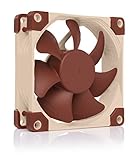

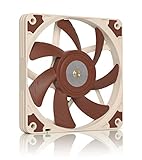
Our Top Picks
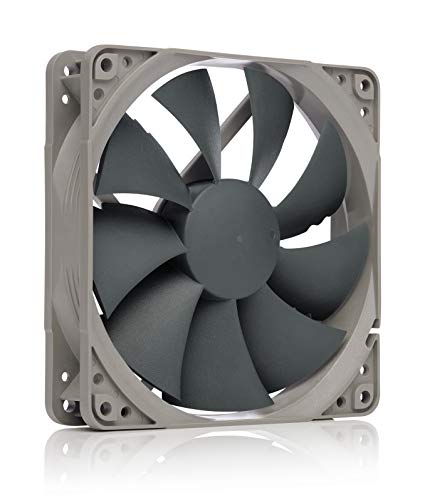


Top 3 picks at a glance
Quick Recommended Settings
Apply these first, then tune per the detailed sections below.
| Setting | Recommended value | Why |
|---|---|---|
| CPU fan mode | PWM (DC only if your fan is 3-pin) | PWM allows precise low-speed control; DC fans often stall below 5V |
| CPU fan minimum duty | 15–20% | Keeps air moving at idle without audible whoosh; below 15% many fans stall |
| CPU fan temp source | CPU (Package) temperature | Most responsive to real load; avoids lag from socket sensors |
| CPU fan curve below 60°C | Flat at 15–20% | Flat curves eliminate the constant ramping that ruins movie dialogue |
| Chassis fan minimum duty | 10–15% | Case fans matter less acoustically but should not be fully off |
| Fan stop / Zero RPM | Enabled (CPU and GPU) | True silence below ~55°C on modern hardware |
| GPU fan mode | Custom curve via Adrenalin/NVIDIA app; 0% below 50°C | Default GPU curves are aggressive and audible during light desktop use |
| Hysteresis / ramp delay | 3–5 seconds (or 2–3°C) | Prevents the up-down-up fan flutter caused by momentary spikes |
| Step-up rate | Slowest available | Gradual ramps are far less noticeable than fast ones |
| Pump (AIO) speed | Fixed 60–80% | Pumps are quiet at fixed speeds; varying them adds vibration noise |
Setting-by-Setting
CPU Fan Mode: PWM vs DC
Exact value: PWM. Navigate to BIOS → Q-Fan Control (ASUS), Smart Fan Mode (MSI), Smart Fan 6 (Gigabyte), or Fan-Tastic Tuning (ASRock), and set the header type to PWM for every 4-pin fan. Use DC only for 3-pin fans.
Trade-off: PWM gives smooth control down to very low duty cycles, but a DC-controlled 4-pin fan can stall or tick at low voltage. If a 3-pin fan stutters at 12% DC duty, raise its floor to 25% or swap it for a PWM model.
CPU Fan Curve: Flat Below 60°C
Exact value: Set the curve flat — e.g., 40°C → 20%, 50°C → 20%, 60°C → 20%, then ramp: 70°C → 45%, 80°C → 65%, 90°C → 85%. In most UEFI fan editors, click the point at 40–60°C and drag all three to the same percentage.
Trade-off: A flat curve means the fan ignores trivial load spikes (background indexing, codec decoding) that push CPU temps up 5–8°C briefly. The cost is that sustained temps under light load may sit 5–10°C higher than an aggressive curve would allow — completely safe, but visible in monitoring software. If your cooler is a stock unit struggling with a 65W+ CPU, raise the 60°C point to 30% instead of 20%.
Fan Stop / Zero RPM
Exact value: Enable “Fan Stop” (ASUS/Gigabyte) or set “Stop” below a temperature threshold (MSI allows setting a stop temp per header, typically 40–60°C). On the GPU side, both AMD Adrenalin (Performance → Tuning → Fans) and the NVIDIA app let you define a custom curve starting at 0% below 50°C.
Trade-off: Zero RPM gives genuine silence during media playback but means zero airflow while fans are off. In compact HTPC cases with restricted intake, heat soaks and the fans then blast to catch up — worse acoustically than a constant 15% hum. If you see temperature swings over 15°C at idle, disable fan stop on chassis headers and use a 10% floor instead.
Hysteresis and Ramp Rate
Exact value: In BIOS, look for “Fan Step Up Time” and “Fan Step Down Time” (ASUS names) or “Fan spin up/down duration” — set both to the maximum available, typically 3–5 seconds. Where temperature hysteresis is offered, set 3°C.
Trade-off: Long delays let fans coast through short spikes, but they also slow the response to a genuine cooling need — temps can overshoot by 5°C on a sudden all-core burst. For a media PC this is the right trade; for heavy gaming sessions you would tighten it to 1–2 seconds.
AIO Pump Speed
Exact value: Fixed 60–80% (not a curve). Set the pump header (CPU_F or AIO_PUMP) to “Manual/Fixed” mode at 75%. Pumps are designed to run at constant speed; their noise is mostly vibration, which varies with RPM.
Trade-off: Fixed pump speed eliminates RPM-induced vibration changes but wastes a small amount of pumping capacity at idle. Running a pump below ~50% can degrade cold-plate contact flow enough to matter under sustained load, so do not “quiet” the pump itself.
Windows Power Plan
Exact value: Control Panel → Power Options → set plan to “Balanced,” then in the modern Settings app → System → Power, set Power Mode to “Best power efficiency” when watching media. On Intel, this enables lower package power limits at idle; on AMD, it biases toward the efficient boost behavior.
Trade-off: Efficiency mode caps short-burst clocks slightly, which is irrelevant for video decode but noticeable in game load times. Leave it on Balanced for gaming sessions.
By Hardware Tier
Low-End: 35–65W CPU, No Discrete GPU
Passively or lightly cooled small boards (think N100-class mini PCs and ITX builds with stock coolers) often have minimal fan control — some expose only a “Smart Fan” toggle. Set the CPU floor at 25% rather than 15%, since small-diameter fans (80mm and below) need higher RPM to move meaningful air and stall more easily. Enable any available fan-stop function. If the BIOS offers only High/Medium/Low presets, choose Low and verify with HWiNFO64 (Sensors panel) that package temperature stays under 75°C during a two-hour film. These systems are often acoustically fine at stock; the bigger wins come from the Windows power plan and ensuring the case’s dust filters are clean, since a clogged filter can double required fan speed.
Mid-Range: 65–105W CPU, Single Midrange GPU
This is the sweet spot for the table above. Set the CPU curve flat at 20% through 60°C, chassis fans flat at 15% through 45°C, and a custom GPU curve of 0% below 50°C, 30% at 60°C, 50% at 70°C, 75% at 80°C. Prioritize intake fan airflow over exhaust — a slight positive pressure also reduces dust on the GPU fans, which keeps them quieter over time. If the GPU is vertically mounted or shrouded closely, raise its 60°C point to 40%.
High-End: 105W+ CPU, High-End GPU
Higher heat density means a purely flat curve risks audible blast-offs when a game launches. Use a two-stage curve: flat 20% up to 55°C, then a smooth ramp to 40% at 65°C, 60% at 75°C, 85% at 85°C. Enable the slowest ramp rate available. Undervolting pairs naturally with quiet settings here: a CPU undervolt via BIOS (AMD Curve Optimizer, negative offsets starting at 10–15 per core; Intel via a modest adaptive voltage offset) reduces heat output directly, letting the whole fan curve shift down 5–10%. Test stability with your usual stress routine after any undervolt before trusting it in a living-room session.
Common Mistakes
Mistake 1: Aggressive curve steps that cause fan flutter.
What causes it: default BIOS curves often jump 10–20% per step, and short CPU spikes trigger rapid up-down cycling — the single most common source of “my PC is loud while watching YouTube” complaints. How to check: watch fan RPM in HWiNFO64 while playing video; if RPM swings more than 200 RPM repeatedly, this is your problem. What to do: flatten the sub-60°C portion of the curve to a single duty value and max out step-up/step-down times. How to undo: restore the default curve in the BIOS fan editor (usually a “Default” or “Auto” button in the fan tuning screen).
Mistake 2: Fan stop enabled on every header in a restrictive case.
What causes it: zero-RPM settings plus a small case with filtered, obstructed intakes let heat soak build until all fans ramp hard. How to check: log temperatures for an evening of normal use; idle temps creeping from 45°C to 65°C over 30 minutes indicate heat soak. What to do: replace fan stop with a 10–15% floor on chassis headers, or improve intake by removing an obstruction. How to undo: re-enable fan stop if you relocate the case to an open shelf with clear airflow.
Mistake 3: Controlling case fans from the CPU sensor.
What causes it: the default temp source for CHA_FAN headers is often the CPU, so case fans react to CPU spikes even when chassis air temperature never changed. How to check: in the BIOS fan editor, look at which temperature each header references. What to do: switch chassis fans to a motherboard/system temperature source (labeled “Motherboard,” “System 1,” or “PCH”) so they respond to case air, not CPU load. How to undo: set the source back to CPU if the case becomes the primary heat exhaust path in a different layout.
Mistake 4: Quieting the pump instead of the fans.
What causes it: misidentifying pump vibration or Cavitation noise as fan noise, then throttling the pump header down to 20–30%, which raises CPU temps and forces fans higher. How to check: touch the radiator and tubing — hot tubing with low pump RPM confirms insufficient flow. What to do: set the pump to a fixed 60–80% and take the acoustic savings from the fans instead. How to undo: return the pump header to Auto/PWM mode.
FAQ
Is it safe to run fans at 15–20% all the time?
Yes, provided temperatures stay reasonable. Modern CPUs throttle protectively long before damage occurs, and sustained temperatures in the 70s°C under load are within spec. Verify with a monitoring session after applying your curve: package temps should plateau rather than climb during a long film. The main risk is not damage but stalling — if a fan audibly ticks or fails to spin at your floor value, raise the floor by 5%.
Should I use the motherboard’s automatic fan tuning feature?
Auto-tuning (Q-Fan Auto Tuning, Smart Fan calibration) measures each fan’s minimum RPM and builds a sensible curve — it is a good starting point, but it optimizes for cooling margin, not silence. Run auto-tuning once, then flatten the resulting curve below 60°C and lengthen the ramp times manually. Do not stack auto-tuning with fan stop on all headers in a closed cabinet.
Do I need extra software like FanControl on top of BIOS settings?
Not necessarily. BIOS curves are reliable, apply before Windows boots, and survive reinstalls. FanControl (free, Windows) is worth adding if you want mixed temp sources, per-application profiles that switch curves when your media player launches, or fan control for GPU-side fans tied to CPU temps. If you use it, set a BIOS fallback curve that is safe on its own, since software control only applies once Windows is running.
How do I know which fan is actually making noise?
Stop each fan briefly by hand (with a fingertip on the center hub, not the blades) while the system is audible, or unplug headers one at a time with the machine powered off. Alternatively, watch per-header RPM in HWiNFO64 while listening — the fan whose RPM changes in sync with the noise is your culprit. GPUs complicate this since their fans are not on a motherboard header; use a custom GPU curve set to 0% temporarily to isolate whether the noise is GPU or case fans.









