
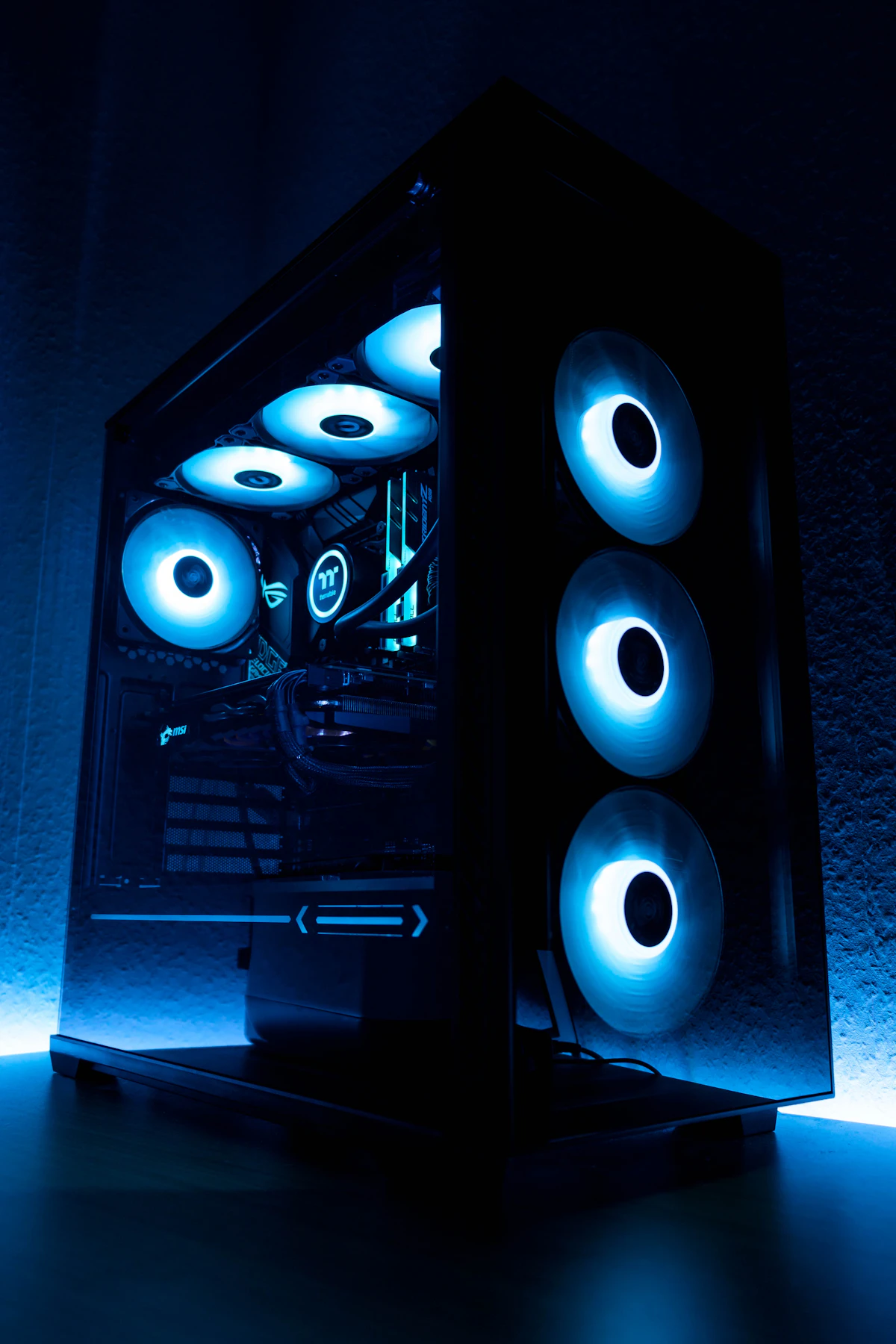
When you boot up your custom PC, seeing your case fans spin up to cool your hardware while their integrated LEDs remain completely dark is a frustrating scenario. This specific failure mode means your cooling loop or airflow system is physically functional—the 4-pin PWM motor circuits are receiving power—but the secondary illumination circuit responsible for powering the light-emitting diodes has encountered an electrical, logical, or software bridge fault. Understanding how to execute a systematic pc fan rgb lights not turning on fix will help you isolate whether the issue stems from an inactive software service, an unpowered controller hub, or a physically loose header pin.
While unlit fan LEDs will not cause immediate thermal throttling or mechanical hardware failure, treating this symptom promptly is important. In modern PC builds, non-responsive RGB lighting often points to underlying system issues such as misconfigured BIOS power states, overloaded motherboard headers, or electrical shorts inside addressable RGB (ARGB) daisy chains. Addressing the root cause prevents potential damage to motherboard trace lines, avoids USB controller driver freezes, and ensures your lighting control software functions smoothly.
As an Amazon Associate we earn from qualifying purchases at no extra cost to you.


Our Top Picks


Likely Causes
| Cause | How to confirm | Fix difficulty |
|---|---|---|
| Software Service Conflict or Muted Lighting Profile | Fans spin normally; lighting software (iCUE, SignalRGB, Armoury Crate) shows devices detached or brightness at 0%. | Easy |
| Disabled Onboard LED Power in BIOS/UEFI | RGB lights remain unlit during initial system cold boot and POST, regardless of OS state. | Easy |
| Loose or Disconnected 3-Pin / 4-Pin RGB Motherboard Header | Header connector on the motherboard PCB is resting loose, tilted, or unplugged from the header pins. | Easy |
| Unpowered SATA/Molex Cable on Central ARGB Controller Hub | All fans connected to an external hub spin via PWM, but every LED attached to the hub stays dark. | Moderate |
| Broken Data Line in ARGB Daisy-Chain Sequence | First fan in a series lights up partially, but subsequent down-line connected fans stay unlit. | Moderate |
| Corrupted USB Controller Driver or Port Initialization Failure | Device Manager reports a yellow exclamation point under Universal Serial Bus controllers or HID devices. | Moderate |
Fix 1: Toggle RGB Control Software and Resolve Service Conflicts
What causes it
Modern gaming PCs frequently run multiple background services to manage peripherals, motherboards, and cooling hubs. When conflicting programs—such as ASUS Armoury Crate, Corsair iCUE, MSI Center, and SignalRGB—compete for access to the SMBus or internal USB endpoint, the background lighting service can crash. This leaves the ARGB controller without instructions, causing the LEDs to default to an unpowered off state.
How to check
Press Ctrl + Shift + Esc to open Task Manager. Click on the Services tab and scan for LightingService.exe, iCUE Service, or L-Connect Service. Check if their status reads Stopped or if CPU usage sits perpetually at 0.0% while the app interface fails to recognize your fans.
What to do
Open your primary lighting control software (for example, SignalRGB). Navigate to Settings > Windows Startup and ensure Start on Boot is toggled on. Next, click on Devices, select your main motherboard or controller icon, and check the global brightness slider to confirm it is set to 100%.
If running Corsair iCUE, open the software, click on your controller hub (such as the Commander Core XT), select Lighting Setup, and click Run Wizard or manually set the device type to 8-LED Fan Series or LL/QL Series depending on your model. If utilizing motherboard headers directly via ASUS Armoury Crate, open the application, navigate to Device > System > Aura Sync, click Sync Devices, and verify that the box next to Header 1 / Header 2 is actively checked.
How to undo it
To revert software alterations, open your lighting app’s settings menu, locate the Reset to Defaults button, click it, and restart your computer to reload default operating system lighting profiles.
Fix 2: Enable Onboard RGB LED Power in Motherboard BIOS/UEFI
What causes it
Motherboard firmware features power-saving profiles (such as ErP/EuP states) and global lighting toggles designed to disable decorative LEDs. If the BIOS setting for onboard lighting is set to “Stealth Mode” or “Disabled,” the motherboard will cut off the 5V or 12V power supply to the onboard RGB headers regardless of Windows software settings.
How to check
Restart your computer and watch the fans during startup. If the RGB lights do not illuminate for even a fraction of a second during the initial power-on self-test (POST) sequence, the hardware headers are likely disabled at the BIOS level.
What to do
Reboot your PC and tap the Delete key or F2 key repeatedly during the splash screen to enter the BIOS configuration utility. Switch to Advanced Mode by pressing F7.
Navigate to the following path depending on your motherboard brand:
- ASUS: Go to
Advanced > Onboard Devices Configuration > LED Lighting. Change When system is in working state from Stealth Mode or Disabled to All On or Aura Only. - MSI: Go to
Settings > Advanced > Power Management Setup, or look for the physical EZ LED Control switch directly on the motherboard PCB and ensure it is set to the ON position. - Gigabyte/AORUS: Navigate to
Settings > Miscellaneous > LEDs in System Power On Stateand toggle the option to On. - ASRock: Navigate to
Advanced > Chipset Configuration, scroll down to Onboard LED, and switch it from Disabled to Enabled.
Press F10 on your keyboard, select Save Changes and Reset, and hit Enter to reboot into Windows.
How to undo it
Re-enter the BIOS using Delete or F2, navigate back to the same menu path, toggle the LED state setting back to Stealth Mode or Disabled, press F10, and confirm to save.
Fix 3: Reseat Motherboard 3-Pin (5V) or 4-Pin (12V) Cable Connections
What causes it
Addressable RGB headers rely on physical friction to maintain contact across their pins. Because standard 3-pin 5V ARGB connectors lack locking retention clips, subtle cable tension behind the motherboard tray can cause the plug to slide off the header pins, severing the ground, data, or power path.
How to check
Shut down your system, turn off the power supply rocker switch, and open your PC’s main side panel. Locate the motherboard headers labeled ADD_GEN2, JARGB_V2, ADD_HEADER (3-pin with a missing middle pin layout), or RGB_HEADER (4-pin solid layout). Inspect the connector to see if it sits loosely or unevenly on the header pins.
What to do
Disconnect the RGB lighting connector from the motherboard header by pulling straight back. Examine the internal pin receivers on the cable to verify they are not bent or stretched out. Line up the connector with the motherboard header, ensuring that the small arrow indicator etched into the plastic cable housing aligns directly with Pin 1 (+5V / +12V) printed on the PCB surface.
Firmly press the connector straight onto the header until it rests flush against the motherboard PCB. If the connection feels loose, wrap a small strip of electrical tape around the outside junction of the cable and header to act as a tension lock.
How to undo it
Turn off the power supply, remove any securing electrical tape, and pull the female RGB cable straight off the motherboard header pins.
Fix 4: Reconnect SATA/Molex Power to the Central Controller Hub
What causes it
When running five or more RGB fans, builders often use an external PWM/ARGB expansion hub (such as an NZXT, Corsair, or Lian Li controller). These hubs draw power directly from the power supply via a dedicated SATA power cable. If the 4-pin motherboard connection is plugged in but the SATA power lead from the PSU is detached, fan motors will spin using motherboard power while all connected LEDs remain unpowered.
How to check
Remove the rear side panel of your PC case to access the cable management area. Trace the thin wire bundle coming out of your ARGB fan hub to locate its primary power lead. Check if the 15-pin flat SATA connector is disconnected from the power supply’s SATA cable bundle.
What to do
Power off the PC completely and flick the PSU switch to the off position. Locate an available SATA power cable extending from your power supply. Align the L-shaped internal notch of the power supply’s 15-pin female SATA connector with the male SATA plug attached to the ARGB controller hub.
Push the two connectors together firmly until they seat completely flat with no visible metallic contacts exposed. Ensure you are using a direct cable line from the power supply rather than heavily adapted connectors.
How to undo it
Switch off the power supply unit, grasp both sides of the 15-pin SATA connection housing, and pull the controller hub power cable away from the power supply connector.
Fix 5: Re-sequence and Audit Daisy-Chained ARGB Lines
What causes it
Addressable RGB LEDs use integrated circuits (like the WS2812B protocol) that pass digital data sequentially from LED to LED down a serial line. If the first fan in a daisy chain has a dead input diode, a damaged internal wire, or is connected into the “DATA OUT” tail instead of the “DATA IN” input connector, the data stream breaks immediately. As a result, all remaining fans connected downstream will fail to illuminate.
How to check
Inspect your fan configuration to see if the fans pass signal through pass-through cables. If Fan 1 leads into Fan 2, and Fan 2 leads into Fan 3, but none light up, an interruption at the initial input step is preventing signal transfer down the line.
What to do
Unplug the entire daisy-chain loop. Take the main ARGB input cable from Fan 1 and plug it directly into the motherboard’s 3-pin ADD_GEN2 / JARGB_V2 header. Power on the PC. If Fan 1 lights up, turn off the system and connect Fan 2 directly to the motherboard header to test its individual LED operation.
Once you identify which individual fan or cable tail fails to illuminate, isolate that fan. Re-sequence the daisy chain by connecting working fans together in series: Motherboard Header > Fan 1 Input > Fan 1 Output > Fan 2 Input. Replace any defective fan whose internal output line fails to forward the signal down the chain.
How to undo it
Disconnect individual testing connections and reassemble the original multi-fan daisy-chain order by plugging the pass-through connectors back into their respective original locations.
Fix 6: Reinstall Internal USB Driver for Hardware Lighting Controllers
What causes it
Standalone ARGB controllers (such as the Razer Chroma Addressable RGB Controller or Corsair iCUE Commander Core) communicate with Windows through internal USB 2.0 headers (`USB_12` or `USB_34` on your motherboard). Windows USB power management bugs or corrupt driver stacks can disable the device endpoint, preventing software from sending lighting instructions to the controller.
How to check
Right-click the Windows Start menu button and select Device Manager. Expand both the Human Interface Devices and Universal Serial Bus controllers sections. Search for any entry named Unknown USB Device (Device Descriptor Request Failed) or any device displaying a yellow exclamation triangle.
What to do
Right-click the errored USB device entry or controller name and select Uninstall device. In the confirmation dialog box that appears, check the box labeled Delete the driver software for this device (if available) and click Uninstall.
At the top of the Device Manager window, click the Action tab and select Scan for hardware changes. Windows will query the internal USB bus, redetect the physical lighting controller hub, and reinstall clean default system driver files. Afterward, restart your PC and re-open your primary lighting software app to confirm the device re-initializes.
How to undo it
Right-click the newly detected device in Device Manager, select Update driver, choose Browse my computer for drivers, and select a previously installed driver backup package to roll back changes.
If Nothing Works
If you have followed every fix above and your fan LEDs remain dark, you may be dealing with physical hardware failure. This typically happens when a 3-pin 5V ARGB cable is mistakenly forced onto a 4-pin 12V RGB header. Doing so exposes 5V digital micro-controllers to excess voltage, instantly burning out the light diodes.
To verify whether your motherboard header is outputting proper power, you can test the header pins using a digital multimeter set to DC Voltage mode. Touch the positive red probe to Pin 1 (+5V) and the black negative probe to Pin 3 (Ground) on a 3-pin ARGB header. If the multimeter reads 0.0V while the PC is powered on, the motherboard’s onboard surface-mount fuse or header trace line has blown.
Additionally, check your system’s overall LED power load. Standard 5V ARGB motherboard headers carry a maximum current rating of 3 Amperes (3A), which typically supports up to 60 to 80 individual LEDs (roughly 4 to 5 standard ARGB fans). Exceeding this draw on a single header without a powered expansion hub causes the motherboard circuit protection to trip, shutting off power to the lighting channel. In modern 2026 builds featuring high-density dual-light loop fans, using a dedicated, SATA-powered ARGB hub is essential to prevent header overloading.
If your header passes a voltage test but individual fans fail to light on any working device, start an RMA replacement request with the fan manufacturer or purchase a replacement fan kit.
FAQ
Why do my fans spin if the RGB lights are not turning on?
PC cooling fans use two entirely separate electrical circuits. Motor rotation is powered via a 4-pin PWM or 3-pin DC connector plugged into motherboard fan headers like SYS_FAN or CPU_FAN. The RGB lighting operates on a separate cable line plugged into lighting headers or software controllers. A breakdown in the lighting cable, software, or circuit does not affect the fan motor’s ability to spin and cool your system.
Can plugging a 3-pin 5V ARGB cable into a 4-pin 12V RGB header destroy the LEDs?
Yes. 3-pin ARGB components operate strictly on 5 Volts DC and utilize delicate data microchips, whereas traditional 4-pin RGB headers supply 12 Volts DC. Connecting a 5V ARGB connector to a 12V header feeds more than double the rated voltage directly into the LEDs, instantly burning out the light diodes and rendering the lighting strip permanently non-functional.
Why are my fan lights stuck on a solid color instead of following software settings?
When fan LEDs display a static default color (such as solid white or green) and refuse to respond to software adjustments, it indicates that the hardware is receiving power but has lost its data signal. This typically happens when background control services crash, when the motherboard’s USB communication cable comes loose, or when an open-source tool like OpenRGB conflicts with a vendor app like Armoury Crate.
How many RGB fan lights can I safely connect to a single motherboard header?
Most standard motherboard 5V ARGB headers are rated for a maximum power output of 3 Amps (15 Watts). A typical ARGB fan draws roughly 0.4A to 0.6A for its integrated LEDs. Therefore, you can safely daisy-chain 4 to 5 standard fans per motherboard header. If your setup includes more fans or high-density LED rings, you should use a SATA-powered ARGB hub to supply clean power directly from your power supply.









