
Getting your CPU fan curve right in the BIOS is about balancing three competing priorities: temperature headroom, acoustic comfort, and long-term fan lifespan. The goal is not to run your fans at 100% all the time or to keep them silent at all costs. Instead, you want a curve that keeps idle and light-load temperatures low enough to prevent heat soak, ramps predictably before thermal throttling, and avoids constant speeding up and down that is more noticeable than steady noise. BIOS-level control is more reliable than Windows software because it starts with the system, does not depend on background apps, and works before the OS loads.
For most gamers, prioritize a quiet idle, a linear ramp through the 50-75C gaming range, and a steep climb after 80C as a safety net. Use CPU temperature as the source, not motherboard temperature, and build in hysteresis and smoothing so brief spikes do not trigger an audible ramp. The values below reflect current UEFI BIOS designs in 2026 from ASUS, MSI, Gigabyte, and ASRock and will translate across most boards with similar naming.
As an Amazon Associate we earn from qualifying purchases at no extra cost to you.


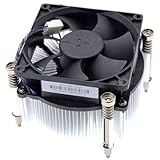
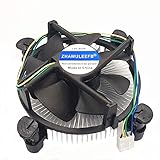

Our Top Picks
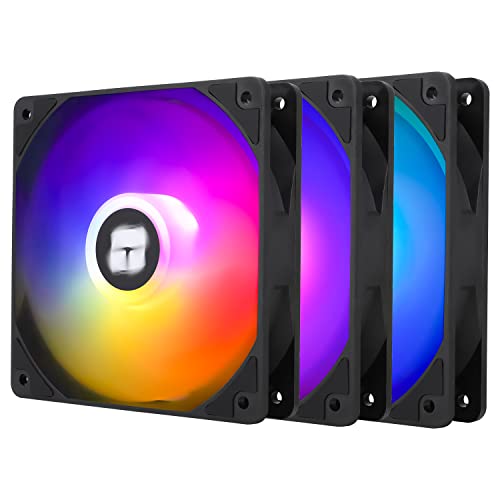


Top 3 picks at a glance
Quick Recommended Settings
| Setting | Recommended value | Why |
|---|---|---|
| CPU Fan Control Mode | PWM (4-pin) / Auto if using 3-pin DC | Enables precise RPM control; use DC only for 3-pin fans |
| Temperature Source | CPU | Ensures fans react to actual CPU die temp, not case ambient |
| Fan Curve Profile | Manual Custom Curve | Gives full control over points; presets are too aggressive or too quiet |
| Point 1: 35C | 30% PWM (approx. 600-800 RPM) | Keeps idle silent while preventing heat soak |
| Point 2: 55C | 45% PWM (approx. 900-1100 RPM) | Covers light gaming and browsing without ramping noise |
| Point 3: 70C | 65% PWM (approx. 1300-1500 RPM) | Provides strong airflow in sustained gaming loads |
| Point 4: 80C | 85% PWM | Prevents throttling with clear headroom before TjMax |
| Point 5: 90C | 100% PWM | Maximum cooling as a thermal failsafe |
| Hysteresis / Temp Hysteresis | 5C to 8C | Stops fans from rapidly cycling on brief spikes |
| Spin Up / Spin Down Time | 0.7 sec up / 1.0 sec down | Smooths audible transitions without delaying cooling |
| Fan Smoothing / Step Up Time | 3 to 5 seconds | Averages out instantaneous spikes from boost clocks |
| CPU Fan Low Limit / Warning | 200 RPM / Enabled | Alerts you to a stalled fan without false alarms |
| Smart Fan / Q-Fan Control | Enabled | Required to activate the custom curve instead of full-speed |
Setting-by-Setting
CPU Fan Control Mode: PWM vs. DC
Set this to PWM if your CPU cooler uses a 4-pin connector, which is true for nearly all stock and aftermarket coolers. Find it at BIOS path: Monitor > Fan Control > CPU Fan > Control Mode on ASUS, or Hardware Monitor > CPU Fan Control Mode on MSI and Gigabyte. Set to PWM. If you have a 3-pin fan, select DC. Trade-off: PWM offers a wider usable RPM range (typically 20-100%) and more accurate low-speed control, while DC voltage control often cannot go below 40-60% before the fan stalls, making it louder at idle but necessary for older fans.
Temperature Source: CPU
Located as Temperature Source, Temp Input, or Sensor Select in the fan control graph. Set it to CPU. Do not use Motherboard, VRM, or System. Trade-off: CPU is the most volatile sensor and can cause more ramping, which is why you pair it with hysteresis. Using Motherboard makes the curve quieter but dangerously slow to respond to gaming loads, risking thermal throttling before case air warms up.
Control Profile: Manual Custom Curve
In the fan graph, change from Standard / Silent / Turbo / Full Speed to Manual. On ASUS press F6 to enter Q-Fan Control, on MSI click the CPU Fan graph box, on Gigabyte go to Smart Fan 6. Manual unlocks the draggable points. Trade-off: Presets require no tuning but are generic. Manual takes two minutes to set and saves with the profile, giving you silence where you want it and cooling where you need it.
Fan Curve Points 1-5
Use five points if your BIOS allows it, four if not. Recommended points: 35C at 30%, 55C at 45%, 70C at 65%, 80C at 85%, 90C at 100%. To set them, click and drag points on the graph or enter values directly: Temperature on the X-axis, Duty Cycle / PWM % on the Y-axis. Trade-off: A flatter low end (30% at 35C) is quieter but lets idle temps sit 5-10C higher. A steeper curve cools better but is louder during games. This middle ground keeps fans inaudible on the desktop and predictable in games, with full speed reserved only for emergencies.
Hysteresis: 5C to 8C
Found as Temp Hysteresis, Fan Hysteresis, or Temperature Hysteresis near the graph. Set to 5C for air coolers, 8C for 240mm+ AIOs which have thermal lag. Trade-off: Higher hysteresis prevents the yo-yo effect where fans ramp up for one second then drop, which is acoustically annoying, but if set too high (10C+) the fan will stay low too long after a sustained load begins. 5-8C is the sweet spot.
Spin Up / Spin Down and Response Time
Look for Fan Spin Up Time, Step Up, or Response Delay. Set Spin Up to 0.7 seconds and Spin Down to 1.0 seconds. If your board uses a single Smoothing value instead, set it to 3-5 seconds. Trade-off: Instant response cools a spike a fraction faster but makes every boost clock audible. Adding a short delay is imperceptible to temperatures but much smoother to the ear.
CPU Fan Fail Warning and Low Limit
Enable CPU Fan Speed Low Limit or CPU Fan Failure Warning. Set Low Limit to 200 RPM or Ignore if you run a semi-passive zero-RPM mode. Path: Monitor > CPU Fan Speed > Low Limit. Trade-off: Enabled warns you immediately if a header comes loose or a fan dies, preventing boot with no cooling. If you intentionally run fans off below 40C, you must set this to Ignore or you will get a false BIOS error on every cold boot.
How to Save and Recover
After setting the curve, press F10 to Save and Exit. Most BIOS allow you to save a profile: on ASUS go to Tool > Overclocking Profile > Save to Profile 1, on MSI go to OC > Save Overclocking Profile, on Gigabyte go to Save & Exit > Save Profile. Name it FAN-CUSTOM. If fans behave strangely, re-enter BIOS (tap Del repeatedly during boot) and load Optimized Defaults from Exit menu, then reload your profile.
By Hardware Tier
Low-End Air Cooling: Stock Cooler, 65W CPUs, Small Cases
Examples: Intel Laminar RM1 / AMD Wraith Stealth with Core i3, Ryzen 5 5600, in mATX case. These coolers have small heatsinks and limited thermal mass, so they heat up fast. Use a slightly more aggressive early ramp: 35C at 35%, 60C at 60%, 75C at 80%, 85C at 100%. Keep hysteresis at 5C, not higher, so fans respond quickly. Set Control Mode to PWM if 4-pin, otherwise DC and accept a higher minimum around 50%. Enable Smart Fan. This keeps temps under control without letting the small fan scream at 100% during every load screen.
Mid-Range Gaming: Tower Air Cooler or 240mm AIO, 65W-125W CPUs
Examples: Thermalright Peerless Assassin, DeepCool AK620, Arctic Liquid Freezer II 240 with Ryzen 5 7600 / Core i5-14400 / Ryzen 7 7700. This tier benefits most from the main recommended table. Tower coolers and 240mm AIOs have enough mass to absorb short spikes, so you can keep 30% at 35C for silence and let the 70C point do most of the work. Set smoothing to 4-5 seconds and hysteresis to 5-6C. If your AIO has pump and fan headers, put the pump on AIO_PUMP or PUMP header set to 70-80% fixed DC and only curve the radiator fans on CPU_FAN based on CPU temp.
High-End Performance: Dual-Tower, 360mm AIO, 150W+ CPUs
Examples: Noctua NH-D15, be quiet! Dark Rock Pro 4, 360mm AIO with Core i7-14700K / Core i9 / Ryzen 9 7900X and larger. High core count CPUs sustain high heat output and are often power-limit unlocked. Use: 40C at 30%, 65C at 50%, 75C at 75%, 85C at 100% if you prefer acoustics, or shift the 75C point to 85% if you prioritize lowest temps for overclocking. Set hysteresis to 8C and smoothing to 5 seconds to tame boost spikes from 5+ GHz operation. For AIOs, set pump to 80-100% fixed or to a separate mild curve (60% at 40C, 100% at 70C) and control radiator fans from CPU temp as above. Ensure CPU Fan header is not throttling the pump.
Common Mistakes
Mistake 1: Fans Ramp Up and Down Constantly During Games
What causes it: No hysteresis or smoothing, so every brief boost to 70C triggers 100% fan. How to check: In BIOS Hardware Monitor, watch CPU temperature and fan RPM for 30 seconds; if RPM jumps with each 3-5C spike, smoothing is off. You can also check in Windows with HWiNFO64 sensors. What to do: In BIOS go to Monitor > Q-Fan / Smart Fan > CPU Fan > set Hysteresis to 6C and Step Up Time / Smoothing to 4 seconds, then F10 Save. How to undo: Return to same menu and set Hysteresis to 0C and Smoothing to 0 seconds or Disabled.
Mistake 2: CPU Overheats While Case Fans Stay Quiet
What causes it: CPU fan source set to Motherboard/System instead of CPU, so fans wait for slow case air to warm. How to check: In the fan curve graph, look at the header labeled Temperature Source or Sensor; if it says Motherboard, MB, or System, it is wrong. What to do: Change Temperature Source to CPU, keep curve points at 70C 65% and 80C 85%, save with F10. How to undo: Change Temperature Source back to Motherboard and restore the previous flatter curve.
Mistake 3: Fan Stops Below 40C and Triggers BIOS Fan Error
What causes it: Setting Point 1 to 0% PWM for zero-RPM while CPU Fan Low Limit Warning remains at 200 RPM. How to check: On boot you see CPU Fan Error! Press F1. In BIOS, CPU Fan RPM shows N/A or 0 RPM at idle. What to do: Either raise Point 1 to 25-30% so the fan never stops, or keep 0% and go to Monitor > CPU Fan Speed Low Limit > set to Ignore / Disabled, then F10. How to undo: Set Low Limit back to 200 RPM and raise Point 1 to 30%.
Mistake 4: All Fans Run at 100% After BIOS Update
What causes it: BIOS update reset Q-Fan / Smart Fan Control to Disabled, forcing full speed. How to check: Enter BIOS (Del on POST), go to Monitor > Fan Control; if CPU Fan shows Full Speed or Q-Fan Control shows Disabled, that is the cause. What to do: Enable Q-Fan Control / Smart Fan Control, re-apply Manual curve, use Save Profile to Profile 1, press F10. To avoid repetition, after any update load your saved profile from Tool > Load Profile. How to undo: Set Q-Fan Control to Disabled or load Optimized Defaults from Exit menu.
Mistake 5: Using DC Mode on a 4-Pin PWM Fan
What causes it: Control Mode left on DC or Auto detects incorrectly, limiting low-end RPM and causing buzzing or stall. How to check: In BIOS the CPU Fan header shows DC Mode and the fan cannot go below 800-900 RPM even at 20% duty, or it clicks at low speed. What to do: Change Control Mode to PWM, set Point 1 to 30% and test. Check that RPM now scales smoothly from 600 to max. Save with F10. How to undo: Change Control Mode back to DC or Auto.
FAQ
Should I set fan curves in BIOS or in Windows software?
Set the primary curve in BIOS for reliability. BIOS control applies during boot, in sleep wake, and if Windows crashes, and it does not require Armory Crate, MSI Center, Gigabyte Control Center, or FanControl to run at startup. Use Windows software only for temporary testing or for per-game profiles. If you use software, make sure it does not conflict by disabling BIOS Smart Fan or by setting the software to not override on startup.
What is the safest minimum fan speed for a CPU fan?
For most 120mm PWM fans the safe minimum is 25-30% duty, which is roughly 600-800 RPM. Below 20% many fans stall or fail to start from a stop. Test your minimum: in BIOS lower the 35C point to 20%, save, let the system idle, and check that RPM is stable and non-zero. If RPM shows 0 or fluctuates, raise in 5% steps until it is stable. Do not use 0% zero-RPM mode unless your cooler is oversized and you have set Low Limit to Ignore.
Do I need a different curve for an AIO liquid cooler?
Yes, split pump and fan control. Connect the pump to the dedicated AIO_PUMP, PUMP, or W_PUMP+ header and set that header to a fixed 70-80% PWM or DC for quiet operation, or 100% if noise is not a concern and the manual recommends it. Connect radiator fans to CPU_FAN and curve them based on CPU temperature as described. Do not run the pump on a steep CPU-temp curve; constant speed variation wears the pump and provides little thermal benefit due to coolant lag.
How do I reset if my custom curve makes things too loud or too hot?
Enter BIOS by tapping Del or F2 during the boot logo. Go to Exit > Load Optimized Defaults, press Enter, then F10 to save. This returns all fans to the board’s default Standard profile. If you saved your previous custom curve to a profile slot, you can reload it after: Tool / OC > Load Profile > select Profile 1. To quickly test without entering BIOS, many boards let you press F6 (ASUS) or click Hardware Monitor to adjust fan points in real time before saving.









