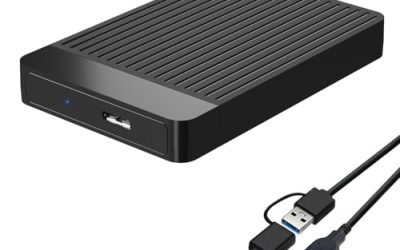
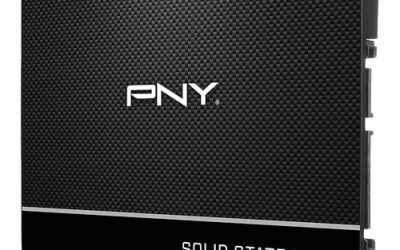
The Seagate 8TB Expansion Desktop drive is the best overall backup drive for most desktop PCs: it is a plug-and-play 8TB external hard drive with a USB 3.0 connection and its own power adapter, so it works with Windows backup tools and holds years of files. A backup hard drive is a separate drive that stores copies of your data so a failed or infected main drive does not take everything with it. If you want to keep the backup inside the tower, the Seagate BarraCuda 8TB internal drive fits that job. For a small set of documents, the YOTUO portable drives in 500GB and 1TB are the light option.
Our Top Picks


Top 3 picks at a glance
Quick List
- Seagate 8TB Expansion Desktop – best for the best overall backup drive
- OSENTRiX BX100 10TB – best for the largest capacity on USB-C
- YOTUO 500GB Portable – best for a small document and photo backup
- Seagate 8TB BarraCuda Internal – best for an internal backup drive
- YOTUO 1TB Portable – best for a portable backup of documents and photos
- ModusTech 3TB Desktop External – best for a mid-size, mains-powered backup
Which One Is Right for You?
| If you… | Choose |
|---|---|
| want one big plug-and-play drive for a whole desktop | Seagate 8TB Expansion Desktop |
| have more than 8TB of data or want USB-C | OSENTRiX BX100 10TB |
| are comfortable installing an internal drive | Seagate 8TB BarraCuda Internal |
| need a mid-size backup that stays on the desk | ModusTech 3TB Desktop External |
| want a pocket-size backup of personal files | YOTUO 1TB Portable |
| only need a few hundred gigabytes of documents | YOTUO 500GB Portable |
Start with how much data you have now, then double it so you can keep more than one backup version. Next decide whether the drive should live inside the PC, on your desk or in a drawer.
The most common mistake is buying a single backup drive and leaving it plugged in beside the PC all the time. Pair one of these with a second copy that sits somewhere else.
All 6 Picks in Detail
1. Seagate 8TB Expansion Desktop – Best for the best overall backup drive
As an Amazon Associate we earn from qualifying purchases at no extra cost to you.

Who it suits: desktop owners who want a simple, high-capacity backup they can plug in and forget. The listing names an 8TB desktop hard drive with a USB 3.0 connection, plug-and-play setup and drag-and-drop file copying.
Retailer pages show a 3.5-inch drive in an enclosure that runs on an included 18W power adapter, not on bus power, so it needs a wall outlet next to your desk. It ships formatted as exFAT for Windows and Mac, and it needs reformatting to work with Apple Time Machine. Seagate’s package includes a short USB cable, and several retailers list its Toolkit backup software, though one does not, so confirm what is in the box. The warranty is listed at one year. At 8TB, it can hold multiple full backups of a typical gaming desktop, with room to grow. Place it where the power cable and the short USB cable can reach without strain, and keep it on a flat surface with airflow around the case.
- 8TB capacity; 3.5-inch drive in a desktop enclosure
- USB 3.0 interface (5Gbps class); the cable has a Type-A end
- Powered by an included 18W adapter
- Formatted exFAT out of the box per retailer pages
- One-year warranty per retailer pages
Pros
- Large capacity and simple setup
- Works with Windows and Mac
Cons
- Needs a wall outlet; not portable
- Shorter warranty than the internal BarraCuda
Against the OSENTRiX 10TB it offers a better-known specification set, while the OSENTRiX offers more space on a faster USB-C connection.
2. OSENTRiX BX100 10TB – Best for the largest capacity on USB-C

Who it suits: owners with a lot of data, such as a big game library or video archive, who want 10TB on a modern USB-C port. The listing names a 10TB external hard drive with a USB 3.2 Gen 2 USB-C connection for Windows or macOS desktops and laptops.
The listing name is short, so we can only confirm what it states: the capacity, the USB 3.2 Gen 2 interface and the cross-platform support. We could not verify the drive’s spindle speed, cache size, power arrangement or warranty, so confirm each on the product page. A hard drive of this size will normally read at a few hundred megabytes per second at best, which is well below what a USB 3.2 Gen 2 port can carry, so the interface will not be the bottleneck. Treat it as a capacity pick, and check whether it needs an external power adapter before placing it on a crowded desk.
- 10TB capacity per the listing name
- USB 3.2 Gen 2 with a USB-C connector
- Windows and macOS support per the listing name
- Power source, drive speed and cache: confirm on listing
- Warranty: confirm on listing
Pros
- Highest capacity in this group
- USB-C connection works with newer systems
Cons
- Several specifications are not stated
- Package contents and warranty must be confirmed
It beats the Seagate Expansion on capacity, but the Seagate lists clearer package contents and a known drive family.
3. YOTUO 500GB Portable – Best for a small document and photo backup

Who it suits: anyone who needs a second copy of documents, photos and a few project folders, not a whole system. The listing names a 500GB portable external hard drive with USB 3.0 and USB-C for PC, Mac, desktop, laptop, smartphone and consoles.
At 500GB, it is the smallest drive in the group, which is its strength and its limit. Portable drives of this type are usually powered over USB, so there is no wall adapter to carry, and they are small enough to store in a drawer or take to another location, which helps with offsite copies. The listing does not state the spindle speed, warranty or enclosure details, so confirm those on the product page. It will not hold a full image of a modern gaming desktop, and many games alone use more than 100GB each. Use it for what you cannot replace, such as tax papers, family photos and work files.
- 500GB capacity per the listing name
- USB 3.0 and USB-C connections
- Works with PC, Mac, desktop, laptop and consoles per the listing
- Portable format; confirm bus power on the listing
- Drive speed and warranty: confirm on listing
Pros
- Small and easy to store offsite
- No wall adapter needed on most portable drives
Cons
- Too small for a full system backup
- Specifications beyond capacity are not stated
It is the smallest option here; the 1TB YOTUO offers double the space in the same style for only a little more.
4. Seagate 8TB BarraCuda Internal – Best for an internal backup drive

Who it suits: desktop owners comfortable installing a drive who want a backup inside the same tower. The listing names an 8TB 3.5-inch SATA 6Gb/s desktop drive, model ST8000DM004, for everyday PC storage.
Seagate’s specification and published reviews describe this model as a 5400 RPM drive with a 256MB cache that uses shingled magnetic recording. SMR is fine for large, mostly sequential backups, but sustained random writes can slow it down. The workload rating is 55TB per year and the warranty is two years. It needs a free 3.5-inch bay, a SATA port and a SATA power connector in your PC. An internal backup protects against a failed system drive, but because it sits in the same box, it does not protect against theft, fire, a power surge or ransomware that reaches every connected drive. Pair it with an offsite or offline copy, and set the backup software to run on a schedule so the second drive is never forgotten.
- 8TB internal 3.5-inch hard drive; model ST8000DM004
- SATA 6Gb/s interface
- 5400 RPM with 256MB cache per Seagate and retailers
- SMR recording technology per published reviews
- Two-year warranty; 55TB per year workload rating
Pros
- Lower clutter, with no external power adapter
- Longer warranty than the Expansion drive
Cons
- Sits in the same PC as the data it protects
- Needs a free bay and SATA connections
It matches the Seagate Expansion on capacity, but inside the tower it cannot be unplugged and taken offsite.
5. YOTUO 1TB Portable – Best for a portable backup of documents and photos

Who it suits: households with a modest amount of data, such as photos, schoolwork and office files. The listing names a 1TB portable external hard drive with USB 3.0 and USB-C connections for PC, Mac, desktop, laptop, smartphone and consoles.
The 1TB model doubles the space of its 500GB sibling and is the sensible size for a typical personal-document backup. Portable drives like this are small enough to keep in a fireproof box or at another location, and they are usually powered over USB, but confirm that on the listing. The name does not state the drive speed or warranty, and it will not suit someone with a large game library or video collection. If your documents and photos total about 300GB, 1TB gives room for several versions of each. Be careful with consoles, which may require specific formatting, so check the console’s own storage guidance. Label the drive with the date of the last full backup so you always know which copy is newest.
- 1TB capacity per the listing name
- USB 3.0 and USB-C connections
- Works with PC, Mac, desktop, laptop and consoles per the listing
- Portable format; confirm bus power
- Drive speed and warranty: confirm on listing
Pros
- Practical size for personal files
- Easy to move offsite
Cons
- Not enough for a full-system image
- Few specifications are stated
It has twice the capacity of the 500GB YOTUO, but the ModusTech 3TB is a better match once your data outgrows 1TB.
6. ModusTech 3TB Desktop External – Best for a mid-size, mains-powered backup

Who it suits: desktop users who need more than 1TB but less than 8TB, and who keep the drive on the desk. The listing names a 3TB desktop external hard drive, marked as not portable, with USB-C 3.1 at 5Gbps and a connection for PC, Mac, laptop and console.
The listing wording indicates it runs on mains power, which suits a drive that stays plugged in next to the PC. A 5Gbps interface is the same class as USB 3.0, and a single hard drive will not be limited by it. The name does not state the drive speed, cache or warranty, so confirm those on the product page. A 3TB size is a good middle point: it holds a full image of a mid-size system plus several rounds of file backups. Because it is a desktop-style unit, it is bulkier than the portable drives and needs a wall outlet nearby.
- 3TB capacity per the listing name
- USB-C 3.1 at 5Gbps per the listing
- Desktop format, marked not portable
- Mains power per listing wording; confirm in the box contents
- Drive speed and warranty: confirm on listing
Pros
- Middle capacity with a desktop-style enclosure
- Works with PC, Mac and consoles
Cons
- Specifications beyond capacity are thin
- Needs a power outlet
It sits between the portable YOTUO drives and the 8TB Seagate Expansion, with more space than the former and less than the latter.
Specs Compared
| Model | Capacity | Type | Interface | Power | Notes |
|---|---|---|---|---|---|
| Seagate 8TB Expansion Desktop | 8TB | External 3.5-inch | USB 3.0 | 18W adapter per retailer pages | exFAT out of the box; one-year warranty |
| OSENTRiX BX100 | 10TB | External | USB 3.2 Gen 2, USB-C | Confirm on listing | Drive speed and warranty: confirm on listing |
| YOTUO 500GB | 500GB | Portable external | USB 3.0 and USB-C | Confirm on listing | Drive speed and warranty: confirm on listing |
| Seagate 8TB BarraCuda | 8TB | Internal 3.5-inch | SATA 6Gb/s | SATA power from PC | 5400 RPM, 256MB cache, SMR; two-year warranty |
| YOTUO 1TB | 1TB | Portable external | USB 3.0 and USB-C | Confirm on listing | Drive speed and warranty: confirm on listing |
| ModusTech 3TB | 3TB | Desktop external | USB-C 3.1, 5Gbps | Mains power per listing wording | Drive speed and warranty: confirm on listing |
How We Chose These
We built this list from manufacturer specification pages, retailer listing titles and published specification fields, with attention to capacity, interface, power arrangement and warranty where those are stated. We also separated internal drives from external ones, because they solve different problems, and desktop-style units from portable ones, because they sit in different places.
This is a research roundup, so we make no claims about measured speeds or failure rates. Several listings say little beyond capacity and interface, and in those cases the specs table says to confirm the missing values on the product page. We did not guess any specification that a listing does not state.
What to Look For
The 3-2-1 rule and where a drive fits
The US Cybersecurity and Infrastructure Security Agency’s guidance on data backup recommends keeping three copies of important files, on two different types of storage, with one copy stored offsite. A desktop backup drive covers the second copy. The third, offsite copy might be a portable drive stored elsewhere or a cloud service.
Remember that a drive left attached to the PC can be encrypted or deleted along with the original by ransomware or a mistake. Many people unplug the backup drive after each run, or use software that keeps older versions.
Capacity: how much do you need?
Add up the data you want to protect, then multiply by at least two so you can store older versions. A simple rule of thumb is to buy a drive at least twice the size of your data.
Worked example: a desktop with 3.2TB of used space that grows by about 500GB a year needs roughly 6.4TB for two full copies today, plus growth. An 8TB drive fits that and leaves room for a few extra years, while a 3TB drive would fill up on the first full backup.
Also leave some free space. A drive that is filled to the brim leaves the backup software no room to keep older versions, so aim to use no more than about 80 percent of the capacity. Hard-drive capacities are quoted in decimal terabytes, which means Windows will show a slightly smaller figure than the number on the label.
Internal, desktop external or portable
Internal drives like the BarraCuda are cheapest per terabyte and tidy, but they share the PC’s power supply and case. Desktop externals use a 3.5-inch drive, a power adapter and a USB cable, and can be unplugged and stored. Portable drives use smaller 2.5-inch mechanisms, usually draw power over USB and are easy to carry, but top out at lower capacities.
If you have a spare 3.5-inch bay, an internal drive plus a portable offsite drive is a sound combination.
Check the physical details before you buy an internal drive: you need a free drive bay, a SATA data cable and a spare SATA power lead from the power supply. Most modern cases include the bay, but some compact cases drop 3.5-inch bays altogether, in which case an external drive is the easier path.
Interface and file system
USB 3.0 (also labeled USB 3.2 Gen 1) runs at 5Gbps, which is plenty for a single hard drive. USB 3.2 Gen 2 allows 10Gbps, which only matters for solid-state drives. SATA 6Gb/s is the standard for internal drives.
File system matters too. exFAT works on Windows and Mac but lacks the journaling of NTFS. Reformat the drive if your backup software requires a different format, such as Time Machine on a Mac.
Recording technology and workload
Some desktop hard drives use shingled magnetic recording, which packs tracks closer together. It suits large sequential writes like backups, but sustained random writes can slow it down. Check the workload rating, too: the BarraCuda is listed at 55TB per year, plenty for backups, but not for constant heavy writing.
For any drive, run your backup software, then test a restore of a few files. A backup you have never restored is only an assumption.
Finally, think about power and placement. A desktop-style enclosure runs warm during long copies, so give it open space instead of stacking it under a monitor. Use a surge protector, and unplug the drive during storms. Hard drives are mechanical, so avoid moving them while spinning, and keep portable drives in a padded pouch when you carry them to another location.
Questions
How big should my backup drive be?
Plan for at least twice the size of the data you want to protect. That gives you room for older versions of files and for growth over the next few years.
Is an internal drive a good backup?
It protects against a failed system drive but not against theft, fire, power surges or ransomware that spreads to every connected drive. Use it alongside an external or offsite copy.
Do I need USB 3.2 Gen 2 for a hard drive?
No. A single hard drive reads at well under 5Gbps, so a USB 3.0 port is enough. USB 3.2 Gen 2 helps more with solid-state drives.
Can I use these drives with a Mac?
The Seagate Expansion ships as exFAT for Windows and Mac, and several of the other listings name Mac support. Time Machine needs a drive formatted for it, so plan to reformat.
Should I leave my backup drive plugged in?
Leaving it connected makes automatic backups easy, but it exposes the backup to the same problems as the PC. Many people connect it for scheduled backups and disconnect it afterward.
What does SMR mean for a backup drive?
SMR drives overlap their data tracks to fit more capacity. They handle big sequential copies well, but they can slow down during long random writes, which is why they suit backup and archive work better than constant heavy use.
Update History
- October 14, 2026 – Initial publication; product set drawn from current catalog listings.
- Check the product page for current specifications and availability before buying.
Sources
- Manufacturer product and specification pages, including Seagate
- Retailer listing titles and specification fields for each product
- US Cybersecurity and Infrastructure Security Agency guidance on data backup options
- Published reviews describing shingled magnetic recording in the BarraCuda 8TB