
Most people shop for a PC case the wrong way around. They fall in love with a tempered-glass front panel, a mesh design, or an RGB-lit mid-tower, and only after the build is done do they realize the back panel won’t close because there are six unused cables bulging behind it. Good cable management isn’t an accessory you add later — it’s a function of the case itself: its cutouts, channels, tie-down points, and internal layout. If you’ve ever wrestled a 24-pin motherboard cable behind a tray with 15 mm of spare room, you already know this.
Our Top Picks
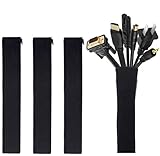
 JOTO 4 Pack Cable Management Sleeve 19-20 Inches4 Pack, 20 Inches9 x 4 x 0.8 inches0.18 poundsCheck on Amazon

Top 3 picks at a glance


Decide These 3 Things First
Before you compare any specific case, answer these questions, because they eliminate half the market immediately:
As an Amazon Associate we earn from qualifying purchases at no extra cost to you.
![[313Pcs] Cable Management Kit, Reusable Computer Desk Cord Organizer, White](https://m.media-amazon.com/images/I/41KMmg7VGpL._SL160_.jpg)
1. What motherboard size are you building with? An ATX board (12.0 × 9.6 inches) needs a mid-tower at minimum; a Mini-ITX board (6.7 × 6.7 inches) opens up compact cases where cable space is far tighter and routing discipline matters even more.
2. Is this an air-cooled or liquid-cooled build? A 360 mm radiator consumes the top or front mounting area and adds thick tubing that needs its own routing path. Air-cooled builds have more flexible cable routing but more individual fan cables to hide.
3. How many drives and RGB components are you running? Every SATA drive adds a data and power cable; addressable RGB strips and controllers can add five or more separate connections. Count your expected cable ends before buying — a build with 20+ cable ends needs very different accommodations than a minimalist 12-end build.
Cable Cutouts and Grommets
This is the single most important feature for cable management, and the one spec sheets describe most vaguely. Look for:
Cutout placement: You want a large cutout near the top-left of the motherboard tray for the 24-pin ATX cable, one beside the CPU socket area for the 8-pin EPS cable, and cutouts aligned with each PCIe slot row for GPU power. Poorly placed cutouts force cables to stretch across the board visibly.
Cutout size: A quality case has cutouts at least 25–35 mm wide. Anything under 20 mm makes routing thick sleeved cables genuinely difficult. The CPU cutout should be tall enough (roughly 50 mm or more) that you can reposition a board later without unplugging everything.
Grommets: Rubber grommets hide rough cutout edges and give a finished look, but check that they’re removable or that edges are finished anyway — cheap grommets pop out and never sit flush again. A case with generous open cutouts and no grommets is often easier to work with than one with narrow grommeted slots.
Space Behind the Motherboard Tray
The area behind the motherboard tray is where everything you don’t want to see goes, and its depth is the number that determines whether your side panel closes without a fight.
The number to look for: 20–25 mm of clearance behind the tray is workable for a basic build. 25–30 mm is comfortable for most systems with a modular PSU and a few fans. Above 30 mm — found in some enthusiast mid-towers — you can stash non-modular PSU cables you’re not using without any compression struggle.
For context, a standard sleeved 24-pin cable bundle is roughly 15–18 mm thick once routed; add a GPU’s 2–3 PCIe power cables and a few fan headers, and you can quickly exceed 40 mm of total cable bulk if the case gives you nowhere to spread it out. Wide, shallow space spreads cable; narrow, deep space forces a lump.
PSU Shroud and Basement Design
A power supply shroud — a solid or ventilated panel covering the PSU at the bottom of the case — does more for a clean build than any accessory ever will, because it takes the PSU’s bulky, permanently attached (in non-modular units) cables completely out of view.
What to check: The shroud should be tall enough to clear a PSU depth of 160–180 mm (standard ATX PSUs run 140–160 mm deep), with ventilation slots or a cutout for airflow since most modern PSUs draw air from beneath the case. Look for a side cutout or pass-through grommets in the shroud itself so you can feed SATA power cables up to drives cleanly rather than snaking them over the shroud’s edge.
Some cases offer extra drive cages behind or beside the shroud — useful, but every cage you fill adds cables that need routing, so favor cases that let you remove cages you don’t use.
Tie-Down Points and Included Accessories
Cable management fails without anchor points. Count them before buying:
Velcro-friendly routing points: Look for loops, slots, or integrated tie points along the top and bottom edges of the motherboard tray and along the PSU shroud. A well-designed case offers 8–12 usable anchor points; a bare tray with two holes forces you to improvise.
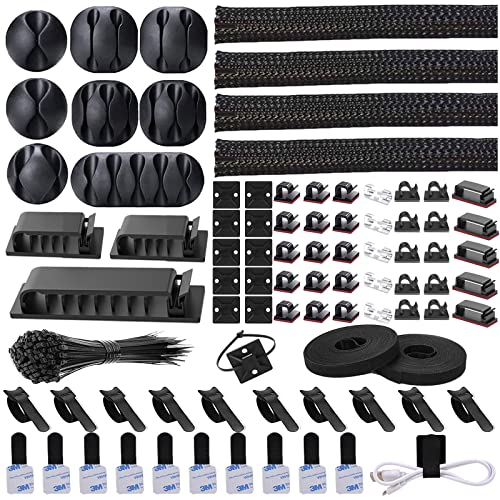
Included straps vs. after-market: Many cases now ship with a handful of Velcro straps. That’s a nice start but rarely enough — a full build typically needs 10–15 ties. That’s where a kit like the N NOROCME 192 PCS Cable Management Kit earns its keep: it bundles sleeves, self-adhesive clips, and ties that handle the fan and peripheral cables a case can’t fully tame. For desk-side cleanup — the monitor, keyboard, and power runs between your PC and desk — the JOTO 4 Pack Cable Management Sleeve consolidates 19–20 inches of cable runs at a time, and a no-drill under-desk tray like the 25.3-inch model hides the power strip and adapter bricks entirely. The case handles the inside; these handle the rest.
Airflow vs. Cable Clutter Tradeoff
Cable management and airflow are linked whether manufacturers admit it or not. A case with excellent hidden-channel design lets you route fan cables without crossing intake paths, while a cluttered interior — even behind glass — can obstruct front-to-back airflow by 10–15% in practice on mesh-front cases if excess cable loops into the main chamber.
What to look for: Dedicated fan-hub mounts or controller pockets on the back of the tray (some cases include a fold-out SSD mount with cable channels underneath), rubber-routed fan cables that run directly into the back channel, and enough space at the front of the shroud for coiled unused cables without blocking intake fans. Mesh-front cases in 2026 overwhelmingly favor this layout, but verify it on any specific model — mesh alone doesn’t guarantee smart routing.
Price Tiers: What Each Budget Actually Buys
Budget: Expect functional but sparse management — one or two cutouts, 15–20 mm of back-panel clearance, no PSU shroud or a partial one. You’ll compensate with after-market sleeves and patience. Buildable, but plan an extra hour of fiddling.
Mid-range: This is the sweet spot for most builders. Expect 3–5 cutouts with grommets, 25–30 mm of tray clearance, a full PSU shroud with pass-throughs, removable drive cages, and 8+ tie points. Most “recommended case” lists live here for good reason.
Premium: You gain dual-chamber designs (common in show builds), 35 mm+ back clearance, integrated fan/ARGB hubs with pre-routed cabling, tool-free panels, and modular shroud pieces. Worth it if you rebuild often or display your system; diminishing returns if you build once every five years.
Spec Checklist
| Spec | Budget | Mid | Premium |
|---|---|---|---|
| Back-of-tray clearance | 15–20 mm | 25–30 mm | 30–40+ mm |
| Cable cutouts | 1–2, narrow | 3–5, grommeted | 5+, oversized |
| PSU shroud | Partial or none | Full with pass-throughs | Full + modular pieces |
| Tie-down points | 2–4 | 8–12 | 12+ plus channels |
| Included straps/hub | Rare | Some straps | Straps + ARGB hub |
| Typical price | Check on Amazon | Check on Amazon | Varies |
Red Flags
Unstated clearance depth: If a manufacturer won’t publish back-panel clearance in millimeters, assume it’s tight. Reviews with build photos reveal the truth fast.
Narrow CPU cutouts under 40 mm: These make motherboard swaps a full cable-removal exercise.
Non-removable drive cages: A fixed cage in a case you’ll never fill wastes cable routing space and airflow.
Flimsy side panels under 0.8 mm steel: Thin panels flex and bow outward when cables press against them, so the side glass won’t seat flush.
marketing that counts “cable management” as a feature but shows no cutout photos: Real cases document their routing with annotated images; vague ones hide it.
FAQ
Do I really need a case with good cable management, or can I fix it with accessories?
Accessories help, but they can’t create space or cutouts that don’t exist. Buy the case right first, then use kits and sleeves for the finishing pass.
How much space behind the motherboard tray do I actually need?
Aim for at least 20 mm for a simple build, 25–30 mm for a typical gaming PC with a discrete GPU and multiple fans, and 30 mm+ if you have a non-modular PSU or lots of RGB. More is always easier to work with.
Should I use zip ties or Velcro straps inside my PC?
Velcro is the better default: it’s reusable, adjustable, and won’t over-compress sleeved cables. Use zip ties sparingly for permanent anchor points on the PSU side, and never cinch them hard enough to deform cable insulation.
Do compact ITX cases make cable management impossible?
Not impossible, but demanding. Small-form-factor cases often have under 10 mm of back clearance, so plan for a fully modular SFX PSU (100–125 mm deep), short SATA runs, and disciplined fan-hub placement. Dual-chamber ITX designs remove most of the pain if your budget allows.









