Most gaming PCs ship with fan curves that are either too quiet to matter under load or so aggressive that the case sounds like a wind tunnel the moment you open a browser tab. The fix is a custom fan curve, and getting it right takes about fifteen minutes in your motherboard’s BIOS or a utility like FanControl. The goal is simple: keep CPU and GPU temperatures stable below their thermal limits, avoid the annoying ramp-up/ramp-down cycling that makes noise fluctuate, and keep idle noise low enough that you forget the machine is on. Temperature stability matters more than hitting the lowest possible number — a CPU sitting at a steady 80°C is healthier and quieter than one bouncing between 65°C and 90°C because the fans keep surging. This guide walks through the exact values, where to set them, and how to adapt them to your hardware tier.
As an Amazon Associate we earn from qualifying purchases at no extra cost to you.



Our Top Picks
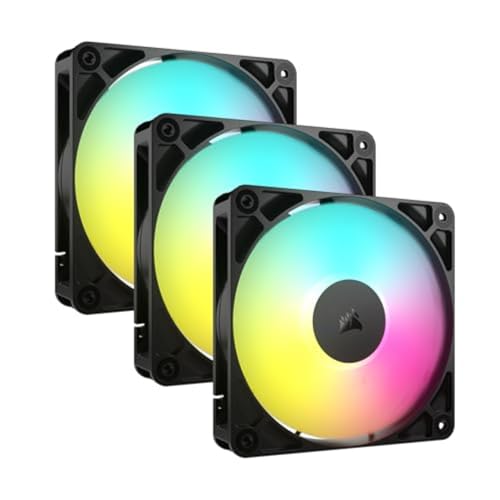

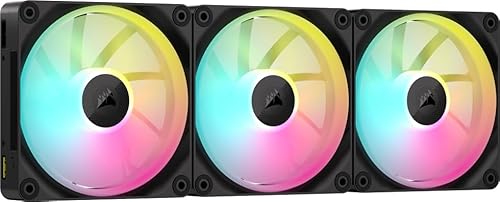

Top 3 picks at a glance
Quick Recommended Settings
If you just want numbers to plug in, start here. These assume a mid-tower case with two to three front intake fans, one rear exhaust, and either an air cooler or a 240/280/360 mm AIO. Adjust per the sections below.
| Setting | Recommended value | Why |
|---|---|---|
| CPU fan start temperature | 50°C | Keeps fans silent at idle and desktop use; most CPUs don’t need active cooling below this |
| CPU fan 100% temperature | 85°C | Gives full cooling headroom before thermal throttling (typically 95–100°C on modern chips) |
| CPU fan minimum duty | 20–30% | Ensures airflow exists before the curve kicks in; below ~20% many fans stall or click |
| Case fan start temperature | 35–40°C (tie to GPU temp) | Case fans should respond to GPU heat, since the GPU dumps far more heat into the case than the CPU |
| Case fan 100% temperature | 70°C | Full case airflow by the time the GPU approaches its own thermal limit |
| Curve shape | Exponential/staged, not linear | Linear curves cause audible ramp cycling as temps hover around a threshold |
| Response time / hysteresis | 3–5 seconds (fan delay) | Smooths out brief temp spikes from momentary load changes |
| GPU fan mode | Custom curve in MSI Afterburner, 40% floor at 50°C | Factory GPU curves prioritize silence and often let the card sit near its temp limit |
Setting-by-Setting
CPU Fan Start Temperature: 50°C
Set this in your motherboard BIOS under Hardware Monitor, Q-Fan Control (ASUS), Smart Fan (MSI), or Smart Fan 6 (Gigabyte). Choose the PWM mode, then edit the curve points so the first point sits at 50°C at your minimum duty cycle.
The exact value: 50°C for air coolers, 45°C for AIOs (pump should always run at a fixed 60–80% regardless).
The trade-off: Raising the start temperature to 60°C means longer stretches of total silence, but heat soaks into the cooler mass during light loads, so when gaming does start, temperatures spike harder before fans catch up. Lowering it to 40°C gives faster response but means fans audibly spin during video playback or file transfers.
CPU Fan Maximum Temperature: 85°C
This is the temperature at which fans hit 100%. On the same BIOS curve editor, set the last point to 85°C at 100% duty.
The trade-off: Setting it at 75°C makes the system very safe but means fans run at full speed constantly during heavy gaming — usually above 40 dB. Setting it at 95°C risks riding the throttle line on chips with a 95°C limit (many modern Intel CPUs). 85°C gives you roughly 10–15°C of headroom before throttling on most platforms.
Curve Shape: Staged, Not Linear
Use three to five curve points with steeper jumps between them, rather than a straight line. Example CPU curve: 50°C → 30%, 65°C → 50%, 75°C → 70%, 85°C → 100%.
The trade-off: A linear curve sounds smoother in theory, but because gaming loads hover around one temperature, the fans constantly adjust speed in small increments and you hear a steady up-down warble. A staged curve with a response delay of 3–5 seconds locks fans at a speed until the temperature genuinely changes. The downside of a flat/staged curve is slightly higher average temps during load transitions.
Case Fans Tied to GPU Temperature
This is the single biggest improvement most builders never make. Case fans controlled by CPU temperature spin hard while gaming even though the CPU cooler is exhausting that heat directly out the back — meanwhile the GPU is heating the entire case with no response.
How to do it: In the BIOS, set the case fan headers to reference a different temperature source. On ASUS boards this is under Q-Fan Control → select the header → Temperature Source → choose “GPU” or a motherboard sensor near the GPU (often labeled “Sensor 2” or “PCH”). On MSI it’s Smart Fan → Temperature Source. If your BIOS can’t source GPU temperature, use FanControl (free, from GitHub’s Rem0o/FanControl.Releases) and bind case fans to the GPU temperature sensor under the Controls tab.
Recommended curve: 35°C → 25%, 50°C → 45%, 60°C → 65%, 70°C → 100%.
The trade-off: GPU-sourced case fan control means fans stay slow during CPU-heavy, GPU-light tasks (compiling, emulation), so heat from those tasks lingers slightly longer. For gaming PCs this is almost always the right trade.
Fan Response Time / Hysteresis: 3–5 Seconds
Found in the BIOS as “Fan Step Up/Step Down Time,” “Response Time,” or in FanControl as the hysteresis setting per fan.
The trade-off: Zero delay gives the fastest thermal response but produces the classic “revving” noise as fans chase momentary spikes. More than 8 seconds of delay means fans barely react during fast load changes and temperatures can overshoot during a game launch. Test by launching a game and listening: if you hear one smooth increase and no fluctuation afterward, the delay is right.
GPU Fan Curve via MSI Afterburner
Open Afterburner → Settings (gear icon) → Fan tab → check “Enable user defined software automatic fan control” → drag points on the graph.
Recommended starting curve: 40°C → 30%, 55°C → 45%, 65°C → 60%, 75°C → 80%, 80°C → 100%.
The trade-off: Factory GPU curves prioritize acoustics, which is why many cards idle at 55–60°C and sit at their temperature ceiling under load. A custom curve trades a few degrees of noise for lower sustained temps and, on cards with thermal-limited boost behavior, more consistent clock speeds. Note that Afterburner must be running (with Windows startup enabled in its settings) for the curve to apply, and a driver reset with Alt+R restores stock behavior.
AIO Pump Speed: Fixed, Not Curved
Set the pump header (usually marked “AIO_PUMP” or “CPU_FAN/PUMP”) to a fixed duty of 60–80%, or full 100% if noise is negligible. Never curve pump speed below roughly 60% — low pump speeds let coolant heat-soak during load spikes, and flow changes lag temperature changes badly.
The trade-off: 100% pump adds a faint constant whine on some units. 60% is inaudible on most modern AIOs and costs 1–3°C at sustained load.
By Hardware Tier
Budget Builds (older CPUs, single-tower air cooler, 1–2 case fans)
With limited cooling capacity, prioritize preventing thermal buildup over silence. Set the CPU fan start at 45°C and hit 100% at 80°C — a tighter, more aggressive curve compensates for a smaller heatsink. Run at least one front intake and one rear exhaust; set both case fans to a fixed 50% during gaming if you can’t source GPU temps, since a two-fan budget case needs constant airflow more than it needs a dynamic curve. Positive pressure (more intake than exhaust) matters more here because budget cases often have unfiltered vents pulling in dust.
Mid-Range Builds (modern 65–125 W CPUs, dual-tower cooler or 240 mm AIO, 3–4 case fans)
This tier benefits most from the full settings above: 50°C CPU fan start, 85°C max, GPU-sourced case fan control, 3–5 second response delay. You have enough cooling headroom to prioritize acoustics without thermal risk. Keep intake fans slightly faster than exhaust for positive pressure, and set the pump to a fixed 70%.
High-End Builds (250 W+ CPUs, 280/360 mm AIO, 5+ fans, high-power GPU)
High-end CPUs dumping 200 W+ into an AIO need the radiator fans treated almost like a case-exhaust problem. Set CPU/pump-adjacent fans to start at 45°C and reach 100% at 80°C — a wider operating window keeps them from screaming during transient spikes, which these CPUs produce constantly. Run case fans on the GPU curve but add one extra point near the top (65°C → 80%) because a 350 W+ GPU can heat-soak a case quickly. Consider a slight positive-pressure bias and verify your top-mounted radiator fans are set as exhaust, not intake, to avoid feeding pre-heated air to the radiator.
Common Mistakes
Fans cycling up and down constantly at idle or light load.
What causes it: A linear curve plus zero response delay, with idle temps sitting right on a curve threshold. How to check: Watch fan RPM in HWiNFO64 (sensors panel, “Fan” readings) at the desktop — if RPM oscillates by more than ~150 RPM repeatedly, this is your problem. What to do: Raise the start temperature 5°C above your observed idle temp, flatten the curve between idle and 50°C into a single point, and set a 3–5 second response delay. How to undo: Restore the default curve in the BIOS (usually F5 or “Default” within the fan control screen) or uninstall/disable FanControl, which returns fans to BIOS control automatically.
One component overheating while everything else stays cool.
What causes it: All fans controlled by a single temperature source (usually the CPU sensor), so the GPU heats the case with no fan response. How to check: Run a GPU-heavy game and compare GPU temperature against case fan RPM in HWiNFO64 — if the GPU hits 80°C+ while case fans sit under 800 RPM, they aren’t responding to it. What to do: Switch case fan temperature sources to the GPU, either in the BIOS or via FanControl’s mixing feature (Ctrl+click a fan’s controller to edit its source). How to undo: Set temperature sources back to “CPU” or “Motherboard” in the same menu.
System loud during gaming but temperatures are fine.
What causes it: Curves tuned too aggressively — fans hitting high duty cycles at temperatures that don’t need it. How to check: Note fan percentages at steady gaming load (HWiNFO64 or Afterburner’s monitoring graph); if fans exceed 70% while temps sit below 70°C, the curve is over-provisioned. What to do: Lower the duty value at each curve point by 10–15 percentage points, keeping the endpoints, then re-test for a week of sessions. How to undo: Re-enter the previous points, or re-apply the motherboard’s “Standard” fan profile in the BIOS.
Fans stalling, clicking, or refusing to spin at low duty.
What causes it: Minimum duty set below what the fan physically needs — most 120 mm fans stall below roughly 20% PWM, and some budget models below 30%. How to check: Set the fan to a fixed 15% duty in the BIOS and watch whether it spins continuously for 30 seconds; listen for periodic click-start-click sounds. What to do: Raise the curve’s minimum duty to the lowest value where the fan spins reliably, then add 5% margin. How to undo: Lower the minimum back down, though there’s rarely a reason to.
FAQ
Should I use BIOS fan control or FanControl?
Use the BIOS if your motherboard lets you set different temperature sources per header — it works at the firmware level, survives OS reinstalls, and needs no background software. Use FanControl if your BIOS ties all headers to the CPU sensor (common on budget boards) or if you want to mix sources, like averaging CPU and GPU temperature for one fan. Many builders use both: BIOS handles the CPU fan, FanControl handles case fans.
What temperature should my CPU and GPU be while gaming?
Aim for CPU under 85°C sustained and GPU under 80°C, though exact safe limits vary by chip. What matters more than the number is stability: temperatures that plateau and hold are fine, temperatures that keep climbing during a session indicate inadequate case airflow or cooler mounting. If temps rise steadily over 30+ minutes of identical load, add intake airflow or revisit your curve’s maximum duty point.
Do more fans always mean better cooling?
No — placement and pressure balance matter more than count. Two well-placed intakes and one exhaust will outperform five fans arranged so that intake and exhaust fight each other. Aim for slight positive pressure (more intake CFM than exhaust), keep the GPU’s immediate intake path clear, and don’t mount a top-front exhaust directly above a front intake, which short-circuits airflow before it reaches components.
How often should I clean my fans and does it change my curve?
Clean dust filters and fan blades every two to three months, or monthly if you have pets or carpet. Dust buildup reduces airflow without changing sensor readings, so temperatures creep up while your curve stays the same. If you notice the same game running 5°C hotter than it used to, clean first before touching the curve — and if your case uses positive pressure with filtered intakes, cleaning intervals can stretch considerably.