
There is a unique, gut-wrenching dread that occurs when you finish installing a brand-new power supply unit (PSU), cable-manage the entire chassis, press the power button, and get absolutely nothing in return. No fans spinning, no motherboard diagnostic LEDs, and no reassuring click of a relay. In the world of PC building, this dead-silence symptom is incredibly common, frustrating, and often leads to the immediate (and usually incorrect) assumption that the brand-new unit is dead on arrival.
While a completely unresponsive system feels like a worst-case scenario, it is rarely fatal to your expensive graphics card or processor. Modern power supplies are built with highly sensitive protection circuits designed to shut down or refuse to boot if even a minor installation error is detected. This comprehensive guide outlines the ultimate new power supply won t turn on fix protocol to help you diagnose, troubleshoot, and resolve the issue systematically, ensuring your rig gets the clean, stable power it needs without unnecessary return shipments.
As an Amazon Associate we earn from qualifying purchases at no extra cost to you.


Our Top Picks
 Thermaltake Dr. Power III Pro; ATX Power SupplyIII Pro5.5 x 3 x 0.75 inches0.3 PoundsCheck on Amazon
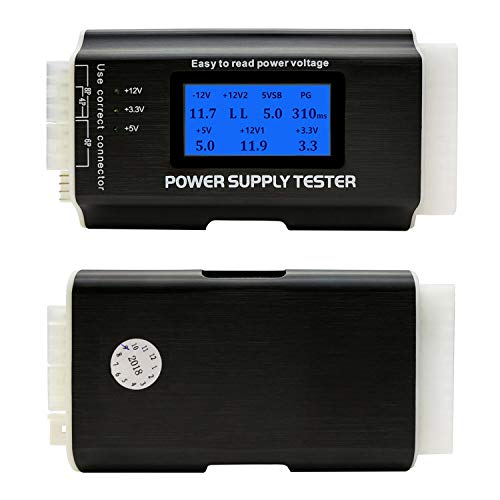
Likely Causes
Before diving into deep troubleshooting, it helps to understand what is most likely preventing your system from booting. The table below outlines the most common culprits, how to quickly verify them, and the difficulty of the associated repair.
| Cause | How to Confirm | Fix Difficulty |
|---|---|---|
| Master I/O Switch set to Off | Inspect the rocker switch on the rear of the PSU chassis. | Very Easy |
| Loose Motherboard Connectors | Check for physical gaps in the 24-pin ATX or 8-pin EPS slots. | Easy |
| Misaligned Front Panel Headers | Verify the “PWR_SW” connector is on the correct motherboard pins. | Easy |
| Incompatible Modular Cables | Check if you are reusing cables from a previous power supply. | Medium (Risk of damage) |
| Tripped Circuit or Surge Protector | Plug a known working device (like a lamp) into the same outlet. | Very Easy |
| Motherboard Ground Short | Inspect standoffs; check if the system boots outside the case. | Hard |
| Dead on Arrival (DOA) Unit | Perform a manual paperclip/jumper test on the 24-pin cable. | Medium |
Fix 1: Toggle the Master Power Switch and Verify the AC Cord
What causes it
Every desktop PC power supply features a physical rocker switch on the back of its chassis, right next to the AC power receptacle. During packaging and shipping, this switch is almost always set to the off position. Additionally, brand-new power cords can have incredibly stiff rubber boots, which often prevents the plug from inserting deep enough into the PSU socket to establish electrical contact.
How to check
Look at the back of your PC. The rocker switch has two symbols: a circle (“O”) representing open/off, and a line (“I”) representing closed/on. If the “O” side is pressed down, the PSU is completely isolated from wall power. Next, grab the power cord where it meets the PSU and check if there is any visible gap between the cord’s rubber mold and the plastic housing of the PSU inlet.
What to do
- Firmly press the “I” side of the rocker switch down.
- Grasp the AC power cord and push it hard into the PSU inlet. You may need to wiggle it slightly until the plug sits completely flush against the housing.
- Ensure the other end of the cord is plugged directly into a working wall outlet, bypassing any multi-plug adapters for now.
- Press the case power button to test.
How to undo it
To cut power to your system for future upgrades or maintenance, simply flip the rocker switch back to the “O” position and unplug the AC cord from the wall.
Fix 2: Reseat the Front Panel Power Switch Connector
What causes it
The physical power button on your PC case does not connect directly to the power supply. Instead, it connects to two tiny pins on your motherboard’s front panel header (usually labeled JFP1 or F_PANEL). When you press the button, it momentarily bridges these two pins, signaling the motherboard to tell the PSU to turn on. If this tiny, two-pin plastic connector (labeled “PWR_SW”) is loose, plugged into the wrong pins, or plugged in backward, pressing your case’s power button will do absolutely nothing.
How to check
Open your PC’s side panel and locate the bottom-right corner of your motherboard. Look for a cluster of thin, colorful wires leading to a group of exposed pins. Refer to your motherboard’s user manual for the exact pinout diagram. Verify if the connector labeled “PWR_SW” or “Power SW” is securely seated over the two pins designated for the power switch.
What to do
- Turn off the PSU master switch and unplug the AC power cord.
- Gently pull the “PWR_SW” connector off the motherboard pins.
- Consult your motherboard manual to identify the exact positive (+) and negative (-) power switch pins (typically pins 6 and 8 on standard Intel/AMD 10-pin layouts).
- Slide the connector back onto the correct pins. Note that polarity does not strictly matter for a simple momentary switch, but keeping the text on the connector facing outward is standard practice.
- If you suspect the case button itself is broken, locate the two power switch pins on the motherboard and briefly touch them simultaneously with the flat metal tip of a screwdriver for one second. If the PC starts, your case button or its wire is defective.
How to undo it
To disconnect the front panel switch, turn off the system, pull the small plastic connector off the header pins, and store the wire safely away from any spinning chassis fans.
Fix 3: Verify the 24-Pin ATX and 8-Pin EPS Motherboard Connections
What causes it
Modern motherboards require two primary power sources: the massive 24-pin ATX connector (which powers the chipset, PCIe slots, and onboard logic) and the 8-pin (or 4+4 pin) EPS connector (which delivers dedicated power to the CPU). As we look at hardware standards in 2026, these connectors require significant physical force to seat properly. If either connector is not fully latched, the motherboard’s power management controller will refuse to send the “PS_ON” signal to your new power supply.
How to check
Inspect the plastic latches on both the 24-pin ATX connector (located on the right edge of the motherboard) and the 8-pin CPU connector (located at the top-left edge of the motherboard). If the plastic hook on the cable connector is not completely hooked over the retaining ridge on the motherboard socket, the cable is not fully seated. If you have a modular power supply, you must also check the corresponding connections on the PSU’s interface panel.
What to do
- Switch off the power supply and unplug the wall cord.
- Press the plastic release tab on the 24-pin cable and pull it out. Inspect the pins inside the connector to ensure none are bent or pushed backward.
- Reinsert the 24-pin connector. Place one hand behind the motherboard PCB to prevent it from flexing and cracking, then press down on the connector with your other hand until you hear and feel a distinct, loud “click.”
- Repeat this process for the 8-pin CPU power connector near the top of the board. Ensure you are using the cable labeled “CPU” or “EPS,” and not a “PCIe” graphics card cable, which has a different physical pin layout.
- If your PSU is modular, perform the exact same check on the PSU side of the cables.
How to undo it
To remove these cables, firmly depress the plastic retention clip on the side of the connector to lift the locking hook, then pull the connector straight upward while gently rocking it side to side.
Fix 4: Remove and Replace Incompatible Modular Cables
What causes it
This is the single most dangerous mistake a builder can make when installing a new power supply. Modular cables are not standardized on the end that plugs into the power supply. A cable from an old EVGA power supply may physically plug into a brand-new Corsair or Seasonic power supply, but the internal pinouts are almost certainly different. Using mismatched cables can route 12-volt power directly into ground pins, triggering the PSU’s Short Circuit Protection (SCP) instantly, or worse, frying your motherboard, SSDs, and graphics card.
How to check
Look at the cables currently routing through your chassis. If you left any of your old power supply’s modular cables behind to save time on cable management, you have found your problem.
What to do
- Immediately switch off the PSU and unplug it from the wall.
- Unplug every single modular cable from your motherboard, graphics card, SATA SSDs, and hard drives.
- Pull all of those cables out of the PC case. Put them in a box labeled with your old PSU’s model name so they are never mixed up again.
- Open the box of your brand-new power supply and unpack the pristine cables that shipped inside it.
- Install only these new cables, routing them carefully through your chassis, and plug them into your components.
How to undo it
To swap modular cables in the future, you must completely shut down the PC, discharge residual energy by holding the power button for 10 seconds, and replace the cables with verified, manufacturer-approved replacements designed specifically for your exact PSU model.
Fix 5: Reset the Wall Outlet and Surge Protector
What causes it
Sometimes the problem isn’t your PC at all. Power supplies draw a sudden burst of current when first plugged in to charge their massive internal primary capacitors (known as inrush current). If you are using an older, cheap, or overloaded surge protector, this sudden draw can trip the surge protector’s internal circuit breaker or blow an older household fuse.
How to check
Unplug your PC’s power cord from the wall outlet or surge protector. Take a simple household appliance that you know is working, such as a desk lamp or a phone charger, and plug it into the exact same outlet. If the lamp does not turn on, the outlet is dead.
What to do
- If you are using a surge protector or Uninterruptible Power Supply (UPS), check its physical switch. Switch it off, wait 5 seconds, and switch it back on. Some surge protectors have a small, black “Reset” button on the side that pops out when tripped; press it back in.
- If the outlet itself is dead, locate your home’s electrical breaker panel. Look for a breaker switch that is partially tripped (sitting in the middle position instead of “ON”).
- Flip that breaker completely to “OFF,” then firmly flip it back to “ON.”
- Plug your PC directly into the wall outlet to bypass any potentially failing surge protectors for testing purposes.
How to undo it
To cut wall power again, simply switch off your surge protector’s master switch or unplug the PC’s power cord from the wall receptacle.
Fix 6: Perform a PSU Paperclip (Jumper) Test
What causes it
If your connections are secure and the wall outlet works, you need to isolate the power supply to determine if it is Dead on Arrival (DOA) or if a component inside your PC is shorting out and preventing the boot. By manually jumping the “Power On” pin to a ground pin on the main 24-pin connector, you can force the power supply to turn on in isolation.
How to check
To check if the PSU can turn on independently, you will need a metal paperclip bent into a U-shape, or a dedicated 24-pin testing tool (which often ships with high-end power supplies).
What to do
- Turn off your PSU switch and unplug the power cord.
- Disconnect all modular cables from your motherboard, GPU, and storage drives so the PSU is completely isolated.
- Take the 24-pin ATX cable. Locate Pin 16 (PS_ON), which is typically the only green wire on colored cables, or the fourth pin from the left on the top row (with the plastic clip facing up).
- Locate an adjacent Ground Pin (Pin 15 or 17), which typically has a black wire.
- Insert one end of your paperclip into Pin 16 and the other end into Pin 17 as shown below:
[Clip side of connector facing UP]
… | Pin 14 (Blue) | Pin 15 (Black/GND) <– [Paperclip] | Pin 16 (Green/PS_ON) <– [Paperclip] | Pin 17 (Black/GND) | …
- Plug the AC power cord into the PSU and flip the master switch to “I”.
- Observe the PSU fan. If the fan spins (or spins briefly and stops, which is normal for units with an eco/zero-RPM mode), your power supply is functional. The issue lies within your motherboard or another connected component.
How to undo it
Turn off the master power switch, unplug the AC power cord, wait 30 seconds for the internal capacitors to discharge, and pull the paperclip out of the 24-pin connector.
Fix 7: Check for Motherboard Standoff Shorts
What causes it
PC cases use small brass or metal standoffs to keep the back of the motherboard PCB from touching the metal chassis frame. If you installed a standoff in a position where your motherboard does not have a matching mounting hole, that metal standoff will press directly against exposed electrical traces on the back of the motherboard. The moment you press the power button, this creates a short circuit, and the power supply’s safety logic immediately shuts off power to prevent a fire.
How to check
Peer behind your motherboard using a flashlight. Look for any metal standoffs that do not have a screw holding the motherboard down through a copper-ringed mounting hole.
What to do
- Turn off the PSU, unplug the AC cord, and disconnect all internal cables.
- Remove your graphics card, CPU cooler (if necessary), and unscrew the motherboard from the case.
- Lift the motherboard out and place it on a non-conductive surface, such as the cardboard box the motherboard shipped in. Do not place it on the anti-static bag, as the outside of these bags can be conductive.
- Inspect the case interior and remove any misplaced standoffs using a 5mm socket driver or pliers.
- Connect only the PSU’s 24-pin and CPU 8-pin cables to the motherboard on the box. Try to boot the system by bridging the power switch pins with a screwdriver. If it boots, a standoff short was your issue.
How to undo it
Reinstall the motherboard into the case, making absolutely certain that standoffs are present *only* where there are corresponding mounting holes on the motherboard.
Fix 8: Clear the Motherboard CMOS
What causes it
Sometimes your old power supply was running on a motherboard that had specific power states or voltage configurations saved in its BIOS. When you swap in a new power supply with different electrical characteristics, the motherboard’s CMOS (Complementary Metal-Oxide-Semiconductor) memory can hang, refusing to initiate the boot sequence because of stale hardware profiles.
How to check
The system shows no signs of life, but you notice a faint, steady standby LED lit on your motherboard or GPU, indicating that power is reaching the system, but the startup sequence is frozen.
What to do
- Switch off the power supply and unplug the power cord from the wall.
- Locate the CLR_CMOS or JBAT1 two-pin header on your motherboard (check your manual for its exact location, often near the PCIe slots or the coin-cell battery).
- Take a flathead screwdriver and press its metal tip firmly against both pins simultaneously, holding it there for 10 to 15 seconds to discharge the CMOS memory.
- If you cannot find the pins, locate the round CR2032 silver coin battery on your motherboard. Use a small flathead screwdriver to release the retaining clip, pop the battery out, and wait 5 full minutes.
- Reinsert the battery, plug the PC back in, turn on the PSU switch, and press your case’s power button.
How to undo it
Clearing the CMOS resets your BIOS to factory defaults. Once your system boots, you will need to press “Del” or “F2” during startup to re-enter the BIOS and re-enable features like XMP/EXPO for your RAM or custom fan curves.
If Nothing Works
If you have systematically gone through all eight fixes and your power supply still refuses to turn on, you are likely dealing with a hardware failure.
First, look at your motherboard’s diagnostic indicators. If the PSU paperclip test works, but the motherboard fails to boot even outside of the case, your motherboard may have suffered a fatal short circuit during the installation process, or your power switch circuitry is dead.
Second, if the paperclip test failed to spin the PSU fan at all, your new power supply is indeed Dead on Arrival. Do not attempt to open the power supply casing. Power supplies contain heavy-duty industrial capacitors that store lethal amounts of electrical current (+12V, +5V, and +3.3V rails) even when unplugged for weeks. Opening a PSU will instantly void your warranty and put you at risk of severe electrical shock.
Instead, pack the power supply, along with all of its original modular cables and accessories, back into its retail packaging. Contact your retailer for an immediate exchange, or initiate a warranty Return Merchandise Authorization (RMA) directly through the manufacturer. Modern, high-tier power supplies typically come with warranties ranging from 5 to 12 years, ensuring you will get a functional replacement.
FAQ
Why does my new power supply click once but won’t turn on?
A single clicking sound is actually a good sign that your power supply’s internal bypass relay is working. However, if it clicks and immediately shuts down, it means the PSU’s protection suite (such as Short Circuit Protection or Over Current Protection) detected an electrical short or an incompatible connection downstream. The PSU instantly cut power to save your components from frying. Double-check for stray standoffs or mismatched modular cables.
Can a bad power supply ruin my motherboard or graphics card?
Yes, a low-quality, uncertified, or faulty power supply can destroy connected components if it experiences a catastrophic failure. However, high-quality, reputable units feature robust safety standards (including Over Voltage, Under Voltage, and Short Circuit protection) designed to sacrifice the PSU itself to shield your expensive motherboard, CPU, and GPU from electrical damage.
Do I need to plug in all the CPU power connectors on my motherboard?
Most modern motherboards feature an 8-pin and an additional 4-pin or 8-pin socket for CPU power. For standard daily use, gaming, and mild workloads, plugging in a single 8-pin EPS cable is perfectly sufficient. The secondary connector is only necessary if you are running a high-draw flagship processor (such as an Intel Core i9 or AMD Ryzen 9) under extreme, sub-zero liquid nitrogen overclocking conditions.
How do I know if my new power supply is dead on arrival (DOA)?
The most definitive way to confirm a DOA unit is the paperclip test. If you bridge Pin 16 (PS_ON) and Pin 17 (Ground) on the 24-pin ATX connector while the PSU is unplugged from all PC components, plug it into a verified working wall outlet, flip the switch to “I”, and the fan fails to spin (and no voltage registers on a digital multimeter), the unit is dead and must be replaced.









