
In the world of custom PC building, visual aesthetics are just as important as raw performance. Addressable RGB (ARGB) lighting allows you to customize your rig with complex, multi-color patterns, breathing life into a home office or gaming setup. However, the installation process can be intimidating for beginners and seasoned builders alike. Because motherboard manufacturers use different naming conventions and header layouts, making a mistake during installation is surprisingly easy.
If you connect your ARGB case fans incorrectly, the consequences can be costly. The most common error is confusing a 5V 3-pin ARGB connector with a 12V 4-pin standard RGB connector. Forcing a 5V ARGB connector onto a 12V header will immediately send double the rated voltage through your fan’s delicate LED strip. Additionally, loose connections can cause frustrating flickering, while overloading a single motherboard header can trip your system’s overcurrent protection, causing sudden system shutdowns.
By following a methodical, step-by-step approach, you can safely integrate ARGB fans into your build, protect your valuable hardware, and achieve seamless lighting synchronization.
As an Amazon Associate we earn from qualifying purchases at no extra cost to you.

What You Need
Before opening your PC case, gather the necessary tools and components. Having everything on hand will prevent mid-build interruptions and protect your sensitive components from static discharge.
| Item | Why You Need It | Optional? |
|---|---|---|
| ARGB Case Fans | Provide both cooling airflow and addressable LED lighting. | Required |
| Motherboard | Must feature at least one 3-pin, 5V ARGB header (labeled ADD_GEN2, JRAINBOW, D_LED, or ADDR_LED). | Required |
| Phillips #2 Screwdriver | Used to mount the fans securely to your PC chassis. | Required |
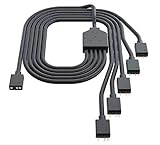
| ARGB Splitter Cable or Powered Hub | Consolidates multiple ARGB fan cables (typically 3 to 6 fans) into a single motherboard header connection. | Optional (Highly recommended for 3+ fans) |
| Anti-Static Wrist Strap | Prevents electrostatic discharge (ESD) from damaging sensitive motherboard circuits. | Optional |
| Zip Ties or Hook-and-Loop Straps | Keeps the excess cables organized behind the motherboard tray for clean cable management. | Optional |
Step-by-Step
Connecting your ARGB fans to your motherboard is a straightforward process when broken down into logical phases. Allocate about 30 to 45 minutes of uninterrupted time to complete this installation safely.
Step 1: Power Down and Prepare the Workspace (Time: 5 minutes)
Safety is the most critical part of any PC modification. Shut down your operating system completely. Flip the physical power switch on the back of your Power Supply Unit (PSU) to the “Off” (O) position. Unplug the main AC power cord from the wall outlet. Press and hold your PC’s physical power button for 10 seconds to drain any residual electrical charge stored in the motherboard’s capacitors. Place your PC case flat on a clean, non-conductive surface, such as a wooden table, and remove the side panels.
Step 2: Identify Your Motherboard’s ARGB Headers (Time: 5 minutes)
Consult your motherboard manual to locate the specific 5V 3-pin ARGB headers. Do not guess. These headers consist of three physical pins in a four-pin layout, with one pin space intentionally blocked or missing (pin-pin-space-pin configuration). They are typically labeled as:
- ADD_HEADER or ADD_GEN2 (ASUS)
- JRAINBOW (MSI)
- D_LED or D_LED1/D_LED2 (Gigabyte)
- ADDR_LED (ASRock)
Keep in mind that standard, non-addressable RGB headers are 12V and have 4 solid pins next to each other. Connecting your ARGB cable to these 12V pins will destroy your fan’s LEDs.
Step 3: Mount the ARGB Fans in the Case (Time: 10 minutes)
Decide whether your fans will act as intakes (pulling cool air into the case) or exhausts (pushing warm air out). Use your Phillips #2 screwdriver to secure each fan to the chassis using the four included mounting screws. Ensure the cables exit the fan frame toward the back of the case (behind the motherboard tray). This keeps the front chamber of your PC clean and allows for easier cable routing.
Step 4: Connect the Fan Power Cables (Time: 5 minutes)
Every ARGB fan has two separate cables: one for the fan motor (which spins the blades) and one for the ARGB lighting. First, route the 3-pin or 4-pin PWM/DC motor power cables to the motherboard’s system fan headers (labeled SYS_FAN or CHA_FAN). If you are installing multiple fans, you may want to use a fan splitter cable or a dedicated PWM fan hub to connect multiple motors to a single header without exceeding the header’s 1.0-amp limit.
Step 5: Connect the ARGB Cables to the Motherboard Header (Time: 10 minutes)
Now, route the ARGB cables to your motherboard’s 5V ARGB header. Because most motherboards only feature one or two ARGB headers, you will likely need to daisy-chain your fans or use an ARGB splitter cable.
- If Daisy-Chaining: Many ARGB fans feature both a male and a female connector on their lighting cable. Plug the male connector of the first fan into the female connector of the second fan, and repeat this chain. Finally, plug the female connector at the end of the chain into the motherboard’s ARGB header.
- If Using a Splitter or Hub: Plug each fan’s ARGB connector into the output ports of the splitter cable or powered hub. Then, connect the main input cable of the splitter or hub directly to the motherboard’s 5V ARGB header. If you are using a powered hub, make sure to plug in its SATA power connector directly to your power supply.
Ensure the connector aligns perfectly with the pins. The missing pin space on the female connector must line up with the missing pin on the motherboard header. Push gently until the connector is fully seated.
Step 6: Boot Up and Configure Software (Time: 10 minutes)
Double-check all connections to ensure no loose wires are hanging near the fan blades. Reattach your PC’s side panels, plug the AC power cord back into the wall, and switch the PSU back to the “On” (I) position. Turn on your computer. By default, your ARGB fans should light up with a rainbow wave pattern. Once your operating system boots, download and open your motherboard’s proprietary lighting software (such as ASUS Armoury Crate, MSI Center, Gigabyte RGB Fusion, or ASRock Polychrome Sync) to customize colors, brightness, and lighting effects.
Mistakes to Avoid
- Plugging into the Wrong Voltage: Never connect a 5V ARGB connector to a 12V RGB header. The 12V header will burn out the addressable LEDs instantly.
- Overloading the Header: Standard motherboard ARGB headers are rated for a maximum of 3.0 amps (typically around 15 watts of total power draw). A standard ARGB fan draws roughly 0.3 to 0.6 amps for its LEDs. Connecting more than 4 or 5 fans directly to a single header via non-powered splitters can draw too much current and damage the motherboard. Use a SATA-powered ARGB hub for setups with 5 or more fans.
- Hot-Plugging: Never connect or disconnect ARGB cables while the computer is turned on. A slight misalignment during hot-plugging can easily bridge the 5V power pin with a data pin, frying the control chip.
- Forcing a Backward Connection: While ARGB connectors are keyed to prevent incorrect insertion, cheap plastic connectors can sometimes be forced on backward if you apply too much pressure. Always verify the pin alignment visually before pressing down.
How Often
Once connected, ARGB fan cables do not require daily attention, but keeping a regular maintenance schedule will ensure long-term reliability. Every 3 to 6 months, open your PC case to clean out dust buildup, which can insulate heat and degrade fan bearings. During this cleaning process, visually inspect your ARGB connectors to ensure they haven’t wiggled loose due to fan vibrations. As motherboard manufacturers roll out their 2026 BIOS and software updates, check for software updates to your RGB control programs to resolve compatibility bugs and access new lighting patterns.
When to Call a Pro or Replace
While installing case fans is a highly accessible DIY project, there are moments when professional assistance or a hardware replacement is necessary.
If you experience any of the following symptoms, it is time to replace your hardware:
- Incorrect Colors: If an individual fan displays a completely different color than the rest of the chain (for example, showing bright red when the software is set to pure blue), one of the internal LED control chips has failed.
- Physical Damage: If you notice bent or broken pins on your motherboard’s ARGB header, do not try to force a connection. Attempting to straighten motherboard pins with tweezers carries a high risk of snapping them off completely.
If you smell a faint burning plastic scent upon turning your system on, shut down the PC immediately. If you are uncomfortable troubleshooting electrical shorts or routing power supply cables, take your system to a certified local PC repair technician.
FAQ
Can I plug a 3-pin ARGB fan into a 4-pin RGB header?
No. A 3-pin ARGB connector uses a 5V digital signal, whereas a 4-pin RGB header uses a 12V analog signal. They are electrically incompatible. Forcing a connection will destroy the fan’s LEDs and may damage your motherboard’s circuitry.
What should I do if my motherboard doesn’t have any ARGB headers?
If your motherboard lacks a 5V ARGB header, you can purchase an external, USB-controlled ARGB controller (such as the Razer Chroma Addressable RGB Controller or Corsair Commander). These controllers plug directly into an internal USB 2.0 header on your motherboard and receive power via a SATA connection from your power supply, allowing you to control your lighting via dedicated software.
How many ARGB fans can I safely connect to one motherboard header?
Most motherboard ARGB headers support a maximum current of 3.0 amps. Since a typical ARGB fan draws between 0.3A and 0.6A for its LEDs, you can safely connect up to 4 or 5 fans to a single header using a simple splitter cable. If you plan to install more than 5 fans, you must use a SATA-powered ARGB hub to avoid overloading the motherboard.
Why are my fans spinning but the lights are not turning on?
This issue usually occurs because the lighting and the fan motor are powered by two separate cables. Ensure that both the 3/4-pin PWM power cable (which controls the fan blades) and the 3-pin ARGB cable (which controls the LEDs) are firmly plugged into their respective headers on your motherboard or control hub.









