
To protect this investment, PC cases are designed with dust filters that shield delicate internal components from hair, pet dander, and airborne debris. However, these defense systems can only do their job if they are kept clear. Learning how to clean dust filters on desktop pc case units is one of the simplest and most effective ways to maintain optimal system performance.
If done incorrectly, this routine chore can lead to serious consequences. Using a static-generating vacuum cleaner directly on your components, failing to dry your filters completely, or ripping delicate mesh can cause catastrophic hardware damage. Moisture left on a filter can lead to short circuits that fry a motherboard or graphics card instantly. Conversely, ignoring clogged filters starves your components of cool air, forcing your 120mm or 140mm cooling fans to spin at maximum speed (often exceeding 2,000 RPM). This causes excessive noise, accelerates fan motor wear, and triggers thermal throttling, which severely degrades your system’s processing speed.
As an Amazon Associate we earn from qualifying purchases at no extra cost to you.

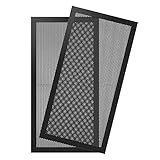
Fortunately, keeping your filters clean is a straightforward process that requires only a few basic household tools and about 15 to 30 minutes of your time.
Our Top Picks
 MoKo 400x300mm DIY PC Case Dust Mesh Fan2 x 400*300mm-1mm hole15.75 x 11.81 x 0.01 inches0.5 poundsCheck on Amazon
What You Need
Before you begin, gather the necessary tools. Having these items ready will ensure a smooth, safe, and efficient cleaning process. If you discover that your current filters are torn, brittle, or completely clogged beyond repair, you can easily find affordable replacements.
| Item | Why You Need It | Optional? |
|---|---|---|
| Compressed Air or Electric Duster | Blows loose dust out of the mesh pores without physical contact. A 400W to 600W electric duster is a great eco-friendly alternative to canned air. | No |
| Microfiber Cloth | Wipes away clinging dust from the filter frames and the PC case exterior without leaving lint behind. | No |
| Soft-Bristled Brush | A clean, dry paintbrush or an old toothbrush helps gently dislodge stubborn, packed-in dust from fine mesh. | Yes |
| Isopropyl Alcohol (90%+) | Cleans sticky residue or oils off plastic and metal frames. Evaporates rapidly. | Yes |
| Mild Dish Soap & Warm Water | Used for a deep wash on heavily soiled, non-paper washable mesh filters. | Yes (Only for wet-cleaning) |
Step-by-Step Guide to Cleaning Your PC Dust Filters
Follow these steps to safely remove, clean, and reinstall your dust filters without risking damage to your computer hardware.
Step 1: Power Down and Unplug (Time: 2 minutes)
Safety is the absolute priority when working around electronics. Shut down your operating system completely. Once the PC is off, flip the power supply switch (located on the back of the tower) to the “O” (Off) position. Unplug the main power cable from the wall outlet or surge protector. Disconnect all peripheral cables, such as your monitor, keyboard, and mouse, to give yourself a clear, unobstructed workspace.
Step 2: Locate and Remove the Filters (Time: 3 minutes)
Most modern desktop cases feature three main filter locations: the front intake, the top exhaust, and the bottom power supply unit (PSU) intake.
- Top Filters: These are usually magnetic. Simply lift them off the steel chassis.
- Bottom PSU Filters: These typically slide out from the rear or side of the case along plastic tracks. Gently pull them straight out.
- Front Filters: Depending on your case model, you may need to pop off the front plastic bezel to access the filter, or it may slide out from the top or bottom of the front panel. Refer to your case manual if you encounter resistance.
Step 3: Dry Dusting and Brushing (Time: 5 minutes)
Take the removed filters to an outdoor area, garage, or trash can to avoid spreading dust back into your living space. Hold the filter securely and use your compressed air can or electric duster to blow air through the clean side of the filter, pushing the dust out the way it came in. Avoid blowing dust deeper into the mesh. If any stubborn clumps remain, gently sweep them away using your soft-bristled brush. Wipe down the plastic or magnetic borders with a dry microfiber cloth.
Step 4: Deep Wash for Heavy Grime (Time: 10 minutes)
If your filters have not been cleaned in months, or if you live in a home with pets or smokers, a simple dusting might not remove the sticky, oily film bound to the mesh. Run the filters under lukewarm tap water. Apply a single drop of mild dish soap and gently work it across the mesh using your fingers or a soft brush. Rinse the filter thoroughly until the water runs completely clear and no soap bubbles remain.
Step 5: Complete Drying (Time: 1 to 2 hours)
If you used water to wash your filters, this is the most critical step. Shake off as much excess water as possible. Lay the filters flat on a clean, dry towel in a well-ventilated room. Do not use a clothes dryer, oven, or high-heat hair dryer, as extreme heat will warp the thin plastic mesh and ruin magnetic strips. Let them air dry completely. Touch the mesh and frame to ensure there is absolutely no residual moisture before moving to the next step.
Step 6: Reinstallation and Boot Up (Time: 3 minutes)
Once the filters are 100% dry, slide or snap them back into their respective slots on your PC case. Ensure magnetic filters are aligned perfectly flat against the metal frame so no air bypasses the mesh. Reconnect your power cable and peripherals, flip the power supply switch back to the “I” (On) position, and boot up your computer. You should immediately notice quieter fan operation and improved thermal performance.
Mistakes to Avoid
Avoid these common pitfalls to protect your hardware and keep your system running smoothly:
- Never vacuum your PC filters while they are attached to the case: Standard household vacuums generate massive amounts of static electricity on plastic nozzles, which can discharge into your motherboard and destroy sensitive microchips.
- Do not reinstall damp filters: Even a tiny droplet of water sucked into a high-RPM intake fan can be sprayed across your graphics card, causing an instant short circuit.
- Avoid harsh cleaning chemicals: Never use acetone, bleach, or strong window cleaners on your plastic mesh filters, as these solvents can degrade the chemical bonds of the nylon or PVC, causing it to crumble.
- Do not clean filters while the PC is running: Removing a filter while the intake fans are spinning actively pulls airborne dust directly into the exposed fan blades and heatsinks.
How Often Should You Clean Your PC Dust Filters?
The frequency of your cleaning schedule depends heavily on your environment. If your PC sits on a desk in a pet-free, hardwood-floor home, cleaning your filters once every 3 months is usually sufficient. However, if your computer sits on the floor, on a carpet, or in a household with multiple shedding pets, you should check and clean your filters every 2 to 4 weeks.
By 2026, modern high-end graphics cards and processors are expected to draw even more power (frequently pushing 450W to 600W for flagship components), generating significant heat that demands unrestricted airflow. Staying on top of a monthly cleaning schedule ensures your hardware runs at peak efficiency without thermal bottlenecking.
When to Call a Pro or Replace Your Filters
Most PC filter maintenance is a simple DIY task. However, you should consider replacing your filters entirely if you notice physical damage. If the fine mesh has tears, if the plastic frame is warped from heat, or if the magnetic strips have demagnetized and no longer seal tightly against the chassis, it is time for a replacement.
If you find that your PC is still running hot or making loud whining noises even after cleaning your filters, the dust may have bypassed the filters and settled deep inside the power supply shroud or under the graphics card shroud. If you are uncomfortable dismantling delicate GPU heatsinks or opening a dangerous power supply unit, take your tower to a professional PC repair technician for a comprehensive deep-clean.
Frequently Asked Questions
Can I use a hair dryer to dry my PC dust filters?
Yes, but only if you use the “cool” or “no-heat” setting. The fine nylon or PVC mesh used in quality filters has a low melting point. High heat from a hair dryer can easily warp the frame or shrink the mesh, making it impossible to reinstall the filter properly.
Are magnetic dust filters better than slide-in filters?
Both have advantages. Magnetic filters are incredibly easy to remove and clean, making them ideal for top and front panels. Slide-in filters, often found on the bottom of the case, provide a tighter mechanical seal that prevents air from bypassing the filter, which is crucial for power supply intakes.
What happens if I run my PC without dust filters?
While running your PC without filters will temporarily increase airflow and slightly lower temperatures, it allows dust, hair, and debris to settle directly on your internal heatsinks, motherboard circuits, and fan blades. Within a few weeks, this accumulation will severely insulate your components, leading to much higher temperatures than if you had kept the filters installed.
How do I know if my filters are causing my PC to overheat?
You can monitor your system temperatures using free software tools like HWMonitor or MSI Afterburner. Check your CPU and GPU temperatures under load. If removing your dust filters causes your temperatures to drop by 5°C to 10°C or more, your filters are heavily clogged and restrict vital airflow.









