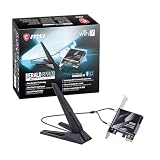
The MSI Herald BE9400 is the best Wi-Fi 7 PCIe card for most desktops on this list: it is a tri-band card with Bluetooth 5.4, 6GHz support, Multi-Link Operation (MLO) and 320MHz channel support, and it is rated for speeds of up to roughly 5.8 Gbps on its fastest band. Wi-Fi 7 is the 802.11be standard, which adds 320MHz channels, 4096-QAM and MLO, letting a card use several bands at once. The rest of the list covers a second MSI model, three budget BE6500 cards, a Gigabyte option and one Wi-Fi 6 card included as a runner-up.
Our Top Picks


Top 3 picks at a glance
Quick List
- MSI Herald BE9400 – best for the highest stated tri-band speeds with Bluetooth 5.4
- MSI Herald-BE WI-FI 7 MAX – best for a brand-name card with an external antenna and MLO
- WAVLINK BE6500 Wi-Fi 7 PCIe – best for a mid-range BE6500 card with dual external antennas
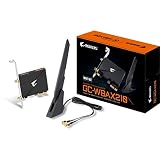
- GIGABYTE GC-WIFI7 – best for matching a Gigabyte or Aorus motherboard
- FENVI BE6500 Wi-Fi 7 PCIe – best for a low-latency, MLO-focused BE6500 card on a budget
- TP-Link Archer TX55E AX3000 – runner-up, best for a Wi-Fi 6 upgrade when your router is not Wi-Fi 7
Which One Is Right for You?
| If you… | Choose |
|---|---|
| Want the strongest stated Wi-Fi 7 throughput and have a 6GHz router | MSI Herald BE9400 |
| Prefer a mainstream brand and a big external antenna you can place on the desk | MSI Herald-BE WI-FI 7 MAX |
| Want Wi-Fi 7 features at a more modest speed class | WAVLINK BE6500 or FENVI BE6500 |
| Own a Gigabyte or Aorus motherboard and like matching hardware | GIGABYTE GC-WIFI7 |
| Care most about low latency in online games with MLO | FENVI BE6500 |
| Have a Wi-Fi 6 router and no plan to upgrade soon | TP-Link Archer TX55E AX3000 |
One quick rule applies to all of these. A Wi-Fi 7 card only shows its advantages when your router also supports Wi-Fi 7 and, for the fastest speeds, 6GHz and MLO. With an older router, the card still connects, but you will not see the extra bands or channel widths. Windows 11 is required for full Wi-Fi 7 support on most of these cards.
All 6 Picks in Detail
1. MSI Herald BE9400 – Best for the Highest Stated Tri-Band Speeds
As an Amazon Associate we earn from qualifying purchases at no extra cost to you.

The MSI Herald BE9400 is the headline card of this group. The listing names BE9400 tri-band performance, Bluetooth 5.4, 6GHz, MLO, 320MHz channels and a 5.8 Gbps top speed. MSI’s own materials describe 2×2 streams on each band and speeds of up to about 5764 Mbps on 6GHz, 2882 Mbps on 5GHz and 688 Mbps on 2.4GHz. Those are link-rate maximums, not real file-transfer speeds.
Who it suits: desktop owners with a Wi-Fi 7 router, a PCIe x1 slot and a spare internal USB 2.0 header for Bluetooth. It is a good fit if you want the card with the highest published numbers and are willing to run a USB cable to the motherboard.
Setup tip: place the magnetic antenna on top of the case or the desk, not behind the case where metal blocks the signal. Install the Windows driver after the card is seated, and confirm your router has 6GHz switched on in its settings.
Compatibility note: the card needs a free PCIe x1 slot, and it will also fit longer slots. Check that the antenna cable reaches the spot you have in mind, and leave a little room beside the slot so a thick graphics card does not block the card’s rear edge.
- Standard: Wi-Fi 7 (802.11be), tri-band 2.4, 5 and 6GHz
- Speed class: BE9400 with up to 5.8 Gbps stated on the listing
- Bluetooth: 5.4, via an internal USB header
- Features: MLO and 320MHz channels per the listing
- Antennas: external, with a magnetic base per retailer descriptions
- Chipset: not stated in the listing; confirm on the product page
Pros
- Highest tri-band speed class in this group
- Bluetooth 5.4 and a well-known brand
Cons
- Needs a 6GHz Wi-Fi 7 router to show its full value
- Requires a spare USB header for Bluetooth
Compared with the MSI Herald-BE MAX, it has the higher stated 2.4 and 5GHz rates.
2. MSI Herald-BE WI-FI 7 MAX – Best for a Brand-Name Card With an External Antenna

The Herald-BE WI-FI 7 MAX is MSI’s other Wi-Fi 7 card, named for 802.11be, Bluetooth 5.4, PCIe, Multi-Link Operation and an external antenna. MSI’s pages describe tri-band operation with 320MHz channels on 6GHz and a top speed around 5.8 Gbps, and retailer pages list a Qualcomm wireless module. Confirm the chipset on the exact listing, because manufacturers sometimes revise parts.
Who it suits: buyers who like a recognizable brand and a single large external antenna that can sit on the desk for a stronger signal than a stubby antenna on the back panel.
Setup tip: connect the internal USB cable for Bluetooth, tighten the antenna cable by hand and move the antenna upward and away from the case if the signal is weak.
Compatibility note: because the single antenna carries all three bands, its position matters more than on a dual-antenna design. If you also use a wireless headset or keyboard dongle near the same spot, try moving the dongle to a front USB port to reduce interference.
- Standard: Wi-Fi 7 (802.11be), tri-band
- Bluetooth: 5.4, with a USB header connection
- Features: MLO and 320MHz channels on 6GHz per MSI
- Antenna: one external antenna, as named in the listing
- Stated top speed: around 5.8 Gbps on the fastest band
- Per-band speeds: lower than the BE9400 on 2.4 and 5GHz per retailer pages; confirm
Pros
- Large external antenna for flexible placement
- Same headline Wi-Fi 7 feature set as its sibling
Cons
- Slightly lower stated speeds on the 2.4 and 5GHz bands
- Still requires Windows 11 for Wi-Fi 7 features
It is a close second to the BE9400, and the choice mostly depends on antenna style and which chipset you prefer.
3. WAVLINK BE6500 Wi-Fi 7 PCIe Card – Best for a Mid-Range BE6500 Option

WAVLINK’s card is a BE6500 tri-band Wi-Fi 7 card with Bluetooth 5.4, 6GHz, MLO, 4K-QAM and OFDMA, and the listing mentions dual external antennas. The BE6500 class means roughly 688 Mbps on 2.4GHz, 2882 Mbps on 5GHz and 2882 Mbps on 6GHz, so it uses narrower channels than the BE9400 on 6GHz. For most home internet plans, that is still more than the connection can use.
Who it suits: buyers who want Wi-Fi 7 compatibility and MLO without paying for a 320MHz-capable top speed. It fits homes where the internet plan is under a gigabit and the router is mid-range.
Setup tip: confirm driver support for your operating system on the maker’s page before ordering, and plan to use Windows 11 for the full feature set.
Compatibility note: the maker’s own pages may list different driver notes for Windows and Linux, so read them before you order. If you rely on a specific distribution, look for a community report about the chipset family rather than the brand name alone.
- Standard: Wi-Fi 7 (802.11be), tri-band 2.4, 5 and 6GHz
- Speed class: BE6500
- Bluetooth: 5.4
- Features: MLO, 4K-QAM and OFDMA per the listing
- Antennas: dual external antennas, per the listing
- Chipset: confirm on the maker’s page; operating system support depends on the chipset
Pros
- Full Wi-Fi 7 feature list at a lower speed class
- Dual external antennas
Cons
- Lower maximum 6GHz speed than the MSI cards
- Chipset and Linux support need checking
Against the FENVI, it is similar on paper, so antenna design and driver support are the deciding points.
4. GIGABYTE GC-WIFI7 – Best for Matching a Gigabyte or Aorus Build

The GIGABYTE GC-WIFI7 is a tri-band Wi-Fi 7 PCIe expansion card with Bluetooth 5.3 and 4K-QAM. Retail descriptions mention speeds up to 5800 Mbps and 320MHz bandwidth, with 2×2 antennas. Community hardware databases suggest the card has been built with different wireless chips across hardware revisions, so confirm which revision you receive if driver support matters to you.
Who it suits: owners of Gigabyte or Aorus motherboards who like a consistent brand in the system and want Wi-Fi 7 through a standard x1 slot. It also suits buyers who are fine with Bluetooth 5.3 instead of 5.4.
Setup tip: update the motherboard BIOS and Windows before installing the driver, and use the driver package from Gigabyte’s support page for your exact revision.
Compatibility note: Gigabyte’s support page may offer separate drivers for different hardware versions, and Windows 10 may be treated differently from Windows 11. Match the driver to the version printed on the card’s label when you open the box.
- Standard: Wi-Fi 7, tri-band
- Bluetooth: 5.3
- Features: 4K-QAM and 320MHz support per retailer descriptions
- Stated speed: up to about 5800 Mbps; confirm on the listing
- Interface: PCIe x1
- Chipset: varies by revision per community sources; confirm
Pros
- Strong stated speed class and 320MHz support
- Matches Gigabyte and Aorus builds
Cons
- Bluetooth 5.3 is a step behind the others
- Hardware revisions can differ
It sits between the MSI cards and the budget BE6500 options in capability.
5. FENVI BE6500 Wi-Fi 7 PCIe Card – Best for a Low-Latency BE6500 Budget Option

The FENVI BE6500 is a tri-band Wi-Fi 7 PCIe card with Bluetooth 5.4, advertised for 802.11be and MLO low latency. The BE6500 class suggests about 688 Mbps on 2.4GHz and 2882 Mbps on each of the 5 and 6GHz bands, in line with the WAVLINK. The listing name does not state the chipset, so confirm it before buying if you plan to use Linux or an older Windows version.
Who it suits: online gamers on a budget who want an MLO-capable card for lower latency and who already own a Wi-Fi 7 router. If you are on Windows 10, remember Wi-Fi 7 features usually need Windows 11.
Setup tip: seat the card in a PCIe x1 slot, connect the Bluetooth USB cable, and keep the antennas clear of metal. Download drivers from the seller’s page.
Compatibility note: budget cards sometimes ship with a shorter warranty and less documentation than large brands. Keep the box and the driver download link, and photograph the label before installation so you can identify the revision if you need support.
- Standard: Wi-Fi 7 (802.11be), tri-band 2.4, 5 and 6GHz
- Speed class: BE6500
- Bluetooth: 5.4
- Feature highlight: MLO low latency, per the listing
- Antennas: confirm the count and type on the listing
- Chipset: not stated in the listing name; confirm
Pros
- Wi-Fi 7 and Bluetooth 5.4 at a lower speed class
- MLO named as a core feature
Cons
- Less detail in the listing name about chipset and antennas
- Driver support depends on the seller
It is a close match to the WAVLINK card, so compare drivers and antennas.
6. TP-Link Archer TX55E AX3000 – Runner-Up, Best for a Wi-Fi 6 Upgrade

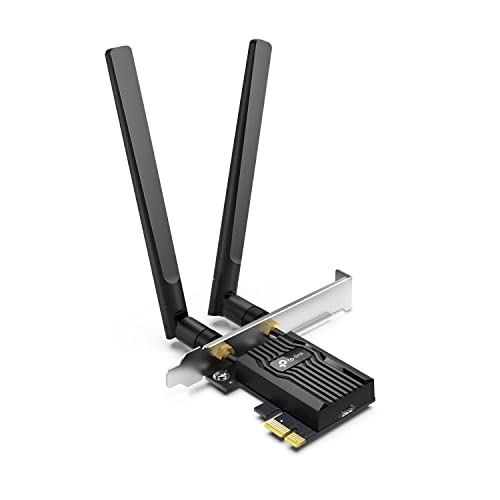
This card is Wi-Fi 6, not Wi-Fi 7. The listing names AX3000, dual-band 2.4 and 5GHz, Bluetooth 5.2 and WPA3, and TP-Link’s published figures describe up to about 2402 Mbps on 5GHz and 574 Mbps on 2.4GHz. It has no 6GHz band and no MLO, so it is a runner-up on a Wi-Fi 7 list and only makes sense when your router is Wi-Fi 6 and you want a simple wireless upgrade.
Who it suits: owners of a Wi-Fi 6 router who want a reliable card for a desktop and have no plan to move to Wi-Fi 7 soon. Bluetooth works through an internal USB header, and the card is supported on 64-bit Windows 10 and 11 per TP-Link.
Compatibility note: TP-Link also sells newer versions of this model with different Bluetooth listings, so confirm the version on the page you are viewing. If you plan a Wi-Fi 7 router within a year, spending a little more on a Wi-Fi 7 card now avoids buying twice.
- Standard: Wi-Fi 6 (802.11ax), dual-band, not Wi-Fi 7
- Speed class: AX3000
- Bluetooth: 5.2 per the listing
- Security: WPA3
- Antennas: two external antennas per TP-Link
- Bands: 2.4 and 5GHz only; no 6GHz
Pros
- Mature, widely supported Wi-Fi 6 design
- Works well with existing Wi-Fi 6 routers
Cons
- Does not offer Wi-Fi 7, 6GHz or MLO
- Older Bluetooth version than the Wi-Fi 7 cards
Choose it over the Wi-Fi 7 cards only if you will not upgrade your router in the near term.
Specs Compared
| Card | Wi-Fi standard | Speed class | Bluetooth | Bands | Notable features |
|---|---|---|---|---|---|
| MSI Herald BE9400 | Wi-Fi 7 | BE9400, about 5.8 Gbps stated | 5.4 | 2.4, 5, 6GHz | MLO, 320MHz |
| MSI Herald-BE WI-FI 7 MAX | Wi-Fi 7 | About 5.8 Gbps stated | 5.4 | Tri-band | MLO, external antenna |
| WAVLINK BE6500 | Wi-Fi 7 | BE6500 | 5.4 | 2.4, 5, 6GHz | MLO, 4K-QAM, OFDMA, dual antennas |
| GIGABYTE GC-WIFI7 | Wi-Fi 7 | Up to about 5800 Mbps (confirm) | 5.3 | Tri-band | 4K-QAM, 320MHz |
| FENVI BE6500 | Wi-Fi 7 | BE6500 | 5.4 | 2.4, 5, 6GHz | MLO low latency |
| TP-Link Archer TX55E | Wi-Fi 6 | AX3000 | 5.2 | 2.4, 5GHz | WPA3, two antennas |
How We Chose These
We drew this guide from the six cards in the catalog set, using listing titles, manufacturer pages and retailer specification fields. We compared the Wi-Fi standard, band support, stated speed class, Bluetooth version and named features such as MLO and 320MHz channels. Where a listing did not name the chipset or antenna count, we said so and asked you to confirm. We placed the one Wi-Fi 6 card as a runner-up because it does not match the Wi-Fi 7 topic. Speeds quoted are makers’ link-rate figures, not measured throughput, and nothing here comes from our own network testing.
What to Look For
Match the card to your router
Wi-Fi 7 cards connect to older routers, but they only deliver Wi-Fi 7 benefits with a Wi-Fi 7 router. For the highest speeds you need 6GHz enabled and 320MHz channels allowed, which many routers disable by default. For MLO, both the router and the card must support it. If your router is Wi-Fi 6 or 6E, a Wi-Fi 7 card still works and may be future-proof, but the visible gain over a good Wi-Fi 6E card will be small.
Understand the speed names
Names such as BE6500 and BE9400 add up the maximum link rates of all three bands. A 2×2 card on 6GHz with 320MHz channels can reach roughly 5764 Mbps, 5GHz with 160MHz channels roughly 2882 Mbps, and 2.4GHz roughly 688 Mbps. Worked example: a card that adds 688, 2882 and 5764 gives about 9,334 Mbps, which is close to the 9400 in the product name. Real-world speeds are a fraction of that and are limited by the router, distance, walls and your internet plan.
Bluetooth and the USB header
Most PCIe Wi-Fi cards handle Bluetooth through a cable from the card to an internal USB 2.0 header on the motherboard. If your board has no spare header, Bluetooth will not work, although Wi-Fi will. Look at the Bluetooth version too: 5.4 and 5.3 are both modern, and the difference matters less than header availability and driver quality.
When to wait or skip
If your desktop already has a good Wi-Fi 6E adapter and your router is not Wi-Fi 7, there is little reason to buy a new card today. A wired Ethernet connection will also beat any Wi-Fi card on stability if you can run a cable. Wi-Fi 7 cards make the most sense for desks far from the router, crowded apartment buildings and users who plan to buy a Wi-Fi 7 router soon.
Antennas and placement
External antennas make a big difference inside a metal case. Antennas on a magnetic or extension base can be moved to the top of the case or the desk, where signal is stronger. Keep them away from large metal objects and avoid sharp cable bends. If your case sits under a desk, use the extension option when the card provides it.
Power, heat and slot choice
PCIe Wi-Fi cards draw very little power from the slot, so no extra power cable is needed. They can warm up inside a closed case, though, and the best slot is one with a little airflow nearby. Avoid the slot directly under a hot graphics card if you have an alternative. If the only free slot sits right under the card, a short extension or a different board layout may be a better solution than forcing the fit.
Security and router settings
Wi-Fi 7 cards support WPA3 on modern routers, which is the safer option for home networks. Use WPA3 or WPA2/WPA3 mixed mode if your router offers it, keep the router firmware current and give the 6GHz band its own network name only if you want to control which devices use it. These steps matter more for everyday safety than the card model you choose.
Operating system and drivers
Wi-Fi 7 on Windows generally needs Windows 11, and full features such as MLO may require a recent update. Linux support depends on the chipset and kernel version, and listings differ widely, so check the maker’s driver page. Turn off the old Wi-Fi in your BIOS or device manager if you are replacing a built-in adapter. A PCIe x1 slot is enough; no x16 slot is needed. After installing, run a speed check close to the router and again from your usual desk position to see whether the antenna placement is working.
Questions
Do I need a Wi-Fi 7 router to use these cards?
No, they will connect to older routers. You only see Wi-Fi 7 benefits, such as 6GHz and MLO, with a Wi-Fi 7 router.
Is Wi-Fi 7 worth it over Wi-Fi 6E for a desktop?
It can be, mainly for low latency and wide channels on a crowded network. If you have a Wi-Fi 6E router and a modest internet plan, the gain may be small. If you buy a card now, it also keeps working with the router you buy later.
Why does my card show lower speeds than the box?
Box speeds are combined maximum link rates under ideal conditions. Distance, interference, router settings and your internet plan reduce real speeds.
Does a PCIe Wi-Fi card include Bluetooth?
Most listed here do, but Bluetooth needs a cable to an internal USB 2.0 header. Check that your motherboard has a free header.
Will these work with Linux?
It depends on the chipset and kernel version. Check the maker’s driver notes or community lists for your exact card before buying, because the same marketing name can cover different chips.
What is MLO?
Multi-Link Operation lets a device use more than one band at the same time to improve reliability and reduce latency. It needs support from both the card and the router, and some routers leave it off until you turn it on in the settings page.
Update History
- October 20, 2026 – Initial publication; product set drawn from current catalog listings.
- Check the product page for current specifications and availability before buying.
Sources
- Manufacturer product and specification pages for MSI, TP-Link, WAVLINK and GIGABYTE
- Retailer listing titles and specification fields for each card
- General Wi-Fi 7 (802.11be) feature descriptions from published hardware summaries