The Logitech Brio is the best overall 4K webcam for most PC builders: it lists 4K video, a glass lens, automatic light correction and a wide field of view, and Logitech’s own specifications add selectable 90, 78 and 65 degree angles, 1080p at 60 fps and Windows Hello support on the business version. A 4K webcam captures 3840 by 2160 pixels, usually at 30 frames per second, which gives you room to crop and sharper detail for meetings and streams. If your budget is tighter, the EMEET S600 and Acer A640 put a Sony sensor and phase-detection autofocus in a more affordable body.
Our Top Picks
 Logitech Brio Ultra 4K HD Webcam for Streaming(Pack of 1)1.02 x 4.02 x 1.02 inches0.1 poundsCheck on Amazon



Top 3 picks at a glance
Quick List
- EMEET NOVA 4K – best for meetings and calls where plug-and-play and a privacy cover matter
- EMEET C960 4K – best for desk work that wants a Sony sensor, PDAF autofocus and dual microphones
- Acer A640 4K – best for gamers and streamers who want 1080p at 60 fps plus a USB-C adapter
- Logitech Brio – best overall for adjustable field of view, glass lens and mature software
- Philips 4K Webcam – best for simple 4K calling with a privacy cover when you value brand name over detail
- EMEET S600 4K – best for streaming with a larger Sony sensor and 1080p at 60 fps
Which One Is Right for You?
| If you… | Choose |
|---|---|
| Stream on Twitch or YouTube and want smoother 60 fps motion at 1080p | EMEET S600 4K |
| Want a field of view you can narrow or widen in software | Logitech Brio |
| Take video calls all day and want a physical privacy cover | EMEET NOVA 4K |
| Need a USB-C adapter in the box for a modern case or laptop dock | Acer A640 4K |
| Want a Sony sensor and autofocus without paying for extras you will not use | EMEET C960 4K |
| Prefer a familiar consumer brand with a simple clip mount | Philips 4K Webcam |
| Log in with your face on Windows and want a business-grade model | Logitech Brio |
Most people never use native 4K for a live call, because meeting apps compress video and many platforms cap what they accept. The practical benefit of a 4K webcam is a cleaner 1080p picture from a larger sensor and the ability to crop in. Choose on sensor, autofocus, microphones and software before you choose on the resolution number.
All 6 Picks in Detail
1. EMEET NOVA 4K – Best for plug-and-play meetings
As an Amazon Associate we earn from qualifying purchases at no extra cost to you.

The NOVA is a 4K webcam built around phase-detection autofocus, dual omnidirectional microphones, a 73 degree field of view and automatic light correction. It connects through USB-A, includes a physical privacy cover, and works on Windows, macOS and Android TV according to retail sources. EMEET’s information indicates 4K at 30 frames per second and 1080p at up to 60, with a fixed autofocus range of roughly 8 to 118 inches. It suits a home-office desktop where you want clear calls with little setup and a lens you can cover when not in use.
One thing to know: retail listings say the camera may default to 1080p, and you switch to 4K in software such as the EMEETLINK app or in your video application. That is common with budget 4K webcams and not a defect.
- Resolution: 4K at 30 fps, 1080p up to 60 fps per retail sources
- Autofocus: PDAF with a fixed range
- Field of view: 73 degrees
- Microphones: two, omnidirectional, with noise reduction
- Connection: USB-A
- Privacy: built-in cover
Pros
- Plug-and-play with a privacy cover
- PDAF autofocus keeps faces sharp
Cons
- May default to 1080p until you change the setting
- Sensor model is not named in the sources we found
Compared with the C960, it is almost the same idea, so choose it for the extra mounting flexibility and for a listing that stresses auto light correction.
2. EMEET C960 4K – Best for a Sony-sensor desk camera

The C960 4K is EMEET’s earlier 4K model and is easy to confuse with the newer C960 Ultra, so check the exact name. The base model lists a Sony sensor, PDAF autofocus, dual microphones, a 73 degree view, automatic light correction, USB-A connection, plug-and-play setup and a privacy cover. EMEET’s page shows a maximum of 4K at 30 fps, and its lower modes also run at 30 fps, so this is not the model for 1080p at 60 fps. It suits a desk builder who wants a respectable webcam for calls and recording without streaming-level frame rates.
As with other EMEET cameras, the default output may be 1080p and 4K needs to be selected in a camera app, OBS or your meeting software. EMEET does not name the exact Sony sensor on its base C960 page, so do not assume it matches the larger sensor in the Ultra.
- Resolution: 4K at 30 fps; lower modes also at 30 fps
- Sensor: Sony, exact model not named
- Autofocus: PDAF
- Field of view: 73 degrees
- Audio: dual noise-cancelling microphones
- Privacy: built-in cover
Pros
- Sony sensor and PDAF at a modest tier
- Privacy cover and simple setup
Cons
- No 60 fps mode
- Easy to confuse with the Ultra variant
Compared with the S600, it is the calmer office pick, while the S600 is built for 60 fps streaming.
3. Acer A640 4K – Best for gaming and streaming extras

The Acer A640 lists a Sony 1/2.8 inch sensor, PDAF autofocus, an AI noise-canceling microphone, 2K and 1080p at 60 fps, and an A-to-C adapter in the box. Retail sources describe 4K at 30 fps, automatic low-light correction and a physical privacy shutter, and it works without extra drivers. The 60 fps modes make it a good fit for a streamer who wants smoother motion for game capture and face camera overlays, and the USB adapter helps when your PC has a USB-C port on a front panel or hub.
Specifications such as field of view and weight were not clearly stated in the sources we used, so check the product page. Keep in mind that the “AI” in the title refers to the microphone noise cancellation, not to automatic framing that follows you around the room.
- Sensor: Sony 1/2.8 inch
- Resolution: 4K at 30 fps; 2K and 1080p at 60 fps
- Autofocus: PDAF
- Audio: microphone with AI noise cancellation
- Connection: USB-A with a USB-A to USB-C adapter included
- Privacy: physical shutter
For streamers, the 60 fps modes matter most. A desk lamp or a small key light will do more for the picture than any sensor upgrade, and the camera should be set to a fixed exposure in the software if lighting flickers.
Pros
- 60 fps modes at 1080p and 2K
- Adapter included for USB-C ports
Cons
- Field of view not clearly stated
- No auto-framing
Compared with the EMEET S600, it offers a similar 60 fps feature list, with the S600 listing an adjustable field of view at 1080p.
4. Logitech Brio – Best overall for field of view and software

The Logitech Brio is the established name in 4K webcams for PC. Logitech lists 4K at 30 fps, 1080p at 60 fps and 720p at 90 fps, a glass lens, RightLight 3 light correction, autofocus, dual omnidirectional microphones, and field-of-view presets of 90, 78 and 65 degrees selected in Logitech software. Business versions add an infrared camera for Windows Hello face login, and the listing here says “auto light correction” and “wide view”. It suits a builder who wants a polished, widely supported webcam for work, with software that remembers your settings.
Two cautions apply. First, 4K needs a USB 3.0 connection, and over USB 2.0 the camera drops to 1080p at 30 fps. Second, the Brio exists in several variants, so confirm on the listing whether the exact model includes the infrared sensor before you count on face login.
- Resolution: 4K at 30 fps, 1080p at 60 fps, 720p at 90 fps per Logitech
- Field of view: 90, 78 or 65 degrees, selectable
- Lens: glass
- Light correction: RightLight 3
- Audio: dual omnidirectional microphones
- Connection: USB 3.0 needed for 4K
Pros
- Selectable field of view and mature software
- Windows Hello on the business version
Cons
- Needs a USB 3.0 port for 4K
- Variants differ, so details must be confirmed
Compared with the EMEET C960, it is the premium option and offers selectable view angles and more polished software.
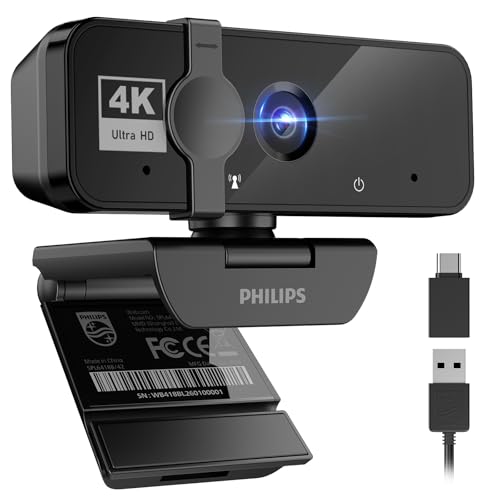
5. Philips 4K Webcam – Best for simple 4K calling

The Philips listing describes a 4K webcam with a microphone, a CMOS sensor, a physical privacy cover, a flexible clip for laptops and monitors and driver-free plug-and-play USB setup. Retail data points to the SPL6418 model, and the datasheet for a related Philips 4K model shows 3840 by 2160 at 30 fps, an 8-megapixel sensor and two microphones, but it is not clear those figures apply to this exact model. Treat this as a simple, no-fuss option for a spare desk or a family computer.
Because the listing text is vague about frame rates, field of view and microphone count, it is the runner-up for buyers who need precise specs. If you plan to stream at 60 fps, choose one of the Sony-sensor models instead.
- Resolution: 4K, frame rate to confirm on listing
- Sensor: CMOS; model not named
- Audio: built-in microphone; count to confirm
- Privacy: physical cover
- Mount: flexible clip
- Software: no drivers needed per the listing
In use, a camera like this suits a family PC or a guest desk where nobody wants to install software. The clip is made to hold on to laptop lids and monitor bezels of different thicknesses, so check that yours is not extremely thin or curved. Because the listing is light on audio detail, plan to use a headset microphone if sound quality is important to you.
Pros
- Simple setup with a privacy cover
- Recognizable consumer brand
Cons
- Thin specification detail
- Listing shows odd, unreliable spec fields
Compared with the Acer A640, it offers fewer confirmed features, so the Acer is the better-documented choice.
6. EMEET S600 4K – Best for streaming

The S600 pairs a Sony 1/2.55 inch sensor with PDAF autofocus, 4K at 30 fps and 1080p at 60 fps, two noise-reduction microphones, a USB-C connection, a privacy cover and a 73 degree view. Retail sources add that the field of view can be adjusted from 40 to 73 degrees at 1080p and is fixed at 73 in 4K, with a fixed f/4 aperture. A larger sensor than most webcams gathers more light, which should help in a dim room. It suits streamers who want smoother motion without paying for a mirrorless camera.
Few streaming platforms accept 4K, so most people will use the 1080p 60 fps mode. The camera has no automatic framing, so you will need to position it yourself.
- Sensor: Sony 1/2.55 inch CMOS
- Resolution: 4K at 30 fps, 1080p at 60 fps
- Field of view: 40 to 73 degrees at 1080p, 73 degrees at 4K
- Aperture: fixed f/4
- Audio: two noise-reduction microphones
- Connection: USB-C
The USB-C connector is handy on newer motherboards and hubs, but check that the cable supplied is long enough to reach a rear port from a tall monitor. For a typical streaming setup, mount it on top of the monitor or on an arm, and use the 1080p 60 fps mode with the narrower view so your face fills more of the frame.
Pros
- Larger sensor and 60 fps mode
- Adjustable view at 1080p
Cons
- Fixed f/4 aperture
- No auto-framing
Compared with the Brio, it matches the 1080p 60 fps mode and adds a larger sensor but lacks Logitech’s software depth.
Specs Compared
| Model | Max video | Sensor | Autofocus | Field of view | Microphones | Connection |
|---|---|---|---|---|---|---|
| EMEET NOVA 4K | 4K at 30 fps; 1080p up to 60 fps | CMOS, model not named | PDAF | 73 degrees | Dual omnidirectional | USB-A |
| EMEET C960 4K | 4K at 30 fps | Sony, model not named | PDAF | 73 degrees | Dual | USB-A |
| Acer A640 4K | 4K at 30 fps; 2K and 1080p at 60 fps | Sony 1/2.8 inch | PDAF | Confirm on listing | Single, AI noise cancellation | USB-A plus USB-C adapter |
| Logitech Brio | 4K at 30 fps; 1080p at 60 fps | Confirm on listing | Autofocus | 90, 78 or 65 degrees | Dual omnidirectional | USB 3.0 for 4K |
| Philips 4K Webcam | 4K; frame rate confirm on listing | CMOS, model not named | Confirm on listing | Confirm on listing | Built-in, count confirm | USB |
| EMEET S600 4K | 4K at 30 fps; 1080p at 60 fps | Sony 1/2.55 inch | PDAF | 40 to 73 degrees at 1080p; 73 at 4K | Dual noise reduction | USB-C |
How We Chose These
This ranking is based on research, not on recording sessions with the cameras. We began with the six 4K webcam listings assigned to this topic and compared each listing name with manufacturer pages and specification fields at retailers. We looked for stated sensor makers, autofocus type, frame rates, field of view, microphones, privacy features and connection type, and we preferred models where those details were clear. Where sources disagreed or a listing was silent, the table says to confirm on the listing. We also considered how well each camera fits PC builders, such as USB version, mounting and software support.
What to Look For
Resolution versus sensor quality
The 4K label describes the pixel count, not image quality. A small sensor with 8 million pixels packs those pixels tightly, so each one collects little light. A larger sensor, such as a 1/2.55 or 1/2.8 inch Sony chip, gathers more light, which usually shows up as less noise in a dim room. For ordinary calls, a 1080p stream from a good 4K sensor often looks cleaner than native 4K from a weak one. Default to a sensor-first decision and treat the 4K number as a bonus.
Frame rate and what apps accept. Most 4K webcams run 4K at 30 fps, and many drop to 1080p at 60 fps for smoother motion. Meeting apps compress video heavily and often cap it at 720p or 1080p, and streaming platforms rarely take 4K from a webcam. If your use is games, pick a model with a 60 fps mode. If your use is calls, 30 fps is plenty. Remember that a camera may default to 1080p, and you may need to select 4K in the camera app.
Autofocus, field of view and framing
Phase-detection autofocus finds focus faster than contrast-based systems and tends to hunt less when you lean in. Field of view sets how much of the room appears: 65 degrees frames head and shoulders, 78 suits two people, and 90 shows a wide office. A fixed 73 degree view is a reasonable compromise. A worked rule of thumb: at about 2 feet from the camera, a 73 degree view captures a scene roughly 3 feet wide, so you will see your shoulders and a bit of the desk.
USB connection and bandwidth
Uncompressed 4K video cannot travel over USB 2.0, so cameras use compression, but a USB 3.0 port still gives the best results for the highest modes and for multiple devices. Plug into a port on the back of the motherboard rather than a front-panel header or an unpowered hub when you can. A USB-A to USB-C adapter is useful for modern cases that offer only Type-C.
Microphones, privacy and mounting
Lighting: the easiest upgrade
Every webcam depends on light more than on pixels. Put a soft light source in front of you, either a window or a lamp bounced off a wall, and avoid a bright window behind you. A webcam in a room lit at about the brightness of a normal living room can look noticeably noisy because the sensor raises its gain to compensate. If your picture looks grainy, move the lamp before you buy a new camera. Automatic light correction features, which the NOVA, C960 and Brio list, brighten faces in dim scenes, but they work best when the room is not very dark. Turn off automatic exposure if you stream with a ring light and see the picture pulse.
Software, drivers and operating system support. Check which software the maker provides. Logitech and EMEET both offer apps that save settings such as field of view, brightness and sharpness, and these settings persist after a restart. Some cameras expose only the controls built into Windows, which is enough if you are happy with automatic settings. Consider the privacy side too: apps that request camera access should be allowed deliberately in the operating system settings.
Built-in microphones are fine for casual calls, but a separate headset or desk microphone almost always sounds better. A physical privacy cover or shutter is a simple way to prevent accidental streaming. Make sure the clip fits your monitor thickness, and look for a tripod thread if you plan to mount it on an arm or a stand.
Questions
Do I need a 4K webcam for video calls?
Usually not. Meeting software compresses video, so native 4K rarely reaches the other side. A 4K webcam is still useful if you want a larger sensor, more cropping room or plan to record content.
Why does my 4K webcam only show 1080p?
Many 4K webcams default to 1080p to save bandwidth. Open the manufacturer’s app, your camera app, or OBS and select 3840 by 2160. Use a USB 3.0 port if the option is missing.
Is 60 fps or 4K better for streaming?
For most streamers, 1080p at 60 fps is better, because it looks smoother and most platforms do not take 4K from a webcam. Choose 4K at 30 fps only for recording or when you want to crop in.
Are webcam privacy covers worth having?
Yes, they are a simple, reliable way to block the lens when you are not on a call. A cover does not mute the microphone, so also check your system’s microphone settings.
Will these webcams work with a Mac or Linux PC?
Most USB webcams work as standard video devices on macOS and Linux, but software features and driver support vary. Check each listing’s operating system list, and note that some of the settings apps are Windows-first.
Where should I put the webcam on my monitor?
Place it at the top center of the screen so your eye line stays natural. Keep the lens at roughly eye level, tilt it slightly down, and avoid a bright window behind you, because the camera will darken your face to protect the background.
Update History
- October 20, 2026 – Initial publication; product set drawn from current catalog listings.
- Check the product page for current specifications and availability before buying.
Sources
- Manufacturer product and specification pages for EMEET, Logitech, Acer and Philips
- Retailer listing titles and specification fields
- Published product datasheets used to cross-check resolution, frame rate and microphone details