TDP is one of the most misunderstood numbers in PC building. Shoppers treat it as the wattage a CPU consumes, then wonder why their chip pulls far more under load and their cooler struggles. TDP is a thermal specification, not a power budget, and knowing the difference is essential for sizing coolers and power supplies correctly.
As an Amazon Associate we earn from qualifying purchases at no extra cost to you.

Our Top Picks
 KETOTEK Watt Meter Power Meter Plug Electricity Usage2.3 x 3.1 x 4.7 inches0.4 PoundsCheck on Amazon
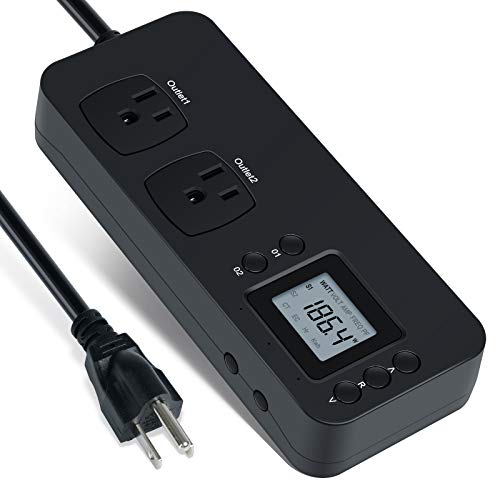


Top 3 picks at a glance
What TDP really means
TDP, or Thermal Design Power, describes the sustained heat a cooler must dissipate at the CPU’s base clock, expressed in watts. It is a guideline for cooler design at baseline conditions, not the maximum the chip will draw. Modern CPUs routinely exceed their TDP during boosts, sometimes by a wide margin.
| Rating | What it describes | Typical relationship |
|---|---|---|
| Base TDP | Heat at base clock | Baseline figure |
| Intel PL2 / Turbo | Short boost power | 1.5-2x base TDP |
| AMD PPT | Max socket power | ~1.35x rated TDP |
| Real gaming draw | Actual load power | Varies, often above TDP |
Why the gap exists
Boost behavior
To chase higher clocks, CPUs raise voltage and frequency well beyond base spec when thermal and power limits allow. An Intel chip with a 125 W base TDP may draw 250 W at its PL2 boost limit; an AMD chip rated 105 W TDP can reach roughly 142 W PPT. Those are the numbers your cooler and PSU actually face.
What to size for
Size your cooler for the peak, not the TDP. A cooler rated for 150 W will be overwhelmed by a chip that boosts to 250 W, leading to thermal throttling. Likewise, add the peak CPU draw, not TDP, into your power supply math so you leave enough headroom for boost spikes.
Reading spec sheets correctly
When comparing CPUs, note both the base TDP and the maximum turbo or PPT figure. Two chips with the same 65 W TDP can behave very differently if one boosts to 90 W and the other to 120 W. The higher-boost chip runs faster but demands more cooling and power, which changes your build budget.
Configurable power limits put you in control
Modern platforms let you set power limits yourself, which turns TDP from a fixed label into a dial. On many boards you can cap a CPU’s sustained power to its base TDP or somewhere between base and maximum boost, trading a small amount of peak multi-core performance for dramatically lower heat and power. A chip that boosts to 250 W might lose only a few percent of performance when capped to 150 W, while running far cooler and quieter, which is a compelling deal in a compact or hot-running build.
This matters because it decouples cooler sizing from the chip’s maximum. If your cooler can handle 150 W but the CPU wants 250 W, you can either buy a bigger cooler or cap the power and keep your existing one working comfortably. Understanding that TDP, PL2 and PPT are configurable, not immutable, gives you a lever to balance performance, noise and temperature to your taste, rather than accepting whatever the default boost behavior throws at your cooling.
FAQ
Does a higher TDP mean a hotter CPU?
Not necessarily. TDP reflects heat at base clock, but real temperatures depend on boost power, cooler quality and case airflow. A chip with a modest TDP can run hot if it boosts aggressively and the cooler is undersized for its peak draw.
Should I size my cooler by TDP?
No, size it by peak power. Use the CPU’s PL2 or PPT figure, which can be 1.5–2x the base TDP, so your cooler can handle sustained boosts without throttling. Sizing only to TDP risks a cooler that cannot keep up under real load.
Bottom line
TDP is a thermal design guideline at base clock, not the power your CPU consumes. Real chips draw their PL2 or PPT figure, often 1.5–2x higher, during boosts. Size your cooler and PSU from those peak numbers, and compare CPUs by both TDP and maximum turbo power to understand what a build will actually demand.