Cable management is often sold as a beauty exercise, but its real payoff is cooler, quieter operation and easier maintenance. Tangled cables block intake fans, trap heat around the PSU and make future upgrades a chore. A methodical approach with a modular unit turns a rat’s nest into clean airflow paths in under an hour.
As an Amazon Associate we earn from qualifying purchases at no extra cost to you.


Our Top Picks


Why cables affect temperatures
A bundle of unused cables stuffed behind the motherboard tray or draped across the case interrupts the air that should reach your components. Blocked front intakes can cost a GPU 3–6 C, and a wall of cables in front of the PSU intake makes that fan work harder and louder. Clearing the paths is free cooling.
The core techniques
Use only the cables you need
A fully modular PSU lets you connect just the 24-pin, the EPS CPU cable, the PCIe or 12VHPWR leads and one SATA chain. Leaving unused cables in the box removes clutter before it starts. A semi-modular unit fixes the essentials but still lets you drop extra peripheral cables.
Route behind the tray
Run bulk cabling through the case’s rear channel, behind the motherboard tray, and use the built-in tie-down points. The 24-pin and EPS cables should travel up the back and pop through grommets near their headers, keeping the main chamber clear.
| Cable | Best route | Airflow impact if messy |
|---|---|---|
| 24-pin ATX | Rear channel to mid grommet | Blocks mid intake |
| EPS 12V (CPU) | Behind tray to top grommet | Blocks top exhaust |
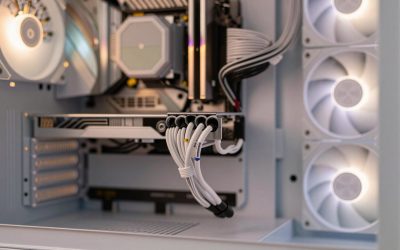
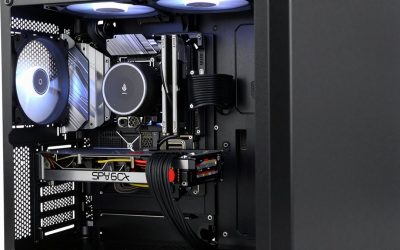
| PCIe / 12VHPWR | Short front route to GPU | Blocks GPU intake |
| SATA chain | Rear, single daisy chain | Clutters drive area |
| Unused cables | Leave in the box | Traps PSU heat |
Tools that make it easy
A handful of reusable Velcro straps beats a bag of zip ties for future changes. Bundle cables in groups, anchor them to tie points, and leave a little slack near connectors so nothing pulls. In the PSU shroud area, coil excess length flat rather than balling it up in front of the unit’s intake fan.
A simple order of operations
Cable management is easiest when done in the right sequence rather than after the build is assembled. Route the 24-pin and EPS 12V cables first, before the GPU goes in, because they are the thickest and hardest to move later. Feed them up the rear channel and out the grommets nearest their headers, leaving just enough slack to seat the connectors without strain. Then add PCIe or 12VHPWR leads for the GPU, keeping the run short and direct so nothing droops in front of the card’s intake.
Finish with the thin peripheral cables, daisy-chaining SATA power to your drives in a single tidy line along the back. Anchor each bundle to the case tie points with reusable straps as you go, not at the end, so cables stay where you put them. Any unused modular cables should go straight back in the PSU box; there is no benefit to routing cables you will not connect. Done in this order, even a first-time builder can produce a clean interior in under an hour, and the payoff is unobstructed intake fans and a PSU that breathes freely.
FAQ
Does cable management really improve temperatures?
Yes, modestly but reliably. Clearing cables away from intake fans and the GPU can lower component temperatures by a few degrees and keeps the PSU fan quieter. The bigger win is unobstructed airflow paths and far easier cleaning and upgrades.
Do I need a fully modular power supply?
It helps but is not essential. Fully modular units let you omit every unused cable for the cleanest result. A semi-modular unit still allows tidy builds; you just route the fixed 24-pin and CPU cables behind the tray and skip the extra peripheral leads.
Bottom line
Good cable management is really airflow management. Use a modular PSU to connect only what you need, route bulk cabling behind the motherboard tray to grommets, and secure it with reusable straps. Keeping cables out of the intake and GPU paths buys a few degrees of cooling, a quieter PSU fan, and a build that is easy to service later.