
Optimizing pulse-width modulation (PWM) settings is the single most effective way to eliminate unnecessary fan noise without sacrificing thermal safety. Unlike legacy direct-current (DC) voltage control, which lowers fan speeds by dropping supply voltage and risking motor stall or bearing hum, PWM supplies a constant 12V power signal. Speed control is achieved via a dedicated fourth wire transmitting a high-frequency square wave signal—typically 25 kHz—instructing the fan’s internal driver IC when to pulse power to the motor coils.
To achieve the best PWM settings for low noise, you must prioritize signal stability and transition smoothing over aggressive thermal response curves. In 2026, modern multi-core processors exhibit aggressive, instantaneous power spikes during simple background tasks. If your fan response curve is mapped directly to real-time CPU package temperatures without delay filters, your system fans will rev wildly, creating distracting pitch variations. True acoustic optimization relies on establishing continuous baseline airflow, applying generous temperature hysteresis, lengthening step-up and step-down ramp delays, and binding chassis airflow to steady thermal sources like liquid coolant or GPU temperatures.
As an Amazon Associate we earn from qualifying purchases at no extra cost to you.

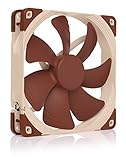




Our Top Picks

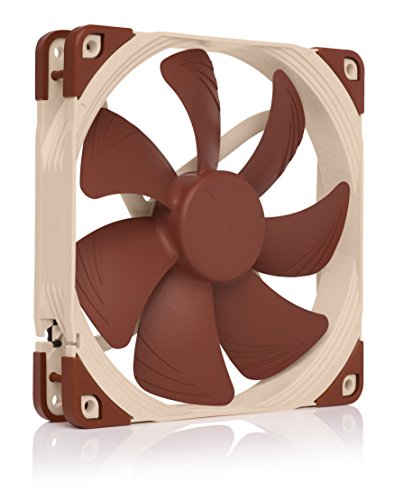

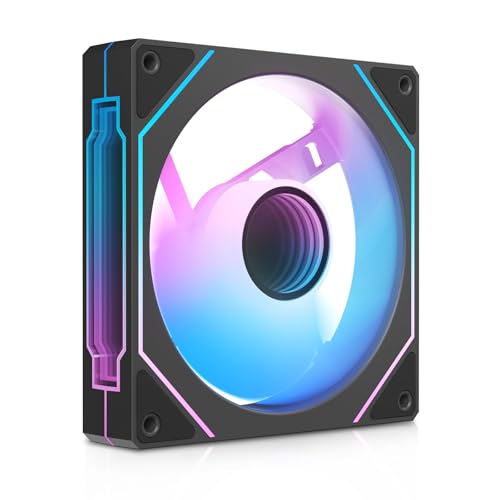


Top 3 picks at a glance
Quick Recommended Settings
| Setting | Recommended Value | Why |
|---|---|---|
| Control Mode | PWM (4-Pin / Manual) | Maintains continuous 12V power, eliminating motor coil whine and DC low-voltage stalls. |
| Minimum Duty Cycle | 20% – 30% PWM | Keeps fan motors above their hardware stall threshold while keeping airflow completely imperceptible. |
| Hysteresis / Temp Delay | 3 to 5 Seconds (or 3°C–5°C) | Smooths out momentary thermal spikes caused by web browsers or short background tasks. |
| Step-Up Time (Spin-Up) | 2.0 to 5.0 Seconds | Prevents sudden acoustic ramps when heavy multi-threaded loads begin. |
| Step-Down Time (Spin-Down) | 5.0 to 10.0 Seconds | Prevents jarring RPM drops during loading screens or transient load drops. |
| Idle Target Curve (up to 55°C) | Flat 25% – 30% PWM | Maintains steady system baseline pressure and prevents constant speed oscillation. |
| Load Target Curve (55°C to 80°C) | Linear Ramp (30% to 65% PWM) | Delivers predictable, linear noise scaling without entering high-pitch fan whine regimes. |
| Thermal Safety Threshold (85°C+) | 100% PWM Safety Cap | Protects silicon integrity during sustained extreme thermal events or pump failure. |
Setting-by-Setting
1. Control Mode Selection (PWM vs. DC)
What causes it: Running a 4-pin PWM fan under DC (voltage-regulated) mode drops input voltage below 7V at low settings. This starves the fan motor driver, creating noticeable motor clicking, bearing rattle, or unexpected fan stalls.
How to check: Restart your computer and press Del or F2 during boot to open the UEFI/BIOS. Navigate to the monitor section—such as Hardware Monitor (MSI/ASRock), Q-Fan Control (ASUS), or Smart Fan 6 (Gigabyte). Inspect the headers to see if they are set to Auto or DC.
What to do: Manually change the control mode setting for every 4-pin header from Auto or DC directly to PWM. In Windows software like Fan Control, expand the fan card control options and set the switch mode override to PWM.
How to undo: Return to the UEFI motherboard monitoring page or software utility and toggle the header back to Auto or DC Mode.
2. Hysteresis / Temperature Averaging
What causes it: CPU power states shift in milliseconds, pushing CPU package temperatures up by 15°C to 20°C instantly during minor operations. Without hysteresis, the PWM duty cycle reacts instantly, driving fan RPM up and down continuously.
How to check: Listen to your PC while opening desktop applications or switching browser tabs. If fan pitch rises instantly within a fraction of a second, temperature hysteresis is disabled or set to zero.
What to do: In your motherboard BIOS, locate Temperature Hysteresis, Fan Speed Smoothing, or Temperature Interval. Set this parameter to 3 Seconds or a 4°C differential window. In desktop software, create an Average sensor function set to a 5-second rolling sample window mapped to the CPU sensor.
How to undo: Reset the temperature hysteresis or smoothing filter back to 0 Seconds or Disabled within your configuration utility.
3. Step-Up Time (Spin-Up Delay)
What causes it: Immediate power delivery to fan headers causes rapid motor torque expansion. The fan blades instantly slice through stationary air, producing a harsh wind rush or motor hum during sudden load transitions.
How to check: Launch a heavy stress test like Cinebench. If system fans reach peak gaming RPM within 500 milliseconds of clicking start, your step-up delay is inactive.
What to do: Locate Fan Step Up Time or Spin Up Interval in your UEFI fan menu. Increase the delay value to 2.0 Seconds or 3.0 Seconds (on Gigabyte systems, select Level 3 or Level 4 speed transition settings).
How to undo: Set the step-up transition delay back to 0.1 Seconds, Instant, or Standard.
4. Step-Down Time (Spin-Down Delay)
What causes it: When gaming load drops during loading screens, CPU temperatures fall sharply. Unfiltered PWM signals immediately drop fan speeds, causing noticeable deceleration pitch drops, only for fans to rev up again when the next scene loads.
How to check: Exit a demanding game to the desktop. If fan noise disappears almost instantaneously instead of tapering off slowly, step-down delays are unconfigured.
What to do: Set Fan Step Down Time or Spin Down Interval to 7.0 Seconds or 10.0 Seconds in your fan management interface. This forces heat sinks to dissipate residual heat gradually while preventing rapid fan RPM fluctuation.
How to undo: Change the spin-down interval parameter back to 0 Seconds or factory default settings.
5. Minimum Duty Cycle Floor
What causes it: Mapping a fan curve down to 0% on fans that lack true Zero-RPM hardware logic forces the motor IC into continuous reboot cycles, generating ticking noises or motor overheating as it tries to overcome start resistance.
How to check: Set a manual PWM output value of 10% in software and inspect the fan blades. If the fan stutters, stops completely, or emits a high-pitched buzz without turning, the duty cycle is set below the motor operating threshold.
What to do: Run your motherboard’s automated fan calibration utility (e.g., Q-Fan Tuning or Fan Optimization). Identify the lowest stable RPM duty percentage—typically between 18% and 25%—and set your fan curve’s lowest anchor point 3% to 5% above that threshold.
How to undo: Drag the lowest point on the fan curve graph back down to 0% PWM or remove custom floor overrides.
6. Temperature Source Target Selection
What causes it: Routing chassis (intake/exhaust) fans directly to instantaneous CPU Core temperatures causes all system fans to cycle violently, even though overall case ambient air density changes very slowly.
How to check: In your motherboard BIOS or software, check the input sensor assigned to `CHA_FAN` or `SYS_FAN` headers. If it reads `CPU`, chassis airflow is fluctuating based on single-core CPU workload spikes.
What to do: Reassign chassis fan headers to use GPU Temperature, PCIe / System Temp, or a software-calculated Max / Mix sensor that tracks both CPU and GPU temperatures over a smoothed time interval.
How to undo: Reassign the input sensor for chassis fan headers back to default CPU Temperature.
By Hardware Tier
Low-End / Budget Hardware Tier
Budget builds typically rely on low-mass single-tower air coolers and budget 120mm fans with higher motor vibration. Because thin tower heatsinks have minimal thermal mass, fan curves must absorb minor spikes without letting the CPU hit thermal throttling boundaries under combined CPU/GPU loads.
- CPU Fan Header: 0°C to 55°C mapped to flat 30% PWM; linear ramp from 55°C (30% PWM) to 78°C (60% PWM); critical ramp to 100% PWM above 85°C.
- Chassis Fan Headers: Fixed 30% PWM flat line up to 60°C GPU temperature; linear ramp to 50% PWM at 75°C GPU temp.
- Delays: Set Step-Up time to 2.0s, Step-Down time to 5.0s, and Hysteresis to 3°C.
Mid-Range Hardware Tier
Mid-range configurations usually feature dual-tower air coolers or 240mm/280mm All-in-One (AIO) liquid coolers paired with mid-TDP processors and graphics cards. The higher thermal mass of these coolers allows for much flatter, quieter fan profiles during general desktop usage and gaming workloads.
- CPU / AIO Fan Header: 0°C to 60°C mapped to flat 22% PWM; linear ramp from 60°C (22% PWM) to 82°C (55% PWM); critical ramp to 100% PWM at 88°C.
- Chassis Fan Headers: Bound to GPU sensor. 0°C to 55°C mapped to 25% PWM; 55°C to 75°C linear ramp to 48% PWM.
- AIO Pump Header: Fixed 70% to 80% static PWM (eliminates fluid whine while maintaining optimal coolant flow).
- Delays: Set Step-Up time to 3.0s, Step-Down time to 8.0s, and Hysteresis to 4°C.
High-End / Enthusiast Hardware Tier
Enthusiast systems feature high-surface-area 360mm/420mm liquid cooling loops or large custom loops capable of absorbing substantial thermal energy before radiator heat dissipation needs to increase. Radiator fan control should be decoupled from short-term CPU spikes entirely and bound directly to liquid coolant temperatures or long-term smoothed thermal averages.
- Radiator Fan Headers: Bound to
T_Sensor(liquid temperature probe). 0°C to 32°C liquid temp mapped to 20% PWM (or Zero-RPM if supported); 32°C to 42°C liquid temp linear ramp to 50% PWM; safety cap to 100% PWM if liquid exceeds 48°C. - Chassis / VRM Airflow Headers: Flat 35% PWM static speed; scales to 55% PWM only when ambient interior/VRM sensors exceed 55°C.
- Delays: Set Step-Up time to 5.0s, Step-Down time to 10.0s, and Hysteresis filter to 5-second moving averages.
Common Mistakes
Enabling Zero-RPM Mode on Standard Sleeve-Bearing Fans: Standard sleeve-bearing fans are not designed for repeated stop-start cycles. Setting PWM to 0% cuts power, but restarting forces high current inrush, producing audible clunking sounds and accelerating bearing wear. Only enable 0% duty cycles on fans explicitly rated for Zero-RPM operation featuring fluid dynamic bearings (FDB) or magnetic levitation drivers.
Leaving Chassis Fans Bound Solely to CPU Temperature: A heavy graphics card load can dump hundreds of watts of heat into the PC case while the CPU remains under light load. If chassis fans only monitor CPU temperatures, internal case temperatures will rise dramatically, causing GPU throttling and excessive GPU fan noise. Always bind chassis fans to GPU temperatures, motherboard ambient sensors, or a combined thermal max function.
Running Multiple Fan Control Software Utilities Simultaneously: Running motherboard software suites (like ASUS FanXpert or MSI Center) at the same time as background utilities (like Fan Control or Corsair iCUE) causes control loop conflict. The utilities overwrite the PWM signal registers continuously, leading to erratic fan hunting, sudden RPM surges, or frozen fan speeds.
Assuming PWM Duty Cycle Percentage Equals Actual RPM Percentage: A 50% PWM duty cycle rarely translates to 50% of maximum rated fan RPM. Modern fan driver ICs utilize non-linear speed response curves. A fan rated for 2000 RPM might run at 1100 RPM at 30% PWM, but hit 1800 RPM at 70% PWM. Always evaluate noise based on actual tachometer RPM output rather than raw duty cycle percentage values.
FAQ
What is the difference between PWM duty cycle percentage and actual RPM?
PWM duty cycle percentage represents the proportion of time the 25 kHz control signal stays in an “on” state versus an “off” state sent to the fan driver IC. Actual RPM is the physical rotation speed of the fan blades measured by the internal Hall-effect sensor signal on the third header pin. Because motor design, magnetic resistance, and driver curves are non-linear, a 40% PWM duty cycle may yield 55% of the fan’s maximum rated RPM.
Is it safe to run PWM fans at 0% duty cycle when idle?
It is completely safe only if the fan motor controller supports native Zero-RPM functionality. Fans built with Zero-RPM logic safely parked internal drivers when the PWM signal drops below a specific threshold (usually under 10% to 15%). On standard PWM fans without native zero-RPM support, feeding a 0% signal can cause the fan motor to stutter or vibrate endlessly, which increases motor heat and decreases fan longevity.
Why do my PWM fans ramp up rapidly when opening a web browser?
Modern CPUs boost to maximum clock frequencies instantly when processing short tasks like launching a browser, causing momentary temperature surges on the CPU package sensor. If your fan control curve lacks hysteresis (temperature delay filtering) or step-up delays, the motherboard immediately sends a higher PWM duty cycle to the fans, causing momentary, annoying fan revving.
Should I use motherboard BIOS or third-party desktop software for PWM control?
Using the motherboard BIOS is the most reliable method because fan curves operate directly at the hardware layer without requiring background software processes, OS stability, or CPU overhead. However, desktop utilities like Fan Control offer advanced options unavailable in standard BIOS menus, such as multi-sensor mixing (taking the highest value of CPU and GPU), customized mathematical response filters, and software-based temperature averaging delay loops.









