
Modern high-TDP graphics cards dump vast quantities of heat directly into the main compartment of a PC chassis. Unlike reference blower cards of the past, axial-fan open-air GPUs disperse hot exhaust in all directions—upward toward the CPU socket and back toward the motherboard PCB. If your exhaust fans rely on default factory profiles mapped strictly to CPU thermals, hot air recirculates inside the case during GPU-heavy gaming, causing elevated core temperatures, thermal throttling, and aggressive GPU fan noise.
To fix a hot GPU, your exhaust fan configuration must prioritize direct thermal synchronization with the graphics card’s onboard sensors, balanced airflow pressure, and localized heat extraction. Configuring your top and rear exhaust fans correctly creates a clear pathway that evacuates radiant heat before it saturates the internal ambient air of your case. Prioritizing GPU core and hotspot temperatures over CPU package temperatures ensures fan speeds scale precisely when graphics processing workloads demand high power delivery.
As an Amazon Associate we earn from qualifying purchases at no extra cost to you.




Our Top Picks
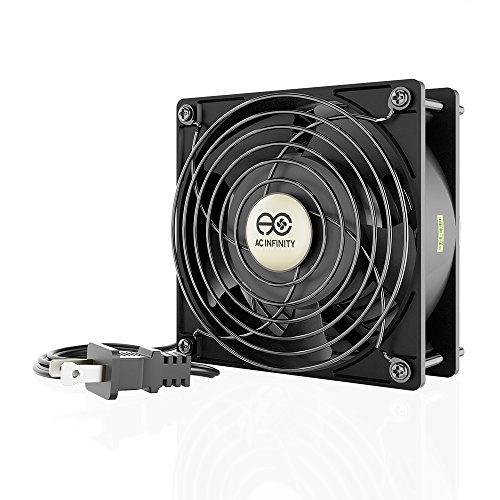 AC Infinity AXIAL LS1238120 x 120 x 38 mm, Low Speed4.7 x 4.7 x 1.5 inches1.63 PoundsCheck on Amazon


Top 3 picks at a glance
Quick Recommended Settings
The table below outlines baseline configuration values for system exhaust fans targeting optimized thermal extraction from a hot graphics card.
| Setting | Recommended Value | Why |
|---|---|---|
| Exhaust Temp Sensor Source | GPU Core / GPU Hot Spot | Ensures exhaust fan speeds ramp up immediately based on graphics card heat output rather than CPU load. |
| Rear Exhaust Idle Speed | 35% – 40% PWM (approx. 500 – 700 RPM) | Maintains continuous air movement across the upper motherboard area without introducing unnecessary acoustic noise. |
| Rear Exhaust Max Speed | 75% – 85% PWM (approx. 1300 – 1600 RPM) | Evacuates rising axial GPU exhaust near the rear I/O area before heat can linger around the PCIe slot and CPU tower. |
| Top-Rear Exhaust Speed | Match Rear Exhaust Curve (or -5% lower PWM) | Pulls buoyant hot air up and out of the primary thermal pocket above the graphics card backplate. |
| Top-Front Fan Function | Disabled or Low Fixed RPM (25% – 35% PWM) | Prevents fresh intake air coming from the front panel from being exhausted prematurely before reaching the GPU fan intake. |
| Fan Curve Hysteresis | 3°C – 5°C | Prevents rapid fan speed fluctuations and acoustic revving during momentary GPU temperature spikes. |
| Ramp-Up / Ramp-Down Delay | 3 sec Step-Up / 5 sec Step-Down | Smooths out fan transitions during dynamic gameplay rendering scenes. |
Setting-by-Setting
Temperature Sensor Source Mapping
Exact Value: GPU Core or GPU Hot Spot (via Fan Control or Motherboard BIOS)
Trade-Off: Linking fan headers to GPU thermals causes exhaust fans to spin up during GPU-only workloads even when the CPU is completely idle, slightly increasing system ambient noise during graphics rendering or video processing.
What causes it: By default, motherboard headers (`SYS_FAN` / `CHA_FAN`) monitor the CPU socket sensor. During GPU-bound gaming at high resolutions, the CPU may draw minimal power while the GPU runs at maximum board power, leaving exhaust fans idling while the case heats up.
How to check: Run a dedicated GPU load test like FurMark. Observe rear exhaust fan RPM using software like HWInfo64 (`Sensors` menu). If GPU core temperature exceeds 75°C while rear exhaust RPM remains unchanged from desktop idle speed, the sensor source is incorrect.
What to do: Download and open open-source fan management software (such as Fan Control by rem0o). Click the `+` button in the bottom right, select `Add Graph Curve`, and set the `Sensor Source` dropdown menu to your graphics card (`GPU Core` or `GPU Hot Spot`). Alternatively, enter your motherboard BIOS (press `Delete` or `F2` during boot), navigate to `Advanced Mode` > `Hardware Monitor` / `Q-Fan Control`, select `CHA_FAN1`, and change `Temperature Source` from `CPU` to `GPU` (if supported by your BIOS board vendor).
How to undo: In Fan Control, right-click the graph curve and select `Remove`, or reassign the header’s target curve back to `CPU Package` inside your BIOS hardware monitoring tab.
Rear Exhaust Fan Curve Mapping
Exact Value: 35% PWM at <45°C | 50% PWM at 60°C | 75% PWM at 75°C | 100% PWM at 85°C
Trade-Off: Setting an aggressive curve profile past 75% duty cycle increases airflow velocity through the rear stamped grill, which can generate wind shear turbulence depending on case mesh density.
What causes it: Static flat fan profiles fail to adjust to changing thermal loads, causing hot air accumulation above the GPU backplate during sustained gaming sessions.
How to check: Open your fan management application, expand your custom curve graph, and examine the anchor points along the temperature (X-axis) and duty cycle percentage (Y-axis).
What to do: In your chosen fan control utility, create a 4-point linear graph curve. Set Point 1 to `35% at 45°C`, Point 2 to `50% at 60°C`, Point 3 to `75% at 75°C`, and Point 4 to `100% at 85°C`. Bind the physical header powering your rear exhaust fan directly to this graph.
How to undo: Select the default `Standard` or `Silent` profile pre-set in your software or BIOS to revert to factory auto-scaling.
Fan Hysteresis and Response Delays
Exact Value: 3°C Hysteresis / 3-second Step Up / 5-second Step Down
Trade-Off: Introduces a slight lag (a few seconds) before fans increase speed when thermal loads increase, though this delay has zero measurable impact on steady-state GPU temperatures.
What causes it: Modern GPUs adjust power states instantly, leading to rapid sensor temperature fluctuations over 2-3 second intervals. Direct 1:1 fan speed tracking causes annoying fan pitch ramping (“hunting”).
How to check: In Fan Control, click the edit icon on your custom fan curve and check the `Hysteresis` input box and the `Frequencies` / `Response Time` settings.
What to do: Set `Hysteresis` to `3°C` or `4°C`. Change `Step Up` response time to `3 seconds` and `Step Down` to `5 seconds`. This ensures fans only ramp up when thermal increases are sustained.
How to undo: Clear the `Hysteresis` field to `0°C` and set `Step Up` / `Step Down` timers back to `0 seconds` for immediate step response.
Top Exhaust Fan Placement and Balancing
Exact Value: Top-Rear: Synchronized with Rear Fan Curve | Top-Front: Set to Off or 25% Fixed PWM
Trade-Off: Turning off or lowering the top-front fan slightly reduces maximum potential multi-fan air volume, but prevents pulling cool intake air straight out of the case before it cools the GPU.
What causes it: Mounting a top exhaust fan near the front panel pulls fresh intake air directly upward and out of the chassis before it reaches the GPU intake fans, starving the graphics card shroud of cool air.
How to check: Hold a piece of paper or smoke tracer near the upper front intake area while all top exhaust fans run at high speed. If air moves directly from the front upper intake into the top-front exhaust header, the top-front fan is interfering with airflow.
What to do: Plug top exhaust fans into separate motherboard headers (`SYS_FAN2` and `SYS_FAN3`). Map the top-rear fan to match your custom rear exhaust curve. Set the top-front fan to `Fixed Percentage` at `0%` (Off) or `25% PWM` low static airflow.
How to undo: Re-link top fan headers using a PWM splitter cable to run all top fans on a single unified speed curve.
By Hardware Tier
Low-End & Budget Builds (100W – 180W GPUs)
Entry-level graphics cards generate moderate heat. A single 120mm rear exhaust fan connected to motherboard header `SYS_FAN1` is typically sufficient. Set a fixed 40% PWM speed up to 60°C, scaling to 65% PWM max at 75°C GPU temperature. Top exhaust fans are generally unnecessary for builds in this power class; keeping the top panel closed or using passive ventilation preserves positive case pressure.
Mid-Range Gaming Builds (200W – 300W GPUs)
Mid-range systems require a coordinated dual-exhaust arrangement consisting of one 120mm/140mm rear exhaust and one 120mm/140mm top-rear exhaust fan. Connect both fans using a 4-pin PWM splitter to a single motherboard header or individual headers grouped within software. Set idle duty cycles to 35% PWM, ramping linearly to 75% PWM when the GPU reaches 72°C. Ensure total front intake fan speeds run 5% to 10% faster than exhaust speeds to maintain slight positive air pressure and prevent dust ingress.
High-End & Enthusiast Rigs (350W+ GPUs)
Modern flagship graphics cards dissipate substantial heat into the chassis. To manage thermal output effectively in modern 2026 gaming rigs, exhaust configurations require high static-pressure 140mm fans at both rear and top-rear exhaust positions. Utilize individual software headers via Fan Control to monitor both `GPU Hot Spot` and `GPU VRAM` junction temperatures. Configure a steep curve: 40% PWM baseline, scaling to 85% PWM once GPU Hot Spot reaches 80°C. If an AIO CPU liquid cooler is mounted at the top exhaust position, increase front intake fan curves to ensure adequate air mass reaches the GPU before passing through the top radiator.
Common Mistakes
Optimizing exhaust settings requires balancing pressure dynamics and sensor sources. Avoid these common implementation errors:
- Binding Exhaust Speeds Solely to CPU Temperature: Mismatching sensor sources is the primary cause of GPU overheating in modern mid-tower cases. If the CPU is liquid-cooled, CPU temperatures remain low during gaming while the GPU saturates the lower chamber with hot air. Always ensure exhaust curves monitor GPU sensor nodes.
- Running Excessive Top-Front Exhaust: Placing a high-RPM exhaust fan in the top-front slot creates short-circuit airflow. Cool air entering from the top-front intake is immediately drawn up and out before reaching the GPU shroud. Disable or slow down top-front exhaust fans.
- Creating Unintended Extreme Negative Pressure: Setting exhaust fan RPMs significantly higher than front intake RPMs draws unfiltered air inward through rear expansion slot gaps and unsealed chassis seams, leading to rapid dust accumulation on the GPU heatsink. Balance intake and exhaust speeds to maintain neutral or slightly positive pressure.
- Relying on Default Zero-RPM Profiles for Exhaust Fans: Allowing exhaust fans to stop completely during low loads creates thermal pockets inside the case. When a GPU suddenly enters a heavy 3D rendering state, the internal ambient temperature spikes rapidly before zero-RPM exhaust fans can ramp up. Keep exhaust fans spinning at a whisper-quiet baseline (30%-35% PWM) at all times.
FAQ
Should top exhaust fans run faster than rear exhaust fans?
No. Rear exhaust fans should run slightly faster than top exhaust fans. The rear exhaust fan sits directly behind the CPU cooler and above the backplate of the graphics card, making it the most efficient path for hot air removal. Running top fans faster can pull air upward too quickly, reducing the horizontal air velocity across motherboard components.
Can Fan Control or MSI Afterburner control motherboard-connected exhaust fans?
Open-source software like Fan Control can control system exhaust fans connected directly to motherboard headers, provided your motherboard Super I/O controller chip is supported. MSI Afterburner only controls the fans attached directly to the graphics card PCB shroud and cannot control case exhaust fans connected to motherboard headers.
Is positive or negative pressure better for keeping a hot GPU cool?
A neutral to slightly positive pressure configuration (slightly higher intake airflow volume than exhaust) is optimal. Positive pressure ensures fresh air is forced across the GPU intake fans while pushing warm exhaust out through rear chassis ventilation grills and reducing unfiltered dust buildup.
Why does my GPU remain hot even when exhaust fans run at 100%?
If exhaust fans are spinning at maximum RPM but GPU temperatures remain critical (over 85°C Core or 100°C Hotspot), the bottleneck is likely dried thermal paste on the GPU core, inadequate intake airflow velocity, excessive dust clogging the GPU radiator fins, or an overly restrictive front panel filter limiting total system airflow.









