
Liquid cooling operates on thermodynamics fundamentally distinct from traditional air cooling. A liquid cooler uses coolant to buffer and transport heat away from the cold plate to the radiator fins. Because water has a high specific heat capacity, transient power spikes—such as a CPU spiking to 75°C during scene transitions or shader compilation—do not mean the liquid itself has warmed up. In 2026, modern multi-core processors boost within millisecond windows, making direct CPU-package-temperature fan curves noisy and ineffective for liquid cooling setups.
When tuning the best radiator fan curve for gaming, your primary goal is to map fan speeds to the coolant temperature (liquid temp) rather than CPU die spikes. If your hardware lacks a liquid sensor, your curve must rely on aggressive smoothing (hysteresis) to prevent RPM oscillation. Radiator fans require high static pressure to push air through dense aluminum or copper fin stacks. Unnecessary fan revving degrades fan bearings, creates irritating acoustic pitch changes, and offers zero extra thermal performance. Prioritize smooth, sustained airflow over immediate reaction speed.
As an Amazon Associate we earn from qualifying purchases at no extra cost to you.


Our Top Picks
 120mm ARGB Fans 4PIN PWM Computer Case Cooler120×120×25mm4.72 x 4.72 x 0.98 Inches0.9 poundsCheck on Amazon
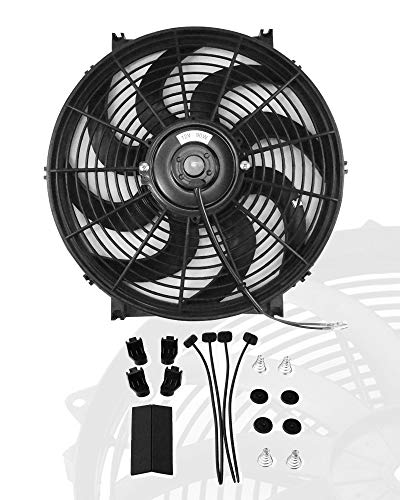 12" inch Slim Fan Pull Electric Radiator Cooling12 Inch12.44 x 12.44 x 2.36 Inches2.6 PoundsCheck on Amazon
 ASUS TUF Gaming TR120 ARGB Reverse Fan TripleTR120 ARGB|3x 120mm|Black4.7 x 4.7 x 1.1 inches1.1 PoundsCheck on Amazon


Top 3 picks at a glance
Quick Recommended Settings
The following settings apply to open-source fan control software (such as Fan Control by Rem0o) or motherboard software (such as ASUS Fan Xpert, MSI Smart Fan 6, or Gigabyte Smart Fan 6).
| Setting Name | Recommended Value (Liquid Temp) | Recommended Value (CPU Temp Alternative) | Why |
|---|---|---|---|
| Temperature Source | AIO Liquid Temp / T_Sensor | CPU Package (Averaged 5s) | Prevents fan hunting during short CPU power bursts. |
| Idle / Baseline Speed | 30% PWM (up to 32°C) | 35% PWM (up to 45°C) | Maintains baseline airflow without audible fan noise. |
| Gaming Load Speed | 50%–60% PWM (33°C to 40°C) | 55%–65% PWM (50°C to 75°C) | Balances steady thermal dissipation against GPU heat bleed. |
| Thermal Ceiling Ramp | 75%–100% PWM (41°C to 45°C+) | 80%–100% PWM (76°C to 85°C+) | Emergency cooling step to protect pump and liquid limits. |
| Step-Up Delay (Ramp Time) | 3 to 5 seconds | 3 to 5 seconds | Smooths transition when CPU enters higher power states. |
| Step-Down Delay (Decay Time) | 8 to 12 seconds | 10 to 15 seconds | Prevents fans from dropping speed during brief game loading pauses. |
Setting-by-Setting
Temperature Sensor Source (Liquid vs. CPU Package)
Exact Value: Liquid Temperature (AIO Sensor / 2-Pin T_Sensor Header) or CPU Package averaged over a 5-second window.
Trade-off: Binding radiator fans directly to raw CPU Package temperature causes the fans to spin up instantly every time a background process spikes. Mapping to Liquid Temperature ensures fans respond to actual heat built up in the fluid. The trade-off is that liquid sensors require dedicated software (like Corsair iCUE, NZXT CAM, or FanControl) or a 2-pin thermistor plugged into your motherboard’s T_SENSOR header.
Idle / Baseline Duty Cycle
Exact Value: 30% to 35% PWM duty cycle (approximately 600 to 850 RPM depending on fan specs) for temperatures up to 32°C Liquid or 45°C CPU.
Trade-off: Setting idle speed below 30% may cause certain high-static pressure fans (like 120mm/140mm industrial designs) to stall completely or emit motor hum. Keeping it at 30% ensures constant internal chassis airflow across VRM heatsinks and M.2 NVMe drives while remaining silent in a quiet room.
Gaming Load Duty Cycle
Exact Value: 50% to 65% PWM duty cycle (approximately 1100 to 1400 RPM) across 33°C to 40°C Liquid or 50°C to 75°C CPU.
Trade-off: Modern gaming places heavy load on both the CPU and GPU. Radiator fans running in this range keep the radiator core from heat-soaking while maintaining an acoustic level under 38 dBA. Increasing fan speed past 65% on modern 240mm–360mm radiators yields diminishing returns (typically less than 2°C liquid improvement) at the cost of noticeable wind noise.
Thermal Ceiling & Safety Ramp
Exact Value: Linear ramp from 70% to 100% PWM between 41°C and 45°C Liquid (or 76°C to 85°C CPU).
Trade-off: Liquid temperatures approaching 50°C can compromise AIO tubing structural integrity over prolonged periods and stress pump impellers. Running fans at 100% past 45°C Liquid sacrifices acoustics entirely to guarantee hardware safety and prevent CPU thermal throttling.
Hysteresis / Response Delays
Exact Value: Step-Up: 3 seconds; Step-Down: 10 seconds (or 3°C to 5°C Hysteresis Band).
Trade-off: Response delays instruct the fan controller to ignore short-term temperature changes. A 10-second step-down delay keeps fans running at load speeds during brief level-loading screens, preventing irritating spin-down and spin-up cycles. The trade-off is that fans will continue spinning loudly for up to 15 seconds after you completely close a heavy game.
By Hardware Tier
Entry-Level Tier (120mm or 240mm AIOs / Budget CPUs)
Entry-level liquid coolers have limited radiator surface area and less fluid volume. They heat-soak quickly during combined CPU and GPU gaming loads.
- Idle Point: 35% PWM up to 40°C CPU.
- Gaming Point: 60% PWM at 60°C CPU; scaling to 75% PWM at 72°C CPU.
- Max Safety Point: 100% PWM at 82°C CPU.
- Hysteresis: 2-second Step-Up / 8-second Step-Down.
Because surface area is restricted, fans must spin faster to push static pressure through the radiator to maintain headroom. Noise levels will be higher under load than with larger radiators.
Mid-Range Tier (280mm or 360mm AIOs / Core i7 / Ryzen 7)
Mid-range configurations represent the sweet spot for modern gaming PCs. The thermal capacity of a 280mm or 360mm radiator handles high gaming power draws without demanding maximum fan speeds.
- Idle Point: 30% PWM up to 33°C Liquid (or 45°C CPU).
- Gaming Point: 50% PWM at 36°C Liquid, scaling smoothly to 62% PWM at 40°C Liquid (or 55% to 68% PWM between 60°C and 75°C CPU).
- Max Safety Point: 100% PWM at 45°C Liquid (or 85°C CPU).
- Hysteresis: 4-second Step-Up / 10-second Step-Down.
This curve keeps the fans virtually silent during light tasks and holds acoustics to a soft hum during intensive gaming sessions.
High-End & Custom Loop Tier (360mm Thick / 420mm Multi-Radiator / Core i9 / Ryzen 9)
High-end setups feature massive surface area and large fluid volumes. Liquid temperatures change extremely slowly, allowing for low acoustic profiles.
- Idle Point: 25%–30% PWM up to 34°C Liquid.
- Gaming Point: 40% PWM at 36°C Liquid; maxing out at 55% PWM at 40°C Liquid.
- Max Safety Point: 85% PWM at 44°C Liquid; 100% PWM at 48°C Liquid.
- Hysteresis: 5-second Step-Up / 15-second Step-Down.
Because thermal saturation takes a long time, fans can remain below 1200 RPM permanently during normal gaming without heat soaking the loop.
Common Mistakes
1. Constant Fan Revving During Game Loading Screens
- What Causes It: The radiator fans are bound directly to real-time CPU Package Temperature without step-delay filtering. Game loading screens spike CPU utilization to 100% for brief intervals, causing instantaneous voltage and heat spikes.
- How to Check: Open your fan control software or BIOS monitoring page. Watch your CPU temperature graph and fan RPM simultaneously while launching a game. If RPM spikes immediately alongside CPU temp spikes, response delays are inactive.
- What to Do: In software like FanControl, navigate to your Fan Curve editor. Set
Step-Up Response Timeto3sandStep-Down Response Timeto10s. If using motherboard BIOS (e.g., ASUS Q-Fan Control), locateFan Step Up/Step Down Timeand set it toLevel 4or5 Seconds. - How to Undo: Revert the Step-Up and Step-Down delay timers in your BIOS or software back to
0 SecondsorStandard/Default.
2. Radiator Heat Saturation from GPU Exhaust Air
- What Causes It: The radiator is mounted at the top of the case as an exhaust, and a high-power graphics card exhausts hot air directly into the radiator core, artificially warming the CPU coolant.
- How to Check: Run a CPU-only workload (like Cinebench) and note CPU/Liquid temps. Then run a combined CPU+GPU benchmark (like 3DMark Time Spy). If liquid temperature rises rapidly during the combined test while CPU power draw remains low, GPU exhaust air is heat-soaking the radiator.
- What to Do: Adjust your overall case ventilation. Increase front intake fan speeds by 10%–15% to increase ambient airflow and flush out GPU heat before it reaches the top radiator. Alternatively, move the radiator to the front panel as an intake.
- How to Undo: Reset intake fan curves to match standard curves and move the radiator back to top exhaust orientation.
3. PWM Fan Signal Loss (Fans Locked at 100% Speed)
- What Causes It: Mixing 3-pin DC mode settings with 4-pin PWM fans, or running conflicting background software (such as running ASUS Armoury Crate alongside FanControl or iCUE).
- How to Check: Open your system monitoring tool. If radiator fans are locked at maximum RPM (~2000+ RPM) regardless of CPU or liquid temperature changes, a software conflict or control mode mismatch exists.
- What to Do: Restart your PC and enter BIOS setup by pressing
DELorF2. Navigate toAdvanced Mode->Hardware Monitor/Fan Configuration. Ensure the header connected to your radiator fan splitter/hub is set explicitly toPWM Mode, notDCorAuto-Detect. Save and exit (F10). In Windows, disable duplicate hardware monitoring utilities in Task Manager -> Startup. - How to Undo: Re-enable background RGB/hardware management suites in Task Manager Startup and set BIOS fan headers back to
Auto-Detect.
FAQ
Should radiator fans be set to intake or exhaust for gaming?
For optimal CPU gaming temperatures, mounting the radiator as a front or side intake delivers fresh ambient air across the cooling fins. However, top-mounted exhaust is usually best for overall system balance, as it lowers GPU temperatures by pulling hot air up and out of the chassis. Top exhaust is recommended for builds with high-power GPUs.
Is it safe to run radiator fans based on GPU temperature instead of CPU?
Yes, mapping radiator fans to GPU temperature (or a mixed source combining CPU and GPU temperatures) works well for top-mounted exhaust radiators. In gaming workloads, the GPU generates significantly more wattage than the CPU, dumping warm air into the case. Increasing radiator fan speeds in response to GPU heat helps flush hot air out through the radiator before liquid temperatures rise.
Why do my radiator fans stay loud even after I exit a game?
Liquid holds onto heat much longer than copper or aluminum heatsinks. When you exit a game, your CPU drops to idle power consumption immediately, but the liquid temperature inside the AIO remains elevated. If your fans are properly configured based on liquid temperature or have a long step-down delay, they will continue spinning until the coolant sheds its excess heat, which can take 2 to 5 minutes.
What is the maximum safe liquid temperature for an AIO cooler?
Most liquid cooling manufacturers specify a maximum safe operating liquid temperature of 50°C to 60°C. Keeping liquid temperatures below 45°C under sustained gaming loads is ideal for long-term reliability. If your liquid temperature exceeds 48°C, configure your fan curve to force 100% PWM speed immediately to protect the pump seals and flexible tubing.









