
Radiator fan turbulence is one of the most frustrating acoustic issues in custom liquid cooling and all-in-one (AIO) CPU setups. Unlike the clean, smooth hum of open-air ventilation, turbulence produces an aggressive, high-pitched whistling, air-chopping sound, or periodic drone. This noise occurs when high-velocity air encounters immediate physical obstructions—such as dense radiator fins, stamped case grills, or fan frame struts—causing vortex shedding and pressure fluctuations.
Learning how to reduce radiator fan turbulence isn’t about sacrificing thermal performance. By smoothing out airflow paths, optimizing fan geometry, and eliminating acoustic beat frequencies, you can lower total system noise by 3 to 8 dBA. In modern 2026 PC building standards, achieving a silent high-performance rig requires addressing these aerodynamic bottlenecks rather than simply turning down fan speeds and letting liquid temperatures surge.
As an Amazon Associate we earn from qualifying purchases at no extra cost to you.

Quick Wins
If you need immediate relief without redesigning your entire cooling loop, these targeted modifications offer the highest acoustic return for minimal effort:
| Change | Effort | Expected Gain |
|---|---|---|
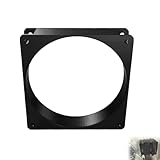
| Install 5mm Fan Spacers / Shrouds | Low | High (Eliminates high-frequency whistling) |
| Switch Pull Configuration to Push | Low | Moderate to High (Reduces blade-shear noise) |
| Desynchronize Fan Speeds (RPM Offset) | Low | High (Eliminates acoustic beat frequency hum) |
| Set Fan Ramp Delays / Hysteresis | Low | Moderate (Stops irritating RPM revving) |
| Apply Perimeter Foam/Silicone Gaskets | Low | Low to Moderate (Seals air leaks and damps vibration) |
| Cap Max RPM to Thermal Saturation Point | Low | High (Eliminates unnecessary high-RPM air chop) |
| Modify or Remove Restrictive Case Mesh | Medium | High (Reduces intake shear noise) |
Step-by-Step Tuning
Apply these seven methods in order of physical and acoustic impact. Each fix targets a specific aerodynamic mechanism that triggers radiator noise.
1. Install 5mm or 7mm Radiator Fan Spacers
What causes it: When rotating fan blades pass within fractions of a millimeter from dense radiator fins, the sudden pressure differential creates intense vortex shedding and a sharp, high-pitched whistle.
How to check: Unmount the fan from the radiator while keeping it plugged in. Hold the fan running at 1200 RPM manually 5mm away from the radiator face. If the high-frequency whistle drops off instantly, close-proximity turbulence is the primary issue.
What to do: Place 5mm or 7mm hollow fan frame spacers between the intake/exhaust face of the fan and the radiator body. Pass longer UNC 6-32 x 35mm screws (for standard American radiator threads) or M3.5 x 35mm screws through the fan corner, through the spacer, and into the radiator mounting points. Tighten until snug without bowing the fan frame corners.
How to undo: Remove the 35mm screws and spacers, then reattach the fans flush against the radiator using standard 30mm screws.
Trade-off: Adds 5mm to 7mm of overall thickness to your radiator assembly, which may restrict clearance near tall RAM modules, CPU power connectors, or top-mounted motherboard VRM heatsinks.
2. Reconfigure Pull Orientations to Push Orientations
What causes it: In a pull configuration, fan blades sit downstream of the radiator, drawing air through tight fin arrays. The turbulent, disrupted air exiting the radiator strikes the rotating fan blades, generating harsh boundary-layer shear noise.
How to check: Look at the fan orientation relative to the radiator. If the open intake face of the fan is pressed against the radiator body pulling air outward, you are in pull mode and likely experiencing blade-shear noise.
What to do: Flip the fans so air pushes into the smooth intake side of the radiator. Arrange the stack as follows: Airflow direction -> Fan Frame Intake -> Fan Motor Hub -> Radiator Face -> Case Exterior/Exhaust. Secure with standard mounting screws.
How to undo: Unbolt the fans, rotate them 180 degrees so the rear frame struts face away from the radiator, and screw them back down.
Trade-off: Dust accumulates directly on the exposed radiator face rather than the fan blades, requiring a vacuum brush attachment or compressed air for periodic maintenance.
3. Desynchronize Fan Speeds to Eliminate Acoustic Beat Frequencies
What causes it: When two or three identical fans run on a single radiator at nearly identical RPMs (e.g., Fan 1 at 1200 RPM and Fan 2 at 1203 RPM), their acoustic pressure waves periodically align and misalign. This creates a slow, rhythmic “waw-waw-waw” throbbing hum.
How to check: Temporarily stop one fan on a multi-fan radiator by pressing the center hub with your finger. If the rhythmic hum disappears instantly, your noise issue is an acoustic beat frequency.
What to do: Connect each radiator fan to an independent motherboard PWM header (e.g., CPU_FAN and SYS_FAN1). Open the open-source software Fan Control, create a Mixer control node, set Fan 1 to follow your primary curve, and set Fan 2 to follow Fan 1 with an offset of -5% or a fixed -60 RPM differential. Alternatively, use BIOS fan settings to apply slightly different percentage slopes to each header.
How to undo: Re-plug all fans into a single PWM splitter cable attached to one motherboard header or delete the offset node in Fan Control.
Trade-off: Requires individual motherboard fan headers or dedicated software channels instead of a single, clean daisy-chained cable arrangement.
4. Configure Hysteresis and RPM Step Delays
What causes it: Transient CPU power spikes cause fan curves to accelerate instantly. Rapid changes in blade speed create fluctuating air pressure against the radiator, producing an irritating pitch-shifting revbing sound.
How to check: Launch a web browser or open a light application while watching your fan RPM monitoring app. If fan speeds jump up instantly and drop back down within 2 seconds, response smoothing is disabled.
What to do: Reboot into BIOS by pressing Del or F2. Navigate to Advanced Mode (F7) -> Hardware Monitor / Q-Fan Configuration. Set Fan Step Up Time to 3 sec (or 5 sec) and Fan Step Down Time to 8 sec (or 10 sec). If using software like Fan Control, open your radiator fan curve settings, enable Hysteresis, set the temperature hysteresis to 2°C, and set the response/averaging time to 5 sec.
How to undo: Lower step-up and step-down times back to 0 sec (instant response) in BIOS or disable hysteresis in software.
Trade-off: Peak CPU core temperatures may briefly run 2°C to 4°C warmer during short 1-second burst loads before fans ramp up.
5. Seal Perimeter Leaks with Closed-Cell Foam Gaskets
What causes it: High-static-pressure air leaks through microscopic gaps between the rigid fan frame and the metal radiator frame. This escaping high-velocity air produces localized edge-choke whistling and reduces static pressure across the fins.
How to check: Hold a thin strip of tissue paper around the rim where the fan meets the radiator frame while fans run at 1200 RPM. If the tissue flutters outward, static pressure is leaking across the junction.
What to do: Apply a 1mm to 2mm thick closed-cell neoprene or soft silicone gasket along the perimeter of the fan frame before mounting. Align the screw holes carefully, insert the screws, and hand-tighten in a cross pattern until the gasket compresses evenly by about 50%.
How to undo: Unscrew the fans, peel off the neoprene/silicone gasket strips, and clean away any adhesive residue using isopropyl alcohol.
Trade-off: Requires precise screw torque; over-tightening can deform plastic fan frames, while under-tightening leaves gaps.
6. Cap Fan Speeds Below Thermal Saturation Limits
What causes it: Radiators hit a point of diminishing returns where increasing fan speed exponentially increases turbulent noise power (dB scales with the fifth power of air velocity) while yielding negligible fluid cooling benefits.
How to check: Open HWInfo64 and monitor your liquid coolant temperature (or CPU package temperature under continuous load). Increase fan speed from 60% (1150 RPM) to 100% (1800 RPM). If liquid temperatures drop by less than 1.5°C, high RPM is producing excessive turbulence without thermal benefits.
What to do: In your motherboard BIOS or software fan curve, create a flat upper ceiling. Set the maximum fan duty cycle to 60% or 65% (typically 1100–1250 RPM) for temperatures up to 75°C CPU package temperature. Reserve 85%+ PWM speeds strictly for critical emergency conditions above 85°C CPU or 50°C coolant temperature.
How to undo: Adjust the upper point of your fan curve back to 100% duty cycle at normal operating temperatures (65°C to 70°C).
Trade-off: Under extreme sustained multi-core heavy workloads (such as continuous 3D rendering), CPU package temperatures may rest 2°C higher.
7. Modify or Space Restrictive Case Cutouts
What causes it: Stamped metal grills, tight honeycomb cutouts, and fine mesh dust filters placed directly against fan intakes cut incoming air across sharp metal edges, causing sharp intake shear turbulence.
How to check: Remove the front panel or top dust filter cover while fans run at operating speed. If the low-frequency drone or harsh air-chop immediately softens, the case structure is restricting airflow.
What to do: Place 3mm rubber washers between the radiator/fan assembly and the case mounting frame to create a small buffer zone. If the chassis uses non-removable, highly restrictive stamped metal grills, use sheet metal nibblers or a rotary tool to remove the stamped metal obstruction, replacing it with a high-airflow wire finger guard.
How to undo: If rubber washers were added, simply unbolt the assembly and remove the washers. Chassis cutting modifications are permanent.
Trade-off: Permanently cutting chassis metal voids your case warranty and requires removing all PC components first to prevent metal shavings from causing electrical shorts.
Measure Before and After
To ensure your changes actually resolve turbulence without harming system thermals, take structured measurements before and after tuning:
- Establish Baseline Metrics: Download HWInfo64 for thermal logging and a smartphone acoustic analyzer app (such as Spectroid on Android or Decibel X on iOS). Place your phone on a fixed tripod exactly 18 inches (45 cm) from the radiator intake.
- Run a Standard Stress Test: Launch a 10-minute continuous loop test (such as Blender rendering or Cinebench) to allow liquid temperatures to heat-saturate. Record peak CPU Package Temperature, Liquid Coolant Temperature (if available), Fan RPM, total A-weighted decibels (dBA), and peak frequency spikes in the 1kHz to 4kHz range.
- Compare the Acoustic Profile: True turbulence reduction appears as a flattening of sharp frequency spikes in your acoustic analyzer app. A successful tuning pass should yield a 3 to 6 dBA drop in overall noise and eliminate high-frequency spikes above 1500 Hz without increasing liquid temperatures by more than 2°C.
What Not to Do
Avoid these common traps when attempting to silence radiator fans:
- Do not over-tighten mounting screws: Cranking fan screws down with maximum force warps plastic fan frames, warps internal bearings, and causes fan blades to scrape lightly against the radiator frame or shroud.
- Do not use standard masking or electrical tape as sealing gaskets: Standard tape degrades under radiator heat, leaving sticky residue on fin arrays and eventually peeling off to flutter in the airflow, worsening turbulence.
- Do not set fans to 0 RPM on liquid coolers under active loads: Unlike graphics card heatsinks, liquid cooling loops rely on steady airflow to prevent coolant temperature heat-soak. Stopping fans entirely causes sudden thermal runaway.
- Do not mount fan intakes pressed directly flat against solid glass or acrylic panels: Leaving less than 10mm of clearance between a fan intake face and a solid panel forces air to shear around narrow edges, creating severe intake turbulence.
FAQ
Why does my AIO radiator make a high-pitched whistling noise?
A high-pitched whistling noise occurs when fan blades pass too close to sharp radiator fins or restrictive case cutouts. Air is forced through tiny gaps at high velocity, creating localized vortex shedding. Installing 5mm fan spacers or switching from a pull to a push fan configuration increases clearance and breaks up the pressure waves causing the whistle.
Is push or pull better for reducing radiator fan turbulence?
Push configuration is significantly better for reducing acoustic turbulence. In push mode, air enters the smooth intake side of the fan and is pushed uniformly into the radiator fins. In pull mode, turbulent air exiting the tight radiator fins strikes the spinning fan blades directly, creating high boundary-layer air shear and noticeable chopping sounds.
Do fan shrouds and spacers actually work for PC radiators?
Yes, fan spacers and shrouds are highly effective. Moving the rotating fan blades just 5mm to 7mm away from the radiator face allows the air velocity profile to even out before reaching the fins. This eliminates blade-pass frequency noise spikes and can reduce perceived high-frequency noise by up to 5 dBA while maintaining static pressure.
How do I stop two radiator fans from making a rhythmic humming sound?
A rhythmic “waw-waw” humming sound is caused by acoustic beat frequency interference from two identical fans spinning at slightly different speeds. To stop it, desynchronize the fans by plugging them into separate motherboard PWM headers and setting a fixed speed offset of 5% (around 50–70 RPM) between them in BIOS or software like Fan Control.









