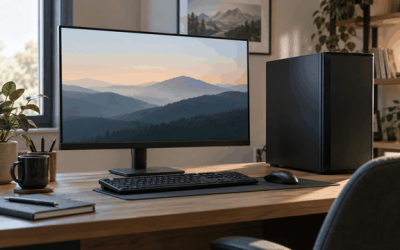
To optimize Windows 11 for gaming, turn on Game Mode, update your graphics driver, set the power mode to best performance, trim unnecessary startup apps, and make sure your game is running on the right graphics processor. These changes are free, reversible, and cover most of what Windows itself can do for frame rate and smoothness.
Be realistic about the gains. Windows settings rarely transform a weak machine, but they remove avoidable stutter, background interruptions, and misconfigurations such as a game running on integrated graphics. The sections below go from the settings with the largest effect to small polish, and they flag a few popular “tweaks” that are not worth the trouble.
Before You Start Checklist
- Install pending Windows updates, then restart, so settings are not undone by a later patch.
- Create a restore point before changing system settings.
- Note your current frame rate in one familiar game or a repeatable scene in the game so you can compare afterward.
- Check that your storage drive has free space; a nearly full system drive slows updates and virtual memory.
- Have your graphics card maker’s driver tool or website ready.
Settings With the Biggest Effect
Game Mode and power
Open Settings, go to Gaming, and confirm Game Mode is on. It helps Windows prioritize the game and limits background update activity while you play. Then open the power settings and choose the best performance mode, or the high performance plan on a desktop. On a laptop, plug in the charger, because battery mode caps clock speeds regardless of other settings.
Graphics preferences
Under Settings, System, Display, Graphics, add each game executable and set it to High performance. This matters most on laptops and systems with both integrated and dedicated graphics, where a game can land on the weaker chip. Also enable hardware-accelerated GPU scheduling if your driver and card support it, then restart and judge whether play feels smoother; on some setups it helps, on others it is neutral.
Drivers and the display
Install the latest graphics driver from the card maker, using a clean install option if you have had crashes. Set your monitor to its highest refresh rate in Display, Advanced display. Many monitors ship at 60 Hz even when they can run higher, and nothing else on this list improves feel as much when that is the case.
Trim Background Load
Every program running in the background competes for processor time, memory, and disk access. Open Task Manager, go to the Startup apps tab, and disable launchers, chat tools, and updaters you do not need at boot. You can still open them manually. Check the Processes tab while a game is running to spot a single app using unusual amounts of memory or disk.
| Item | Action | Typical effect |
|---|---|---|
| Startup apps | Disable non-essential ones | Faster boot, fewer interruptions |
| Browser tabs and overlays | Close before playing | More free memory |
| Notifications | Turn on Focus or Do Not Disturb | No pop-ups mid-match |
| Background recording | Disable if unused | Lower overhead |
| Cloud sync during play | Pause | Less disk and network use |
Windows also offers Storage Sense and the Disk Cleanup tool to clear temporary files. Keep at least 15 to 20 percent of the drive free, since a crowded drive can slow loading and updates.
Display, Capture, and Visual Settings
Some visual features cost performance for little benefit in games. Turn off background recording in Xbox Game Bar settings if you do not capture clips, since continuous recording uses resources. Consider disabling transparency effects and animations if you are on a modest system, although this mostly affects desktop responsiveness rather than in-game frames.
In game, use the exclusive or borderless fullscreen mode that gives the best frame pacing for your title. If the game supports it, enable variable refresh rate in Windows display settings and in your monitor menu, because it smooths out frame dips without tearing. Cap frame rate slightly below your refresh rate if you notice uneven pacing.
Tweaks You Can Skip
- Registry “boosters”: promised gains are rarely measurable and a mistake can break settings.
- Disabling core security features: the performance gain is small, and the risk is real.
- Third-party cleaner apps: they often duplicate what Windows already does and may bundle extras.
- Turning off the page file: it can cause crashes when memory runs low.
- Constant tool-switching: change one thing at a time, then evaluate; stacking tweaks makes it hard to know what helped.
Verify and Keep It Stable in 2026
Repeat your original comparison in the same game scene after changes. Look at both average frame rate and the lowest frame times, because smoothness depends on dips, not just the average. If a change makes things worse, undo it. Check for new graphics drivers every month or two, and read the release notes, since drivers add fixes for new games.
Hardware limits show up after software is tuned. If frame rate stays low in demanding games, the bottleneck might be memory capacity, an older graphics card, or a hard drive instead of an SSD. Windows settings cannot replace those parts, but they ensure the parts you own are working at full effect.
Network, Storage, and Memory Considerations
Network
For online games, a wired Ethernet connection is usually steadier than Wi-Fi, because it avoids interference and sudden latency spikes. If you must use Wi-Fi, connect to the 5 GHz or 6 GHz band when possible and sit closer to the router. Pause large downloads and cloud backups while you play, since they compete for bandwidth and raise delay.
Storage
Install demanding games on an SSD. Loading times and texture streaming both improve compared with a hard drive. In Settings, System, Storage, check that automatic cleanup is on, and consider moving big games you rarely play to external or secondary storage to keep the main drive roomy.
Memory
Many modern games are comfortable with 16 GB, and some larger titles benefit from 32 GB, especially when you run streaming software or a browser alongside. Make sure your memory runs at its rated speed by enabling its profile in firmware, since a kit left at default speed gives up performance you already paid for. Dual-channel memory, meaning two matching sticks in the correct slots, helps processors and integrated graphics noticeably.
Cooling and power limits
A hot processor or graphics card lowers its own clock speed to protect itself, which looks like inconsistent frame rates. Keep dust out of filters and fans, and ensure the case has clear airflow. On laptops, use the manufacturer’s performance profile and a cooling stand if the machine runs hot during long sessions.
These hardware-adjacent settings often produce a bigger improvement than any Windows toggle, so check them early if your frame rate is unsteady rather than simply low.
A Simple Routine to Keep Performance Steady
Optimization is not a one-time job. A short monthly routine keeps the system consistent: install Windows and driver updates on a day you are not about to play, review the startup list for apps that added themselves, empty temporary files, and glance at temperatures during a session. If a game suddenly stutters after an update, roll back the driver or check the game’s own patch notes before changing other settings.
Keep a short note of the settings you changed and why. When something breaks, that list tells you what to undo first, and it saves time when you set up a new machine later.
Related guides
- How To Set Up Computer Speakers For Better Sound At Your Desk
- How To Check Whether Your Ram Is Running At Its Rated Speed
- How To Choose The Right Monitor Riser Height For Your Desk
Frequently Asked Questions
Does Game Mode actually improve frame rate?
Often modestly. Its main benefit is reducing background interruptions, which helps consistency more than the headline number.
Should I disable Windows security features for speed?
No. The gains are small, and you lose protection. Add your game folders to the existing exclusions only if a vendor specifically advises it.
Is a clean Windows install worth it for gaming?
Only if the system is unstable or cluttered with leftover software. A fresh install can help older machines, but back up your files first and do it only when other fixes have failed.
How often should I update graphics drivers?
When a new game you play is released or when a driver note lists a fix for an issue you have. If everything works well, you can skip a version without harm.
Related guides
More from Amazon
Programs that pair well with the guide above. Offers and eligibility are set by Amazon and may change.
Free shipping on eligible items, Prime Video and more. Eligible new members can start with a free trial.
Start a Prime free trialAd-free music streaming. Eligible new subscribers can start with a free trial.
Try Music Unlimited freeA Prime membership for ages 18-24 with a trial period. Eligibility is set by Amazon.
See Prime for Young AdultsAudiobooks and podcasts to listen to on the go. Eligible new members can start with a free trial.
Try Audible freeAs an Amazon Associate we earn from qualifying purchases.