
Optimizing the best settings for dc case fans requires a clear understanding of voltage regulation, acoustic motor profiles, and heat distribution. Unlike 4-pin Pulse Width Modulation (PWM) fans—which receive a constant 12V signal and rely on a fourth wire for speed control—3-pin Direct Current (DC) case fans control rotation speed by directly varying the supply voltage, typically ranging between 5V and 12V. If configured incorrectly, DC fans will either run continuously at a noisy 100% speed or stall out at low voltages, creating dangerous thermal pockets inside your chassis.
When tuning 3-pin DC chassis ventilation, your primary goals are to establish an accurate voltage floor that prevents motor stalling, set an appropriate temperature sensor target (preferably binding case airflow to your graphics card rather than your processor), and apply hysteresis filters to smooth out annoying acoustic fluctuations. Modern motherboards in 2026 handle DC voltage control exceptionally well through their BIOS settings and specialized software, provided you select the correct control mode and curve values.
As an Amazon Associate we earn from qualifying purchases at no extra cost to you.
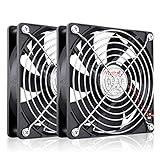




Our Top Picks

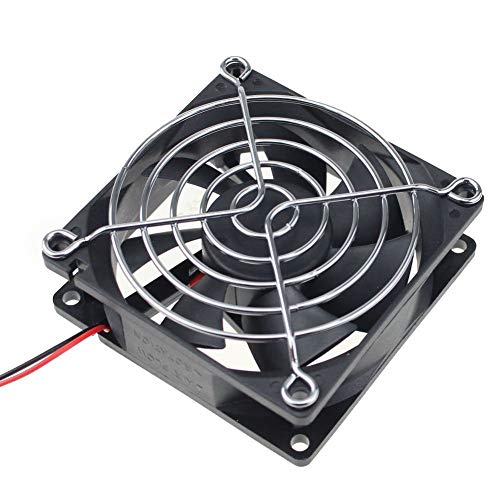



Top 3 picks at a glance
Quick Recommended Settings
| Setting Name | Recommended Value | Why |
|---|---|---|
| Control Mode | DC / Voltage Mode | Forces motherboard header to drop supply voltage (5V–12V) instead of expecting a PWM signal. |
| Minimum Fan Duty (Idle) | 40% – 50% (approx. 5.0V – 6.0V) | Prevents 3-pin motor stall while maintaining silent ambient air displacement. |
| Idle Temp Threshold | 35°C – 45°C | Establishes a baseline plateau before ramping speeds under real gaming loads. |
| Maximum Fan Duty (Load) | 80% – 90% (approx. 9.6V – 10.8V) | Avoids the top-end motor hum and turbulence noise of cheap sleeve-bearing fans with minimal thermal penalty. |
| Load Temp Threshold | 75°C – 80°C | Ensures maximum chassis exhaust before components reach thermal throttling zones. |
| Temperature Source Target | GPU Temp or Max(CPU, GPU) | Aligns chassis air volume with the system component producing the highest thermal output during gaming. |
| Step-Up / Step-Down Delay (Hysteresis) | Step-Up: 3s | Step-Down: 8s | Prevents distracting fan revving during short, momentary CPU power spikes. |
Setting-by-Setting
Fan Control Mode: DC (Voltage Mode)
Exact Value: Set header mode to DC or Voltage (Never set to PWM or Auto-Detect).
BIOS / Software Path: Enter BIOS via DEL or F2 at boot. On ASUS, go to Advanced Mode (F7) > Monitor > Q-Fan Configuration. On MSI, go to Hardware Monitor. On Gigabyte, enter Smart Fan 6.
Trade-Off: Setting a 3-pin fan to PWM mode sends a non-negotiable 12V constant stream, making the fan run at maximum speed (and maximum noise) all the time. Switching to DC Mode restores speed variation, but slightly restricts the minimum speed range compared to 4-pin PWM equivalents.
Minimum Startup / Idle Voltage Floor
Exact Value: 40% to 50% duty cycle (5.0V to 6.0V output baseline).
BIOS / Software Path: In your motherboard’s fan tuning utility, locate the lowest node (Point 1) on the curve line and set the percentage to 40% or 50%.
Trade-Off: Setting this value too low (e.g., 20% or 3.0V) deprives the fan motor of adequate electrical torque, causing the fan to stall completely. Stalled fans consume power without spinning, generating localized heat in the fan motor and killing intake airflow. Setting it higher guarantees fan startup, but increases subtle background noise at idle.
Fan Curve Response Nodes
Exact Value:
Node 1: 40% speed up to 45°C |
Node 2: 60% speed at 60°C |
Node 3: 80% speed at 75°C |
Node 4: 100% speed at 85°C.
BIOS / Software Path: Custom Fan Curve chart inside BIOS or via the open-source Windows application Fan Control (located in %appdata%\FanControl).
Trade-Off: A linear, steep fan curve provides aggressive cooling but creates intrusive noise fluctuations. A step-based curve keeps acoustics predictable, but if the temperature steps are spaced too far apart, component temperatures can heat up rapidly before chassis intake air increases.
Temperature Source Binding
Exact Value: Set to GPU Temperature or Max Sensor Group (CPU + GPU combined).
BIOS / Software Path: In ASUS Q-Fan select Q-Fan Source > GPU (if supported) or use software like Fan Control to create a Mix Curve set to Function: Max referencing both CPU and GPU sensors.
Trade-Off: Standard motherboards default to binding chassis fans to the CPU temperature sensor. Because modern processors spike 15°C to 20°C instantly during short application launches, CPU binding makes DC fans constantly rev up and down. Binding to the GPU aligns airflow with sustained gaming heat, though it requires software monitoring inside Windows if your motherboard BIOS cannot read GPU temperature directly.
Spin-Up and Spin-Down Hysteresis (Ramp Delay)
Exact Value: Step-Up Delay: 3 to 5 seconds. Step-Down Delay: 7 to 10 seconds.
BIOS / Software Path: MSI: Step Up / Step Down Time in Hardware Monitor. Gigabyte: Temperature Interval settings. ASUS: Fan Step Up / Step Down drop-downs.
Trade-Off: Longer delay times smooth out acoustic transitions, eliminating distracting pitch changes during mixed workloads. However, setting the Step-Up delay over 5 seconds introduces a brief thermal lag where interior case temperatures rise before the fans increase their RPM to clear the hot air.
By Hardware Tier
Low-End Systems (Budget 3-Pin Case Fans & Air Coolers)
Budget hardware generates lower overall thermal output, but cheaper 3-pin DC fans often feature sleeve bearings that exhibit high starting friction. Set your idle voltage floor to a strict 45% (approx. 5.4V) to ensure reliable motor rotation. Limit the maximum load duty cycle to 80% at 75°C; running budget DC fans at 100% (12V) yields minimal airflow gains while introducing high-pitched motor whine. Bind the sensor source directly to the CPU temperature if your budget motherboard lacks advanced sensor routing options, but apply a maximum 5-second step-up delay to filter out minor load spikes.
Mid-Range Systems (Balanced Mesh Airflow & Mid-Tier GPU)
Mid-range configurations benefit from a flat idle plateau that keeps system acoustics whisper-quiet during desktop productivity. Program a flat 40% DC duty cycle from 0°C up to 50°C. Once thermals reach 51°C, implement a gentle linear slope up to 75% duty cycle at 75°C. Utilize Windows-based fan software to bind front intake DC fans to the GPU thermal sensor, while setting rear exhaust DC fans to monitor the CPU sensor. This split configuration ensures intake fans supply cool ambient air to the graphics card under gaming loads without needlessly speeding up during background software updates.
High-End Systems (High Heat Density GPU/CPU & Multi-Fan Setup)
High-end components quickly dump massive amounts of heat into the case interior. Set a aggressive multi-stage DC curve: 50% duty cycle baseline up to 40°C, ramping quickly to 75% duty cycle at 65°C, and hitting a hard 95% to 100% limit at 80°C. High-density cases require high static pressure; forcing 3-pin DC fans to 90%+ voltage under extreme loads is necessary to push air through restrictive dust filters and dense radiator fins. Implement a 10-second Step-Down hysteresis delay to ensure case fans continue running at high speeds briefly after a heavy gaming session ends, flushing residual exhaust heat out of the case chassis.
Common Mistakes
Mistake 1: Setting DC Fan Duty Cycle Below the Motor Stall Threshold
- What causes it: Dragging the fan curve down to 10% or 20% in an attempt to make 3-pin fans dead silent, failing to realize DC motors require a minimum start voltage (typically 4.5V to 6V) to rotate.
- How to check: Visually inspect your case fans at idle. If the fan blades are stationary or twitching rhythmically without spinning, the fan is stalled.
- What to do: Open your BIOS or fan control application. Elevate the lowest fan curve point to 40% duty cycle (6.0V). Save settings and reboot to verify all fans start spinning automatically from a cold boot.
- How to undo: If you intentionally want fan stop capabilities, lower the curve back down in 5% increments until the fan stops, but you must upgrade to 4-pin PWM fans capable of true Zero-RPM operation to do this safely.
Mistake 2: Motherboard Header Left in Auto/PWM Mode for 3-Pin Fans
- What causes it: Plugging a 3-pin DC fan into a 4-pin motherboard header while leaving the BIOS header mode on default
PWMorAuto-Detect. - How to check: Your fan speed reads at maximum RPM (e.g., 1500+ RPM) regardless of component temperatures, and adjusting the fan curve points alters nothing.
- What to do: Enter BIOS during boot. Navigate to the Hardware Monitor / Q-Fan page. Select the specific header (e.g.,
SYS_FAN1) and manually toggle the mode toggle fromPWMtoDC Mode. - How to undo: To revert, select the header in BIOS and switch the toggle back to
PWM Modeor selectAuto-Detectif installing 4-pin fans.
Mistake 3: Binding Chassis Intake Airflow Solely to CPU Core Temperature
- What causes it: Leaving the motherboard’s default sensor source assigned to the CPU core sensor in BIOS.
- How to check: Case fans rev up loudly for two seconds every time you open a web browser tab or launch an application, then slow down immediately.
- What to do: Download the utility Fan Control. Create a new
Linear Curve, assign the input sensor to yourGPU Core Temperature, and assign your intake DC fans to this curve. - How to undo: Open Fan Control, right-click the intake fan card, select
Control Mode, and restore control back to the motherboard’s default BIOS sensor source.
Mistake 4: Disabling Ramp Delays and Hysteresis Filters
- What causes it: Leaving fan step-up and step-down response rates set to 0 seconds (instant response).
- How to check: Listening to the computer reveals rapid, irritating pitch shifts in fan motor noise during normal desktop usage.
- What to do: Navigate to your motherboard’s fan setup screen in BIOS or software. Set the
Step-Up Timeto 3 seconds and theStep-Down Timeto 8 seconds. - How to undo: Change the Step-Up and Step-Down drop-down menus back to
0 SecondsorStandard/Instantwithin your BIOS configuration menu.
FAQ
Can you turn off 3-pin DC case fans completely at low temperatures (Zero RPM)?
Most motherboards cannot turn off 3-pin DC fans completely because dropping voltage to 0V requires specialized motherboard power switches that cheap headers do not possess. Most DC headers bottom out around 4V to 5V, keeping the fan spinning slowly. Attempting to force a 0% duty cycle on a DC fan often results in motor stall rather than a clean shutdown, which can damage the motor over time. If you require absolute zero-RPM functionality at idle, you must switch to 4-pin PWM fans that feature dedicated internal microcontrollers for zero-RPM support.
Why do my DC fans run at full 100% speed all the time?
Your motherboard header is likely configured to PWM mode instead of DC mode. In PWM mode, the header supplies a constant 12-volt DC signal across pins 1 and 2, relying on the 4th pin to pass a control signal to the fan. Because 3-pin DC fans lack the 4th pin entirely, they simply receive the constant 12V output and run at maximum speed continuously. Changing the header configuration inside your BIOS from PWM to DC/Voltage mode will allow the motherboard to drop the voltage and slow down the fan.
What is the difference between DC control and PWM control in BIOS?
DC (Direct Current) control regulates fan speed by physically adjusting the voltage sent through the power pin, dropping from 12V down to roughly 5V to lower fan speed. PWM (Pulse Width Modulation) control provides a uninterrupted 12V supply to the fan at all times, but uses a high-frequency switching signal on the 4th pin to turn the fan’s internal motor on and off thousands of times per second. PWM allows for much lower minimum speeds, precise control, and lower mechanical noise, whereas DC control is simpler but constrained by motor stall limits.
Is software fan control better than BIOS settings for DC fans?
Yes, dedicated software (such as the open-source application Fan Control) is generally superior to motherboard BIOS setups for managing DC case fans. While BIOS control operates cleanly without requiring background Windows services, motherboard BIOS menus frequently restrict temperature target selection to the CPU sensor alone. Software allows you to create complex rules—such as averaging GPU and CPU temperatures, adding custom hysteresis delay timers, and creating specific fan profiles that prevent 3-pin DC motors from dipping below their specific stall threshold.









