
When a CPU cooler’s RGB stops lighting up, the fan and pump may still work normally while the LEDs remain dark, stuck on one color, or fail to appear in motherboard software. This can happen after a new build, a cable change, a BIOS reset, a Windows update, or an RGB-control app installation. On air coolers, the problem usually affects the fan frame or top cover; on liquid coolers, it may affect the pump cap, radiator fans, or both.
This is usually not an emergency if CPU temperatures are normal and the pump or fan is running. RGB is separate from cooling performance on most products. Still, check cooler operation before treating it as a cosmetic issue: confirm radiator fans spin, verify the pump is detected if applicable, and watch CPU temperature in BIOS or a hardware-monitoring utility. In 2026, most RGB failures still come down to the wrong header, a loose connector, software conflicts, or an unsupported lighting standard.
As an Amazon Associate we earn from qualifying purchases at no extra cost to you.

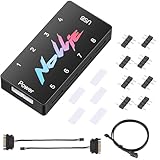
Our Top Picks
 Thermalright ARGB Fan HUB Controller Support 8 Groups5.51 x 0.63 x 2.52 inches0.2 PoundsCheck on Amazon

Likely Causes
| Cause | How to confirm | Fix difficulty |
|---|---|---|
| Loose or disconnected RGB cable | Inspect the 3-pin or 4-pin lighting lead from the cooler and follow it to the motherboard, hub, or controller. | Easy |
| RGB header type mismatch | Compare the cooler plug with the motherboard header label: 5V/D/G or ARGB versus 12V/G/R/B RGB. | Easy to moderate |
| RGB disabled in BIOS or motherboard software | Lighting works during startup but turns off after Windows loads, or BIOS LEDs are set to Stealth, Off, or Dark mode. | Easy |
| Conflicting lighting applications | Multiple tools such as Armoury Crate, MSI Center, RGB Fusion, Polychrome Sync, iCUE, CAM, or SignalRGB are installed. | Moderate |
| Unpowered or faulty RGB hub/controller | Several connected devices are dark, or the hub’s SATA power cable is missing or loose. | Moderate |
| Failed LED assembly, controller, or cable | The cooler remains dark when connected directly to a known-good compatible header or controller. | Moderate to difficult |
Fix 1: Check the Basic RGB Connection
What causes it
CPU coolers often have separate cables for cooling and lighting. A fan can spin from its 4-pin PWM cable while its RGB lead is unplugged. On an AIO, the pump may also have separate cables for pump power, USB control, fan control, and RGB. A partially seated plug is enough to leave the LEDs dark.
How to check
Shut down the PC, switch the power supply off, and unplug the power cord. Press the case power button for 5 to 10 seconds to discharge residual power. Remove the side panel and trace the lighting cable from the cooler. Look for a 3-pin ARGB connector with one blocked position or a 4-pin RGB connector with four adjacent holes. Check every extension, splitter, and hub connection in the path.
What to do
Reconnect each lighting plug firmly. For 3-pin 5V ARGB connectors, align the arrow marking on the plug with the header’s 5V, V, or arrow-marked pin. For 4-pin 12V RGB connectors, align the arrow with the header’s 12V pin. Do not force a connector; it should slide on with light pressure. If the cooler includes an unused male-and-female ARGB pass-through pair, make sure the actual input side is connected to the motherboard or controller.
How to undo it
Power down and disconnect the cable by gripping the plastic connector, not the wires. Return splitters or extensions to their original arrangement if you were testing alternate cable routes.
Fix 2: Verify That the Header Uses the Correct Voltage Standard
What causes it
The most common serious RGB installation mistake is connecting a 5V 3-pin addressable RGB device to a 12V 4-pin RGB header. These standards are not interchangeable. A 5V ARGB cooler connected incorrectly may not light at all and can be damaged. Conversely, a 12V RGB device cannot be controlled by a 5V ARGB header without an active converter.
How to check
Read the labels printed beside the motherboard headers. Common 5V ARGB labels include ARGB, ADD_GEN2, JRAINBOW, D_LED, and ADDR_LED. Common 12V RGB labels include RGB_HEADER, JRGB, LED_C, and RGB_LED. A 5V ARGB header has three pins with one gap; a 12V RGB header has four uninterrupted pins.
What to do
Connect a 3-pin addressable cooler cable only to a 5V ARGB header. Connect a 4-pin non-addressable cable only to a 12V RGB header. If your motherboard lacks the required header, use the cooler’s included USB controller, a SATA-powered compatible controller, or a manufacturer-approved converter. Never use a passive adapter that merely changes the connector shape between 5V ARGB and 12V RGB.
How to undo it
Shut down, unplug the system, and remove the test connection. Reconnect the cooler to its original compatible controller or header. If you discovered an incompatible connection, do not reconnect it to “see if it works.”
Fix 3: Turn Lighting Back On in BIOS or UEFI
What causes it
Many motherboards can disable onboard lighting and RGB headers while the PC is running, sleeping, shut down, or all three. A BIOS update, reset, CMOS clear, or power-loss setting can change these options. Some boards call the feature Stealth Mode, ErP, RGB LED, Onboard LED, or LED in S5.
How to check
Restart the PC and repeatedly press Delete or F2 to enter UEFI setup. Look under menus such as Advanced, Settings, Onboard Devices Configuration, Integrated Peripherals, or LED Configuration. On many ASUS boards, check Advanced Mode > Tool > Armoury Crate and the onboard LED settings. On MSI boards, inspect Settings > Advanced > Power Management Setup. Exact wording varies by model.
What to do
Enable onboard LEDs and RGB/ARGB headers. Set lighting behavior to On, All On, or Enabled. If an ErP Ready option is enabled, temporarily set it to Disabled for testing; ErP can cut standby power to lighting after shutdown. Save changes with F10, confirm Yes, and reboot.
How to undo it
Return to the same BIOS menu and restore the earlier lighting or ErP setting. If you changed several settings, use the BIOS option usually named Load Optimized Defaults only if you understand that it can reset boot, memory, and fan settings.
Fix 4: Remove RGB Software Conflicts
What causes it
RGB programs can fight over the same motherboard controller. One application may set the cooler to black, take exclusive control, or apply a shutdown profile after Windows starts. This is especially likely when motherboard software and third-party lighting software are installed together.
How to check
Notice when the LEDs fail. If they light during POST or in BIOS but go dark at the Windows sign-in screen, software is the likely cause. Open Settings > Apps > Installed apps and look for more than one lighting utility. Also open Task Manager > Startup apps and identify RGB-related entries.
What to do
Keep one primary lighting application for each controller. Uninstall conflicting utilities through Settings > Apps > Installed apps, then restart. For a clean test, disable RGB utilities in Task Manager > Startup apps, reboot, and test the cooler with only the motherboard’s software or only the cooler manufacturer’s software. In the remaining app, select the correct header or device, choose a visible static color such as red or white, and set brightness to 100%.
How to undo it
Re-enable a startup app by selecting it in Task Manager > Startup apps and choosing Enable. Reinstall software only from the hardware manufacturer if it is genuinely needed. Avoid reinstalling multiple control suites at once.
Fix 5: Check the RGB Hub or Controller Power
What causes it
Many cases and AIO coolers route lighting through a hub. These hubs usually require SATA power from the power supply, even if a separate signal cable goes to a motherboard ARGB header or internal USB header. Without SATA power, the motherboard may detect nothing and all attached LEDs can stay off.
How to check
Locate the hub behind the motherboard tray or near the radiator. Confirm that its SATA power plug is connected to a SATA power lead from the PSU, not merely placed nearby. If the hub has a button, USB cable, or motherboard-sync cable, inspect those as well. If all fans on that hub are dark, the hub or its power feed is the prime suspect.
What to do
Reconnect the SATA power plug until it is fully seated. Try another unused SATA power connector on a different PSU cable if available. Make sure the hub’s motherboard-sync cable is connected to a matching 5V ARGB or 12V RGB header. If the hub has a physical mode button, hold it for 3 to 5 seconds on many models to switch from built-in effects to motherboard-sync mode; consult the cooler documentation if the button behavior differs.
How to undo it
Disconnect SATA power only with the system fully shut down and unplugged. If changing controller mode made the lighting less useful, hold the controller button again or reconnect it as it was before testing.
Fix 6: Test the Cooler on a Known-Good Compatible Header
What causes it
A motherboard RGB header, splitter, extension cable, or hub port can fail independently of the cooler. Direct testing separates a bad signal path from a failed LED assembly.
How to check
Find another compatible header on the motherboard. It must match the cooler’s voltage and pin layout: 5V 3-pin ARGB to 5V 3-pin ARGB, or 12V 4-pin RGB to 12V 4-pin RGB. If another ARGB fan or strip works on the suspected header but the cooler does not, the cooler cable or LEDs are more likely at fault.
What to do
With power disconnected, bypass splitters and hubs where practical. Connect the cooler’s RGB input directly to a known-good compatible motherboard header. Boot the PC and set that header to a bright static color in BIOS or the board’s lighting utility. If it lights, replace the failed splitter, extension, hub, or original header path. If it remains dark, continue to the next fix.
How to undo it
Power off and restore the original cable routing. Do not leave loose RGB cables near fan blades or radiator fans when reinstalling the side panel.
Fix 7: Reset the Cooler Controller and Update Supporting Software
What causes it
USB-controlled AIOs and proprietary RGB controllers can lose communication after a crash, firmware issue, sleep-state problem, or corrupted lighting profile. The cooler may still cool normally because pump control and LED control are handled separately.
How to check
Open Device Manager by right-clicking Start and choosing it. Expand Universal Serial Bus controllers and look for an unknown USB device, a controller with a warning icon, or the cooler’s named device. Also check whether the manufacturer’s utility detects pump speed, liquid temperature, or fan speed but shows no lighting controls.
What to do
Perform a full power reset: shut down, turn off the PSU, unplug it, and hold the case power button for 10 seconds. Wait one minute, reconnect power, and boot. Reseat the cooler’s internal USB 2.0 cable on the motherboard. If the software detects the controller afterward, update the motherboard chipset driver and the cooler utility, then apply any available controller firmware update only while the system is stable and connected to reliable power.
How to undo it
Most power resets require no reversal. If a firmware update introduces problems, use the manufacturer utility’s recovery or rollback option if it provides one. Do not interrupt firmware flashing or disconnect the controller during the update.
If Nothing Works
If the cooler remains dark after direct testing on a known-good compatible header or controller, the LED board, RGB cable, or internal controller may have failed. Before requesting warranty service, document the cooler model, motherboard model, header type, direct-test result, and whether the cooler’s fans and pump operate normally. Take clear photos of the connector and header labels. That information helps support determine whether to replace a cable, controller, fan, pump cap, or the full cooler.
Do not disassemble a sealed AIO pump housing or cut RGB wires to repair it. Doing so can void warranty coverage and may create a leak or short-circuit risk. If CPU temperatures are safe, you can continue using the system with the lighting disabled while arranging a replacement. If the pump is not running, radiator fans are not spinning when expected, or CPU temperature rises rapidly in BIOS, stop using the PC until the cooling fault is corrected.
FAQ
Can a CPU cooler work normally with its RGB lights off?
Yes. Lighting and cooling are usually separate circuits. Confirm normal fan or pump operation and check CPU temperature before assuming the issue is cosmetic.
Why does the RGB light up at startup and then turn off in Windows?
That pattern strongly suggests RGB software, a startup profile, or a software conflict. Disable competing lighting applications, reboot, and test with only one control program active.
Can I plug a 3-pin ARGB connector into a 4-pin RGB header?
No. A 3-pin ARGB connector uses 5V data signaling, while a 4-pin RGB header uses 12V analog control. Connecting them directly can damage the LEDs.
Does resetting CMOS fix CPU cooler RGB?
It can help if BIOS lighting settings were corrupted or disabled, but it also resets other BIOS settings. Try checking LED, Stealth Mode, and ErP options first.







