
Your new ARGB fans spin fine, but the LEDs stay dark — or they light up only in a single frozen color while the rest of your build glows and pulses. Sometimes the fan hub’s LED button does nothing, or the motherboard’s lighting software simply doesn’t list the fans at all. It’s one of the most common RGB headaches in 2026, especially after a new build, a fan swap, or a controller move between cases.
The good news: this is almost never a dead fan. In the overwhelming majority of cases the problem is a swapped connector, a missing 5V/12V distinction, or a software setting — all fixable in minutes with nothing more than a flashlight and a Phillips screwdriver. Work through the fixes below in order, easiest first, and you’ll almost certainly find the culprit before you reach the end.
As an Amazon Associate we earn from qualifying purchases at no extra cost to you.
Our Top Picks
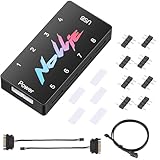
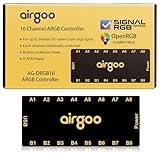
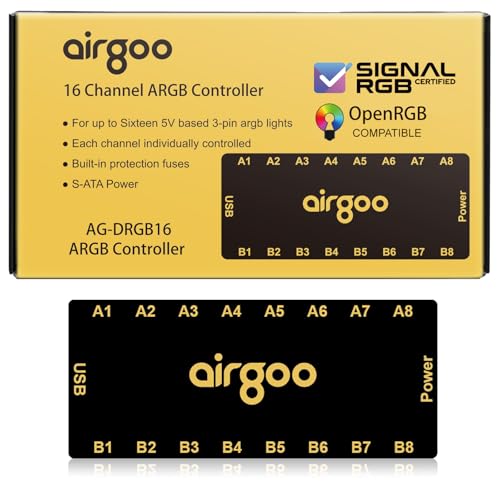 Airgoo 16-Port Magnetic-Mount USB ARGB Controller Support SignalRGB4.57 x 1.97 x 0.47 Inches0.3 poundsCheck on Amazon

Likely Causes
| Cause | How to confirm | Fix difficulty |
|---|---|---|
| Fans plugged into a controller’s fan header instead of its ARGB channel, or vice versa | Trace cables: LED connectors go to ports labeled LED/ARGB, fan power to FAN ports | Easy |
| 5V ARGB fan connected to a 12V RGB controller (or the reverse) | Check labels on the connector housing and controller; 5V 3-pin vs 12V 4-pin | Easy |
| Controller not receiving SATA or Molex power | Controller LEDs never flash at boot; fans may still spin from motherboard power | Easy |
| LED button or mode switch cycling through “off” states | Press the controller’s LED/reset button repeatedly and watch for a dark mode in the cycle | Easy |
| Controller firmware or manufacturer software set to a fixed dark effect | Open the vendor app (e.g., SignalRGB, OpenRGB, or the maker’s utility) and check effect/brightness at 0% | Medium |
| Reversed 3-pin ARGB connector or damaged data pin | Inspect the 3-pin connector for a keyed notch; try a known-working fan on the same port | Medium |
Fix 1: Cycle the Controller’s LED Button
What causes it
Most standalone ARGB controllers ship with a physical LED button that cycles through effects — and nearly every cycle includes one or more “off” states. A stray press during cable management can leave the whole channel dark.
How to check
Locate the button on the controller (or the small remote’s power button). Press it and wait 2–3 seconds between presses; some controllers are slow to change modes. Count the modes — many have 10–20, including one or two fully dark ones.
What to do
Press and release the LED button repeatedly until the fans light. If using a remote, press the power/on button once, then the mode buttons. Some remotes have a dedicated “light on” icon — use that first.
How to undo it
Not needed — this only changes the current lighting mode, which you can cycle back at any time.
Fix 2: Verify Controller Power (SATA/Molex)
What causes it
Many ARGB hubs draw LED power from a SATA or Molex connector rather than the motherboard. If that cable is loose or unplugged, fans may still spin from PWM power while the LEDs get nothing.
How to check
Shut down and flip the PSU switch off. Trace the controller’s power lead to the PSU cables. Reseat the SATA/Molex connector at both ends. Some controllers have a tiny power LED — check whether it’s lit when the system runs.
What to do
Firmly reconnect the SATA power cable, ideally using a different PSU cable run to rule out a daisy-chained connector problem. Flip the PSU back on and boot.
How to undo it
No change to undo; if you swapped cables, reconnect the original one to confirm it was faulty.
Fix 3: Separate the ARGB Chain from Fan Power
What causes it
Modern ARGB fans use two separate connections: a 3-pin LED connector (5V, Data, Empty/5V) and a fan power connector (PWM or DC). Plugging the LED connector into a fan header — or leaving it dangling — means the fan spins but never lights.
How to check
Follow each fan’s cables. You should see a small 3-pin LED plug going to the controller’s ARGB/LED channel (often labeled “LED 1–4” or “ARGB”) and a separate fan plug going to a FAN/PWM port. Also confirm polarity: the 5V pin is usually marked with an arrow and must match the controller’s pinout.
What to do
Connect every LED plug to the controller’s ARGB channel, daisy-chaining per the manual’s port limits (typically 4–8 fans or 60–120 LEDs per channel). Match the 5V arrow marking on both connector and port. Power on and test.
How to undo it
Unplug and re-route the cables however you prefer — there’s no software setting involved.
Fix 4: Rule Out 5V vs 12V Mismatch
What causes it
Older RGB gear uses 12V 4-pin connectors; modern ARGB uses 5V 3-pin. Plugging a 5V fan into a 12V controller can permanently burn out the LEDs — and a 12V device on a 5V header simply won’t light.
How to check
Look at the connector: a 3-pin block with one empty/square hole is 5V ARGB; a 4-pin block with a 12V key is legacy RGB. Check the fan’s spec label (e.g., “DC 5V”) and the controller’s printed voltage.
What to do
If mismatched, stop — do not connect a 5V fan to 12V power. Get a matching controller or a 5V-to-12V/12V-to-5V adapter rated for your LED count. If you already ran 5V gear on 12V and the fans stayed dark afterward, the LEDs may be damaged; test one fan directly on a motherboard’s 5V ARGB header to confirm.
How to undo it
Remove any adapter and restore native connections once voltages match.
Fix 5: Check the Software — Brightness, Effects, and Device Detection
What causes it
Controllers paired with vendor software can sit at 0% brightness, an “off” effect, or an unassigned channel. Updates sometimes reset profiles, leaving everything dark even though hardware is fine.
How to check
Open the controller’s software — the maker’s own utility, SignalRGB, or OpenRGB. Look for a brightness slider at 0%, an effect named “off”/”static black,” or a device tile showing zero connected LEDs.
What to do
Set brightness to 100%, pick a rainbow or breathing effect, and confirm the LED count per channel matches your fans (e.g., 8–12 LEDs each). In OpenRGB, use the “Detect Devices” button; in SignalRGB, check Settings > Devices and enable the controller. Update the controller firmware through the vendor app if offered, then reboot.
How to undo it
Restore your previous profile from the app’s profile menu if the new effects aren’t what you want.
Fix 6: Test One Fan Directly on a Motherboard ARGB Header
What causes it
To isolate whether the fault is the controller or the fans, bypass the controller entirely. Most modern motherboards include at least one 5V 3-pin ARGB header, controllable via the board’s utility.
How to check
Consult your motherboard manual for the header location (often labeled “ADD_HEADER” or “ARGB”). Confirm it’s the 5V 3-pin type, not the 12V 4-pin RGB type.
What to do
With the system off, plug one fan’s LED connector into the motherboard’s 5V ARGB header, matching the 5V pin marking. Boot and open your motherboard’s lighting software (e.g., Armoury Crate’s Aura Sync, MSI Center’s Mystic Light, or the RGB section of your board’s utility). If the fan lights, the fans are fine and the controller is the problem. If not, the fan or its connector is suspect.
How to undo it
Power off, unplug from the motherboard, and reconnect the controller as before.
Fix 7: Inspect and Repair Connectors and Data Lines
What causes it
ARGB relies on a data line — if a connector is reversed, bent, or partially seated, LEDs get power but no signal, which can look like total darkness or a stuck single color. Crimped or stretched extension cables also fail silently.
How to check
Power off and inspect each 3-pin connector for a bent pin, cracked housing, or blocked keying notch. Verify the 5V pin alignment against the controller’s silkscreen. Wiggle-test extensions along their length while the system runs to see if LEDs flicker.
What to do
Reseat or replace suspect cables. If a fan works on a different port but no port lights it consistently, replace that fan’s extension. For partially dead fans (some LEDs lit, some dark), the fan’s internal data chain has failed — contact the manufacturer’s warranty support; most offer 3–6 year coverage on fans.
How to undo it
Reinstall the original cables once the faulty one is identified and replaced.
Fix 8: Update or Reinstall Controller Firmware and Drivers
What causes it
Controllers with USB interfaces can lose communication after a BIOS update, USB hub change, or driver conflict — the software opens but shows no devices, or firmware crashes mid-cycle.
How to check
In Windows Device Manager, look under “Universal Serial Bus controllers” or “USB devices” for the controller’s vendor name. If it shows a yellow warning icon or is missing entirely, communication has failed.
What to do
Move the controller’s internal USB 2.0 header cable to a different motherboard header. Download the latest firmware utility from the controller manufacturer’s support page, run it with the system idle, and don’t interrupt the flash. Reboot afterward. If the vendor app conflicts with other lighting software, uninstall all but one and restart.
How to undo it
Reinstall the previous app version from the vendor’s archive if the update breaks other features; firmware generally can’t be downgraded, but the process is safe and non-destructive to settings.
If Nothing Works
If fans stay dark on a known-good motherboard ARGB header, the LED emitters or internal wiring are dead — claim warranty replacement from the fan or controller manufacturer; keep your invoice and note that RGB LED failure is a standard warranty category. If the controller itself won’t appear in software on any USB header after a firmware reflash, request a replacement controller rather than fighting it. As a last resort, an inexpensive third-party ARGB hub with its own SATA power and SATA/USB control will run your existing fans’ 3-pin LED chains — just confirm your fans are 5V 3-pin ARGB before buying.
FAQ
Why do my ARGB fans spin but not light up?
Fan power and LED power are separate circuits. The fan is getting PWM power but its 3-pin LED connector is unplugged, plugged into the wrong port, receiving no SATA power at the controller, or set to an off effect in software.
Can I plug a 5V ARGB fan into a 12V RGB header?
No. Doing so can permanently destroy the fan’s LEDs. Always match 5V 3-pin ARGB devices to 5V headers and 12V 4-pin RGB devices to 12V headers; check the voltage printed on the connector housing.
How many ARGB fans can one controller handle?
Check the controller’s rated LED count per channel — commonly 60–120 LEDs — and divide by each fan’s LED count (usually 8–34). Exceeding the limit causes dimming, flickering, or colors rendering incorrectly rather than total darkness.
Will the fans’ LEDs work if I connect them straight to the motherboard?
Yes, if your motherboard has a 5V 3-pin ARGB header and your fans use the same standard. You’ll control them through the board’s lighting software instead of the controller, and you may need splitters for multiple fans.







