
For most builds, run the AIO pump at a fixed speed between roughly 60 and 100 percent from the dedicated AIO_PUMP header, and put the temperature-based curve on the radiator fans instead. A fixed pump keeps coolant moving at a steady rate, so the fans alone decide how fast heat leaves the loop. This guide covers pump header choice, safe speed ranges, a fan curve to pair with the pump, tier-by-tier starting points and fixes for pump noise.
Our Top Picks

Top 3 picks at a glance
Quick Answer
- Header: plug the pump into AIO_PUMP, W_PUMP+ or CPU_FAN, and the radiator fans into separate CHA_FAN or SYS_FAN headers.
- Pump setting: fixed 100 percent if you never hear it, or a fixed 60 to 80 percent if the whine or hum bothers you. Guides commonly call 60 to 80 percent a sweet spot.
- Fans: use the temperature curve here, sourced from CPU temperature. Fans are the part you can hear, and the part with the widest useful range.
- Never: let the pump drop to zero, and never run a pump on a steep temperature curve. Pump failure is a cooling failure.
- Check: after any change, confirm in BIOS or monitoring software that the pump reports a steady non-zero RPM.
What You Need
- A closed-loop cooler with a pump cable you can identify. Many models have two separate cables, one for the pump and one for the fans. On Corsair’s Nautilus 360 RS the pump and the three fans use separate 4-pin PWM connectors, which lets you control them independently.
- A motherboard fan control screen. This is called Q-Fan, Smart Fan, Fan Tuning or something similar, and sits in the Hardware Monitor or Advanced section of the BIOS.
- Monitoring software that shows CPU package temperature and pump RPM, so you can check results while the CPU is working.
- The vendor app, if your cooler uses one. Corsair’s iCUE LINK H115i, for example, adjusts fan and pump speeds in iCUE and reports CPU and coolant temperatures, so you set the pump there, not in the BIOS.
Why Pump Speed Is Treated Differently From Fan Speed
A pump moves heat from the cold plate to the radiator. Fans move heat from the radiator into the room. Those two jobs respond on different timescales, which is why a forum discussion among experienced builders recommends varying only one of them automatically. If both follow CPU temperature, the loop can overshoot and undershoot, because coolant flow and radiator airflow change at different rates. A fixed pump plus a fan curve gives a single control point and a predictable result.
Pump flow also has a steep early curve. Going from a very low speed to a moderate one improves cooling noticeably, while going from a moderate speed to maximum adds much less, and it adds noise. A guide from a South African retailer puts it this way: above a certain pump RPM, the gains in water flow flatten.
One more point from the same forum thread: many pumps are 3-pin, voltage-controlled units. To run those below full speed, the header has to be set to DC mode. On a header locked to PWM mode, a 3-pin pump will run at full speed regardless of the percentage you enter.
Step-by-Step Pump and Fan Setup
1. Connect the cables
- Switch off the PC and unplug it. Touch a bare metal part of the case to discharge static before handling cables.
- Plug the pump lead into AIO_PUMP (or W_PUMP+). If your board has no pump header, CGDirector notes that CPU_FAN is the usual choice and avoids a CPU fan error at startup, and that SYS_FAN or CHA_FAN also works if it is set to run at 100 percent.
- Plug the radiator fans into a different header, or into the cooler’s fan hub or splitter.
- Power for lighting or a pump motor may come from a SATA lead or a USB header on some models. Follow your cooler’s manual for those.
2. Set the pump in the BIOS
- Enter the BIOS and open the fan control screen (Q-Fan, Smart Fan or Fan Control).
- Select the header the pump is on and set its control mode to PWM for a 4-pin pump or DC for a 3-pin pump, unless your cooler says otherwise.
- Choose a manual or fixed setting and enter the speed. Start at 100 percent for the first test, then lower it if the pump is audible.
- Set the minimum speed alarm to a value below your chosen pump speed, or to Ignore, so the board does not report a fan error at boot.
- Save and reboot, then check the reported pump RPM in the Hardware Monitor.
3. Understand what the percentage really means
The percentage is a control signal, not a percentage of maximum RPM. A published write-up on the Corsair Nautilus 360 RS lists a pump range of 1,600 to 3,150 RPM and reports that a 50 percent PWM setting produced roughly 2,200 RPM from the pump and about 1,050 RPM from the fans. That is around 70 percent of the pump’s top speed from half the signal, while the fans landed at half of their 2,100 RPM maximum. Corsair does not publish a pump RPM figure for that cooler, so treat these numbers as one author’s reading. The lesson holds anyway: pumps often reach decent speed at modest PWM values, so a mid-range setting is rarely a performance sacrifice.
4. Build the radiator fan curve
Source the curve from CPU package temperature if your board allows it. Spread the points out so the fans do not hunt, and add a response delay or smoothing if the BIOS offers it. The values below are suggested starting points, not limits from any manufacturer.
| CPU temperature | Quiet profile | Balanced profile | Performance profile |
|---|---|---|---|
| Up to 40 C | 25 percent | 30 percent | 35 percent |
| 50 C | 30 percent | 40 percent | 50 percent |
| 60 C | 40 percent | 50 percent | 65 percent |
| 70 C | 55 percent | 65 percent | 80 percent |
| 80 C | 75 percent | 85 percent | 100 percent |
| 90 C and above | 100 percent | 100 percent | 100 percent |
The same Nautilus write-up found its fans became annoyingly loud above about 1,200 RPM. On a fan with a 2,100 RPM ceiling, that is a little over half speed, so a quiet profile should reach its steepest section after that point only when the CPU really needs it.
5. Verify under load
- Run a CPU stress workload for 10 to 15 minutes while logging CPU package temperature, pump RPM and fan RPM.
- Confirm the pump RPM stays flat. If it moves with CPU temperature, the pump is on a header that follows a curve.
- If the temperature plateaus below your comfort limit, you can lower the pump or fan settings further. If it keeps climbing, raise the fan curve before touching the pump.
Starting Points by Hardware Tier
| Tier | Radiator | Pump | Fan curve approach |
|---|---|---|---|
| Entry (6 to 8 core, modest power) | 240 mm | Fixed 60 to 70 percent | Quiet profile; fans near minimum until 55 C |
| Mid-range (8 to 12 core, gaming plus work) | 280 to 360 mm | Fixed 70 to 85 percent | Balanced profile with smoothing |
| High-end (16 core or overclocked) | 360 mm or larger | Fixed 85 to 100 percent | Performance profile; reach full speed before 85 C |
These tiers are guidance only. Radiator thickness, fan type, case airflow and the CPU’s power limits matter as much as core count, so use the load test above to adjust.
If It Does Not Work
- The pump reads 0 RPM. Check the cable first. If it is on a header that reports as a fan with a zero-RPM allowance, the board may show 0 even though the pump is spinning. Feel for vibration or listen at the block. If you hear and feel nothing, shut down immediately, because the CPU can overheat in seconds without circulation.
- A CPU fan error appears at boot. The board is looking for a signal on CPU_FAN. Either move the pump lead there or set the monitoring alarm to Ignore for that header.
- Gurgling or sloshing. A guide from a retailer describes this as trapped air. Shut down, tilt the case gently back and forth several times, wait about a minute and restart. Over time, mount the radiator so its top sits higher than the pump to keep bubbles away from the impeller.
- Grinding or rattling. The same guide treats this as a possible bearing problem. Stop using the cooler and contact the seller or maker under warranty.
- The percentage setting is ignored. The header is probably in the wrong mode for the pump type, or the pump has its own fixed controller. Check the mode and the manual.
- Temperatures are higher than the old air cooler. Check mounting pressure, thermal paste coverage and the radiator airflow direction before blaming pump speed.
Gear That Helps
If your current cooler lacks a clean pump connection or any fan control, these listed coolers are relevant examples. The specs below come from the manufacturer’s product pages and published write-ups; confirm exact versions on each listing.
Corsair Nautilus 360 RS ARGB – separate pump and fan cables
As an Amazon Associate we earn from qualifying purchases at no extra cost to you.
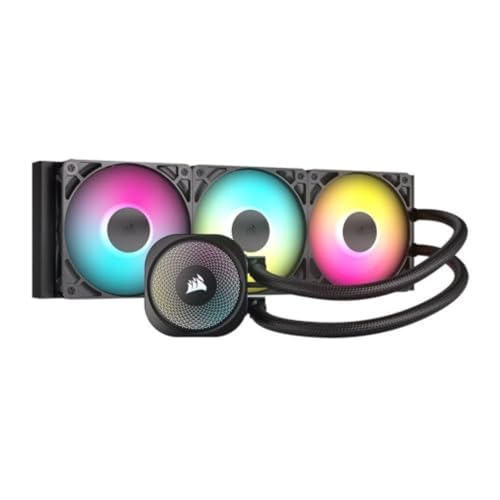
A 360 mm aluminum radiator with three RS120 ARGB fans that Corsair lists at up to 2,100 RPM, airflow of 13.3 to 72.8 CFM and noise of 10 to 36 dBA. Pump and fans connect straight to motherboard headers, so the BIOS decides everything. Corsair does not publish a pump RPM, and the 1,600 to 3,150 figure comes from one write-up, so treat it as approximate. Lighting control needs a separate Corsair controller.
Corsair Nautilus 360 RS – the non-RGB version

The same cooler concept without addressable lighting. It suits builders who want a short cable list and a pure BIOS setup. Some retailer pages list the fan maximum as 1,700 RPM instead of 2,100, and the sources conflict, so confirm the fan model and its RPM range before you plan a curve around it.
Corsair Nautilus 360 RS LCD – for coolant and temperature at a glance

This version adds a 2.1-inch IPS screen on the pump head. A display can show temperatures, but the pump and fan speeds still follow the headers they are plugged into. The extra screen may need its own software or USB connection, so check the setup requirements on the listing.
Corsair iCUE LINK H115i RGB – software-controlled pump

A 280 mm cooler with two QX140 fans listed at 400 to 2,000 RPM, plus the iCUE LINK System Hub, which Corsair says connects up to 24 devices. Corsair says iCUE adjusts pump and fan speeds and monitors CPU and coolant temperatures, so you set the pump in software rather than the BIOS. That makes it flexible but dependent on iCUE running. It fits mid-size cases that cannot hold a 360 mm radiator.
Common Mistakes
- Putting the pump and fans on one splitter with one curve. The pump then follows the fan curve and drops in speed at idle.
- Setting the pump to a very low speed to be quiet. Cooling and pump life both suffer. Use a lower fixed speed, not a floor near zero.
- Believing the percentage equals RPM. As the Nautilus example shows, the signal and the RPM do not map one to one.
- Ignoring header mode. A 3-pin pump on a PWM-only setting will not slow down.
- Leaving the minimum speed alarm on. Boards can stop at boot with a fan error when a pump runs slower than the alarm.
- Changing pump and fan curves at the same time. You cannot tell which change helped.
Questions
Should my AIO pump run at 100 percent all the time?
It is the simplest option, and many forum answers recommend it with fans on a curve. If the pump is audible, a fixed 60 to 80 percent is a common compromise. Whichever you choose, keep it constant.
Should pump speed follow CPU temperature?
Generally no. Pumps and fans respond differently, so having both change with temperature can cause oscillation. A fixed pump and fan curve is easier to tune.
What pump RPM should I expect at 75 percent?
It depends on the pump. Corsair publishes no pump RPM for the Nautilus RS, and one write-up measured about 2,200 RPM at 50 percent PWM. Read your cooler’s monitoring page instead of assuming a number.
Why is my CPU hotter with an AIO than my old air cooler?
Common causes are poor contact, too little paste, a radiator without enough airflow, or a pump that is not running. Compare idle and load temperatures after confirming the pump RPM, then re-seat the block if needed.
Is it normal to hear the pump?
A low steady hum is normal. Corsair lists the Nautilus 360 RS pump noise at about 20 dBA. Gurgling suggests air, and grinding suggests wear.
Where does a pump header differ from a fan header?
Forum builders note that some boards have dedicated pump headers that hold the pump at maximum voltage, while a general fan header lets you set the speed. Check your manual, because behavior varies by vendor and BIOS version.
Update History
- October 20, 2026 – Updated with specification checks and a revised product comparison.
- Check the product page for current specifications and availability before buying.
Sources
- Corsair product pages: Nautilus 360 RS ARGB and iCUE LINK H115i RGB
- Basic Tutorials write-up on the Corsair Nautilus 360 RS
- CG Director guide on where to connect an AIO pump
- Evetech guide on AIO pump noise and performance
- Tom’s Hardware forum thread on constant pump speed versus a curve
- PCPartPicker and Linus Tech Tips forum discussions on pump speed









