
Picture this: you have unboxed a shiny new CPU cooler, prepped your motherboard with a perfect thin layer of thermal paste, and are ready to mount the heatsink, only to find the mounting bracket holes miss the motherboard’s mounting holes by a frustrating millimeter—or worse, the metal bracket collides directly with a massive VRM heatsink or a row of capacitors. This is one of the most common, head-scratching bottlenecks in custom PC building. The mounting bracket might refuse to sit flat against the circuit board, the backplate screws might not protrude far enough through the mounting holes, or the cooler’s retention arms might require a terrifying amount of downward force to hook onto the mounting lugs.
While it is incredibly tempting to force the bracket into place with extra muscle, doing so is a recipe for hardware disaster. Motherboard PCBs are multi-layered circuits containing thousands of microscopic copper traces; applying uneven torque, bending the board, or letting a metal bracket scrape against the surface can easily sever trace lines or crack solder joints beneath the CPU socket, permanently killing your motherboard. Resolving a mismatched bracket is an urgent priority before you attempt to power on your system. As we build high-performance systems in 2026, modern CPU architectures feature dense socket layouts where improper contact leads to instant thermal throttling or emergency thermal shutdowns within seconds of booting.
As an Amazon Associate we earn from qualifying purchases at no extra cost to you.

Likely Causes
| Cause | How to confirm | Fix difficulty |
|---|---|---|
| Adjustable Backplate Slider Misalignment | Check if the metal slider pins on the backplate match the PCB holes exactly. | Very Easy |
| Incorrect Standoff/Spacer Selection | Compare spacer height and color to the manual’s socket-specific parts list. | Very Easy |
| Asymmetrical Bracket Orientation | Check if the bracket is installed upside down or rotated 90 degrees, hitting VRM heatsinks. | Easy |
| Pre-installed Motherboard Brackets Missing or Left On | Verify if your cooler requires the stock AMD plastic clips or a bare motherboard. | Easy |
| Chassis Cutout Obstruction | Look behind the motherboard tray to see if the case frame is pinching the backplate. | Medium |
| Outdated Bracket Hardware (Socket Incompatibility) | Compare socket specs (e.g., LGA1700/1851 vs. LGA1200) with the cooler’s retail box. | Medium |
Fix 1: Re-aligning Adjustable Backplate Slider Pins
What causes it
Many aftermarket cooler manufacturers (such as Noctua, Corsair, and Be Quiet) ship a universal backplate designed to support multiple Intel or AMD sockets. These backplates feature adjustable metal pins or slide channels that transition between different physical dimensions (for example, shifting between the 75mm x 75mm spacing of LGA1200 and the 78mm x 78mm spacing of LGA1700/LGA1851). If even one of these sliding pins is nudged during unboxing or installation, the diagonal alignment of your backplate will be thrown off, preventing the pins from pushing cleanly through the motherboard’s mounting holes.
How to check
Look through the back of your PC case’s motherboard tray cutout or remove the motherboard entirely. Inspect the four mounting pins protruding through the front of the PCB. If three of the pins emerge straight and perpendicular to the board while the fourth pin is skewed, angled, or fails to show through its hole, one of the backplate sliders is set to the wrong socket preset.
What to do
Remove the backplate from the motherboard. On the backplate, identify the sliding metal pins. Refer to your cooler’s installation manual to find the exact notch or position index required for your specific socket (e.g., the outermost notch for LGA1700/1851, the middle notch for LGA115x/1200). Firmly slide the misaligned pin into the correct notch until it clicks into its plastic retention clip or matches the position of the other three pins. Re-insert the backplate straight into the motherboard holes without forcing it.
How to undo it
To return the backplate to its previous state, press down on the integrated plastic retention clips or lock pins on the backplate and slide the metal pins back to their original, legacy socket positions.
Fix 2: Swapping Spacers for the Correct Socket Height
What causes it
Modern CPU coolers ship with an assortment of plastic or metal spacers (standoffs) designed to create the exact Z-height clearance between the motherboard PCB and the mounting bracket. Using the wrong set of spacers can cause the mounting bracket to sit too high (preventing the cooler’s thumbscrews from catching the threads) or too low (causing the bracket to crush motherboard components or sit crooked).
How to check
Lay your motherboard flat on an anti-static workspace. Compare the physical appearance of your installed spacers with the parts diagram in your cooler’s manual. For example, Intel LGA1700 standoffs are typically shorter (often marked with a distinct groove or colored black) compared to the longer LGA1200 standoffs. AMD spacers are frequently color-coded (e.g., bright gray for AM4 and dark black for AM5, or vice-versa depending on the cooler brand). If your spacers are mixed or do not match the specified color/height for your socket, the bracket will not align.
What to do
Unscrew the thumbscrews holding the mounting bracket in place and lift the bracket off. Remove the incorrect spacers from the backplate screws. Clean any accidental thermal paste smudges off the motherboard surface using 99% isopropyl alcohol. Locate the correct spacers in your cooler’s retail box, verifying their length and color against the manual. Slide the correct spacers over the four backplate screws, ensuring they sit perfectly flat against the motherboard’s front surface before placing the mounting bracket back on top.
How to undo it
Remove the newly installed spacers and slide the original, incorrect spacers back onto the backplate screws.
Fix 3: Flipping and Rotating the Mounting Brackets
What causes it
Intel and AMD mounting brackets are rarely perfectly symmetrical. Many brackets have a distinct curve, a raised center section, or off-center screw holes designed to clear nearby motherboard components. If you install these brackets upside down (with the curve bowing down toward the PCB instead of arching up and away) or rotated 90 degrees, the metal arms will collide with VRM heatsinks, the rear I/O shroud, or solid capacitors, lifting one side of the bracket off its standoffs.
How to check
Examine the mounting brackets from a side-profile view at eye level. If the center section of the metal bracket is bowing downward and making direct physical contact with any motherboard component, or if the bracket is resting on top of a VRM heatsink instead of sitting cleanly on top of the plastic/metal standoffs, the bracket is oriented incorrectly.
What to do
Remove the thumbscrews securing the brackets to the standoffs. Lift the brackets off. Rotate them 90 or 180 degrees to see if the shape matches the contour of your motherboard’s socket clearance zone. If the brackets are bowing downward, flip them over so that the integrated threaded pillars or screw holes face upward, away from the motherboard. Re-align the brackets with the standoffs; there should be at least a 1.5mm to 2mm gap of clear air between the underside of the bracket and any surface-mount motherboard components.
How to undo it
Remove the screws, flip the brackets back upside down, or rotate them to their original position where they made contact with the VRM heatsinks.
Fix 4: Reinstalling or Removing Stock Motherboard Retention Brackets
What causes it
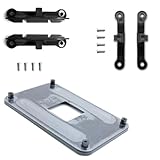
AMD AM4 and AM5 motherboards ship with two black plastic retention brackets pre-installed on the front of the motherboard, secured to a stock metal backplate. Many Liquid AIO coolers and large dual-tower air coolers require you to completely remove these plastic brackets to install custom standoffs. Conversely, some clip-on air coolers require these stock plastic brackets to remain in place. Trying to install a bracket without knowing which configuration your cooler requires will lead to a complete mismatch.
How to check
Look at your motherboard’s CPU socket area. If you see two black plastic bars with protruding hooks held down by four silver screws, and your cooler manual instructs you to install custom threaded standoffs directly into the backplate, the stock brackets are blocking you. If your cooler has tension hooks but you have already unscrewed and discarded the plastic stock brackets, you will have nothing to hook the cooler onto.
What to do
If your aftermarket cooler requires a direct-to-backplate mount: Use a Phillips #2 screwdriver to back out the four screws securing the stock AMD plastic brackets. Lift the plastic brackets off the motherboard. Keep the stock metal backplate in place behind the motherboard (hold it with one hand so it does not fall out of the chassis). Proceed to install your cooler-specific standoffs directly into the exposed threaded holes of the stock backplate. If your cooler requires the stock brackets: Re-align the stock plastic brackets over the motherboard mounting holes and tighten the stock screws to approximately 1.2 Nm of torque.
How to undo it
Unscrew your aftermarket standoffs and use a Phillips #2 screwdriver to reinstall the original stock AMD plastic brackets and silver screws.
Fix 5: Centering the Motherboard inside the Case
What causes it
If you are installing a cooler with the motherboard already mounted inside a PC chassis, the motherboard tray’s built-in CPU cutout can sometimes pinch or obstruct the cooler’s backplate. If the motherboard was installed slightly crookedly or if the case’s motherboard standoffs are slightly out of spec, the backplate will hit the edge of the case tray. This forces the backplate to sit at an angle, preventing the front mounting screws from aligning with the bracket holes.
How to check
Open the right-side panel of your PC case to view the rear of the motherboard tray. Inspect the metal perimeter of the CPU cooler cutout. If the plastic or metal edge of your cooler’s backplate is wedged tightly against, or slipping underneath, the steel frame of the case tray, the motherboard is misaligned relative to the cutout.
What to do
Loosen all of the motherboard mounting screws (typically 6 to 9 screws holding the board to the chassis standoffs) by 2 to 3 full turns. Do not remove them completely. Gently slide the entire motherboard a millimeter or two toward the top or the rear I/O shield of the chassis until the CPU socket cutout is perfectly centered around the backplate. Ensure the backplate can move freely without touching any metal chassis edges. Once centered, retighten the motherboard mounting screws in a cross pattern, then proceed to align your cooler bracket.
How to undo it
Loosen the motherboard screws, slide the motherboard back toward the front or bottom of the case until the backplate is pinched against the tray edge, and retighten the chassis screws.
Fix 6: Sourcing an OEM Socket Transition Kit
What causes it
If you are attempting to mount an older, legacy CPU cooler onto a modern motherboard socket (such as installing a cooler manufactured before the release of LGA1700 or LGA1851 onto a modern platform), the physical hole dimensions of the bracket will not match. The physical mounting pattern for LGA1200 is 75mm x 75mm, while LGA1700 and LGA1851 require a wider 78mm x 78mm pattern. Without the updated mounting hardware, the brackets simply cannot span the distance.
How to check
Check the original retail box or online specifications of your CPU cooler. If the list of supported sockets does not explicitly include your motherboard’s socket (such as LGA1700, LGA1851, or AM5), and the bracket holes miss the motherboard holes by exactly 3mm to 4mm diagonally, you are dealing with a physical socket generation mismatch.
What to do
Do not attempt to drill or file down your existing brackets. Instead, visit the official website of your cooler manufacturer. Most major brands (including Noctua, Arctic, Be Quiet, and Thermalright) offer dedicated socket upgrade kits (e.g., “LGA1700 Retrofit Kit” or “AM5 Mounting Kit”) for their older coolers. Once the kit arrives, use the newly provided backplate, standoffs, and brackets which are engineered specifically for the physical dimensions and Z-stack height of your new motherboard.
How to undo it
Remove the upgraded transition hardware and reinstall the original, legacy mounting brackets and backplate.
Fix 7: Relaxing Tension Springs and Alternating Screw Tightening
What causes it
Many high-end CPU coolers use heavy-duty tension springs on their mounting screws to ensure even contact pressure across the CPU integrated heat spreader (IHS). If you fully tighten one side of the bracket or one mounting screw before starting the other screws, the bracket will tilt at a steep angle. This cocks the remaining screws away from their target holes, making it impossible to align them or get the threads to catch.
How to check
Look at your mounting bracket. If one side is screwed completely flush to the standoffs, while the opposite side is hovering several millimeters in the air, and the remaining screws are angled outward and refuse to reach their threaded holes, you have tightened the system unevenly.
What to do
Back out all bracket screws until they are completely loose, but still resting in their mounting holes. Align the entire bracket so that it sits perfectly level and parallel with the motherboard. Push down gently on the center of the bracket. Start the first screw by turning it only 1 to 2 full rotations—just enough for the threads to catch. Move diagonally to the opposite screw (e.g., top-left to bottom-right) and turn it 1 to 2 rotations. Repeat this alternating, cross-pattern sequence, tightening each screw a few turns at a time, until the bracket is pulled down evenly and all screws are fully finger-tight.
How to undo it
Tighten one single screw all the way down to its maximum depth, forcing the opposite side of the bracket to tilt back up into the air.
If Nothing Works
If you have tried every physical alignment step and the bracket still refuses to fit, you may be dealing with a rare physical motherboard incompatibility or a warped PCB. Some Mini-ITX motherboards feature exceptionally tall VRM heatsinks or dense daughterboards (such as stacked M.2 card slots) that physically block standard, wide aftermarket cooler brackets.
To diagnose this, use a digital caliper or a precise millimeter ruler to measure the distance between the center of your motherboard’s mounting holes.
- For Intel LGA115x/1200, the spacing must be exactly 75mm.
- For Intel LGA1700/1851, the spacing must be exactly 78mm.
- For AMD AM4/AM5, the spacing must be exactly 54mm x 90mm.
If your measurements match these standards but your cooler bracket does not, the bracket itself may have been manufactured out of spec, or you may have received a packaged kit with a bent arm. In this scenario, do not attempt to bend the metal yourself, as this can weaken the structure and lead to uneven mounting pressure, causing your CPU to overheat. Your best course of action is to contact the cooler manufacturer’s support team for a replacement bracket, or return the cooler to the retailer and exchange it for a model with guaranteed, native out-of-the-box compatibility for your specific motherboard model.
FAQ
Can I use zip-ties or a custom 3D-printed bracket to mount my CPU cooler if the bracket doesn’t fit?
No, you should never use zip-ties, twist-ties, or standard 3D-printed brackets to mount a CPU cooler. Modern CPUs require immense, precise, and even mounting pressure (often exceeding 40 to 50 pounds of force) to maintain proper thermal contact with the heatsink. Zip-ties stretch under heat, and standard 3D-printing filaments like PLA or PETG will soften and deform inside a hot PC case. This will cause the cooler to lose contact, leading to instant thermal runaway, and could cause physical damage if the heavy cooler falls onto your graphics card.
Why are the mounting screws on my AIO bracket too short to reach the backplate?
This issue is almost always caused by using the wrong standoffs or installing the backplate upside down. Many backplates have a raised center hub or integrated spacers that must face a specific direction. If the backplate is installed backward, it sits too far away from the rear of the motherboard, preventing the front mounting screws from reaching. Double-check your manual to ensure the backplate is oriented correctly and that you are not using AMD standoffs on an Intel motherboard.
Will an AM4 cooler bracket fit natively on an AM5 motherboard?
Yes, in many cases, but it depends entirely on how the cooler mounts. AMD designed the AM5 socket to share the same 54mm x 90mm mounting hole pattern as AM4. If your AM4 cooler uses the stock AMD plastic clips or screws directly into the stock backplate, it will fit AM5 perfectly. However, if your AM4 cooler requires you to remove the stock AMD backplate and install a custom proprietary backplate, it will not fit, because the AM5 stock backplate is permanently integrated into the motherboard’s CPU socket frame and cannot be removed.
Is it normal to have to apply a lot of pressure to get the bracket screws to catch?
A small amount of resistance is normal because many brackets use high-tension metal leaf springs to guarantee adequate contact pressure. However, you should never have to use excessive force, lean your body weight onto the screwdriver, or visibly bend the motherboard PCB to get a screw to thread. If you feel extreme resistance, stop immediately. A standoff is likely missing, or you are using the wrong screws, which can easily strip the threads or crack the motherboard.









