
The Short Answer
Yes, an LGA1700 cooler is physically compatible with socket LGA1851 because both platforms share identical 78mm x 78mm mounting hole dimensions and stack heights. However, optimal thermal performance depends on one critical condition: your cooler must provide adequate contact pressure and proper thermal coverage for LGA1851’s shifted compute tile layout. While older mounting hardware bolts down successfully, achieving maximum cooling efficiency on LGA1851 processors often requires updated mounting offset brackets or revised spring-tension hardware provided by cooler manufacturers.
Compatibility at a Glance
| Factor | Requirement | Notes |
|---|---|---|
| Mounting Hole Pitch | 78mm x 78mm grid spacing | Identical dimensions between LGA1700 and LGA1851 motherboards. |
| Z-Height (Stack Height) | 6.52mm to 7.53mm from PCB to IHS top | Direct mechanical height remains equivalent; legacy standoffs physically seat properly. |
| Thermal Hot Spot Layout | Shifted compute die coordinate offset | LGA1851 concentrates heat off-center, requiring targeted paste spread or offset mounting. |
| Socket Clamping Force | 50 to 90 lbf load retention | Requires consistent mounting torque across all four spring screws to prevent cold-plate tilting. |
| Power & Speed Control | 4-pin PWM / Internal USB 2.0 header | Fully compatible with standard 12V 4-pin headers and motherboard PWM duty cycles. |
What Determines It
Interface
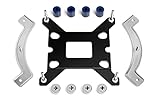
The physical socket interface forms the primary baseline for hardware compatibility. Socket LGA1700 and Socket LGA1851 share the exact same 78mm x 78mm square mounting hole layout around the socket perimeter. Additionally, the Z-height distance—measured from the top of the motherboard Printed Circuit Board (PCB) surface to the top of the CPU Integrated Heat Spreader (IHS)—ranges between 6.52mm and 7.53mm across both specifications. Because these spatial parameters match, backplates, standoffs, and mounting brackets designed for LGA1700 fit directly onto LGA1851 motherboards without drilling or replacing the retention mechanism.
As an Amazon Associate we earn from qualifying purchases at no extra cost to you.

Power
Thermal dissipation profiles differ substantially between socket generations due to changes in silicon architecture. LGA1851 processors transition from traditional monolithic dies to a disaggregated multi-tile design. As high-density compute workloads scale in 2026 systems, thermal output concentrates into smaller, off-center hotspots on the silicon layout rather than the dead-center position typical of LGA1700 chips. While an LGA1700 cooler can handle the total Thermal Design Power (TDP) draw of 125W to 250W+, standard center-focused cold plates may experience a thermal penalty of 3°C to 7°C under full load unless paired with an offset mounting kit that aligns the cooler’s primary micro-fin channel directly over the active compute tile.
Drivers
Cooler hardware operates via hardware-level PWM signals and vendor control software. Liquid cooler pumps and fan hubs interface with Windows through internal USB 2.0 headers (9-pin) and standard 4-pin motherboard headers. Physical installation requires no custom platform-specific drivers for LGA1851. In Windows, pump controllers communicate via human interface device (HID) protocols under Device Manager (accessible via key combo Win + X > Device Manager or running devmgmt.msc) under the Universal Serial Bus controllers tree. Older software control suites function identically, controlling pump speeds from 800 RPM up to 3000 RPM based on reported CPU package sensors.
Firmware
Motherboard Unified Extensible Firmware Interface (UEFI/BIOS) environments regulate fan speed curves based on ACPI thermal tables. To configure cooling behavior on an LGA1851 system, press Del or F2 during POST to open UEFI, press F7 to switch to Advanced Mode, and navigate to Monitor > Q-Fan Configuration (or Hardware Monitor depending on board vendor). You can set the CPU Fan or AIO Pump header mode from Auto Detect to PWM Mode. Setting a manual Duty Cycle curve—such as 35% duty cycle up to 50°C, scaling linearly to 100% duty cycle at 85°C—ensures stable liquid flow and prevents rapid fan revving triggered by peak transient thermal spikes inherent to high-density desktop sockets.
Form Factor
Clearance envelope constraints dictate whether large air towers or thick liquid cooling radiators fit inside the chassis. While the socket footprint remains constant, LGA1851 motherboards frequently feature enlarged Voltage Regulator Module (VRM) heatsinks extending 40mm to 50mm high along the top and left edges of the socket. Air coolers with wide aluminum fin stacks or low-hanging heat pipes must maintain a minimum clearance of 48mm above the PCB surface to avoid striking VRM shrouds. Additionally, memory slot clearance requires that double-tower air coolers allow 32mm to 44mm of vertical room to accommodate high-profile DDR5 desktop memory modules.
How to Check Yours
Before installing your existing LGA1700 cooler onto a new LGA1851 platform, perform these step-by-step checks to confirm mechanical and thermal compatibility:
- Measure Mounting Backplate Dimensions: Confirm that your current backplate or standoffs are set to the 78mm x 78mm position (labeled LGA1700/LGA1851 on newer hardware, or position “1700” on adjustable multi-socket backplates).
- Verify VRM Heatsink Clearance: Test-fit the bare cooler base on the socket without thermal paste. Ensure the cold plate outer housing does not contact the motherboard’s surrounding VRM heatsinks or M.2 shield covers.
- Perform a Thermal Paste Contact Spread Test: Apply a small 5-dot thermal paste pattern (one pea-sized dot in the center and four small pinhead dots near the corners) or an ‘X’ pattern across the CPU IHS. Torque down the cooler fully, then unbolt it to inspect the spread. A thin, translucent layer across the central and upper-left die area indicates uniform contact pressure.
- Verify Temperature Readings in UEFI: Boot into the BIOS by pressing
Del. Check theCPU Temperaturemetric under the primary monitoring screen. Baseline idle temperatures should sit stably between 30°C and 42°C. - Validate USB/Pump Detection in Device Manager: Boot into Windows, press
Win + R, typedevmgmt.msc, and hit Enter. ExpandUniversal Serial Bus controllersand confirm there are no yellow warning triangles alongside your AIO pump interface device.
If It’s Not Compatible
If your LGA1700 cooler exhibits poor thermal transfer, mechanical interference, or driver control errors on an LGA1851 motherboard, apply the targeted fixes below.
Fix 1: Correcting High Temperatures Caused by Uneven Contact Pressure
What causes it: The concentrated tile layout on LGA1851 processors can leave hot spots under-cooled if the LGA1700 mounting hardware does not provide uniform pressure across the IHS surface, causing CPU package temperatures to spike above 90°C instantly under load.
How to check: Boot Windows, run a heavy stress workload while monitoring hardware sensors. If temperature core deltas exceed 15°C between individual core clusters, the cold plate is sitting unevenly on the CPU.
What to do: Obtain an LGA1851 offset mounting kit from your cooler vendor, or adjust installation technique. Unscrew the cooler retention nuts. Reapply thermal paste in an ‘X’ pattern across the IHS. When reinstalling, tighten the spring-loaded screws in a cross-pattern sequence (top-left, bottom-right, top-right, bottom-left) using half-turn increments until finger-tight (do not exceed 0.6 Nm of torque). Ensure spring tension mechanisms bottom out evenly on standoff shoulders.
How to undo: Loosen all four spring screws counterclockwise in half-turn increments, lift the cooler block, wipe off thermal paste with 99% isopropyl alcohol, and remove any installed offset brackets to return to standard mounting hardware.
Fix 2: Resolving Mechanical Clearance Conflicts with VRM Heatsinks or RAM
What causes it: Tall VRM cooling towers or tall DDR5 heat spreaders on socket LGA1851 motherboards hit the heat pipes, fan housings, or pump hose elbows of older LGA1700 air and AIO coolers.
How to check: Visual inspection during dry assembly showing physical contact between fan clips, heatsink fins, or pump elbows and adjacent motherboard components, preventing the cooler cold plate from sitting flush against the IHS.
What to do: For AIO liquid coolers, unbolt the water block and rotate it 90 degrees or 180 degrees so the tube elbow fittings point toward the RAM slots or bottom PCIe slot, clearing tall top VRM heatsinks. For air towers, unclip the front 120mm/140mm intake fan and slide it upward along the aluminum fin tower by 5mm to 10mm to clear DDR5 RAM modules.
How to undo: Unclip the fan spring wires, slide the fan down to its default flush position, or unbolt the pump block, rotate it back to its original orientation, and re-torque the retention nuts.
Fix 3: Fixing Unresponsive Pump Speeds and USB Driver Conflicts
What causes it: Updated motherboard USB controllers on LGA1851 chipsets may fail to hand off legacy vendor pump software states, causing liquid pump speeds to lock at minimum RPM or fail to report RPM data.
How to check: Open devmgmt.msc, inspect Universal Serial Bus controllers, and locate devices displaying Code 43 or Code 10 error flags. In BIOS, the CPU_FAN or AIO_PUMP speed shows N/A.
What to do: Shut down the PC, turn off the PSU toggle, and move the pump’s 4-pin cable to the motherboard’s dedicated AIO_PUMP header. Power on, enter UEFI via Del, navigate to Advanced Mode (F7) > Monitor > Q-Fan Configuration, select AIO Pump Control, and switch the setting from Auto to Full Speed (100% duty cycle). In Windows, open Device Manager, right-click the flagged USB device under Universal Serial Bus controllers, select Update driver > Search automatically for drivers, and restart the system.
How to undo: Open UEFI, change AIO Pump Control back to Auto Detect or Standard fan curve, open Device Manager, right-click the USB pump device, select Uninstall device, reboot, and allow Windows to reinstall the stock generic USB driver.
FAQ
Do I need a new mounting bracket to use an LGA1700 cooler on LGA1851?
In most cases, no. Because LGA1700 and LGA1851 share identical 78mm x 78mm mounting hole spacing and stack height specifications, your existing LGA1700 bracket physically bolts onto the socket. However, using an updated manufacturer offset bracket is recommended to align cooler micro-fins directly over LGA1851’s shifted compute tiles for best thermal efficiency.
Why are my CPU temperatures higher on LGA1851 using the same LGA1700 cooler?
LGA1851 processors shift primary heat-producing compute silicon off-center compared to older monolithic LGA1700 chips. Standard LGA1700 coolers apply maximum pressure and fluid flow to the exact center of the IHS. Without an offset bracket or revised thermal paste pattern, thermal dissipation efficiency decreases slightly, causing higher peak temperatures under load.
Can I reuse an LGA1700 contact frame on an LGA1851 socket?
No, you should not reuse an LGA1700 anti-bending contact frame on an LGA1851 motherboard. Socket LGA1851 features subtle mechanical changes in the Independent Loading Mechanism (ILM) screw placement and pin arrangement. Installing an LGA1700 contact frame on LGA1851 can cause improper pin contact, memory channel dropouts, or permanent physical damage to the socket pins.
How do I force my AIO pump to run at full speed on LGA1851 motherboards?
Enter the motherboard UEFI by tapping Del during startup. Press F7 for Advanced Mode, navigate to Monitor > Q-Fan Configuration, locate the header powering your pump (e.g., AIO_PUMP or W_PUMP+), and change the control mode to Full Speed or manually adjust the PWM duty cycle to 100% across all temperature thresholds.









