
Achieving a whisper-quiet gaming PC requires targeting the primary source of acoustic disturbance: fan velocity driven by motherboard firmware parameters. Default motherboard BIOS settings are engineered for maximum thermal headroom and extreme stability, which often results in aggressive fan curves, unrestricted CPU power targets, and excessive voltage delivery. When a CPU experiences brief burst loads, factory settings instantly ramp case and CPU fans to maximum RPM, producing annoying pitch changes and constant fan revving.
In 2026, modern multi-core processors leverage aggressive boosting algorithms that intentionally push silicon temperature to its thermal threshold within milliseconds. To build a truly silent system without sacrificing gaming performance, your primary goal in the BIOS is to decouple instant temperature spikes from immediate fan response, optimize voltage efficiency, and establish strict power limits. By leveraging native hardware monitoring features, adjusting duty cycles, and fine-tuning fan hysteresis, you can eliminate unwanted acoustic noise while keeping temperatures well within safe operational limits.
As an Amazon Associate we earn from qualifying purchases at no extra cost to you.


Our Top Picks
 MeLE PCG02 Pro Mini PC StickBiz Grade N5100/8GB+128GB5.7 x 2.4 x 0.78 inches0.4 PoundsCheck on Amazon
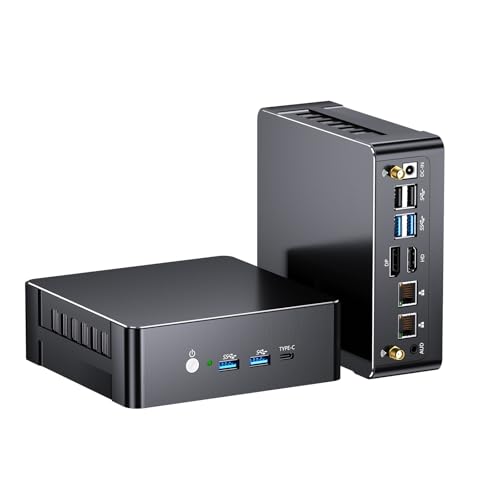


Top 3 picks at a glance
Quick Recommended Settings
To configure the best bios settings for quiet pc operation, access your UEFI utility by pressing the Del or F2 key during system POST. On ASUS, MSI, Gigabyte, or ASRock motherboards, hit F7 to enter Advanced Mode, then apply the following baseline parameters:
| Setting Name | Recommended Value | Why It Matters |
|---|---|---|
| Fan Control Mode | PWM (4-pin) or DC (3-pin) | Ensures precise voltage/signal control and prevents fans running at continuous 100% speed. |
| Fan Step Up / Step Down Time | Step Up: 2.0s – 4.0s / Step Down: 5.0s – 10.0s | Smoothes out fan speed transitions, preventing fan revving during short CPU load spikes. |
| CPU Power Limits (PL1 / PL2 / PPT) | Intel: Enforce Limits (125W/181W) / AMD: Eco Mode (65W/105W) | Caps maximum wattage to stop thermal runaway and eliminate high-RPM fan requirements under heavy load. |
| Curve Optimizer / Voltage Offset | AMD: Negative 10 to 20 / Intel: Negative 0.050V to 0.080V | Reduces operating temperatures by lowering voltage supply without reducing clock frequencies. |
| Idle / Low-Load Duty Cycle | 30% to 40% PWM duty cycle up to 60°C | Keeps the system completely silent during desktop tasks, web browsing, and light media playback. |
| Global C-State Control | Enabled | Allows CPU cores to drop into low-power states when idle, minimizing power draw and residual heat. |
Setting-by-Setting
1. Fan Control Mode Selection (PWM vs. DC)
What causes noise issues: Leaving header modes on “Auto” can cause 4-pin PWM fans to fall back to DC voltage control, operating at an unnecessary minimum floor voltage or full speed.
How to check: Open your BIOS fan management menu (ASUS Q-Fan Control, MSI Hardware Monitor, Gigabyte Smart Fan 6, ASRock FAN-Tastic Tuning). Check the control mode selected for each motherboard header.
What to do: Manually change the mode for every occupied header. Set 4-pin headers connected to modern case or CPU cooler fans to PWM Mode. Set legacy 3-pin headers to DC Mode. Save and exit (F10).
How to undo: Return to the fan setup menu and select Auto-Detect or Auto on all headers.
2. Fan Step Up and Step Down Time (Hysteresis)
What causes noise issues: Default fan response is set to 0 seconds. When opening a browser tab or launching a program, CPU temperatures spike instantaneously for 500 milliseconds, causing fans to aggressively rev up and immediately spin back down.
How to check: Locate your motherboard’s fan smoothing settings, usually labeled as “Fan Step Up/Down Time,” “Fan Ramp Up Delay,” or “Fan Smoothing Interval” within the fan control section.
What to do: Increase the Fan Step Up Time to 2.0 seconds or 4.0 seconds. Set the Fan Step Down Time to 8.0 seconds or 10.0 seconds. Trade-off: Maximum thermal response is delayed by a few seconds, causing peak transient temperatures to rise by 2°C to 4°C, but fan revving is entirely eliminated.
How to undo: Revert both Step Up and Step Down parameters back to 0s or “Standard Delay.”
3. Custom Temperature and Duty Cycle Points
What causes noise issues: Factory fan curves hit 100% fan duty cycle at 70°C or 75°C. Modern processors naturally reach these temperatures during routine gaming, resulting in maximum acoustic output unnecessarily.
How to check: Look at the 4-point or 5-point fan curve graph in your fan tuning menu.
What to do: Set a flat, silent baseline curve. Point 1: 30% duty cycle at 40°C. Point 2: 35% duty cycle at 60°C. Point 3: 55% duty cycle at 75°C. Point 4: 75% duty cycle at 85°C. Point 5: 100% duty cycle at 90°C. Trade-off: System running loads near 75°C will operate 3°C to 5°C warmer, but acoustic output drops significantly.
How to undo: Select the default “Standard” or “Silent” motherboard pre-set profile.
4. Undervolting via Curve Optimizer / Adaptive Offset
What causes noise issues: Motherboard vendors apply aggressive stock core voltages to guarantee stability across all manufacturing variances, causing processors to draw excessive power and generate surplus thermal energy.
How to check: On AMD platforms, navigate to Ai Tweaker / Precision Boost Overdrive / Curve Optimizer. On Intel, go to OC / CPU Core Voltage Mode.
What to do: On AMD, set Curve Optimizer to All Cores, select Negative, and enter a value between 10 and 20. On Intel, set Voltage Mode to Adaptive + Offset, set the Offset Sign to Negative (-), and set the value to 0.050V (gradually test up to 0.080V). Trade-off: Excessive undervolting can cause system instability or Blue Screens (BSOD) under full load, requiring iterative stability testing using software like Prime95 or Cinebench.
How to undo: Reset Curve Optimizer to “Auto” or change the Intel Offset Sign back to “+” with a value of 0.000V.
5. CPU Power Limit Restrictions (PL1/PL2 & PPT)
What causes noise issues: Motherboard manufacturers routinely bypass Intel and AMD standard power limits out of the box, allowing CPUs to consume uncapped power (e.g., 250W+), forcing liquid cooler pumps and fans to run at maximum speeds.
How to check: Navigate to Ai Tweaker / Internal CPU Power Management (ASUS) or Advanced CPU Configuration (MSI). Check status of “Long Duration Package Power Limit” (PL1) and “Package Power Limit” (PPT).
What to do: Enforce recommended specs. On Intel i7/i9 processors, set PL1 to 125W and PL2 to 181W or 253W instead of “Unlimited” (4096W). On AMD AM5 processors, enable Eco Mode (e.g., set a 170W CPU to 105W TDP mode, or a 105W CPU to 65W TDP mode). Trade-off: Multithreaded production rendering speeds decrease by 3% to 7%, but overall power draw drops up to 30%, drastically cutting noise output with negligible impacts on gaming frame rates.
How to undo: Set power limit options back to “Auto” or “Motherboard Limits.”
By Hardware Tier
Low-End / Budget Tier (65W CPUs, Air Coolers)
Budget processors like 6-core chips operating on stock or low-profile single-tower air coolers generate low overall heat, but smaller 92mm or 120mm fans sound high-pitched at high RPMs. Set CPU fan minimum duty cycle to 25% from 0°C to 55°C. Ramp the curve linearly up to 60% duty cycle at 75°C, and limit maximum fan speed to 80% up to 85°C. Ensure chassis fans are linked to “System/MOSFET” thermal sensors rather than CPU spikes to maintain a steady 35% speed.
Mid-Range Gaming Tier (100W-150W CPUs, Dual-Tower / 240mm AIO)
Mid-range configurations featuring 8-core CPUs and dual-tower air coolers or 240mm liquid coolers handle sustained thermal loads effectively. In the BIOS, set a flat 35% fan speed floor up to 65°C. Configure AIO liquid pump headers to a fixed, quiet velocity of 70% or 75% duty cycle continuously rather than 100%, eliminating persistent pump whine. Apply a negative voltage offset of -0.050V (Intel) or -15 Curve Optimizer magnitude (AMD) to reduce peak heat under load.
High-End / Flagship Tier (200W+ CPUs, 360mm AIO / Custom Loops)
Flagship processors require strict power cap enforcement in the BIOS to prevent instant thermal saturation. Restrict Intel PL2 limits to official spec (e.g., 253W maximum) or enforce AMD Eco Mode at 105W/125W PPT limits. Link radiator fan speeds to liquid temperature sensor headers (T_Sensor) if your motherboard supports it, rather than direct CPU core temperatures. Set radiator fans to run at a silent, fixed 45% duty cycle up to 40°C coolant temperature, spiking to 80% only if coolant exceeds 45°C.
Common Mistakes
- Setting Fan Curves to 0% Duty Cycle (Zero RPM): Completely turning off case fans causes ambient internal heat to saturate the PC case during gaming sessions. When fans finally trigger at higher thresholds, they must run at high speeds to exhaust trapped heat. Maintain a silent 25% to 35% floor airflow at all times instead.
- Binding Case Fans Exclusively to CPU Temperature: Linking chassis intake and exhaust fans directly to CPU temperature causes ambient case noise to jump up and down during minor background tasks. Assign case fans to read from “Motherboard,” “PCH,” or “System” sensor sources.
- Running AIO Liquid Pumps at Variable Speeds: Allowing liquid cooling pumps to scale dynamically along with CPU load introduces high-pitched humming noises. Pumps perform best acoustically when locked to a constant, noise-optimized static duty cycle (e.g., 65% to 75% PWM).
- Neglecting GPU BIOS Interfacing: Configuring silent system fan profiles in the main motherboard BIOS will not quiet a noisy graphics card. Use the physical Dual BIOS switch located on your graphics card PCB to switch from “Performance Mode” to “Quiet Mode.”
FAQ
Will reducing fan speeds in the BIOS overheat my components?
No. Modern CPUs and GPUs feature built-in hardware protection protocols. If components reach thermal thresholds (typically 95°C to 100°C for CPUs), they automatically adjust clock speeds downward (thermal throttling) or shut the system down completely long before physical thermal damage can occur.
What is the best fan curve hysteresis setting for a quiet system?
Setting the Fan Step Up delay to 2.0 or 4.0 seconds and the Fan Step Down delay to 8.0 or 10.0 seconds yields the best acoustic balance. This stops temporary load bursts from ramping up fan speeds while maintaining safe cooling under sustained workloads.
Does undervolting void my component warranties or lower performance?
Applying moderate negative voltage offsets or utilizing AMD Curve Optimizer within official BIOS parameters does not void warranties. When configured properly, undervolting maintains full boost clock speeds while significantly lowering power consumption and heat output, resulting in sustained boost duration and quieter overall operation.
Why are my fans still revving loudly after applying BIOS custom curves?
This typically occurs if a third-party software utility running inside Windows (such as ASUS Armoury Crate, MSI Center, or Gigabyte Control Center) overrides your hardware BIOS settings upon booting into the operating system. Uninstall or disable fan control services within these Windows applications to force the motherboard to respect your custom BIOS settings.









