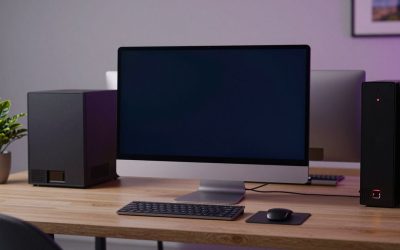
A monitor splitter copies one video signal onto two or more screens, so every display shows the same picture. It does not give you extra desktop space. If you want two monitors showing different content, you need a second video output, a docking device that creates one, or a monitor setup that supports chaining. Below is how splitters work, why a second screen sometimes goes blank, and a simple way to decide whether you need one at all before you spend any money.
What a splitter actually does
Inside the box is a small chip that takes the incoming signal and repeats it on each output port. The computer sees what looks like a single display and sends a single image. Both monitors receive identical pixels at the same moment, which is exactly what you want for a presentation, a lobby screen, or a classroom where a second monitor needs to mirror the first.
Because the computer only sees one display, the splitter must negotiate a resolution and refresh rate that every connected screen can handle. That negotiation is handled through display identification data that each monitor reports. When two screens disagree, the splitter commonly picks a lowest-common-denominator mode, so a sharp monitor may end up running at the settings of a weaker one.
Splitters should not be confused with switches, which work in the opposite direction: several sources feed one monitor. The two get mixed up in shopping listings, so read the port labels before you buy.
Splitter, extended desktop, or daisy chain
Three different goals hide behind the same search phrase. The table compares them.
| Feature | Splitter | Extended desktop via extra output | Daisy chain |
|---|---|---|---|
| What each screen shows | Identical image | Separate content per screen | Separate content per screen |
| Extra desktop space | No | Yes | Yes |
| What it needs | One output and a splitter | Spare output, dock, or adapter | Source, cable and monitors that support the feature |
| Typical risk | Resolution limited to the weakest screen | Needs a free port or bandwidth | Compatibility varies by model |
| Best for | Mirroring and signage | Everyday multi-screen work | Tidy desks with fewer cables |
Daisy chaining generally relies on a feature of DisplayPort that lets one connection carry several streams, and it works only when your graphics source and each monitor support it. Check your manuals for a mention of multi-stream transport or a DisplayPort output on the monitor.
Quick checks if a screen goes blank
Run through these before replacing anything. They cover most of the failures people report.
- Confirm the splitter has its own power supply plugged in, if it was shipped with one.
- Check that each monitor is set to the input the splitter is attached to.
- Unplug the splitter and connect one monitor straight to the computer. If that works, the splitter or its cables are the weak link.
- Try each monitor on its own splitter port to see whether the fault follows a port or a screen.
Why a second screen goes blank or streaming breaks
| Symptom | Likely cause | What to try |
|---|---|---|
| One screen is black, the other works | Resolution or refresh rate the second monitor cannot display | Lower the resolution and refresh rate in display settings |
| Both screens flicker or drop out | Cable too long or too slow for the mode | Use shorter, certified cables and a lower mode |
| Picture is soft or limited to a low mode | Splitter chose the weaker monitor’s settings | Match monitor resolutions or skip the splitter |
| Streaming or protected video shows black | Content-protection handshake fails across the splitter | Connect directly to a supported display for that content |
| Screens stay black after sleep | Identification data lost on wake | Power-cycle the splitter, then the monitors |
| Nothing on either screen | No power, wrong input, bad cable | Recheck the quick list above |
Protected streaming deserves a short note. Many services use a content-protection system that requires every device in the chain to be compliant. A splitter that does not pass it correctly can lead to a black window or a lower resolution. This is by design, so the fix is to use a supported connection for that content, not to try to defeat the protection.
Step-by-step fixes, cheapest first
- Power everything down, unplug the splitter, and wait about thirty seconds.
- Reconnect in order: monitors on, splitter powered, then the computer.
- Reseat each cable at both ends, making sure the plug is fully inserted.
- Swap in a shorter cable on the input side, since that single link carries the whole signal.
- In display settings, drop to a common mode both screens list, for example 1920 by 1080 at 60 Hz.
- Update graphics drivers and, if the splitter has a firmware option, check its documentation.
- Test with a different splitter or a second computer to find which part is at fault.
Splitters by the numbers
Video needs bandwidth, and a splitter must carry the full stream to every output. A 1920 by 1080 picture at 60 Hz needs a pixel clock of about 148.5 MHz, which works out to roughly 3.6 gigabits per second at 8 bits per color. A 3840 by 2160 picture at 60 Hz needs about four times that, around 14 gigabits per second, which only newer cable and port standards can sustain.
That is why a splitter rated for 1080p may refuse to show 4K at 60 Hz, or may fall back to 30 Hz. If a product page does not list the maximum resolution and refresh rate, assume the lowest, and read the details in the specifications or manual.
Cable length matters too. Longer runs lose signal quality, and active signal boosting is usually needed beyond a few meters at high bandwidth. Splitting the signal adds one more link where problems can appear.
One more pitfall: a passive cable with one plug at one end and two plugs at the other is commonly sold as a splitter, but it generally cannot duplicate a video signal by itself. Real splitting needs a powered chip, or a source that supports multiple streams.
A worked example
Assume a laptop with a single video output, a 27-inch main monitor, and a second smaller screen you want beside it. List what you actually want to see on each.
- If both should show the same slides, a splitter fits, with both monitors set to one shared resolution.
- If the second screen should hold chat while the main one shows work, a splitter fails the test, because it can only mirror.
- A USB-based display adapter or docking device can add an extra output instead, with its own bandwidth limits.
- If the monitors and computer all support multi-stream DisplayPort, a hub or daisy chain can create two independent streams over one connection.
Using that logic, only the mirroring case justifies a splitter. If you later add a desk mount, our guide to monitor arms for dual screens covers sizing a pair of displays side by side.
Should you buy one, and what to check first
Buy a splitter when you need mirrored output and the specifications cover your resolution, refresh rate, and cable standard. Skip it when you want extended desktop space, a gaming setup at high refresh rate, or reliable protected streaming.
- Port types on both sides must match your cables and devices.
- Maximum resolution and refresh rate must meet or exceed your highest-demand monitor.
- Check whether it needs external power, and whether the supplied adapter fits your outlet.
- Look for stated support for content protection if you stream.
- Confirm the return policy, since compatibility problems are common with budget units.
When to stop and contact support
If a monitor is blank when connected directly to the computer, the splitter is no longer the problem. Try another cable and port, then contact the monitor manufacturer. If a splitter overheats, smells of burning, or loses power intermittently, unplug it and return it. Never open a monitor or a power adapter to investigate, because mains-voltage components can hold a charge after unplugging. Warranty coverage for either product may depend on it staying sealed.
Splitter questions answered
Can a monitor splitter give me two different screens?
No. A splitter duplicates one signal, so both monitors show the same image. For separate content on each screen you need a second video output on your computer, a docking device or adapter that adds one, or a setup that supports multi-stream DisplayPort or daisy chaining. Check which video ports your computer has free before you buy anything.
Will a splitter reduce picture quality?
It can. The splitter usually picks a mode both monitors accept, so a high-resolution screen may run at the settings of a weaker one. Long or low-grade cables can also add noise or dropouts. Use a splitter rated for your resolution and refresh rate, with short, certified cables, and set both screens to the same mode.
Why does my second monitor stay black?
Common causes include a resolution or refresh rate it cannot display, a wrong input selected, a missing power supply on the splitter, or a faulty cable. Connect the monitor directly to the computer to check it, then lower the display mode and test each splitter port in turn. If the monitor works alone, the splitter or its cable is the likely cause.
Does a splitter work for streaming services?
Sometimes not. Many streaming services require a content-protection handshake across every device in the chain, and a splitter that does not support it can produce a black window or reduced resolution. Connect straight to a supported display for protected content, rather than trying to bypass the check. Services publish their own device requirements.
Is daisy chaining the same as splitting?
No. Splitting mirrors one stream to many screens. Daisy chaining, where supported, sends separate streams to each monitor over a single connection, so you get extra desktop space. It depends on the computer output and the monitors both supporting the feature, so consult both manuals before buying cables or adapters, and look for the feature by name.
Related guides
- Sustainable Gaming Pc Power Supply Efficiency Guide
- Thermal Paste Application Method For Lga1851
- Low Profile Graphics Card For Dell Optiplex