
You press the power button, the system boots, and then you notice it: your case fans are either completely dead, spinning for two seconds at startup and stopping, or running at a locked full-speed 12V roar regardless of what you set in BIOS. Meanwhile, any fans or RGB strips plugged into the same case fan hub refuse to respond to fan curve changes in the BIOS or software like Fan Control or the motherboard vendor utility. This is the classic signature of a case fan hub with a SATA power problem — the hub may be physically receiving data/control signals from the motherboard’s header, but without stable SATA power, it either cannot spin the fans at all or cannot regulate them properly.
The urgency depends on the failure mode. If your fans are simply stuck at full speed, you can safely keep using the PC while you troubleshoot — it is loud but not dangerous. If your fans are completely dead, treat it as a same-day problem: modern CPUs and GPUs will throttle themselves before damage occurs, but sustained thermal load in a case with zero airflow can degrade components and cause random shutdowns under load. Either way, the fix is almost always a five-minute job once you identify which of the failure points below is responsible, and the vast majority of these issues are resolved without buying any new hardware.
As an Amazon Associate we earn from qualifying purchases at no extra cost to you.

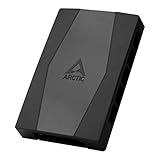
Likely Causes
| Cause | How to confirm | Fix difficulty |
|---|---|---|
| SATA power cable not fully seated or plugged into the wrong connector | Unplug and firmly reseat the SATA connector at the hub; check the L-shaped keying is oriented correctly | Easy |
| SATA power cable run from a Molex-to-SATA or daisy-chained adapter that is failing | Connect the hub directly to the PSU’s native SATA cable and retest | Easy |
| Hub PWM control jumper or switch set to DC/voltage mode while fans are PWM | Locate the small 3-pin/4-pin mode jumper or slider on the hub PCB and verify its position | Easy |
| Hub is SATA-powered but motherboard header controls only ground/signal, so fans spin at 100% or not at all | Check the hub manual: SATA-powered hubs often ignore header PWM; look for a “PWM sync” wire | Medium |
| Faulty SATA power lead on the modular PSU cable | Swap to a different SATA connector on the same PSU cable, or a different cable entirely | Easy |
| Dead hub PCB or blown 5V/12V regulation circuit | Test a known-good fan directly on the motherboard header; test the hub with a multimeter on its SATA 12V (yellow wire) pin if comfortable doing so | Hard |
Fix 1: Reseat the SATA Power Connector
What causes it
SATA power connectors are physically loose by design — the plastic housing offers no latch. During a case move, cable management session, or even from gravity over months of operation, the connector can back out just a few millimeters. Because SATA power distributes 12V, 5V, and ground across separate pins, a partially seated connector can make ground contact but drop 12V, leaving fans unable to spin.
How to check
Power down the system and flip the PSU switch off. Press the case power button for five seconds to drain residual charge. Gently tug the SATA connector at the hub — if it slides without meaningful resistance, it was not fully home. Also inspect for the connector sitting at an angle or the black housing gap visible between the hub port and the plug shoulder.
What to do
Push the connector straight in until the housing shoulders meet the hub port with no visible gap. Route the cable with a gentle slack loop so chassis flex or panel closing cannot pull on the plug. Power on and watch whether the fans now spin and respond to fan curve changes.
How to undo it
No need to undo; if it did not help, move to the next fix. The reseated connection is the correct configuration either way.
Fix 2: Bypass Adapters and Daisy Chains
What causes it
Molex-to-SATA adapters and third-party SATA daisy-chain cables are among the most common sources of melted connectors and intermittent 12V delivery. Cheap adapters use thin-gauge wire and crimped terminals that oxidize. If your hub draws its 12V through one of these, the fans may stutter, spin at reduced speed, or stay dead.
How to check
Trace the SATA cable from the hub back to its source. If it terminates in a Molex plug, a separate adapter block, or a non-native third-party modular cable, that is your suspect. Also sniff (literally) for a faint sweet/burnt plastic smell near the adapter, and look for browning or melting on the SATA plug body.
What to do
Connect the hub directly to a native SATA power connector on a cable that came with your PSU. If your PSU is non-modular and all native SATA leads are occupied, unplug the least important device (a spare SATA drive or RGB controller) temporarily and use its connector. Never mix modular cables between PSU brands or models — pinouts differ and this can destroy hardware.
How to undo it
Reconnect the original device to the freed SATA connector once the hub problem is diagnosed, keeping the hub on its own native connection if possible.
Fix 3: Swap to a Different SATA Connector or Cable
What causes it
On modular PSUs, an individual lead’s crimps can fail, and on older systems individual SATA connectors on a cable can wear out or suffer broken latch springs. The hub is fine; the delivery path is not.
How to check
With the PSU switched off, move the hub’s SATA plug to a different connector on the same cable. If behavior is identical, try a completely different cable (or the native cable if you were using one you sourced separately). Test that cable run with a device known to work, such as a 2.5-inch SSD, to isolate whether the cable itself is dead.
What to do
If a different connector or cable restores function, permanently retire the failed cable. Mark it with tape so it never finds its way back into a build. If only one connector on a cable is dead, avoid it going forward and note it.
How to undo it
Simply return plugs to their previous arrangement if the swap changes nothing — no settings are modified in this fix.
Fix 4: Check the Hub’s PWM/DC Mode Jumper
What causes it
Many hubs (Lian Li, Thermaltake, and generic ARGB/fan combo hubs among them) have a physical 3-pin/4-pin mode jumper, slide switch, or a dedicated “PWM” header on the PCB. If the hub is in DC mode but your fans are 4-pin PWM, fans may not spin at low duty cycles or may behave erratically. Conversely, some hubs ship with the jumper loose in the box and never installed.
How to check
Power down and inspect the hub PCB. Look for a small jumper block labeled “PWM” / “DC” or a 3-pin header labeled “PWM sync” that should receive a thin wire running to the motherboard’s CPU_FAN or SYS_FAN header. Consult the hub’s manual for jumper position conventions — many use “shorted = PWM pass-through, open = DC.”
What to do
Set the jumper to PWM mode for 4-pin fans, or DC mode for 3-pin fans. If the hub has a PWM sync wire, connect it to a working motherboard fan header (CPU_FAN is traditional; SYS_FAN works too). Set the corresponding header to PWM mode in BIOS — typically under Hardware Monitor, Q-Fan Control (ASUS), Smart Fan (MSI), or Smart Fan 6 (Gigabyte).
How to undo it
Return the jumper to its original position and note the original configuration if the change makes no difference.
Fix 5: Verify the Motherboard Header the Hub’s Control Wire Uses
What causes it
Some hubs split responsibilities: SATA provides the 12V bulk power, but a single thin control wire to a motherboard header carries the PWM signal that governs all fans on the hub. If that control wire is unplugged, or the motherboard header is disabled or set to DC mode in BIOS, all hub fans behave wrongly even though SATA power is technically connected.
How to check
Enter BIOS/UEFI (usually Del or F2 during boot) and open the hardware monitor/fan control section. Confirm the header the hub’s control wire uses is showing a PWM signal and is not set to “Stop” or a 0% minimum. In ASUS BIOS, this is under Q-Fan Control, selecting the header and checking its mode; in MSI under Smart Fan, mode toggle per header. Also physically confirm the control wire is seated at both the hub and the header.
What to do
Set the header mode to PWM if you use 4-pin fans. Set a sane curve, e.g., 40% at 40°C rising to 100% at 80°C for a CPU header, or a flat 30–50% for chassis fans on a SYS_FAN header. Ensure “Fan Stop” or zero-RPM features are disabled while testing so a stuck-at-zero reading is not mistaken for a dead fan.
How to undo it
Use the BIOS “Load Optimized Defaults” option (often F5 or via the exit menu) to restore stock fan behavior if the changes cause new problems.
Fix 6: Test Fans Individually on a Motherboard Header
What causes it
Sometimes the hub is innocent — one failed fan dragging the hub’s 12V rail down, or fans that are simply dead, can masquerade as a hub power fault.
How to check
Power down. Unplug each fan from the hub and plug one at a time directly into a motherboard SYS_FAN header. If a fan spins normally on the motherboard but not on the hub, the hub or its power path is at fault. If a fan does not spin on the motherboard either, that fan is dead or its connector is damaged.
What to do
Replace confirmed-dead fans. If all fans test fine individually, the hub itself or its SATA power delivery path is the problem — return to Fix 1 through Fix 3 to re-verify the power path before condemning the hub.
How to undo it
Replug all fans into the hub in their original positions once testing is complete.
Fix 7: Rule Out BIOS Fan-Stop and Control Software Conflicts
What causes it
Features like ASUS Fan Xpert “Fan Stop,” MSI “Zero Frozr” behavior configured by the user, or a conflict between BIOS control and software such as Fan Control, SignalRGB, or iCUE can hold fans at 0% even when the hub is powered perfectly.
How to check
Exit or uninstall control software temporarily (Fan Control keeps profiles in %APPDATA%\FanControl — rename that folder to force a clean config). In BIOS, check for “Fan Stop” toggles per header and any 0°C/low-temperature stop thresholds. Also confirm the CPU_FAN header is not reporting an error that triggers protective behavior — some boards disable chassis fan control if CPU_FAN is empty; if you use a hub on CPU_FAN with an AIO elsewhere, look for a “CPU Fan Speed Monitor” setting set to “Ignore” or “N/A” so the board does not halt or throttle fan control.
What to do
Disable fan-stop thresholds and set the CPU Fan Speed Monitor to Ignore if no analog fan is on CPU_FAN. Save with F10 and reboot. If fans now respond, reintroduce control software one at a time to find the conflict.
How to undo it
Restore the renamed FanControl config folder or re-enable fan-stop features if they were intentional.
Fix 8: Replace the Hub
What causes it
Hubs fail. Overvoltage events from mismatched modular PSU cables (a surprisingly common cause when people mix cables across PSU generations) can blow the hub’s 5V/12V regulation circuitry instantly, and cheap hubs use undersized components that degrade over years of 12V load.
How to check
Only after Fixes 1–7 have failed: the hub receives confirmed-good SATA power (verified with a known-good device on the same connector), the control wire is on a working header, and no fan attached to the hub spins even at boot (hubs typically run all fans at full speed for the first second or two at power-on — no spin at all during that window usually indicates no 12V reaching the hub). If you own a multimeter, with the system running, backprobe the hub’s SATA plug: between the yellow wire and either black wire you should read approximately 12V; between red and black, approximately 5V.
What to do
Replace the hub. Any SATA-powered PWM fan hub from a reputable brand works, or simply repurpose motherboard headers directly if you have enough of them — most modern boards carry four to six system fan headers, which eliminates the hub as a failure point permanently.
How to undo it
If the replacement also does not work, the fault lies elsewhere — return to Fix 5 and test the motherboard header with a single direct-connect fan before buying more parts.
If Nothing Works
At this point the hub, its power path, and its control path have all been isolated, so the remaining suspects are the motherboard headers themselves or the fans collectively. Test one fan directly on every motherboard header in turn: if a known-good fan fails on multiple headers, the board’s fan controller circuitry may be damaged, and a dedicated PCIe fan controller card or a powered external controller is the practical workaround. If the system also exhibits other power anomalies (USB devices dropping, drives disconnecting), suspect the PSU and test with a replacement if one is available. Finally, remember that a hub powered by a mismatched modular cable can fail in a way that damages fans plugged into it — if you discovered a cable mix-up during this process, test each fan individually before trusting them on a new hub.
FAQ
Do all case fan hubs need SATA power?
No. Pure PWM-splitter-style hubs (which duplicate a motherboard header’s signal to multiple fans) draw all their power from the header and do not use SATA. Hubs that do have a SATA connector require it — the motherboard header cannot safely supply power for six to ten fans, and running it that way is not a supported configuration.
Can I power a SATA fan hub with Molex instead?
Only with a properly wired Molex-to-SATA adapter, since SATA and Molex carry the same 12V and 5V rails on different pins. However, given how unreliable cheap adapters are, use a quality adapter from a known brand and inspect it regularly, or better, use a native SATA cable. Never use an adapter with melted or discolored housing.
Why do my hub fans spin at full speed no matter what I set?
This usually means the hub is powered by SATA but the PWM control signal is not reaching it — the hub defaults all fans to 100% when it sees no PWM signal. Check that the hub’s control wire is connected to a working motherboard header and that the header is set to PWM mode in BIOS.
Is it safe to run the PC with the fans not working while I troubleshoot?
Briefly, yes — modern CPUs and GPUs thermal throttle before they are damaged, and idle desktop loads generate little heat. But avoid gaming, rendering, or any sustained load, and monitor temperatures with HWiNFO64 while you work. If CPU package temperatures climb past roughly 90°C at idle, shut down and resolve the fan problem before continuing.







