
A cracked CPU socket or mounting bracket issue usually announces itself in one of a few unmistakable ways: the PC won’t POST at all, fans spin but you get no display, or the system boots only when you press down on the cooler. Sometimes it’s subtler — random shutdowns under load, CPU temperature spikes of 15–25°C over your normal baseline, or Windows reporting a downclocked processor stuck at its base or minimum multiplier. In the worst cases, you’ll spot the damage physically: bent or crushed socket pins, a hairline crack in the socket substrate around a mounting hole, or a bracket lug that’s snapped off and left the cooler sitting at an angle.
Here’s the urgent part: stop stressing the CPU immediately. A cracked socket substrate or a cooler applying uneven pressure can short adjacent pins or crack the CPU’s own substrate die, turning a repairable situation into a dead motherboard and possibly a dead processor. Power the system down, unplug it, and don’t keep “testing” it by reseating the cooler and hoping. Work through the checks below in a static-safe area, on a hard flat surface, with the motherboard removed from the case if possible — you’ll need good lighting and a magnifying glass or your phone’s camera zoomed in to inspect the socket properly.
As an Amazon Associate we earn from qualifying purchases at no extra cost to you.

Likely Causes
| Cause | How to confirm | Fix difficulty |
|---|---|---|
| Overtightened cooler screws or cam lever, cracking the socket substrate or bending the board | Visible crack radiating from a mounting hole; motherboard visibly bowing when viewed edge-on under the socket | Moderate to hard |
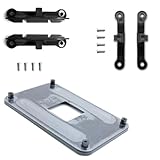
| Snapped mounting bracket lug or cracked plastic bracket | Bracket won’t hold tension; cooler rocks side to side; visible fracture line in the plastic or bent metal clip | Easy |
| Bent or crushed socket pins (LGA) or bent pins in the socket holes (PGA) | Shine a flashlight across the socket at a low angle; missing or leaning contacts are obvious against the flat grid | Hard |
| Cross-threaded or stripped standoffs behind the motherboard | Screws spin without tightening; standoff turns with the screw; check behind the tray | Easy to moderate |
| Cooler mounted at an angle, applying point pressure on one socket corner | Uneven old thermal paste footprint — thin on one side, thick blob on the other; thermal paste squeezed out only on one edge | Easy |
| Cracked CPU IHS substrate or damaged PCB around the die | Inspect the CPU’s green/black underside under magnification for hairline cracks or lifted corner; test the CPU in a known-good board | Hard (may be unfixable) |
Fix 1: Stop the Pressure and Stabilize the System
What causes it
The immediate symptom — no POST or intermittent boots — is usually caused by the cooler no longer applying even contact pressure, so the CPU IHS isn’t making flat contact with the cold plate and, more critically, socket contacts are losing consistent engagement.
How to check
Power off, unplug the PSU, and hold the case power button for 10 seconds to drain residual charge. Remove the GPU and any M.2 heatsink shrouds blocking access. Look at the cooler: does it sit parallel to the motherboard, or is one corner lifted? Press gently on each corner of the cold plate — any rocking means uneven mounting.
What to do
Unscrew the cooler gradually in a diagonal pattern, turning each screw only a quarter-turn at a time so you don’t torque the board further. Lift the cooler straight up. If the paste has hardened, twist gently to break the seal rather than prying. Clean the IHS and cold plate with 90%+ isopropyl alcohol and a lint-free cloth. Leave the cooler off for now and inspect the socket area (see Fix 3).
How to undo it
Reinstalling the cooler is the reverse: small pea-sized dot of paste in the center, align the cooler, and tighten screws in the diagonal X pattern, two or three turns each, until snug — roughly 0.4–0.6 N·m of torque if your kit specifies it. Never fully tighten one screw before the others.
Fix 2: Replace a Cracked or Snapped Mounting Bracket
What causes it
Plastic retention brackets (common on older AMD AM4 stock coolers and many budget air coolers) become brittle over time, especially after a few thermal cycles or if someone levered the cam bracket too hard. Metal backplate clips can also fatigue and snap at the bend point.
How to check
Hold the bracket under a bright light and flex it gently. Hairline cracks show as white stress lines in plastic. Check each hook, lug, and screw boss. Compare against a photo of the intact bracket on the manufacturer’s product page — even a 2–3 mm fracture will change mounting pressure.
What to do
How to undo it
Unscrew in reverse diagonal order, lift the bracket off, and swap back. Keep the old cracked bracket as a reference for hole spacing when ordering the replacement.
Fix 3: Inspect and Repair Minor Socket Damage
What causes it
Overtightening or an angled cooler can crack the thin substrate layer around the socket’s mounting holes or dislodge individual socket contact pads on LGA sockets (Intel LGA 115x/1200/1700/1851 and AMD AM5 are LGA; AM4 is PGA).
How to check
With the CPU removed (lift the retention arm, raise the retention plate, and lift the chip straight out by its edges), hold the motherboard under a bright angled light and examine the socket with 5–10x magnification. On LGA sockets, look for pads that are flattened, displaced, or sitting lower than neighbors. On PGA sockets, check for pins bent more than a few degrees. Also inspect the board surface for cracks radiating from the four mounting holes — hairline cracks in the FR4 substrate around a hole usually look like fine dark lines 5–15 mm long.
What to do
For bent LGA contact pads: use a mechanical pencil with a 0.5 mm lead (graphite retracted and tip filed flat) or a fine needle under a magnifier to gently nudge displaced pads back into the grid. Work slowly — a few millimeters of movement per pass. For minor substrate cracks that don’t reach any traces, the board can often keep working if mounting pressure is reduced: use the manufacturer’s low-profile backplate, add the correct insulating washer if the kit includes one, and torque screws to the low end of the spec range. If cracks reach traces or pads are torn, the board needs professional repair or replacement.
How to undo it
If pad-straightening makes things worse (a pad lifts or tears), stop — further attempts will cause permanent damage. Reinstall the CPU only when the grid looks uniformly flat under magnification.
Fix 4: Fix Stripped or Cross-Threaded Standoffs
What causes it
Reusing brass standoffs after a case swap, or overtightening cooler screws into bare motherboard mounting holes, can strip the threads or crack the solder mask around the hole, which lets the cooler torque directly onto the socket instead of the board’s reinforced mounting points.
How to check
Remove the motherboard and set it on its anti-static bag on a flat desk. Check each standoff: does it spin freely with the screw, or does it stay put while the screw turns? Look for lifted green solder mask or a white crack halo around any hole.
What to do
Replace any spinning standoff with a new one of the same thread (standard ATX cases use 6-32 UNC; some smaller cases use M3). If the hole itself is cracked, do not reuse it — relocate the standoff to an adjacent spare hole if the case has one, or use nylon washers and the next-widest supported mounting pattern. Never glue or JB Weld a standoff in place; thermal expansion will re-crack it.
How to undo it
Swap the old standoff back in if the new one doesn’t thread cleanly — thread damage is usually in the standoff, not the case tray.
Fix 5: Correct an Angled or Uneven Cooler Mount
What causes it
One side of the cooler tightened before the other, or a bracket seated slightly off its posts, causes point loading on a single socket corner. Over weeks of thermal cycling this fatigues the substrate and produces the crack you’re now dealing with.
How to check
Look at the old thermal paste footprint after removing the cooler. It should be an even, slightly squashed circle across the whole IHS. If one side shows a thick unspread blob and the other is scraped thin, the mount was uneven.
What to do
Reinstall with fresh paste (a 4–5 mm dot centered, or a rice-grain line for elongated IHS shapes like Intel LGA 1700) and tighten in the diagonal pattern: screw 1 two turns, screw 3 (diagonal opposite) two turns, then screws 2 and 4, and repeat until all are snug. For tower coolers with a crossbar, seat the bar fully flat on both posts before threading any screw.
How to undo it
Loosen in the same diagonal pattern, a quarter-turn at a time, if you need to re-seat.
Fix 6: RMA the Motherboard or Use the Warranty Path
What causes it
Cracks that reach socket contacts, torn LGA pads, or a substrate fracture through the PCB layers can’t be reliably fixed at a desk. This is also the right path if the damage was present on arrival.
How to check
Confirm the CPU itself still works — test it in a known-good motherboard or ask a local PC shop to bench-test it. If the CPU passes, the board is the failed part. Photograph the socket damage with good lighting; you’ll need these for the warranty claim.
What to do
Open a support ticket with the board manufacturer (ASUS, MSI, Gigabyte, ASRock all have RMA portals on their support sites). Provide the serial number, purchase date, and clear photos. Note whether the damage could be user-induced — some manufacturers classify an obviously cracked socket from overtightening as physical damage outside warranty, so be honest about the history. Expect a 2–4 week turnaround.
How to undo it
Not applicable — once the board ships, you’re committed to the RMA outcome.
Fix 7: Confirm CPU Health Before Reassembly
What causes it
The same overtightening event that cracked the socket may have transferred stress to the CPU’s own substrate, which is why a “fixed” system still won’t boot.
How to check
Inspect the CPU underside under magnification: look for hairline cracks in the substrate, discoloration around pads, or a corner that sits slightly proud. If any pad on the CPU is lifted or the substrate shows a crack, the chip is likely done.
What to do
If the CPU looks intact but you’re unsure, bench-test it: motherboard outside the case, on its box, with only CPU, one RAM stick, and the 24-pin plus 8-pin EPS connected, no GPU needed if the board has HDMI out. A successful POST here clears the CPU and confirms the board as the problem.
How to undo it
Return the CPU to its anti-static tray if it tests fine and reassemble in the case.
If Nothing Works
If you’ve replaced the bracket, verified even mounting pressure, inspected the socket under magnification, and the board still won’t POST, the damage is almost certainly beyond desk-level repair. At that point your realistic options are a professional microsoldering service, an RMA, or a replacement motherboard. Before you spend money, pull the CPU and test it in another system — it’s the single most valuable piece of information for deciding whether to repair or replace. If both the board and CPU are damaged, price out whether a current-gen board-plus-CPU bundle makes more sense than replacing parts individually; socket platforms move quickly enough in 2026 that replacing a multi-generation-old board outright is often cheaper than hunting down an out-of-production socket.
FAQ
Can a cracked CPU socket be repaired?
Yes, but only in specific cases. Hairline cracks in the substrate that don’t cross any traces can be managed by reducing mounting pressure with a proper backplate and correct torque.
Will a cracked socket damage my CPU?
It can. Uneven pressure from a cracked bracket or socket substrate can transfer stress to the CPU’s own substrate, and displaced LGA pads can short adjacent contacts. That’s why you should stop using the system as soon as you suspect socket damage rather than continuing to troubleshoot with power applied.
How tight should CPU cooler screws be?
Snug, not forced. Most manufacturer specs land between 0.3 and 0.6 N·m per screw for air coolers. If you don’t have a torque screwdriver, tighten in the diagonal pattern until the screw stops turning freely with normal finger-and-wrist pressure on a standard screwdriver — if you need to choke up on the handle for leverage, you’ve gone too far.
Can I still use my PC if the bracket is cracked but the system boots?
Not safely, and not for long. A cracked bracket applies uneven pressure that worsens with every heat-up and cool-down cycle, and it will eventually crack the socket substrate or warp the board. Replace the bracket first — they’re inexpensive and usually ship within a few days from the cooler manufacturer.







