
A dead fan hub usually announces itself in one of two ways. Either your fans spin at full blast the moment you power on and never respond to any software control, or they don’t spin at all while software like Fan Control, HWiNFO, or your motherboard vendor’s utility shows no hub connected. Sometimes the hub shows up in BIOS under hardware monitoring with zero RPM across every header it feeds, and sometimes it simply never appears anywhere — not in the BIOS fan section, not in Fan Control’s detected device list, not in your motherboard app’s sensor tree. The most common variant is subtle: fans work at a fixed speed, the hub’s SATA or PWM input cable is connected, but the motherboard reports nothing, so every fan curve you set is silently ignored.
How urgent is this? If your fans still spin, you have time — your CPU and GPU thermal protection will throttle before anything is damaged, and you can limp along on fixed fan speeds for days or even weeks while you troubleshoot. But if the hub isn’t detected at all and fans aren’t spinning, you’re running on passive cooling, and under any real load a modern CPU will hit thermal limits within a couple of minutes. Either way, this is almost always a fixable configuration or cabling problem rather than dead hardware, and most cases are resolved in under fifteen minutes with one of the fixes below. Work through them in order — each one is progressively more involved.
As an Amazon Associate we earn from qualifying purchases at no extra cost to you.

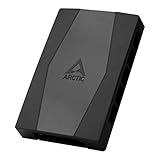
Likely Causes
| Cause | How to confirm | Fix difficulty |
|---|---|---|
| Hub’s PWM input cable plugged into a non-PWM header or a USB header by mistake | Trace the hub’s 4-pin input cable; check whether it lands on a header labeled SYS_FAN/CHA_FAN or something like ARGB/USB | Easy |
| The fan header feeding the hub is disabled or misconfigured in BIOS | Enter BIOS, open the hardware monitoring/fan section, and see if that specific header reports 0 RPM or is set to DC/ignore | Easy |
| Fan Control or vendor software isn’t running the right backend or lacks detection | Open Fan Control, check the Plugin/sensor list; or check your vendor app’s fan tab for a hub entry | Easy |
| SATA power cable to the hub is loose or from a daisy-chained adapter | Reseat the SATA plug and swap to a direct cable from the PSU | Easy |
| BIOS setting “CPU Fan Stop” or “Fan Speed Monitor” disabled, hiding detection | Check BIOS under Monitor/Hardware Monitor for a “Fan Speed Monitor” or “Q-Fan” toggle per header | Moderate |
| Hub itself failed or is incompatible with your board’s header output | Test a single fan directly on the motherboard header; if that works but the hub doesn’t, the hub is suspect | Moderate |
Fix 1: Reseat the hub’s PWM input cable
What causes it
The 4-pin cable that feeds the hub from the motherboard can work itself loose during shipping, cable management, or a recent component swap. A partially seated connector may deliver enough power for fans to spin at default speed without carrying the PWM signal the motherboard uses to detect and control the hub.
How to check
Power off, flip the PSU switch, and hold the case’s power button for five seconds to drain residual charge. Open the side panel and visually trace the hub’s input cable — usually a 4-pin female connector labeled “PWM” or “CPU/SYS” on the hub PCB. Firmly press it into the motherboard header and check that no pins are visible and the clip (if present) clicks.
What to do
Unplug the cable, inspect both the connector and the header for bent pins or debris, then reconnect it firmly. Power back on and check BIOS hardware monitoring or Fan Control’s sensor list.
How to undo it
Simply unplug the cable again if you need to move or reroute it. There’s no software or firmware change involved.
Fix 2: Move the input cable to a confirmed PWM header
What causes it
Some motherboards ship with a mix of 4-pin headers that only carry DC voltage control and no true PWM signal, or the hub was plugged into a header intended for a pump that requires a different control mode. A hub on a DC-mode header will usually power fans but never register as a controllable device.
How to check
Consult your motherboard manual — most list header modes under names like “PWM/DC Selection” or “Q-Fan Control Mode.” In BIOS, look at each SYS_FAN or CHA_FAN header and note which one is set to PWM versus DC.
What to do
Move the hub’s input cable to a header confirmed as PWM mode. On most modern boards, any 4-pin SYS_FAN or CPU_FAN header with PWM set works. Save BIOS changes (usually F10), reboot, and recheck detection.
How to undo it
Move the cable back to the original header and, if you changed BIOS settings, set the original header back to its previous mode.
Fix 3: Re-enable the header in BIOS
What causes it
Some boards default to ignoring headers that report no fan at boot, and a hub with all fans disconnected or stalled on one channel can trip that behavior. Others have a per-header “Fan Speed Monitor” or “Q-Fan Control” toggle that was turned off previously.
How to check
Enter BIOS (usually Del or F2 at boot) and navigate to the Monitor or Hardware Monitor tab. Look for entries like “Q-Fan Control,” “Smart Fan Mode,” or per-header toggles labeled “Fan Speed Monitor.” If a header reads “Ignore” or “N/A,” that’s your problem.
What to do
Set the offending header’s monitor/control to Enabled or PWM. On ASUS boards this is under Q-Fan Control; on MSI it’s under Hardware Monitor → “Fan Speed Control”; on Gigabyte it’s Smart Fan 6 per-header settings. Save and exit, then recheck in Windows.
How to undo it
Return the header setting to Ignore or Disabled if you want the motherboard to stop monitoring it again.
Fix 4: Swap the SATA power feed
What causes it
Hubs powered by SATA often draw from a daisy-chained cable shared with drives. A marginal connector, a bent SATA power pin, or an overloaded chain can starve the hub enough that its PWM passthrough dies even though fans still spin briefly on residual power.
How to check
Unplug the hub’s SATA power connector and inspect it for burn marks, bent pins, or wobble. If you’re using a Molex-to-SATA adapter or a long daisy chain, that’s a red flag.
What to do
Connect the hub to a direct SATA power run from the PSU — ideally the same cable that feeds your boot drive, on a different connector in the chain. Avoid adapters. Reboot and recheck.
How to undo it
Replug into the original connector if the swap made no difference and you prefer the original routing.
Fix 5: Update or reinstall Fan Control / vendor software
What causes it
Fan Control relies on LibreHardwareMonitor’s sensor tree to detect hubs and headers. A stale version, a Windows driver conflict, or a vendor app (Armoury Crate, MSI Center, Gigabyte Control Center) holding exclusive access can make a perfectly working hub invisible to the software.
How to check
Open HWiNFO64 in Sensors-only mode and look for the motherboard’s fan entries. If HWiNFO sees the header but Fan Control doesn’t, it’s a software-side detection issue, not hardware. Also check Device Manager → System Devices for a healthy Super I/O or Embedded Controller entry without a yellow warning icon.
What to do
Update Fan Control to the latest release, then uninstall any vendor RGB/fan app you don’t actively use — Armoury Crate and MSI Center in particular are known to lock sensor access. Reboot, launch Fan Control as administrator, and check the Sensors list for your hub’s header name.
How to undo it
Reinstall the vendor app if removing it didn’t help and you rely on its other features.
Fix 6: Test the header and hub independently
What causes it
At this point the fault is either a dead motherboard header or a failed hub. Both are possible, and the only way to tell them apart is isolation.
How to check
Plug a single known-working fan directly into the motherboard header the hub normally uses. Then plug that same fan directly into one of the hub’s output ports.
What to do
If the fan spins on the header but not through the hub, replace the hub — most are inexpensive and widely available in 2026 from Lian Li, Cooler Master, Thermaltake, and similar brands. If the fan doesn’t spin even directly on the header, the header itself is likely dead, and your practical options are moving the hub to a different header or using a PCIe fan controller.
How to undo it
Reconnect the hub to your chosen header once you’ve identified the faulty component.
Fix 7: Reset BIOS to defaults
What causes it
An aggressive fan-stop profile, an incorrect PWM/DC assignment, or a leftover setting from a previous BIOS update can suppress detection across all headers at once, which looks exactly like a dead hub.
How to check
If multiple headers are misbehaving at once, or if you recently flashed a new BIOS, this is a strong candidate. Check BIOS Monitor/Hardware Monitor for anything unusual across several headers, not just one.
What to do
In BIOS, use “Load Optimized Defaults” (commonly F5 on ASUS, F6 on MSI, F7 on Gigabyte), save with F10, and reboot. Re-enter BIOS afterward and set your preferred fan curves again, making sure each hub-fed header is in PWM mode.
How to undo it
Reapply any custom BIOS settings you had before the reset — there’s no automated rollback.
Fix 8: Update the motherboard BIOS
What causes it
Boards occasionally ship with embedded controller or Super I/O firmware quirks that misreport headers or hide devices until a BIOS update patches them. This is rare but real, particularly on freshly launched chipsets.
How to check
Find your exact board model printed on the PCB or in System Information (msinfo32 → BaseBoard Product), then look up the latest BIOS version on the manufacturer’s product page and compare it to the version shown in BIOS or in msinfo32.
What to do
Download the latest BIOS from the manufacturer’s support page onto a FAT32-formatted USB drive, then use the board’s built-in flash utility (EZ Flash, M-Flash, or Q-Flash, usually accessible from the BIOS main screen or with a key combo during boot). Do not power off during the update. Afterward, re-check fan detection and re-enter your fan curves.
How to undo it
Most boards don’t support downgrading, and you generally shouldn’t try. Treat this as a one-way change and only update if you’ve confirmed a newer version exists.
If Nothing Works
If the hub still isn’t detected after all eight fixes, you’re most likely looking at genuinely dead hardware. Test the hub in another PC if you have access to one — that’s the fastest way to confirm. If the hub is under warranty (most carry one to three years), contact the manufacturer with your invoice and a short description of the tests you’ve already performed; support teams take confirmed troubleshooting steps seriously. In the meantime, plug your most critical fans directly into motherboard headers so your system remains usable, and consider a PCIe fan controller as a stopgap if you’re out of spare headers.
FAQ
Can I plug a fan hub into a USB header instead?
Only if the hub is specifically designed as a USB device — some hubs with software control use an internal USB 2.0 header for reporting, plus SATA for power and a motherboard PWM header for speed control. A PWM-only hub plugged into a USB header won’t work at all, so check which connectors your hub actually has.
Do fan hubs reduce control quality compared to individual headers?
On a PWM hub, all fans typically receive the same duty-cycle signal, so you lose per-fan curves but keep full speed range. On a DC-mode hub, control is coarser and low-speed behavior is worse. If fine-grained control matters, use a hub that repeats true PWM on every channel.
Why do my fans spin at full speed when the hub isn’t detected?
Without a PWM signal, most fans default to 100% duty cycle as a fail-safe. That’s normal behavior and not a sign of fan damage — it just means the motherboard isn’t sending speed commands the fans can hear.
Is it safe to run my PC while troubleshooting an undetected hub?
Yes, as long as at least one fan — ideally the CPU cooler’s — is connected directly to a motherboard header and spinning. Avoid heavy loads like gaming or rendering until fan control is restored, and watch CPU temperature in HWiNFO or BIOS hardware monitoring; anything sustained above 90°C under load means stop and fix the cooling first.







