
To clone Windows to a new SSD, connect the new drive, run a cloning tool such as Macrium Reflect, or the SSD maker’s own migration software, select every partition on the Windows drive as the source and the new SSD as the target, then boot from the new drive and confirm Windows starts normally. Back up your important files first, because a clone overwrites everything on the target drive.
As an Amazon Associate we earn from qualifying purchases at no extra cost to you.


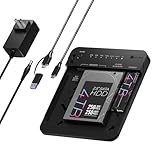

Top 3 picks at a glance
Before You Start: Prerequisites
- A full backup of anything you cannot lose, stored on a separate drive.
- Enough capacity. The used space on the old drive must fit on the new SSD. Cloning a larger drive to a smaller one is possible only if the used data fits and the tool supports resizing.
- A way to connect the new SSD. A free M.2 slot, a spare SATA port, or a USB enclosure or adapter for the new drive.
- Cloning software. Options include Macrium Reflect, and the maker tools for specific brands, such as Samsung Data Migration for Samsung SSDs. Some maker tools clone only to that brand’s drives, so read the tool’s requirements.
- Partition style check. Modern Windows PCs normally use GPT with UEFI. Older installs may use MBR with legacy BIOS. Reviewers and forum guides stress keeping the source and target on the same scheme, or converting with Microsoft’s mbr2gpt tool first, after a full backup.
- Power safety. Use a stable power source. On a laptop, plug in the charger.
Step-by-Step: Clone Windows to a New SSD
- Back up important data. Copy documents, game saves and license keys to an external drive or cloud storage.
- Install the new SSD. Power the PC off and unplug it. Touch bare metal on the case to discharge static, then fit an M.2 drive into a free slot or connect a SATA drive. If you only have one M.2 slot, use a USB adapter or enclosure. Refer to your motherboard manual for the correct slot and any lane-sharing notes.
- Boot Windows and initialise the drive if needed. Open Disk Management by right-clicking Start, then choose Disk Management. If the new disk shows as uninitialised, initialise it using the same partition style as the source (GPT or MBR). Do not format a partition if the cloning tool will rewrite the disk.
- Install and open the cloning tool. In Macrium Reflect, pick the Windows drive, then choose the option to clone this disk. In Samsung Data Migration, the tool selects the source and target and clones automatically.
- Select the source disk and all partitions. Include the EFI system partition, the recovery partition and the main Windows partition. Missing the EFI partition is a common reason a clone will not boot.
- Select the target disk. Double-check the drive model and capacity, because the target will be erased.
- Resize partitions if the tool allows it. In Macrium Reflect, the Cloned Partition Properties option lets you choose the size of each partition on the target, which is useful when moving to a larger drive and you want the main partition to use all available space. Maker-specific tools may clone one-to-one and leave the rest unallocated, which you can extend afterwards in Disk Management.
- Start the clone and wait. Do not turn off the PC while the process runs. Duration depends on data size and drive speeds.
- Power off and disconnect the old drive. With both drives connected, Windows can become confused about which one to boot from. Remove or disconnect the old drive, or leave it connected but change the boot order carefully.
- Set the new SSD as the boot drive. Enter the BIOS (commonly Delete or F2) and, under the boot options, make sure the boot mode is UEFI for a GPT clone and that Windows Boot Manager on the new SSD is first. Menu names vary by maker, so check the motherboard manual.
- Boot into Windows. Confirm the desktop, files and programs are present. Open Disk Management and review the drive layout.
- Extend the partition if space is unallocated. In Disk Management, right-click the main partition and choose Extend Volume if the option is available.
- Keep the old drive until you are sure. Use the new drive for a few days before wiping the old one. Then format it for storage or reuse.
Settings and Values Quick Reference
| Item | Recommended setting | Why it matters |
|---|---|---|
| Partition style | Match source and target (GPT or MBR) | Mismatches can stop the clone from booting |
| Partitions to clone | All system partitions, including EFI | The EFI partition holds the boot files |
| Firmware boot mode | UEFI for GPT installs | Legacy mode cannot boot a GPT install in most cases |
| Boot order | New SSD first | Ensures the clone is what starts |
| Old drive | Disconnected for first boot | Avoids boot-loader confusion |
| Extra space | Extend in Disk Management | Uses the full capacity of the new SSD |
| Backup | Done before the clone | Protects against a failed or mis-targeted operation |
What Result to Expect
After a successful clone, the PC should boot from the new SSD exactly like before, with the same files, programs and settings. Some users see a brief driver setup on first boot. Windows activation normally carries over because the hardware has not changed, though a drive swap on an unusual configuration can occasionally trigger a re-activation prompt.
If the Clone Will Not Boot
- Check that the BIOS boots from the new SSD and that the boot mode matches the partition style.
- Make sure the EFI system partition was included in the clone.
- Use the cloning tool’s rescue media option to repair Windows boot problems, if offered.
- A command-line boot repair using the Windows tool bcdboot can rebuild boot files for UEFI systems. Follow the Microsoft documentation closely, since choosing the wrong drive letter can cause further problems.
- If a SATA-to-NVMe clone fails to boot, the NVMe driver may not have been present on the source install. Boot the original drive, install the driver or install the latest chipset and storage drivers, and clone again.
Common Mistakes
- Cloning the wrong direction and erasing the old drive.
- Leaving out the EFI or recovery partitions.
- Booting with both drives connected and ending up on the wrong one.
- Mixing MBR and GPT without converting.
- Skipping the backup.
- Forgetting to extend the partition and wondering where the extra space went.
When Not to Clone
A fresh Windows install can be a better choice if the old install is slow, cluttered or showing errors, because cloning copies those problems along. If the old drive is failing, back up the files first and consider a fresh install, since a clone may fail on bad sectors. If the target is a drive brand your cloning tool does not support, choose a different tool. If you are unsure which partitions to select, consult the cloning tool’s documentation or ask a technician before starting.
Frequently Asked Questions
Can I clone to a smaller SSD?
Often yes, provided the used data fits on the smaller drive and your tool can shrink partitions. Some tools require you to shrink the main partition in Disk Management first. Always back up before attempting it.
Will cloning copy my games and programs?
Yes. A full-disk clone copies Windows, installed programs, settings and files from the selected partitions. Game launchers usually continue to work, though a few games may ask to re-scan files.
Do I need to reactivate Windows?
Usually not, because the activation is tied to the PC hardware and the motherboard stays the same. If Windows reports an activation issue, use the Activation page in Settings, then Troubleshoot.
Is cloning faster than a fresh install?
Cloning avoids reinstalling programs and restoring settings, so it is often faster to be back where you started. A fresh install gives a clean slate but takes longer to set up.
Should I use the SSD maker’s tool or a general tool?
Maker tools are simple and fit their own drives. General tools such as Macrium Reflect give finer control over partition sizes and work across brands. Choose by how much control you need.
Can I clone to an external SSD?
You can clone to a USB-connected SSD, but booting from it depends on firmware support and may be slower. Cloning to an internal drive is the normal route for a permanent upgrade.


