
A PC that smells burnt is telling you something is overheating, shorting or failing, and the power supply, its cables or the power connectors are the usual suspects. Shut the PC down, switch the PSU off at the rear, unplug it from the wall and look before you try again. The common causes are a connector that is not fully seated, dust cooking on a hot part, a stalled PSU fan, an overloaded or aging unit, and in a new build a brief residue smell. This guide separates the harmless from the dangerous and gives a clear order of checks.
Our Top Picks
 Thermaltake Dr. Power III Pro; ATX Power SupplyIII Pro5.5 x 3 x 0.75 inches0.3 PoundsCheck on Amazon

Top 3 picks at a glance
Quick Answer
- Stop first: power down, switch off the PSU, unplug the cord. Do not power the PC on to confirm the smell.
- Smoke, flame or melted plastic: keep away, leave the cord unplugged, and do not reuse the PSU or the cable that was involved.
- Check the connectors: look at the 24-pin, CPU, graphics and 12V-2×6 or 12VHPWR plugs for discoloration, soft plastic or brown marks. Poor seating is the documented main cause of melted graphics power connectors.
- Check the log: in Event Viewer, filter the System log for Kernel-Power Event ID 41. Zero values in that event point toward power interruption, which includes a faulty PSU.
- When in doubt, replace: a power supply that smells burnt and has no clear harmless explanation is not worth the risk to the rest of the PC.
What You Need
- A flashlight and a clear view of every power plug on the motherboard and graphics card.
- A small screwdriver to remove side panels. You do not need to open the PSU casing, and you should not.
- Compressed air or a soft brush for dust on fans, filters and heatsinks, applied from outside the PSU.
- Sensor software such as HWiNFO to look at temperatures and rail readings. Board sensors are approximate, so use them as hints and confirm with a tester or multimeter.
- Windows Event Viewer, which is built in.
- A PSU tester or multimeter for the rail check. Voltage windows are 11.4 to 12.6 V on the 12 V rail, 4.75 to 5.25 V on 5 V, and 3.14 to 3.47 V on 3.3 V.
Match the Smell to the Likely Cause
| What you notice | Likely cause | What to do |
|---|---|---|
| Faint dusty or hot-metal smell on first use of a new part | Residue or dust warming up | Watch for fading over a few hours. If it persists or grows, stop and check connectors |
| Sharp, acrid or melted-plastic smell near the graphics card or cables | Overheated connector or cable | Power off, inspect plugs, replace damaged cables |
| Burning smell from the rear of the case with a slow or silent PSU fan | Fan failure or internal overheating | Do not run it. Replace or send for warranty |
| Fishy, chemical or sharp electrical smell | Possible failed component or leaked electrolyte | Stop using the unit and replace it |
| Hot smell only under heavy load, with random shutdowns | Overload, heat or a PSU near its limit | Check wattage, airflow and the Event Viewer log |
| Smell at the wall plug or power strip | Loose plug, overloaded strip or damaged cord | Unplug and use a different outlet and cord |
A faint odor from a brand-new component is often reported and tends to fade, but treat that as an exception to rule out only after every other check is clean. A strong smell is never normal.
Diagnose Step by Step
Step 1: Power down and make it safe
- Shut down Windows if the system is stable, or hold the power button if it is not.
- Switch off the PSU at the rear and unplug the cord from the wall. Wait a few minutes for heat to dissipate.
- If you see smoke or flames, leave the area and use appropriate fire safety measures or call emergency services. Never pour water on a powered PC.
Step 2: Inspect the outside
- Check the wall plug, the PSU cord and the power strip for heat marks, a loose fit or a warm feel.
- Remove the side panel and use the flashlight on the 24-pin, EPS (CPU) and graphics connectors. Look for darkened pins, brown plastic, swollen housings or a plug sitting slightly out of its socket.
- Check the graphics card side of the cable too. Melting can show up at the card’s socket first.
- Look at the PSU intake and exhaust. A thick layer of dust, a stopped fan or a blocked vent explains heat.
Step 3: Find where the smell is strongest
Carefully bring your nose toward the PSU exhaust, then the graphics card, then the CPU area, without breathing deeply. A smell that follows the PSU exhaust points at the PSU. One that is stronger at the card points at the card or its connector.
Step 4: Read the sensors
If nothing looks damaged and the smell was mild, you may power on briefly for a look at software readings. Open HWiNFO and watch the CPU and GPU temperatures plus the 12 V, 5 V and 3.3 V readings. Sensor values on motherboards are approximate, and large swings or readings far outside the windows listed above justify stopping. Power off immediately if the smell returns.
Step 5: Check Windows logs for Kernel-Power
- Open Event Viewer, then Windows Logs, then System.
- Filter the current log for Event ID 41, source Microsoft-Windows-Kernel-Power.
- Microsoft says this event means the system rebooted without cleanly shutting down, and that it can be caused by a power interruption or a Stop error. When the bug check code is zero and the PowerButtonTimestamp is zero, Microsoft says this behavior might indicate a power supply problem.
- Event ID 6008 records an improper or dirty shutdown. Several of these around the time of the smell are a warning sign.
Step 6: Run a controlled test only if everything is clean
If connectors look healthy, the PSU fan spins and the smell was faint, run a short, supervised load such as a game or benchmark for ten minutes. Stay in the room, keep a hand near the power switch, and stop at the first sign of smell, noise or shutdown. If you have a tester or a spare PSU, swapping is the cleaner proof.
Fixes by Cause
A new PSU or part with a faint odor
Brand-new equipment can carry a light smell as dust or residue warms up for the first time. If it fades and no other symptoms appear, there is nothing to fix. If it is strong, keeps getting worse, or comes with noise or shutdowns, return the unit under warranty rather than hoping it settles.
An overheated or half-seated graphics power connector
Wikipedia notes that the main cause of 12VHPWR melting incidents was the connector not being fully seated while under load. The 12V-2×6 revision changed the socket so the sense pins only make contact when the power pins are properly seated. Practical steps:
- Switch off the PSU and unplug the cable at both ends.
- Inspect the plug and socket. If you see melted plastic or darkened pins, do not reuse either part. Contact the card and PSU makers.
- Reinstall by pushing the plug in fully until it clicks and sits flush. Do not put a hard bend directly at the connector, and follow the cable maker’s guidance on bend distance.
- Use the cable that came with the PSU or card, and avoid unverified adapters.
Dust, a failing fan or poor airflow
Dust on a PSU fan or intake slows the fan and traps heat. Clean the vents and filters from outside with compressed air, holding the fan still so it does not overspin. If the PSU fan does not spin up under load, or rattles, the unit should be replaced or sent for warranty service. Do not open the casing to clean it.
An overloaded or aging PSU
Microsoft advises checking that the power supply has enough wattage for the installed devices, especially after adding a faster graphics card, more drives or a newer processor. Add up the maximum power of your components using the makers’ figures and leave headroom. If the PSU is old and the PC resets under load, replacement is more reliable than repair.
Failed capacitors or other internal parts
Wikipedia explains that heat from ripple current evaporates the electrolyte in non-solid electrolytic capacitors, shortening their life, and that failure can be explosive or can leave bulging or crusty brown deposits. You cannot check these safely from outside, because PSU capacitors can hold a charge after unplugging. If you suspect internal failure, retire the unit. Opening it can void the warranty and risks electric shock.
The wall outlet, strip or cord
If the smell came from the plug end, try a different wall outlet and cord. A power strip that feels hot should be replaced. If a household breaker trips, do not keep resetting it. Have an electrician inspect the circuit.
If It Does Not Work
- The smell returns after cleaning. Replace the PSU or send it for warranty service.
- The PC resets under load with no smell. Test with another PSU. The Event 41 log helps decide whether power is the problem.
- A connector is discolored. Replace the cable and ask the card or PSU maker about the socket.
- You are unsure. Swap in a known-good PSU if you can borrow one. It is the fastest way to separate PSU faults from motherboard or graphics faults.
- The new PSU smells too. If the smell is mild and fades, wait. If strong or accompanied by noise, return it.
When to Replace or Reinstall
- Visible scorching, melting, swelling or smoke: replace the PSU and any melted cable.
- A stopped fan or loud grinding: replace.
- Repeated shutdowns under load with zero values in Event 41: test with another PSU, then replace if confirmed.
- A plug that was merely loose, with no damage: reseat it, clean it and monitor.
Gear That Helps
A tester is a diagnostic aid, not a way to bring a damaged PSU back into service. If the unit smells strongly burnt, replace it first and test afterward. For a unit with a mild or unexplained smell, these tools help rule things in or out. Confirm connector coverage on each listing.
Thermaltake Dr. Power III Pro – checks 12V-2×6 sense signals
As an Amazon Associate we earn from qualifying purchases at no extra cost to you.

Thermaltake lists voltage, continuity and Power Good checks, and sense-pin detection for 12+4-pin cables at 150, 300, 450 and 600 W. It supports supplies up to ATX12V v3.1. That helps when the smell involves a graphics cable, but it will not show a connector that overheats only under heavy load.
Fuhengli PSU tester – quick rail check with a screen

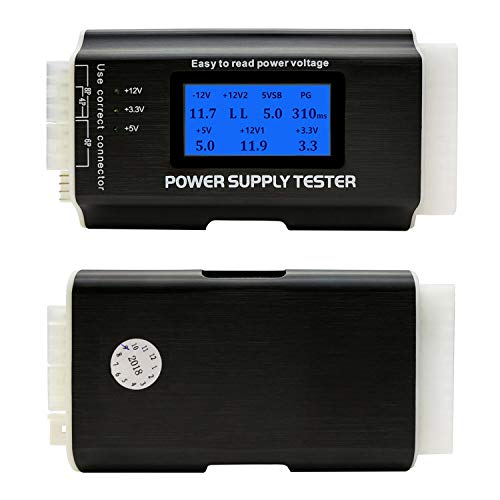
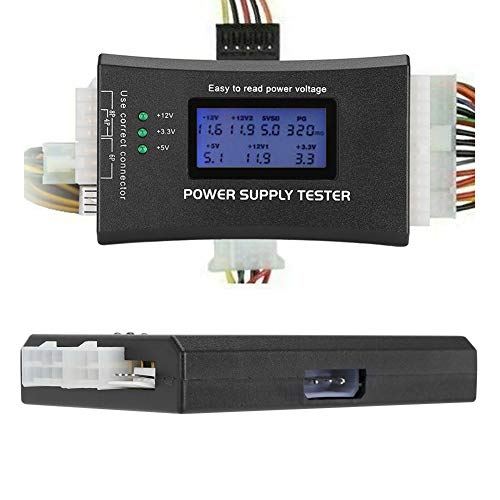
An LCD tester with connectors for ATX, ITX and drive leads listed on the page. It will show whether rails are present, but not how they behave under load or ripple. The title is truncated, so confirm what connectors are included.
Comidox 20/24-pin LCD tester – buzzer alert for a bad rail

It lists 20 and 24-pin testing with a buzzer alarm. A bench tool like this is for the main connector. It will not verify a hot connector or a failing fan.
ATX tester with 4, 6 and 8-pin leads – more cables covered

This model lists 20/24-pin plus 4, 6 and 8-pin connectors with an LCD and buzzer. It lets you check CPU and graphics leads in the same session. Accuracy on unbranded testers can vary, so use a multimeter as a second opinion before condemning a good unit.
Common Mistakes
- Powering on to confirm the smell. Each start risks more damage.
- Opening the PSU to look. Stored charge and warranty loss make this a poor idea.
- Trusting a tester as proof of health. A pass with a light load does not clear a burnt smell.
- Reusing a melted cable. Replace it, even if the plug seems to work.
- Blaming the PSU without checking the outlet and cord. A loose or damaged plug is common.
- Ignoring intermittent shutdowns. They can be an early warning.
Questions
Can a burning power supply ruin other PC components?
Yes, it can. A failing PSU can deliver unstable voltage, and a short or overheating connector can damage the motherboard or graphics card. This is a reason to stop at the first smell.
Is it safe to leave a PC running if the power supply smells slightly off?
No. If the smell is more than a faint, brief odor from new equipment, shut down and inspect. Overheating parts can fail suddenly.
How long does a new power supply smell last?
A faint odor from new equipment is commonly reported to fade as the unit warms through use, but there is no exact guarantee. Anything strong, sharp or lasting beyond the first hours is a reason to contact the seller.
What should I do if my home circuit breaker trips when the PSU smells burning?
Unplug the PC and leave the breaker alone until you know what tripped it. Do not reset it repeatedly. Try the PC on a different circuit only after removing the PSU, or have an electrician check the wiring.
Should I check Event Viewer even if the PC seems fine?
Yes. Event ID 41 entries and dirty shutdown events show whether unexpected power loss has already occurred, which supports the case for replacement or warranty.
Update History
- October 20, 2026 – Updated with specification checks and a revised product comparison.
- Check the product page for current specifications and availability before buying.
Sources
- Microsoft Learn: Event ID 41, the system has rebooted without cleanly shutting down first
- Wikipedia: 16-pin 12VHPWR connector
- Wikipedia: Electrolytic capacitor and Capacitor plague
- Wikipedia: Power supply unit (computer), protection features
- Thermaltake product page: Dr. Power III Pro specifications
- Product listing titles for the other listed testers






