Small Form Factor (SFF) PC builds demand absolute precision. Installing a Mini-ITX power supply—typically manufactured in the SFX or SFX-L form factor—presents unique spatial and thermal challenges compared to standard ATX tower builds. With tight interior clearances, stiff cable harnesses, and specialized chassis mounting layouts, using the correct technique prevents component damage, reduces thermal throttling, and eliminates hours of cable re-routing.
This guide covers how to prepare, wire, mount, and verify a Mini-ITX power supply in an SFF chassis. Before beginning, ensure your PC is completely disconnected from wall power, your workspace is static-free, and your Mini-ITX motherboard, CPU, and CPU cooler are already installed inside your case.
As an Amazon Associate we earn from qualifying purchases at no extra cost to you.


Our Top Picks

Before You Start
Installing an ITX power supply requires planning your cable paths before securing hardware. Small cases leave almost no room to maneuver hands or tools once the power supply unit (PSU) is locked into place. Review the components and tools needed below before starting.
| What You Need | Why | Optional? |
|---|---|---|
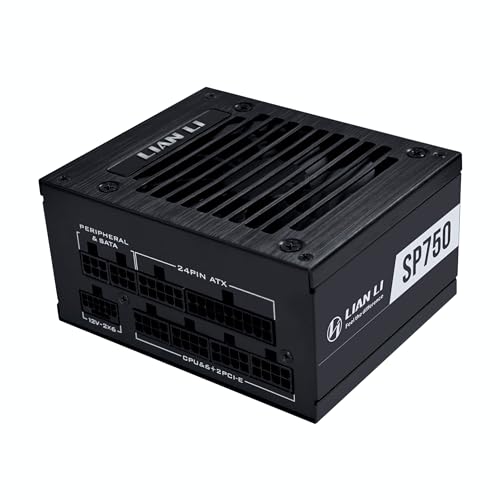
| SFX or SFX-L Power Supply | Provides main system DC power within compact small-form-factor dimensions. | No |
| #2 Phillips Screwdriver | Required to drive chassis screws, PSU mounting bracket fasteners, and frame mounts. | No |
| Modular Power Cables | Factory-supplied cables for 24-pin ATX, 8-pin EPS CPU, PCIe, and SATA power connections. | No |
| SFX-to-ATX Adapter Bracket | Adapts smaller SFX frame bolt patterns to fit standard ATX PSU mounting cutouts. | Yes (chassis dependent) |
| Custom Short Sleeved Cables | Reduces cable clutter in sub-11-liter cases to improve internal air passage. | Yes |
| PSU Jumper Bridge / Paperclip | Shorts PS_ON# to Ground to conduct zero-load power delivery checks prior to mounting. | Yes |
| Hook-and-Loop Cable Ties | Secures wire bundles to chassis tie-down loops without pinching wire insulation. | Yes |
Step-by-Step
Follow these numbered steps to prepare your modular wiring, secure the power supply chassis, and properly connect internal system rails.
Step 1: Unpack and Pre-route Modular Cables (Time estimate: 10 minutes)
Do not mount the power supply into the chassis immediately. In SFF cases, connecting modular cables to the PSU faceplate after it is installed is often physically impossible due to clearance constraints.
- Unpack your power supply and place it on an anti-static surface.
- Identify only the cables your build requires: 24-pin ATX cable, 8-pin (4+4) EPS CPU cable, 12V-2×6 or 8-pin PCIe cables for your GPU, and single-header SATA power cables for storage drive hubs. Leave unnecessary cables in the box.
- Firmly insert each selected cable into its corresponding socket on the modular PSU panel until the retention tab makes a distinct mechanical click.
- Train the cables by bending them along their natural flex points near the connector hoods. Pre-bending stiff 24-pin ribbon cables allows for much cleaner routing inside small enclosures.
Step 2: Mount the SFX PSU into the Chassis or Adapter Plate (Time estimate: 10 minutes)
Mini-ITX cases mount power supplies using either a direct SFX bracket or a removable modular cage. Determine your casing orientation before tightening screws.
- Check fan orientation: Position the PSU fan so it faces directly toward an exterior chassis vent (side, top, or front panel) to draw cool outside air into the PSU housing.
- If your chassis uses a standard ATX power supply cutout, attach the SFX-to-ATX adapter plate to the power supply using four flat-head countersunk screws included with the bracket.
- Slide the PSU into the case’s mounting bay. Align the four rear mounting holes with the chassis bracket pattern (SFX layout uses an asymmetrical 4-hole pattern).
- Insert four standard UNC 6-32 x 1/4-inch chassis screws using a #2 Phillips screwdriver. Tighten in a cross-pattern to a torque of approximately 0.8 Nm (hand-tight; do not over-torque).
Step 3: Connect 24-Pin ATX and 8-Pin EPS Motherboard Cables (Time estimate: 15 minutes)
Connecting primary motherboard power in an ITX system requires careful routing along the perimeter of the mainboard to prevent fan interference.
- Locate the 24-pin ATX power connector on the right edge of your Mini-ITX motherboard.
- Route the 24-pin cable bundle through the designated chassis cable pass-through, make a tight curve near the frame edge, and align the connector plug keying with the motherboard header.
- Apply even pressure straight down until the locking latch hooks over the header catch tab.
- Locate the 8-pin (4+4) EPS CPU power socket on the top-left edge of the motherboard. Route the cable up the side or back of the chassis frame, avoid the top CPU cooler fan blades, and snap the 8-pin plug into place.
Step 4: Connect PCIe / 12V-2×6 Power and SATA Peripherals (Time estimate: 15 minutes)
High-draw graphics cards require strict connection checks to ensure solid terminal contact and prevent voltage drop or connector overheating.
- For graphics cards using the 16-pin 12V-2×6 (or 12VHPWR) ATX 3.1 standard, align the plug straight with the GPU power receptacle. Push firmly inward until the plug face sits flush against the GPU socket wall with zero visible gap. Verify the side sense pins engage properly.
- For GPUs using standard 8-pin PCIe connectors, use independent, dedicated 8-pin cables from the PSU for each GPU port whenever power draw exceeds 225 watts. Avoid using single-cable pigtail splitters on high-draw cards.
- Route any necessary SATA or Molex power cables to 2.5-inch SSD drives or active fan controllers. Ensure flat cable runs beneath drive trays to keep air channels unobstructed.
Step 5: Secure Cables and Set Zero-RPM/Fan Control Switches (Time estimate: 10 minutes)
Finalize cable management and operational settings before closing the enclosure panels.
- Gather loose cable slack and bundle it along structural chassis struts using hook-and-loop ties. Keep a minimum 15mm clearance away from CPU fan blades and GPU heatpipes.
- Locate the semi-passive fan control toggle (labeled “ECO Mode”, “Zero-RPM”, or “Hybrid”) on the rear or side panel of the PSU module.
- Set the switch to ECO / HYBRID if you want silent operation during low loads (fan stays stationary under ~40% workload). Set the switch to NORMAL / AUTO if your SFF case has limited passive exhaust and requires constant active airflow through the PSU housing.
- If your SFF case uses an internal IEC power pass-through extension cable (common in front-mounted PSU layouts), plug the internal female C13 cable firmly into the PSU’s male C14 socket. Ensure the physical rocker switch on the PSU body is switched to I (ON).
Verify It Worked
Before closing the chassis side panels, verify that the unit supplies stable DC voltages across all primary rails.
1. Hardware Standby Test: Plug the main AC power cord into the wall outlet and the rear chassis socket. Check the motherboard surface. A small standby LED (usually labeled STBY, PWR_LED, or SB) should illuminate, confirming that the power supply’s +5VSB (5-volt standby) circuit is active.
2. UEFI/BIOS Rail Inspection: Press the case power button and immediately tap Delete or F2 during startup to enter the motherboard UEFI/BIOS utility.
- Press
F7to switch to Advanced Mode. - Navigate to
Advanced>Hardware Monitor(on ASUS/ASRock, navigate toMonitor; on MSI, selectHardware Monitor; on Gigabyte, selectSystem InfoorSettings>PC Health Status). - Check the real-time DC voltage values against standard ATX specifications (±5% tolerance range):
- +12V Rail: Should read between 11.40V and 12.60V (nominal range: 12.00V – 12.15V).
- +5V Rail: Should read between 4.75V and 5.25V (nominal range: 4.95V – 5.10V).
- +3.3V Rail: Should read between 3.14V and 3.47V (nominal range: 3.28V – 3.35V).
3. Windows Sensor Verification: Boot into Windows, download and open HWiNFO64, select Sensors-only mode, and click Start. Scroll down to the Motherboard Super I/O section (e.g., Nuvoton NCT6798D or ITE IT8688E). Monitor the +12V, +5V, and +3.3V sensor rows during heavy workloads to verify that lines remain within safety limits under load without excessive voltage droop.
Mistakes to Avoid
Review these common setup errors, along with instructions on how to identify, resolve, and reverse them.
Mixing Modular Cables from Different Power Supplies
- What causes it: Using modular cables from an older PSU or a different brand. Power supply pinouts on the PSU module side are not standardized, even if the motherboard end looks identical. Mismatched pinouts send high voltages to ground pins or lower-voltage logic lines.
- How to check: System trips short-circuit protection (SCP/OCP) instantly upon pressing power, makes an audible click from the PSU relay, or damages attached storage drives.
- What to do: Immediately disconnect main power. Remove all non-factory cables. Replace them strictly with the native cables packaged specifically with your exact power supply model.
- How to undo: Unplug the AC power cord from the wall. Disconnect all custom/third-party cables from the system. Re-install original factory cables and test individual components on a bench to check for damaged hardware.
Incomplete 12V-2×6 / 12VHPWR Connector Engagement
- What causes it: Inserting the 16-pin GPU power plug at an angle, pulling on delicate wiring, or failing to push the connector body hard enough to clear the latch lock inside cramped SFF enclosures.
- How to check: A visible gap remains between the male plug collar and female GPU header face, or sense pins fail to connect, causing the GPU fan to run at 100% RPM while displaying a black screen.
- What to do: Firmly grip the connector housing (not the wires). Apply steady, straight-in force until the retention latch snaps securely into place with no visible seam between connectors.
- How to undo: Turn off system power and pull the AC cable. Press down on the latch lever completely, extract the cable straight out from the socket, inspect internal pins for terminal bend or damage, and re-insert the plug straight into the port until flush.
Leaving the Internal PSU Rocker Switch OFF
- What causes it: Installing an SFX power supply inside an SFF case that uses an internal IEC pass-through extension cable without toggling the physical power rocker on the PSU body to the I (ON) position before closing the case.
- How to check: Pressing the case power button produces no fan spin, no LED lights, and zero sign of power, despite the wall cable being plugged in.
- What to do: Open the case side panel, locate the physical
I/Oswitch on the power supply face next to the AC inlet socket, and flip the switch to I. - How to undo: Disconnect the external AC cord, remove the case side panel, toggle the physical switch from
OtoI, re-seat the internal pass-through extension cable firmly into the PSU inlet, and reassemble the chassis.
FAQ
Can I install an SFX-L power supply in any Mini-ITX case?
No. While SFX-L shares the same width (125mm) and height (63.5mm) as standard SFX power supplies, it is 30mm longer (130mm depth compared to 100mm depth for standard SFX). In ultra-compact SFF cases (under 11 liters), that extra 30mm often interferes with long graphics cards, front-panel USB headers, or dedicated drive mounts. Always verify your specific chassis clearance specifications for SFX-L support before buying.
Should the PSU fan face inward or outward in an SFF case?
In almost all Mini-ITX cases, the power supply fan should face outward toward an exterior ventilated side, top, or front panel. This creates an isolated cooling loop where the PSU draws cool ambient air directly from outside the case and exhausts heat out of the rear vents, rather than pulling hot exhaust air from the CPU or GPU micro-environment.
Do I need an ATX 3.0 or ATX 3.1 ITX power supply for 2026 graphics cards?
Yes, choosing an ATX 3.1 certified SFX power supply with a native 12V-2×6 high-power cable is recommended for modern builds in 2026. The ATX 3.1 standard features revised sense pin lengths to ensure power is only delivered when connectors are fully seated, along with improved power excursion tolerance designed to handle sudden transient power spikes up to 200% of nominal rating without triggering premature over-current shutdowns.
What should I do if my SFF case uses an internal IEC pass-through extension cable?
Make sure the extension cable’s right-angle C13 plug is oriented so it does not block the power supply’s physical switch or strain adjacent chassis frame members. Plug the internal cable completely into the power supply input, flip the PSU rocker switch to I (ON), route the extension wire along internal case cable channels, and verify that the external C14 plug port on the back panel of the case is screwed firmly to the frame.