Expanding your PC cooling configuration by adding multiple intake or exhaust fans is one of the most effective ways to drop thermal load across your CPU and GPU. However, many mid-range and budget motherboards only include two or three chassis fan headers (labeled as SYS_FAN or CHA_FAN). Learning how to connect a PWM fan splitter allows you to run multiple 4-pin Pulse Width Modulation fans off a single motherboard header while maintaining synchronized speed curves and clean cable management.
In 2026, modern high-airflow PC cases routinely ship with three or more front intake fans, making fan splitters an essential accessory for custom desktop builders. By sending identical PWM duty cycle signals to all connected fans, a splitter ensures uniform airflow without overwhelming your system’s BIOS controls. Before beginning, ensure your PC is completely powered down, the power supply switch is flipped off, and your workspace is clear of static risk.
As an Amazon Associate we earn from qualifying purchases at no extra cost to you.

Our Top Picks


Before You Start
Before plugging hardware into your motherboard, gather the appropriate components and verify total power consumption. Motherboard fan headers have strict electrical current limits, usually rated at 1.0 Ampere (12 Watts) per standard header, though high-amperage dedicated pump headers (PUMP_FAN or AIO_PUMP) can support up to 2.0A or 3.0A. Connecting too many high-draw fans to a single non-powered Y-splitter can trip motherboard protection circuits or burn out header traces.
| What you need | Why | Optional? |
|---|---|---|
| 4-Pin PWM Fan Splitter Cable | Splits a single 4-pin motherboard fan header into 2, 3, or 4 outputs. | No |
| 4-Pin PWM PC Fans | Case or radiator fans equipped with 4-pin PWM connectors for dynamic speed control. | No |
| Motherboard Manual | Helps locate SYS_FAN / CHA_FAN headers and verify maximum header amperage limits. |
Yes |
| SATA-Powered PWM Fan Hub | Required if connecting 4 or more high-draw fans to avoid overloading motherboard header power limits. | Yes |
| Zip Ties / Hook-and-Loop Straps | Secures excess cable lengths behind the motherboard tray for clean rear cable routing. | Yes |
Step-by-Step
Step 1: Calculate Total Amperage Load (Time: 3 mins)
Check the electrical label on the back magnet hub of each fan you intend to connect to the splitter. Locate the current rating listed in Amperes (e.g., 12V DC 0.15A or 12V DC 0.25A). Sum the amperage of all fans sharing the splitter. For example, three 0.15A fans equal a total load of 0.45A. Ensure this total sum does not exceed 1.0A for standard motherboard chassis fan headers. If your total fan load exceeds 0.8A–1.0A, replace your passive Y-splitter cable with an active, SATA-powered PWM fan hub.
Step 2: Inspect the PWM Splitter Connectors (Time: 2 mins)
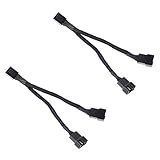
Examine the female output connectors on your PWM splitter cable. You will notice that only **one** output connector has all 4 pins populated, while the remaining output connectors only have 3 pins (missing Pin 3). This is deliberate by design. Pin 3 carries the RPM feedback tachometer signal back to the motherboard. If multiple fans send RPM feedback signals down the exact same wire, the BIOS sensor receives garbled data and reads absurd speeds like 15,000 RPM or 0 RPM. The 4-pin connector acts as the “master” reporting fan, while the 3-pin connectors act as “slaves” receiving speed instructions.
Step 3: Plug Fans into the Splitter Cable (Time: 3 mins)
Take your primary fan (ideally the fan mounted in the most critical thermal zone) and press its 4-pin connector securely into the splitter’s **4-pin master socket**. Ensure the plastic aligning guide latch on the fan connector slides into the guiding tab on the splitter socket. Next, connect your remaining 4-pin PWM fans into the splitter’s secondary 3-pin slave sockets. Align the plastic keyways carefully on all connections to prevent bent pins.
Step 4: Attach the Splitter Cable to the Motherboard Header (Time: 2 mins)
Locate an open 4-pin chassis fan header on your motherboard labeled SYS_FAN1, SYS_FAN2, or CHA_FAN1. Align the single female end of your PWM splitter with the motherboard header pins. Note the raised plastic keying tooth on the motherboard header; slide the guide channel of the splitter socket directly over this tooth until the connector sits fully flush against the PCB surface.
Step 5: Configure BIOS/UEFI Fan Curves and Control Mode (Time: 5 mins)
Power on your system and repeatedly press Delete or F2 during initial POST to enter your motherboard BIOS/UEFI firmware screen. Navigate to the hardware monitoring utility using the exact BIOS path for your manufacturer:
- ASUS: Press F7 for Advanced Mode >
Monitortab >Q-Fan Control - MSI: Press F7 for Advanced Mode >
Hardware Monitor - Gigabyte: Select the
Smart Fan 6tab on the main dashboard - ASRock: Go to
H/W Monitortab >FAN-Tastic Tuning
Select the specific fan header you plugged your splitter into (e.g., SYS_FAN1). Ensure the Control Mode is explicitly set to PWM Mode (4-pin) rather than DC Mode or Auto-Detect. Setting the header to PWM Mode sends a continuous 12V power supply alongside a dedicated 25kHz PWM control signal via Pin 4. Set your baseline linear fan curve (e.g., 30% duty cycle at 40°C CPU temperature, ramping linearly up to 100% duty cycle at 75°C). Press F10 to save changes and reboot into Windows.
Verify It Worked
Once Windows loads, open a dedicated hardware monitoring utility such as Fan Control (v180 or newer) or HWInfo64 in Sensors-Only mode. Scroll down to your motherboard sensor section and locate the header corresponding to your splitter (e.g., System 1 / SYS_FAN1).
Check the reported RPM reading. It should display a stable speed reflecting the tachometer output of your single master fan (typically between 500 RPM and 1800 RPM depending on your curve). Visually inspect the computer case chassis: all fans connected to the PWM splitter should be spinning at identical speeds. To run a functional test, open Fan Control, force the target header to 100% duty cycle manually, and verify that all connected fans simultaneously accelerate to maximum rated speed without lighting flickers, ticking noises, or dropping offline.
Mistakes to Avoid
Issue 1: Erratic RPM Readings or Unstable Speed Fluctuations
What causes it: Using a custom splitter where Pin 3 (tachometer signal line) is populated on multiple female output sockets, causing dual RPM pulse signals to collide on the motherboard sensor pin.
How to check: Open HWInfo64 and inspect the RPM line for your fan header. If it sporadically jumps between normal values, zero RPM, and 10,000+ RPM, signal collision is occurring.
What to do: Disconnect all fans from the splitter. Look inside the female socket housings of the splitter cable. Ensure only ONE socket contains 4 metal pins inside, and the rest contain 3 pins. If multiple sockets contain 4 pins, replace the cable with a properly wired 4-pin PWM splitter.
How to undo: Turn off the PC, disconnect the invalid splitter, and plug a standard single fan directly into the motherboard header to clear corrupted hardware sensor logs.
Issue 2: Fans Running at Constant 100% Max Speed
What causes it: The motherboard BIOS header control mode is set to “DC Mode” instead of “PWM Mode”. When set to DC Mode, the motherboard feeds maximum 12V voltage through Pin 2 while Pin 4 (PWM logic control) remains completely disabled.
How to check: Check fan noise levels immediately upon reaching the Windows desktop. If fan noise sounds like a wind tunnel and software duty cycle adjustments have zero effect, the header is supplying unmodulated 12V power.
What to do: Reboot into BIOS (`Advanced Mode` > `Hardware Monitor` or `Q-Fan`). Select the target header, toggle the control setting from `DC` or `Voltage` to `PWM Mode`, and press F10 to save and restart.
How to undo: If you intentionally want DC control for legacy 3-pin fans later, re-enter BIOS and toggle the header back from `PWM Mode` to `DC Mode` / `Auto` mode.
Issue 3: Splitter Stops Working / Header Blown Due to Amperage Overload
What causes it: Daisy-chaining too many high-performance, high-static pressure fans (e.g., 0.40A power draw each) onto a single non-powered splitter, drawing more than 1.0A continuous current through a standard motherboard header trace.
How to check: All fans connected to that specific header completely stop spinning, and the hardware monitor shows `0 RPM` even when forced to 100% in BIOS.
What to do: Immediately turn off the PC and unplug the splitter. Calculate fan amperage ratings carefully. Move extra fans to separate empty headers or install an active, SATA-powered PWM fan hub that draws primary 12V current directly from the power supply unit.
How to undo: Unplug overloaded cables from the blown header. Plug individual fans into alternate, working headers on the motherboard (such as `SYS_FAN2` or `CHA_FAN2`).
Issue 4: Secondary “Slave” Fans Fail to Spin at Low Duty Cycles
What causes it: Setting a BIOS minimum PWM duty cycle below the motor start voltage/duty threshold (e.g., setting PWM duty cycle to 15% when fan motors require 20% minimum duty cycle to start spinning).
How to check: The master fan connected to the 4-pin socket spins slowly, but secondary fans connected to 3-pin sockets remain completely motionless or twitch rhythmically without turning.
What to do: Enter BIOS fan configuration or Fan Control software. Increase the minimum idle fan speed percentage threshold from 10%–15% up to a baseline minimum of 25%–30% duty cycle.
How to undo: Lower the fan curve baseline percentage in steps of 2% until you locate the exact lowest reliable starting duty cycle for your fan model.
FAQ
Why does my PWM fan splitter only have 4 pins on one connector and 3 pins on the others?
This design is intentional and essential for proper functionality. Motherboard fan headers can only process a single RPM feedback signal per header. Pin 3 carries the tachometer pulse signal from the fan motor back to the BIOS. If multiple fans sent tachometer pulses down the same wire, the signals would interfere with each other, causing erroneous RPM readings. The single 4-pin connector sends master RPM feedback, while the 3-pin connectors deliver power, ground, and the PWM control signal without signal collision.
How many fans can I safely connect to a single motherboard fan header using a splitter?
Most standard motherboard chassis fan headers (SYS_FAN or CHA_FAN) are rated for a maximum output of 1.0 Ampere (12 Watts). A standard 120mm or 140mm case fan typically draws between 0.08A and 0.25A. As a general safety rule, you can safely connect **two to three standard fans** per header using a passive Y-splitter. If you are using high-RPM industrial fans, or connecting four or more fans, you must use an active, SATA-powered fan hub to prevent motherboard header damage.
Can I connect 3-pin DC fans to a PWM fan splitter?
Yes, 3-pin non-PWM fans physically fit onto standard 4-pin PWM splitter connectors due to backward-compatible alignment tabs. However, because 3-pin fans lack the fourth internal pin for PWM signal processing, they will run at continuous 100% full speed unless you switch the motherboard header control mode from `PWM` to `DC` (Voltage control) in your BIOS. Note that when set to DC Mode, all fans on the splitter will be speed-controlled via varying voltage supply across Pin 2 simultaneously.
What is the difference between a passive PWM fan splitter and a powered PWM fan hub?
A passive PWM fan splitter is a simple unpowered cable harness that pulls all electrical current (12V) directly from the motherboard header trace. An active PWM fan hub plugs directly into your power supply unit via a SATA or Molex power cable; it draws heavy electrical current directly from the power supply while pulling only the low-voltage PWM control signal and tachometer feedback from the motherboard fan header. Use passive splitters for 2–3 low-draw fans, and powered hubs for 4 to 10 fans.