
If you lay your case on its side to install a tower air cooler and the metal backplate drops off the back of the motherboard, or it slides down as soon as you stand the case upright, you are not alone. The symptom is usually a loose rectangular steel plate with threaded holes that will not stay flush against the board, often accompanied by rattling standoffs, cooler screws that will not catch Threads, and a cooler that feels wobbly even when you press it down.
This is not an emergency if the PC is powered off, but do not run the system with a loose or missing backplate. Without even mounting pressure the cooler cannot make full contact with the CPU, which can lead to thermal throttling, sudden shutdowns, and in a worst case a cooler that detaches during shipping or moving. The fixes below are ordered from quickest to most involved, and most of the current mounting kits in 2026 use the same basic backplate and standoff design, so these steps apply whether you have an Intel LGA 1700/1851 or AMD AM4/AM5 system.
As an Amazon Associate we earn from qualifying purchases at no extra cost to you.
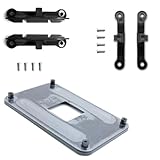

Likely Causes
| Cause | How to confirm | Fix difficulty |
|---|---|---|
| Case upright, gravity pulling plate down before standoffs are secured | Plate stays put when case is laid flat on its side but falls when vertical | Easy |
| Standoffs or spacers installed on wrong side or in wrong orientation | Standoffs spin freely, do not bite into backplate threads, or gap between board and plate | Easy |
| Adhesive film / protective film not removed or factory tape lost tack | Backplate has smooth plastic film or dry foam pads that do not stick to PCB | Easy |
| Wrong socket hardware kit installed (Intel vs AMD, LGA 1200 vs LGA 1700) | Hole spacing is off by 1-3 mm, screws will not align with backplate holes | Moderate |
| Missing insulating washers or plastic collars | Bare metal touches motherboard, standoffs bottom out too early | Moderate |
| Stripped or cross-threaded backplate threads | Standoff wobbles, will not tighten, spins without resistance | Moderate to Hard |
Fix 1: Hold the Backplate With Gravity and Tape While You Mount
What causes it
Most tower cooler backplates are not permanently attached. They are held in place only by the four standoffs that pass through the motherboard. Until those standoffs are screwed in, nothing keeps the plate from falling.
How to check
Lay the case on its side so the motherboard is horizontal with the back panel facing the floor. Place the backplate over the four mounting holes around the CPU socket. If it sits flat and does not shift, gravity is the only issue. Stand the case upright and watch if it immediately slides down.
What to do
Power off, switch off the PSU with the rear rocker switch, and unplug the power cord. Lay the case flat on a table with the motherboard facing up. Seat the backplate correctly, ensuring the raised threaded posts point through the board toward the CPU side. Have a second person hold it, or apply two small strips of low-residue painter’s tape across the backplate to the rear of the motherboard tray to keep it from moving. Keep the tape clear of any solder points and the CPU socket back area. While horizontal, hand-thread all four standoffs 2-3 turns before tightening any of them.
How to undo it
After the standoffs are finger-tight and the cooler bracket is secured, peel the painter’s tape off slowly from one corner. If any residue remains, wipe with a dry microfiber cloth. No BIOS or software changes to revert.
Fix 2: Restore the Non-Slip Layer on the Backplate
What causes it
Many stock backplates use thin double-sided foam pads or a plastic adhesive film to lightly tack the plate to the PCB during installation. If the clear protective film was left on, or the foam has collected dust and lost tack, the plate will not stay.
How to check
Remove the backplate and inspect the side that faces the motherboard. Look for a glossy clear film you can peel with a fingernail, or black/gray foam squares that feel dry and do not stick when pressed to clean cardboard.
What to do
Peel off any clear shipping film completely. If foam pads are dry, clean the backplate side with isopropyl alcohol 90% or higher and let it dry. Replace with new foam pads or cut two 10 mm x 10 mm squares of 3M VHB double-sided tape or 1 mm thick double-sided acrylic foam tape. Place them near the center of the plate, not over any traces or components, and avoid covering standoff holes. This is only an installation aid, not structural support – final clamping force comes from the standoffs.
How to undo it
To remove, warm the tape slightly with a hair dryer on low for 15 seconds and peel slowly. Clean any adhesive residue with isopropyl alcohol and a lint-free swab. You can return to painter’s tape method if you prefer no adhesive.
Fix 3: Correct Standoff Orientation and Thread Engagement
What causes it
Intel and AMD kits have standoffs with a male thread on one end and female thread on the other, or a shoulder that must face a specific direction. Installing them backward means they cannot thread into the backplate.
How to check
Compare your standoffs to the manual diagram. For a typical Thermalright, DeepCool, Noctua, or Cooler Master kit, the narrow threaded stud goes through the motherboard and screws into the backplate, while the wider knurled collar stays on the CPU side. If the standoff spins without catching or sticks out at an angle, it is reversed or cross-threaded.
What to do
With the case flat, drop the backplate into position. From the CPU side, insert each standoff through the motherboard hole and turn counter-clockwise a half turn until you feel a click, then clockwise to engage. Finger-tighten in an X pattern: top-left, bottom-right, top-right, bottom-left. Only after all four are started, tighten with fingers or a standoff driver. Do not use a power driver. The shoulder should seat firmly against the motherboard without crushing it.
How to undo it
Unscrew standoffs by hand in reverse X order. If you started them backward, simply remove and reinstall the correct way. No permanent change.
Fix 4: Use the Correct Socket Hardware for Your Board
What causes it
Intel LGA 1200, LGA 1700, and LGA 1851 share similar coolers but have different hole spacing and standoff heights. AMD AM4 and AM5 use a different backplate altogether. Using the wrong set leaves the backplate misaligned.
How to check
Open your motherboard box or check the model printed between the RAM slots and search the manual PDF. Confirm socket: LGA 1700 is 78 x 78 mm spacing, LGA 1851 is same but requires updated ILM pressure spec, AM5 is 54 x 90 mm. Compare the bag label on your cooler hardware – it should list Intel or AMD and the specific socket. If holes are off-center or screws sit at an angle, you have the wrong kit.
What to do
Locate the correct bag. For Intel, you typically get two sets of standoffs labeled A for LGA 1200/115x and B for LGA 1700/1851 – B is taller by about 1.5 mm. For AMD, you often reuse the stock AM5 backplate that came pre-installed on the motherboard and only swap the top brackets. Remove incorrect parts, install correct standoffs and top mounting bars. On Windows you do not need to change settings at File Explorer or Registry for this; this is purely mechanical.
How to undo it
Swap back to the other hardware set if you change boards. Store unused parts in the original hardware box labeled by socket to avoid mixing them again.
Fix 5: Reinstall Missing Insulating Washers and Plastic Collars
What causes it
The kit includes thin black or red fiber washers or plastic collars that sit between the standoff shoulder and the motherboard. Without them, the standoff bottoms out before clamping the backplate, so the plate feels loose.
How to check
Look at each mounting hole from the CPU side. You should see a washer or plastic spacer between standoff and PCB. If you see bare metal of the standoff touching the board, or you have extra washers rattling in the accessory bag, they were missed.
What to do
Remove standoffs. Place one insulating washer over each backplate stud or motherboard hole per the manual – on most kits the washer goes on the CPU side. For plastic collar designs, the collar snaps onto the standoff before insertion. Reseat the backplate, insert standoffs with washers in place, and finger-tighten in X pattern until snug. The washer should compress slightly but not deform.
How to undo it
Remove standoffs and lift washers off with tweezers. They are not adhesive, so removal is instant. Keep them together for future rebuilds.
Fix 6: Stop Cross-Threading and Over-Tightening
What causes it
Forcing a standoff at an angle strips the soft threads in the stamped steel backplate. Over-tightening with pliers can also oval the threads, so the standoff never locks.
How to check
Try threading a standoff with only fingertips. It should turn smoothly for at least 3 full rotations. If it binds after half a turn, wobbles, or you see metal shavings or a shiny worn thread, the hole is damaged.
What to do
Back the standoff out. Inspect threads with a flashlight. Re-start by turning counter-clockwise until a click, then clockwise gently. Use only finger force, or a small standoff tool with light pressure. Tighten until you feel firm resistance, then stop – do not exceed roughly a quarter turn past finger-tight. If threads are lightly damaged, try a different standoff from the same kit in that hole, as stud threads vary. For a severely stripped hole, rotate the backplate 180 degrees if it is rectangular and use undamaged holes, or proceed to Fix 7.
How to undo it
Loosen standoffs a half turn if you over-tightened. If you switched holes by rotating the plate, rotate it back once you source a replacement.
Fix 7: Stabilize a Loose Universal Backplate
What causes it
Aftermarket universal backplates have sliding arms to fit multiple sockets. The arms can slide open under gravity before the top bracket locks them.
How to check
Look at the backplate arms – if they have slots with thumbscrews or sliding plastic clips, push them apart and they move freely. The mounting holes will be oblong slots rather than fixed round holes.
How to do
With the board flat, set the sliding arms to the correct width per your socket. For Intel, set the thumbscrews to the 78 mm position; for AMD, set to inner position. Snug the thumbscrews on the backplate itself first with a Phillips #1 screwdriver. Then apply a small strip of Kapton tape or painter’s tape over the slider to prevent drift. Install standoffs from the front and confirm the cooler bracket aligns without forcing. Use a final X-pattern tightening sequence.
How to undo it
Remove the Kapton or painter’s tape and loosen the slider thumbscrews to return to universal position. This restores compatibility for other sockets.
Fix 8: Replace a Warped or Stripped Backplate
What causes it
A backplate that has been bent from over-tightening, dropped, or reused across builds may be bowed and never sit flush, or its threads are beyond repair.
How to check
Place the backplate on a flat glass table or countertop, thread side up. Press one corner – if it rocks or you see a visible bow of more than 0.5 mm, it is warped. Test each hole with a known-good standoff; if two or more holes fail to hold, replacement is needed.
What to do
Order the exact replacement kit using cooler model and socket: search the cooler manufacturer’s support site for Mounting Kit and enter your cooler name and socket, for example Noctua NM-i17xx-MP83 or Thermalright LGA1700 Bracket Kit. Contact support with a photo of the backplate if unsure. While waiting, do not improvise with longer screws through the board without a backplate. When the new plate arrives, install it with the case flat using Fixes 1 through 5.
How to undo it
Keep the old backplate as a spare for testing. If the new plate does not solve the issue, you can reinstall the old one – but if it is warped, discard it to avoid accidental reuse.
If Nothing Works
If the backplate still will not stay after trying the fixes above, remove the cooler and motherboard from the case and perform a bench test on a non-conductive surface like the motherboard box. With the board flat, install only the backplate and standoffs with no cooler. If it still will not clamp, you have confirmed a hardware mismatch or damaged plate, not a case clearance problem. Double-check that your board does not use a proprietary backplate integrated into the stock AMD AM5 retention frame – some boards require you keep the factory backplate and not use the one in the cooler box.
Take clear photos of the backplate front and back, the standoffs, and the socket area, then contact the cooler manufacturer’s support ticket system. Most vendors ship a corrected kit within a few business days under warranty. As a temporary measure to protect the CPU, do not run extended workloads. You can enter BIOS by pressing Del or F2 during boot and monitor CPU temperature at Main > Hardware Monitor or MIT > PC Health Status to confirm the cooler is making contact – it should idle under roughly 50 degrees Celsius at ambient room temperature before you attempt any stress test with software like Cinebench or HWInfo64. If temps immediately spike above 90 degrees Celsius at idle, power off and stop.
FAQ
Can I use glue or super glue to hold the backplate on?
No. Super glue can damage the PCB solder mask and makes future removal risky. Use low-residue painter’s tape as an install aid or replace the factory double-sided foam pads. Final retention must come from the standoffs and mounting bars, not adhesive strength.
Do I need to remove the motherboard to install the backplate?
Usually not if the case has a large CPU cutout behind the motherboard tray. You can access the backplate through that window. If the cutout is too small or the backplate is larger than the opening, remove the motherboard by removing GPU screws, disconnecting 24-pin ATX and 8-pin EPS power cables, and unscrewing the 7-9 standoff screws in order to lay the board flat.
Will the PC boot if the backplate is loose?
It may boot, but the cooler will have uneven pressure and cooling will be poor. The system may thermal throttle, show high CPU temperatures in Task Manager > Performance > CPU or HWInfo64 sensor window, or shut down unexpectedly. Always power off and fix the mount before sustained use.
How tight should the standoffs and cooler screws be?
Finger-tight plus a slight snug with a screwdriver. Tighten cooler thumbscrews in an X pattern alternating a half turn at a time until they bottom out on the springs or shoulder stops. Do not use a drill or force past the stop – you should feel a definite stop when the spring is fully compressed. If you used a torque screwdriver, stay within 0.3 to 0.6 Nm, which is hand-tight.







