
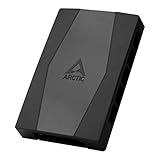
You press the power button, the system boots, and then you notice it: six fans sitting dead-still while your GPU heats up. Or maybe only a few fans spin, one header’s worth of RGB pulses but the blades don’t move, or everything works until you launch a game and the hub seems to cut out under load. SATA-powered fan hubs are the usual culprit in these situations — they draw their main 12V supply directly from the power supply through a SATA connector, and they only use the motherboard’s fan header as a low-power control signal. That split design works well when it’s healthy, but it creates more failure points than a plain motherboard header: the SATA leg, the PWM tach line, the control cable, and the hub’s own firmware or mode switch can each fail independently.
The good news is that this is almost never urgent. Dead fans on a hub won’t damage anything in the first few minutes, and modern GPUs and CPUs will throttle themselves long before they overheat. That said, don’t ignore it for days — run the system at light load (browsing, document work) while you troubleshoot, and check your CPU temperature in HWiNFO64 to confirm you’re staying under roughly 85°C. If your fans are completely dead and you want to game anyway, that’s the one scenario where you should stop and fix it first. Work through the fixes below in order; most people solve this in the first three steps.
As an Amazon Associate we earn from qualifying purchases at no extra cost to you.

Likely Causes
| Cause | How to confirm | Fix difficulty |
|---|---|---|
| SATA power cable not fully seated or wrong cable used | Reseat the SATA connector at both the hub and the PSU end; check the PSU side uses the same modular cable the manual specifies | Very easy |
| Fans set to DC/voltage mode in BIOS instead of PWM | Enter BIOS, open the hardware monitor, check whether the hub header is set to PWM or DC, then compare fan behavior after switching | Easy |
| Control cable plugged into a CPU_FAN header with no CPU fan signal, or into a header disabled in BIOS | Try the hub’s control cable on CHA_FAN1; if fans spring to life, the original header was the problem | Easy |
| Zero-RPM / fan-stop feature holding fans off at low temperature | Check BIOS fan curve — if the first curve point is 0% until 40-50°C, the hub may simply be obeying it | Easy |
| Splitter or extension cable in the SATA leg causing voltage drop | Remove any SATA power splitter or long extension and plug the hub straight into a PSU cable | Moderate |
| Hub firmware needs an update, or the hub itself has failed | Check the manufacturer’s support page for firmware/utility updates; test a known-good fan directly on the motherboard header | Moderate |
Fix 1: Reseat the SATA Power Connection
What causes it
SATA power connectors are keyed but loose-toleranced. During case work, cable management, or shipping, the connector can back out a few millimeters — enough that the 12V pin loses contact while the connector still looks plugged in. Modular PSUs add a second failure point: the cable at the PSU end can also work loose, or the wrong modular cable (peripheral vs. SATA types are not always interchangeable between PSU models) can be used.
How to check
Power off the system and flip the PSU switch off. Press the power button for 10 seconds to drain residual charge. Grab the SATA connector on the hub and tug gently — if it slides at all, it wasn’t fully seated.
What to do
Push the SATA connector in until it clicks fully home; SATA power latches can require more force than people expect. At the PSU end, confirm the modular cable is fully clicked in and matches the label on the PSU socket (usually “SATA/PERIPHERAL”). Power on and watch the fans at boot.
How to undo it
Not applicable — this is a connection fix with nothing to revert.
Fix 2: Switch the Header to PWM Mode in BIOS
What causes it
Most SATA hubs pass the motherboard header’s PWM signal to all connected fans. If the source header is set to DC (voltage) mode, the hub receives a varying voltage instead of a PWM duty cycle. Many hubs and PWM fans simply won’t spin, or will run at a fixed awkward speed, in DC mode.
How to check
Reboot and enter BIOS/UEFI (usually Delete or F2 during POST). Navigate to the hardware monitor — commonly labeled “Q-Fan Control” on ASUS, “Smart Fan 6” on Gigabyte, “Fan Control” on MSI, or “Hardware Monitor” on ASRock. Find the header the hub’s control cable uses and check the mode setting.
What to do
Set the header to PWM mode. Set a simple curve while you’re there — for example, 40% at 30°C rising to 100% at 80°C — so you can immediately confirm the fans respond. Save with F10 and reboot.
How to undo it
Return to the same BIOS screen and set the header back to Auto or DC if you prefer voltage control for another device on that header.
Fix 3: Move the Control Cable to a Different Fan Header
What causes it
The hub’s small control cable (usually a 3- or 4-pin lead running to the motherboard) is what tells the fans what to do. If it’s plugged into a CPU_FAN header, some boards hold the signal off or throw a CPU fan error at boot; if it’s on a header that’s disabled, set to DC only, or dead, the hub gets no instruction at all.
How to check
Look at where the control cable terminates on the motherboard. Consult your board manual for which headers are PWM-capable — most modern CHA_FAN headers are, but a few budget boards still mix types.
What to do
Move the control cable to CHA_FAN1 (or SYS_FAN1). Boot and check fan response. If the fans now work, the original header was disabled or misconfigured — go back to Fix 2’s BIOS screens and enable/reconfigure it if you want to use it again.
How to undo it
Move the cable back to its original header once that header is confirmed working.
Fix 4: Raise or Reset the Fan Curve (Disable Zero-RPM)
What causes it
Many boards ship with a semi-passive curve: 0% PWM below a threshold temperature (often 40–60°C) so the system is silent at idle. On a hub, a 0% signal can look identical to “not working,” especially if your CPU runs cool at idle.
How to check
In the same BIOS fan-control screen, look at the curve for the hub’s header. If the first point is 0% and fans only start at 50°C or higher, that’s your answer. You can also confirm by running a short load — if fans spin up only once temperatures climb, the hub is fine.
What to do
Edit the curve so the first point is at least 20–30% duty at around 30–40°C. Save and exit. Fans should now spin at all times. If you prefer Windows control, install the motherboard utility (Armoury Crate Fan Connect, Gigabyte Control Center, MSI Center) or the free third-party app FanControl and set a minimum speed there instead.
How to undo it
Restore the original curve points in BIOS, or use the “revert to default” option in your board’s fan utility.
Fix 5: Eliminate SATA Splitters and Extensions
What causes it
Fan hubs pull meaningful 12V current — six fans at 0.2–0.3A each can approach 2A. A cheap SATA power splitter or a long extension adds resistance, and marginal connectors can sag voltage under load, causing fans to stall, spin intermittently, or cut out once everything is running.
How to check
Trace the hub’s SATA lead. If it passes through any splitter, extension, or daisy-chained SATA peripheral cable, note it. Intermittent behavior under load (fans fine at idle, cutting out in games) is the classic symptom.
What to do
Plug the hub’s SATA connector directly into a dedicated PSU cable run — not the same cable leg as your hard drives if you can avoid it. Power on and test at idle and under load (a 10-minute game session or a stress test works).
How to undo it
Reattach the splitter or extension once the hub is confirmed working; if the problem returns, you’ve found the faulty cable.
Fix 6: Update Hub Firmware and Drivers
What causes it
Addressable-RGB and software-controlled hubs (from brands like Corsair, Lian Li, NZXT, and Cooler Master) run internal firmware and depend on a vendor utility. A buggy firmware version can fail to initialize fans at boot, drop fans after sleep, or ignore control commands.
How to check
Open the vendor utility (iCUE, L-Connect, CAM, MasterPlus, etc.) and look for a firmware tab or device-info panel. Compare the listed version against the download page on the manufacturer’s support site. Also check Windows Update and the vendor utility for pending driver updates.
What to do
Install the current version of the vendor utility, run its firmware updater with the hub connected, and don’t interrupt the process. Reboot afterward. If fans work in the utility but not in BIOS, note that — software hubs often only control fans once the utility is running, which is expected behavior, not a fault.
How to undo it
Uninstall the utility or roll back to an earlier firmware version from the vendor’s archive page if the update causes new problems.
Fix 7: Test Fans Individually on the Motherboard
What causes it
Sometimes the hub is innocent. A single failed fan can drag down a shared 12V rail on some hubs, or the fans themselves may have died, and you’ve been troubleshooting the wrong component.
How to check
Power off. Unplug one fan from the hub and connect it directly to a motherboard CHA_FAN header with the standard 4-pin plug. Boot and see if it spins. Repeat for each fan if needed.
What to do
If a fan spins on the motherboard but not on the hub, the hub is at fault — proceed to Fix 8. If a fan doesn’t spin anywhere, replace that fan. If multiple fans are dead, check whether they share a common failure (same batch, visible damage to the cable where it exits the frame).
How to undo it
Fix 8: Reset CMOS and Re-Rate the Hub
What causes it
A corrupted BIOS fan-configuration table — sometimes after a BIOS update or a hard power event — can leave headers in a state where no fan signal is generated regardless of settings.
How to check
This is a last-ditch step. It’s worth trying if BIOS fan settings appear correct, all hardware checks pass, and fans still don’t respond on any header.
What to do
Power off and flip the PSU switch. Clear CMOS using the onboard CLR_CMOS jumper (hold per your manual, usually 5–10 seconds) or remove the coin cell for a minute. Boot, enter BIOS, reconfigure the fan header to PWM with a starting curve of 30% at 30°C, save, and test.
How to undo it
Re-enter any other BIOS settings you had customized (boot order, XMP/EXPO memory profile, etc.) after the reset.
If Nothing Works
If fans test fine individually, the SATA leg is solid, BIOS is correctly configured, and a CMOS reset didn’t help, the hub itself has likely failed. SATA fan hubs are inexpensive and widely available in 2026, and replacement is a five-minute job: mount the new hub, connect its SATA power and control cables, and confirm fan operation in BIOS before closing the case. Before you buy, contact the hub manufacturer’s support — many brands (Corsair, Lian Li, NZXT among them) replace failed hubs under a two- to five-year warranty with just a proof of purchase. As an interim measure, connect your two most important fans (CPU cooler and one exhaust) directly to motherboard headers so the system remains safely cooled.
FAQ
Do SATA fan hubs need the motherboard cable at all?
For power, no — the SATA connector supplies 12V, so fans may spin at full speed without the control cable. For speed control and tachometer readings, yes: the motherboard cable carries the PWM signal and reports RPM back, so leave it connected.
Can one SATA hub safely power six or more fans?
Yes, in most cases. A SATA power pin is rated well beyond what six case fans draw (typically under 2A total). Avoid stacking splitters on the SATA leg, and don’t mix high-draw devices onto the same cable run.
Why do my fans work in the vendor software but not in BIOS?
Software-controlled hubs initialize only once their utility loads in Windows. Before the utility runs, the hub may hold fans at a default or off state. Set your BIOS header to PWM with a nonzero minimum so fans spin during boot, then let the software take over.
Is it normal for fans to spin at boot and then stop?
Yes — most systems run fans at full speed during POST, then hand control to the fan curve once the OS or BIOS power-on self-test completes. If your curve has a 0% low-temperature zone, fans stopping shortly after boot is expected, not a fault. Raise the minimum duty cycle if you want constant airflow.







